> ## Documentation Index
> Fetch the complete documentation index at: https://help.getvero.com/llms.txt
> Use this file to discover all available pages before exploring further.
# Setting up Two-Factor Authentication (2FA)
> Enable two-factor authentication to add an extra layer of security to your Vero account.
Two-factor authentication (2FA) is a common way to add an extra layer of security on you account. If 2FA is enabled on your account, during login you will be asked to enter a generated code (one time code) to complete authentication.
To use 2FA you will need a One Time Code generator such as Google Authenticator, Authy, or One Time Password.
**How to setup 2FA**
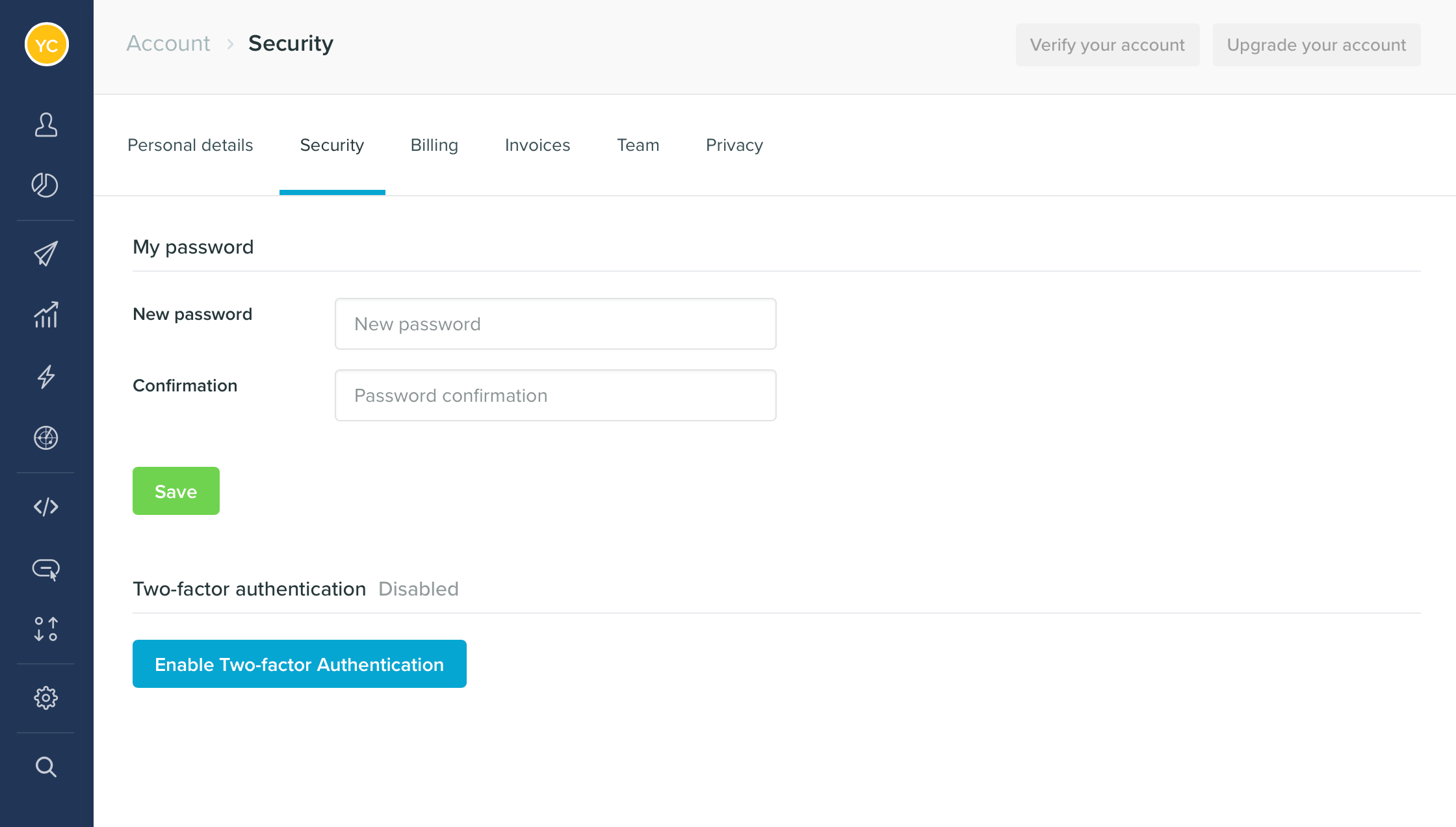
To enable 2FA on your account, navigate to the [security settings](https://app.getvero.com/account/security "Account security page in Vero") page and click on *Enable Two-Factor Authentication*.
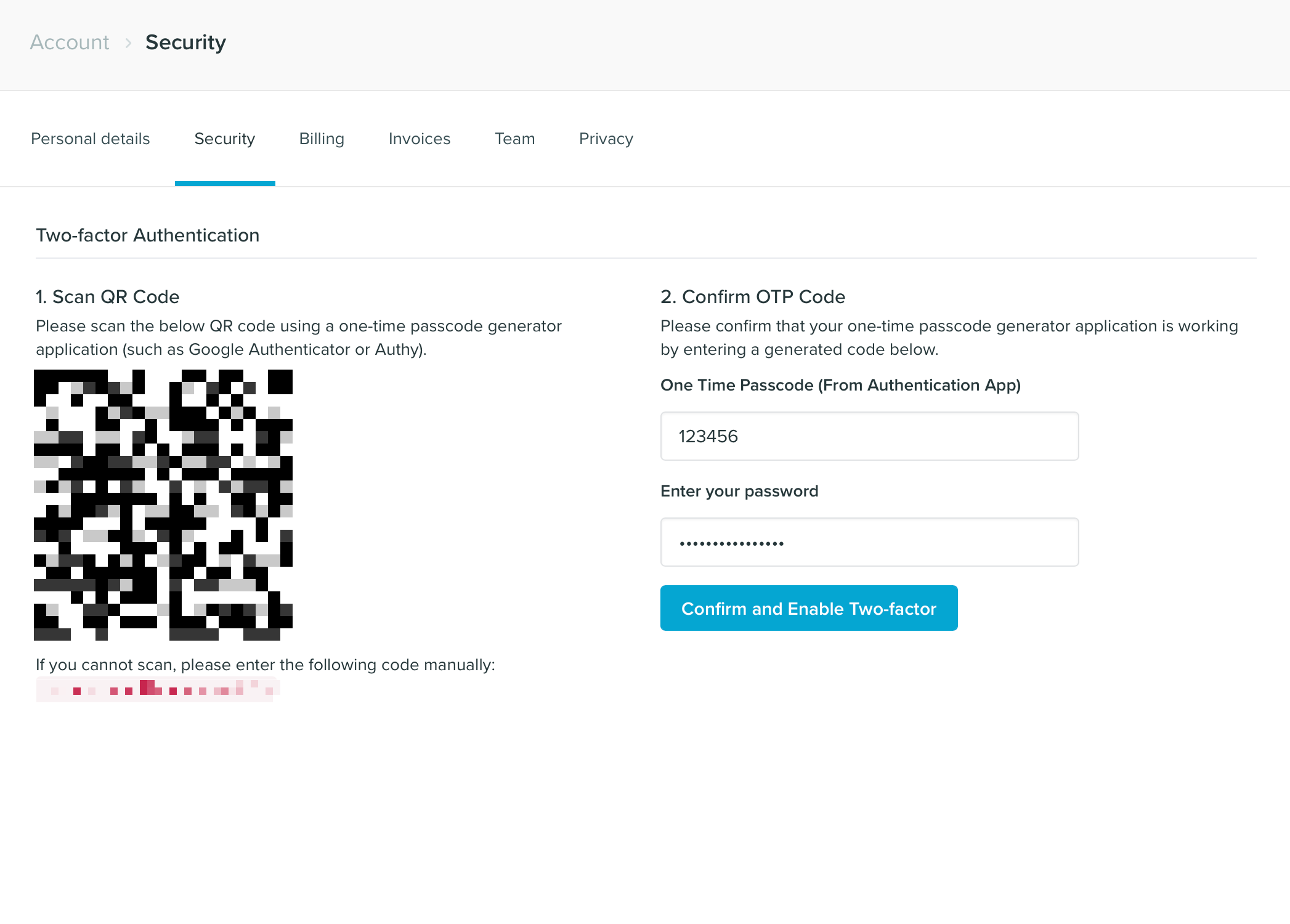
 1. Scan the QR code with your chosen one time code generator app.
2. Enter the generated code into the *One Time Passcode* box.
3. Enter your password and click *Confirm and Enable Two-Factor*.
1. Scan the QR code with your chosen one time code generator app.
2. Enter the generated code into the *One Time Passcode* box.
3. Enter your password and click *Confirm and Enable Two-Factor*.
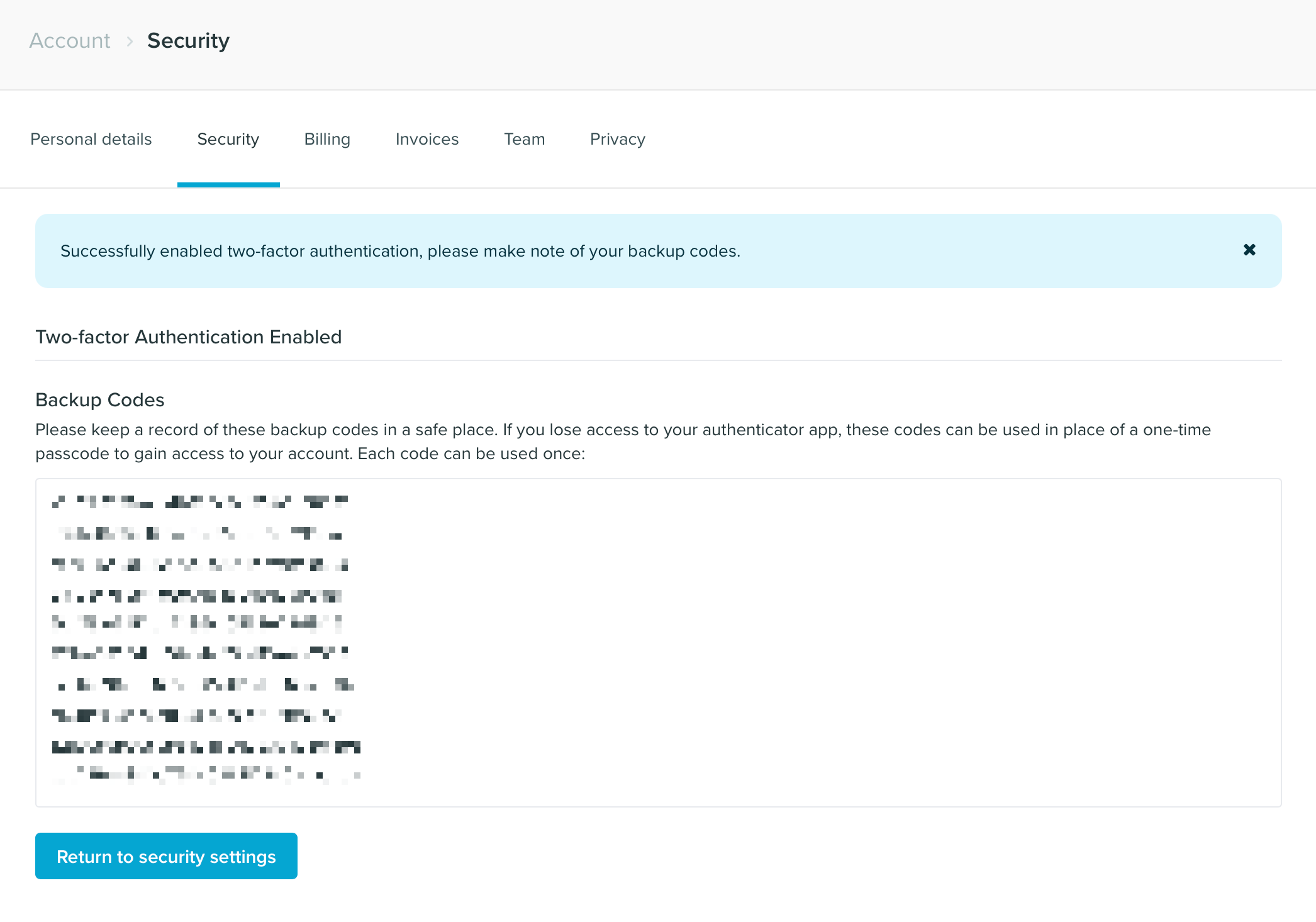
 In the next step, you will be shown a list of recovery codes. Keep a record of these recovery codes in a safe place, these codes can be used to gain access to your account in the case that you cannot use a One Time Code. Hit the *Return to security settings* button to continue.
 2 Factor Authentication is now setup on your account. Next time you login, after you enter your email and password, you will be asked to enter a One Time Code, generated by your chosen app. Simply open your One Time Code generator app, enter the generated code before the timer ends and hit *Submit*.
**Using 2FA with a Google login**
If you login using a Google account, you can setup 2FA on your [Google account settings](https://support.google.com/accounts/answer/185839).
2 Factor Authentication is now setup on your account. Next time you login, after you enter your email and password, you will be asked to enter a One Time Code, generated by your chosen app. Simply open your One Time Code generator app, enter the generated code before the timer ends and hit *Submit*.
**Using 2FA with a Google login**
If you login using a Google account, you can setup 2FA on your [Google account settings](https://support.google.com/accounts/answer/185839).