> ## Documentation Index
> Fetch the complete documentation index at: https://help.getvero.com/llms.txt
> Use this file to discover all available pages before exploring further.
# How to trigger an event via CSV
> Backfill historical customer events by importing them via CSV.
Vero tracks not only your contacts but also the **events** they perform in your application. To learn more about events, read [What is an Event?](/vero-1/event-tracking/what-are-events).
There are times when you will want to backfill or manually add customer events. An example would be importing all of your contacts' past orders.
When importing a list of past events, Vero supports three colums:
* **email** (who did the event).
* **name** (the name of the event, e.g. `Completes checkout`), and
* **date and time** of the event (e.g. `2021-01-15 01:15+10`).
You can also include event properties that are tracked along with the event as separate column titles.
Here's an example of a CSV file that would update the contact profile of `tyrion.lannister@casterlyrock.com` with records of three checkout events and their item\_type properties in January 2022.
```
email, event_name, time, item_type
tyrion.lannister@casterlyrock.com, Completes checkout, 2022-01-02 13:05+10, yellow_shirt
tyrion.lannister@casterlyrock.com, Completes checkout, 2022-01-15 02:00+10, green_shirt
tyrion.lannister@casterlyrock.com, Completes checkout, 2022-01-25 04:20+10, red_hat
```
To import a CSV select the '[**Import/Export**](https://app.getvero.com/imports)' menu item in the left sidebar.
Select *Import Events* under the green Import button:  You'll then select the *Upload CSV* option to import your CSV file:
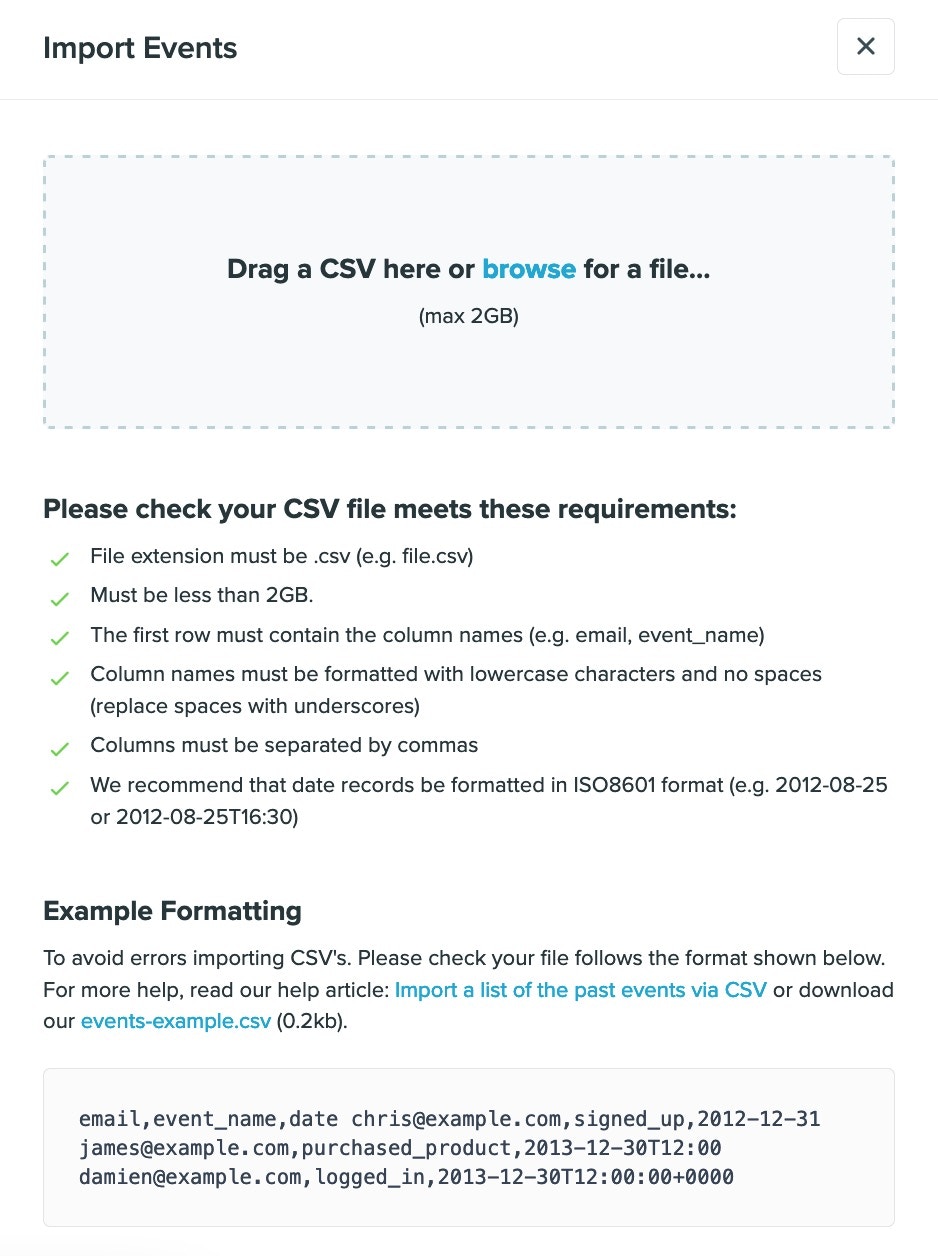 You can only import `.csv` files. If you are using Microsoft Excel or Mac Sheets, select File > Save as... > CSV to export your data in the correct format. `.xls`, `.xlsx` and other formats will *not* be accepted when you try to upload your file.
Before finalising the import, Vero will ask you if you want these events to *trigger emails in Vero*. By default, importing CSV files with a list of events is passive a these events will *not* trigger your automated campaigns. If you want to have these events act as triggers, simply tick the appropriate box as part of your import:
You can only import `.csv` files. If you are using Microsoft Excel or Mac Sheets, select File > Save as... > CSV to export your data in the correct format. `.xls`, `.xlsx` and other formats will *not* be accepted when you try to upload your file.
Before finalising the import, Vero will ask you if you want these events to *trigger emails in Vero*. By default, importing CSV files with a list of events is passive a these events will *not* trigger your automated campaigns. If you want to have these events act as triggers, simply tick the appropriate box as part of your import:
 ### Past and future dates
If you had an automated behavioral campaign that went out 10 days after a customer triggers Completes checkout, and you import an event with a date of nine days ago and tick this box, they'll get the email one day from now.
If they had taken the event 10 or more days ago, the user will *not* continue through the workflow and will be discarded immediately.
It is not possible to trigger for a future date and time.
You will receive an email once your CSV has been successfully imported, or if your CSV import fails. **You will always receive a confirmation email**. For unsuccessful imports, Vero lists the rows of the CSV that were affected. You should review these rows, export them to a new CSV and import them again.
### Past and future dates
If you had an automated behavioral campaign that went out 10 days after a customer triggers Completes checkout, and you import an event with a date of nine days ago and tick this box, they'll get the email one day from now.
If they had taken the event 10 or more days ago, the user will *not* continue through the workflow and will be discarded immediately.
It is not possible to trigger for a future date and time.
You will receive an email once your CSV has been successfully imported, or if your CSV import fails. **You will always receive a confirmation email**. For unsuccessful imports, Vero lists the rows of the CSV that were affected. You should review these rows, export them to a new CSV and import them again.