> ## Documentation Index
> Fetch the complete documentation index at: https://help.getvero.com/llms.txt
> Use this file to discover all available pages before exploring further.
# Integrate Vero and Segment
> Send data between Segment and Vero for unified customer tracking and email analytics.
Segment is a customer data platform that connects over 200 sources and destinations to empower your team to use their favorite tools to personalize campaigns, analyze customer engagement/ product usage, and more.
You can integrate Segment and Vero in one of two ways, or both!
1. You can use Segment to collect data from multiple sources, including mobile apps, websites, servers, and cloud apps and send it to Vero to trigger personalized customer messages.
2. Vero can send email events including delivered, opens, clicks and unsubscribes to Segment and on to your other integrations or/and data warehouses.
**Find out how to:**
* Send data from **Vero to Segment**
* Send data from **Segment to Vero**
## Send data from Vero to Segment
1. Login into [your Segment account](https://segment.com/login), and select a workspace
2. Add a new source, search for 'Vero' and click **Connect**
**Add Vero as a Source in Segment** 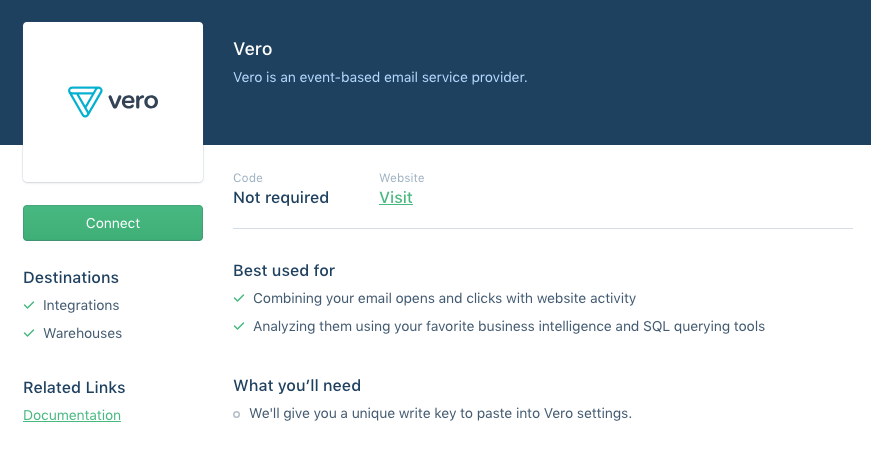 3. Give your Vero source a name
**Give your Segment Source a name**
3. Give your Vero source a name
**Give your Segment Source a name** 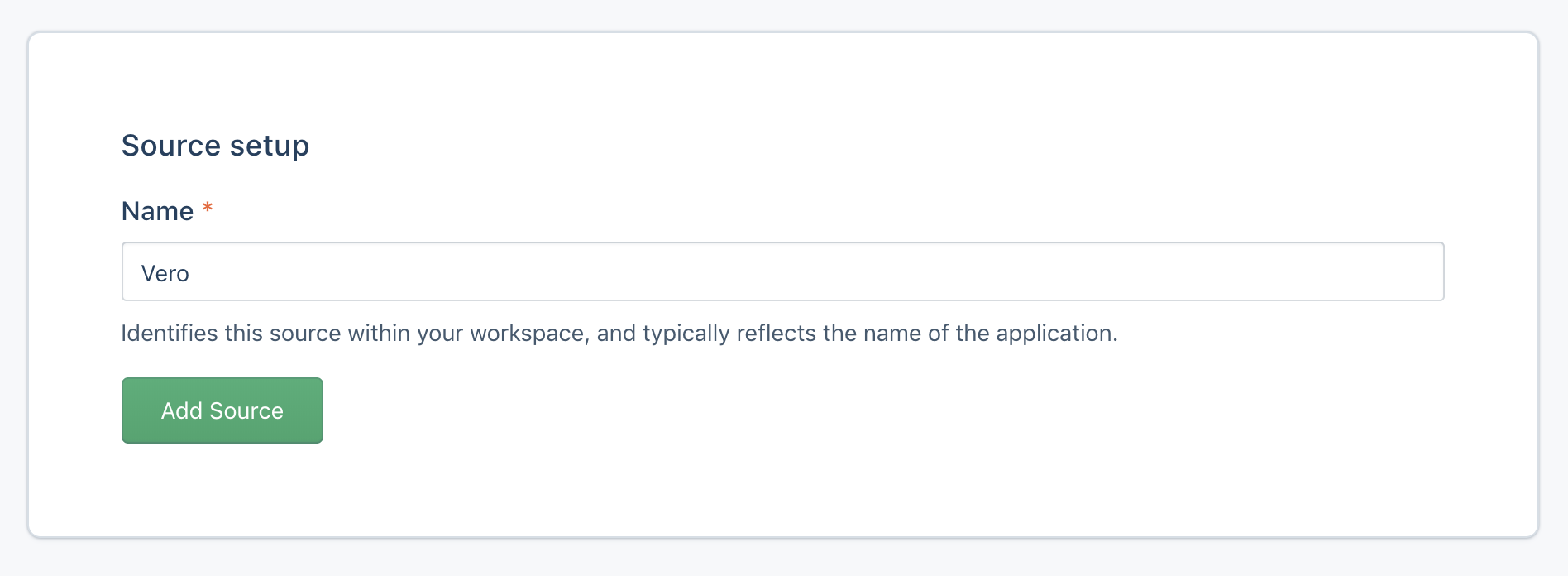 4. Select the Configuration drop-down and copy the **Write Key**.
**Copy your Segment Write Key**
4. Select the Configuration drop-down and copy the **Write Key**.
**Copy your Segment Write Key** 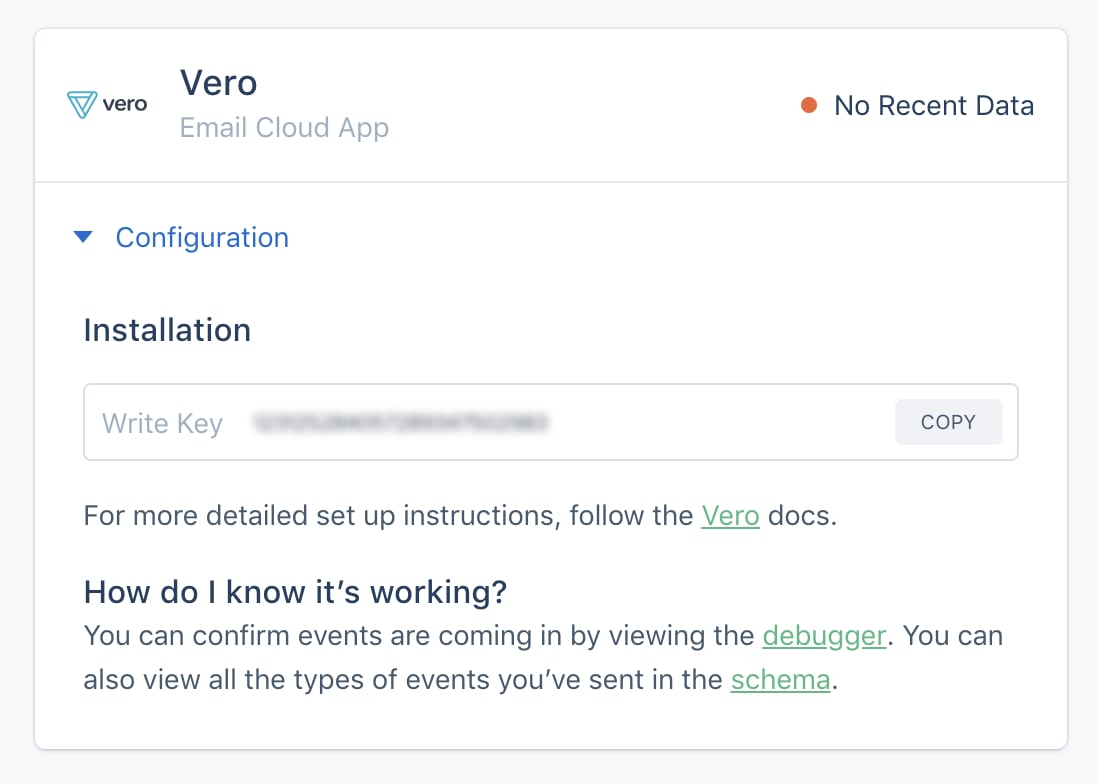 5. Log in to Vero and go to [Settings > Integrations](https://app.getvero.com/settings/integrations)
6. Select **View** next to the Segment integration
7. Paste or enter your Segment Write Key. You can find your segment write Key in your source configuration details.
8. Save. And your Vero events will now start sending to Segment!
In Segment, select your **Vero** Source and from there you’ll be able to add Destinations for where you want to send Vero events. By sending Vero events via Segment to your data warehouse (such as Amazon Redshift or Google BigQuery) you can analyze your customer email engagement with the rest of your customer data using a BI or analytics tool.
## Send data from Segment to Vero
Once you’ve tracked data in Segment, you can easily send it to Vero.
**In your Segment workspace:**
1. Navigate to Destinations and select **Add Destination**
2. Search 'Vero'
3. Select ***Vero > Configure Vero***
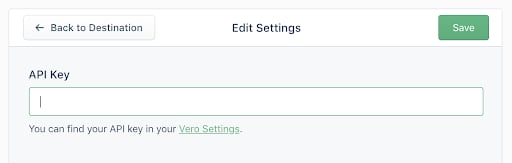
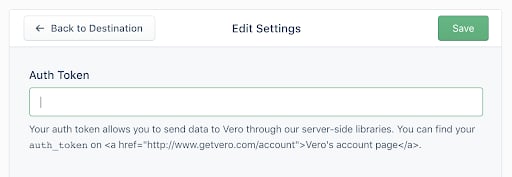
4. Add your Vero API Key and Auth Token
You can find your unique API key and Auth token by logging in to your Vero account and navigating to [Settings > Project Details](https://app.getvero.com/settings/project).
**Add Vero API Key and Auth Token in Segment**
5. Log in to Vero and go to [Settings > Integrations](https://app.getvero.com/settings/integrations)
6. Select **View** next to the Segment integration
7. Paste or enter your Segment Write Key. You can find your segment write Key in your source configuration details.
8. Save. And your Vero events will now start sending to Segment!
In Segment, select your **Vero** Source and from there you’ll be able to add Destinations for where you want to send Vero events. By sending Vero events via Segment to your data warehouse (such as Amazon Redshift or Google BigQuery) you can analyze your customer email engagement with the rest of your customer data using a BI or analytics tool.
## Send data from Segment to Vero
Once you’ve tracked data in Segment, you can easily send it to Vero.
**In your Segment workspace:**
1. Navigate to Destinations and select **Add Destination**
2. Search 'Vero'
3. Select ***Vero > Configure Vero***
4. Add your Vero API Key and Auth Token
You can find your unique API key and Auth token by logging in to your Vero account and navigating to [Settings > Project Details](https://app.getvero.com/settings/project).
**Add Vero API Key and Auth Token in Segment** 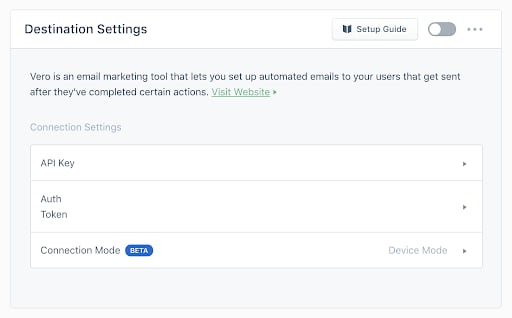 **Enter Vero API Key in Segment**
  **Enter Vero Auth Token in Segment**
  5. Turn on the Integration.
Turn on your Vero integration by clicking the **Enable Integration** toggle. Any events or users that you track with Segment will then be available inside Vero automatically.
**Turn on integration in Segment**
5. Turn on the Integration.
Turn on your Vero integration by clicking the **Enable Integration** toggle. Any events or users that you track with Segment will then be available inside Vero automatically.
**Turn on integration in Segment**  6. Test your integration
To make sure you are receiving data from Segment, check your Logs in Vero.
7. Voilà!
You can now start sending emails and push notifications to your customers with the data sent to Vero via Segment.
You can read more about this integration in [Segment's help documentation](https://segment.com/docs/integrations/vero/).
6. Test your integration
To make sure you are receiving data from Segment, check your Logs in Vero.
7. Voilà!
You can now start sending emails and push notifications to your customers with the data sent to Vero via Segment.
You can read more about this integration in [Segment's help documentation](https://segment.com/docs/integrations/vero/).