> ## Documentation Index
> Fetch the complete documentation index at: https://help.getvero.com/llms.txt
> Use this file to discover all available pages before exploring further.
# Adding To and From email addresses
> Configure sender addresses, reply-to addresses, and dynamic email fields using Liquid.
## Adding and customizing 'To' and 'From' email addresses
You can add and define as many customer 'From' email addresses as you want in Vero under the [Email Addresses](https://app.getvero.com/settings/emails) section in Settings. You can also use these emails addresses to direct behavioral and transactional email campaigns internally (rather than emailing the user that triggers those campaigns).
## Adding an email address
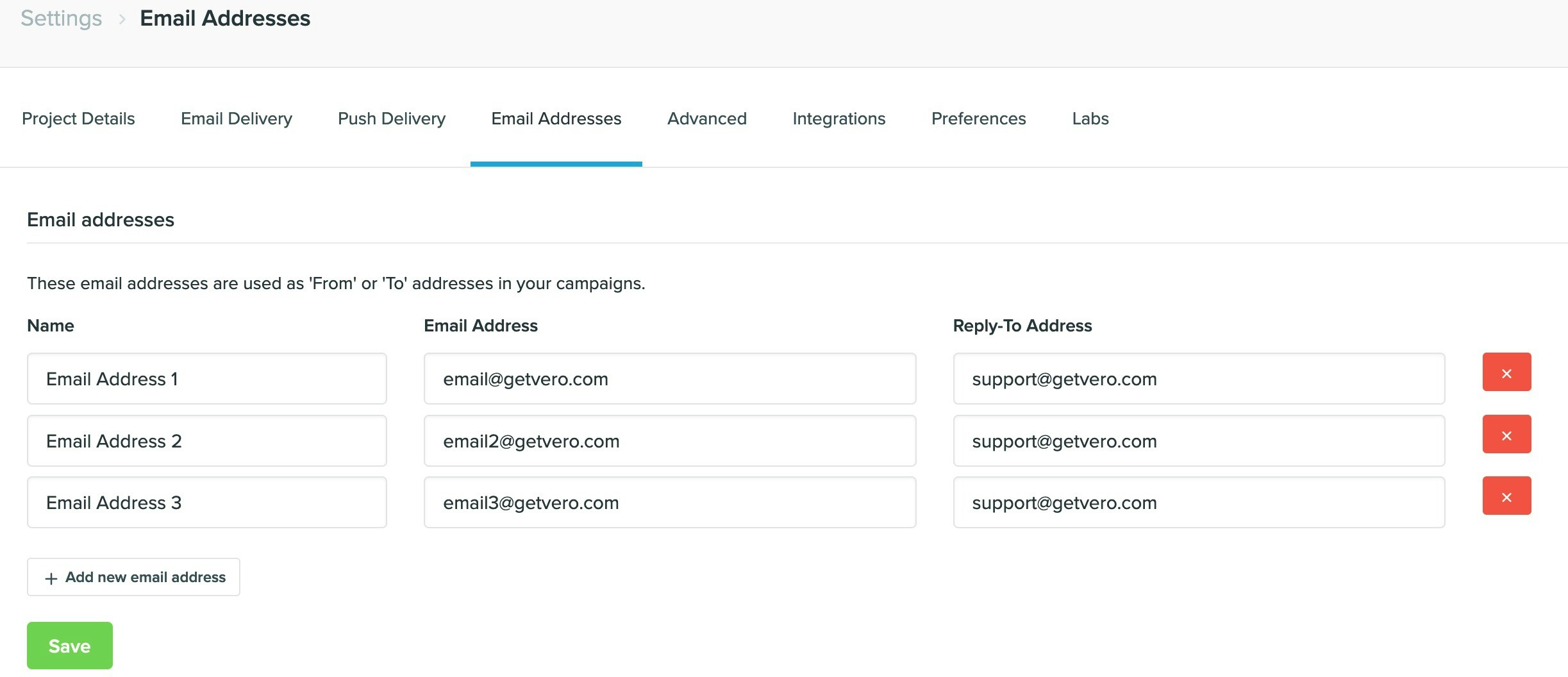 You can manage the email addresses in each Project by visiting the *Settings > Email Addresses* menu.
When you add a new email address there are three fields you must include:
1. Email: The email address itself. For example, `email@getvero.com`.
2. From name: The name you want the email to come from. For example, `Chris from Vero`.
3. Reply-to (optional): The email address you want the replies to go to. For example, `support@getvero.com`.
## Using an email address
You can manage the email addresses in each Project by visiting the *Settings > Email Addresses* menu.
When you add a new email address there are three fields you must include:
1. Email: The email address itself. For example, `email@getvero.com`.
2. From name: The name you want the email to come from. For example, `Chris from Vero`.
3. Reply-to (optional): The email address you want the replies to go to. For example, `support@getvero.com`.
## Using an email address
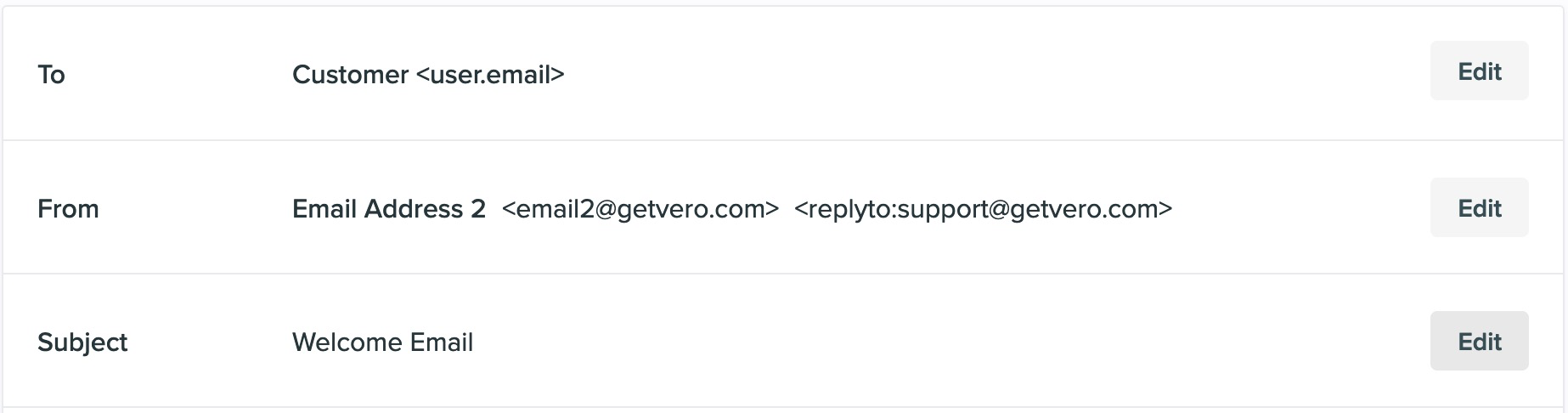 Saved email addresses can be selected from the dropdown menu when creating a new campaign. You can select saved email addresses as either a 'To' or 'From' address when creating behavioral or transactional email campaigns.
## Complex, dynamic addresses using Liquid
You can insert dynamic merge tags into any of the fields used to define an email address, enabling you to dynamically populate the 'To' or 'From' addresses of any newsletter, behavioral or transactional campaign.
For example, you might store a property on each of your customers' profiles called `secondary_email`.
You can dynamically merge this property into any email address *From name* , *Email* or *Reply-to email* field.
As an example, you might set the *Email* field to be `{{user.secondary_email}}` and the *From name* to be `{{user.secondary_email_from_name}}`.
When an email is built to be sent, Vero will pick up these values and use them to send the email.
Saved email addresses can be selected from the dropdown menu when creating a new campaign. You can select saved email addresses as either a 'To' or 'From' address when creating behavioral or transactional email campaigns.
## Complex, dynamic addresses using Liquid
You can insert dynamic merge tags into any of the fields used to define an email address, enabling you to dynamically populate the 'To' or 'From' addresses of any newsletter, behavioral or transactional campaign.
For example, you might store a property on each of your customers' profiles called `secondary_email`.
You can dynamically merge this property into any email address *From name* , *Email* or *Reply-to email* field.
As an example, you might set the *Email* field to be `{{user.secondary_email}}` and the *From name* to be `{{user.secondary_email_from_name}}`.
When an email is built to be sent, Vero will pick up these values and use them to send the email.