> ## Documentation Index
> Fetch the complete documentation index at: https://help.getvero.com/llms.txt
> Use this file to discover all available pages before exploring further.
# Sending a campaign to a topic
> Assign a subscription topic to a newsletter or workflow so it only reaches customers who want that kind of message.
Assigning a topic to a campaign narrows its audience to the customers subscribed to that topic. Campaigns without a topic are sent to the entire audience, as they always have been.
## Prerequisites
1. **The preference center enabled on your project** – [contact us](mailto:support@getvero.com) to turn it on.
2. **At least one topic** – see [Setting up your preference center](/vero-1/preferences/setting-up-your-preference-center).
## Adding a topic to a newsletter
1. Open a Newsletter.
2. Find the **Subscription** panel. It shows **No topic** until one is chosen.
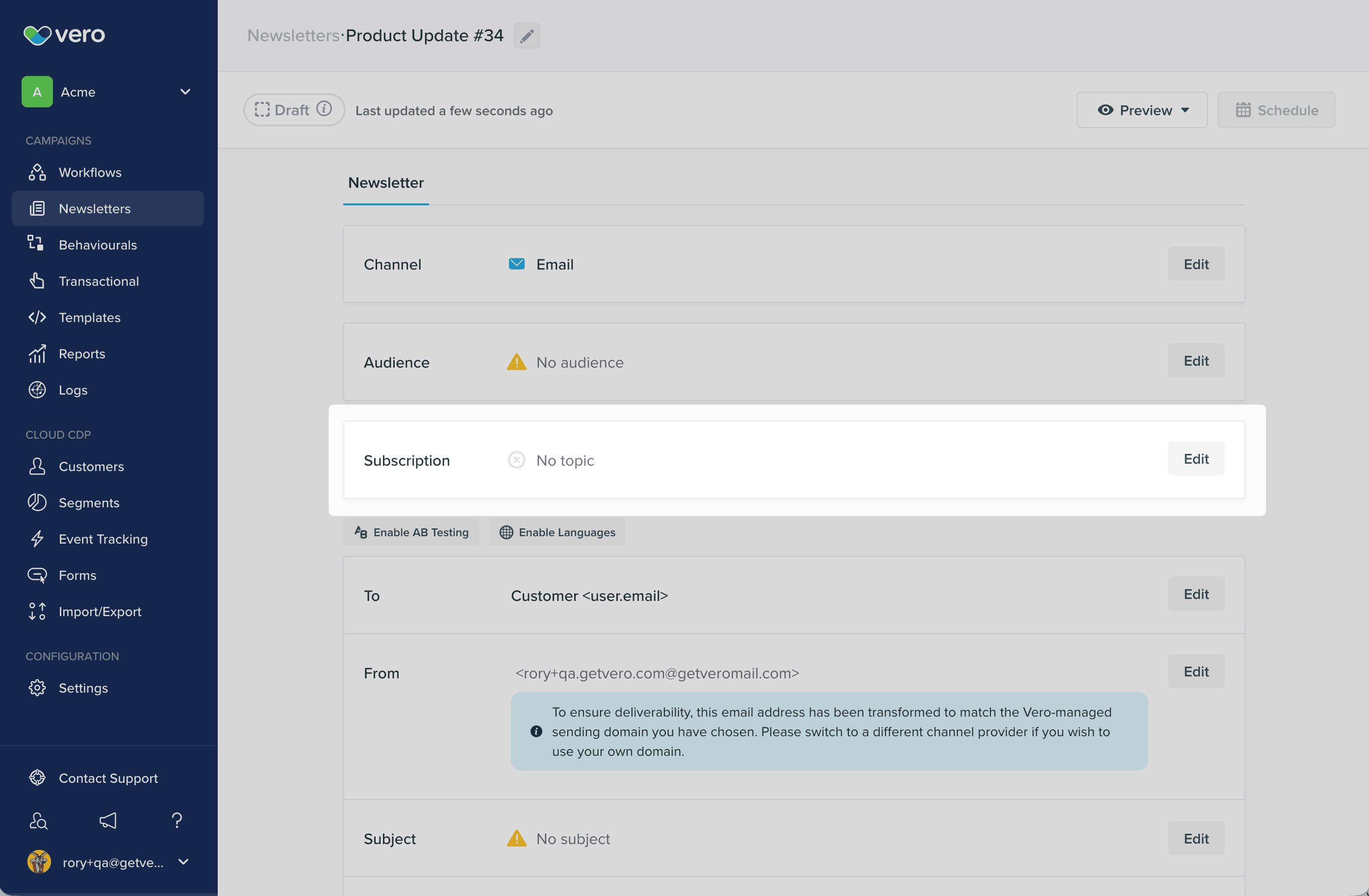 3. Select **Edit**.
4. Under **Choose a topic to send this message to**, pick a topic from the list. Choose **No Topic (All Subscribers)** to send to everyone.
3. Select **Edit**.
4. Under **Choose a topic to send this message to**, pick a topic from the list. Choose **No Topic (All Subscribers)** to send to everyone.
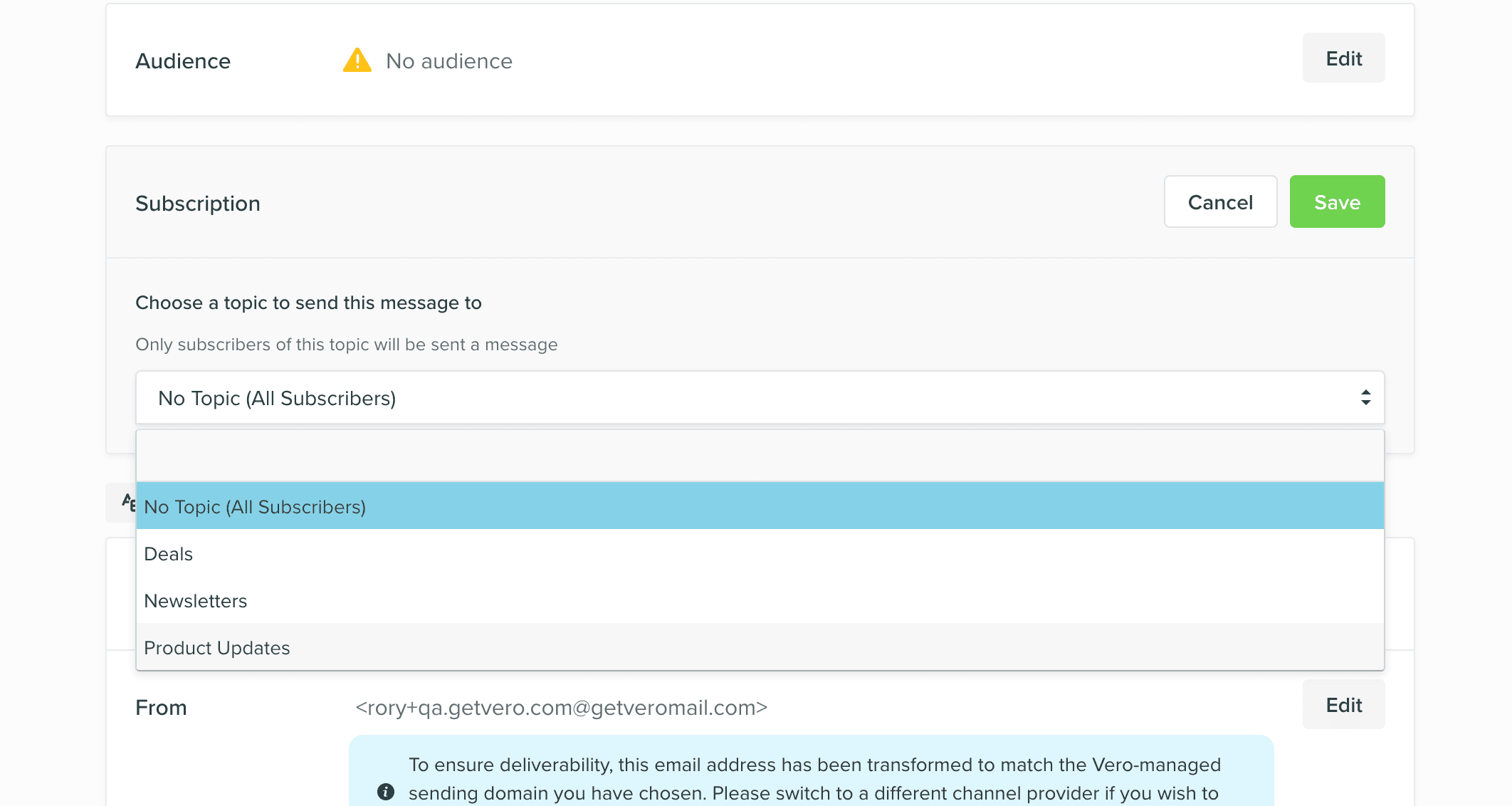 5. Save the campaign.
The panel appears on Newsletter campaigns. Behavioral and Transactional campaigns do not currently support Topics.
## Adding a topic to a workflow
1. Open the workflow from the [Campaigns](https://app.getvero.com/campaigns) menu.
2. In the workflow builder sidebar, find the **Subscription** panel.
3. Pick a topic, or **No Topic (All Subscribers)**.
4. Save the workflow.
5. Save the campaign.
The panel appears on Newsletter campaigns. Behavioral and Transactional campaigns do not currently support Topics.
## Adding a topic to a workflow
1. Open the workflow from the [Campaigns](https://app.getvero.com/campaigns) menu.
2. In the workflow builder sidebar, find the **Subscription** panel.
3. Pick a topic, or **No Topic (All Subscribers)**.
4. Save the workflow.
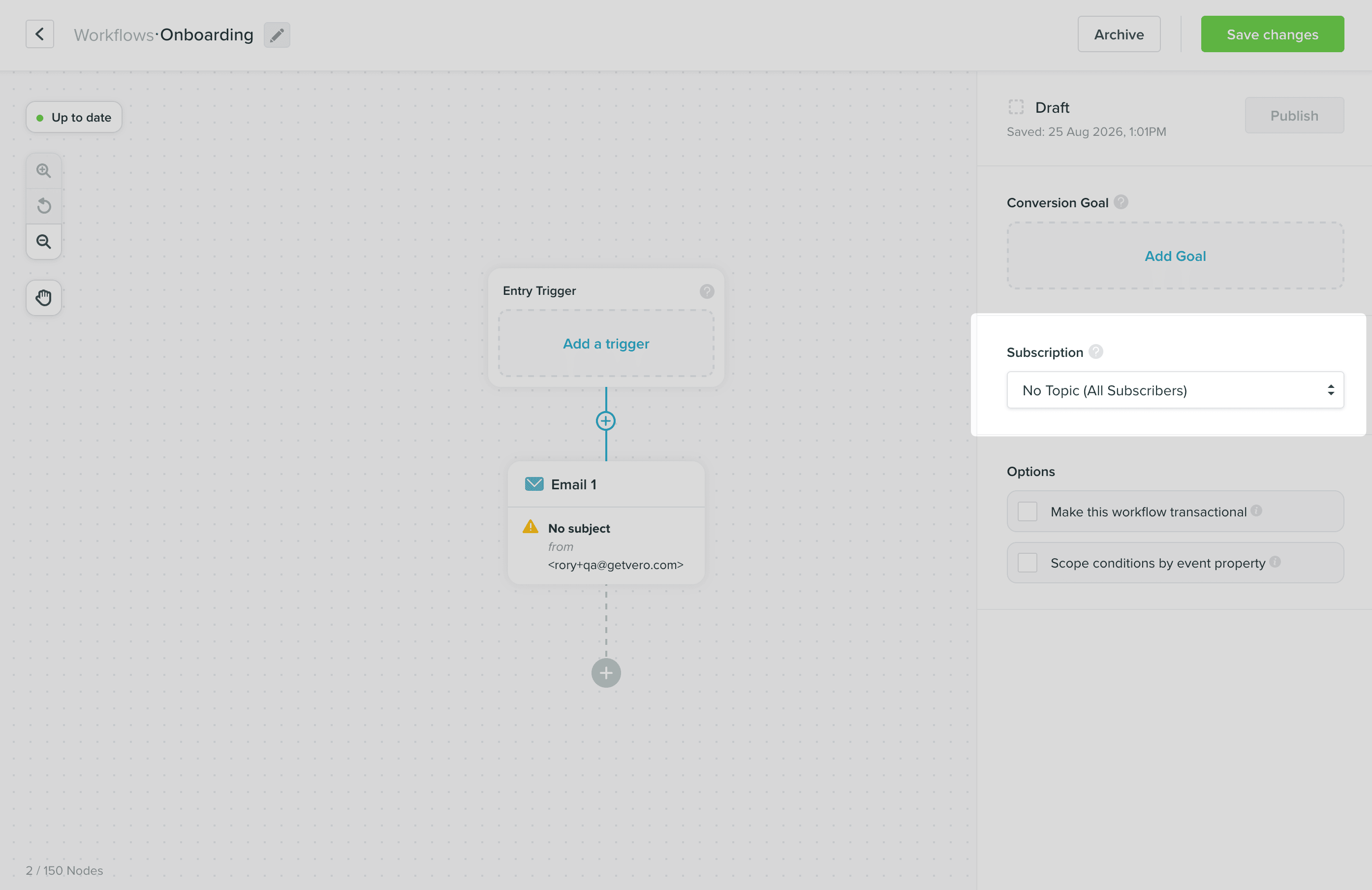 Every campaign in the workflow is filtered by the workflow's topic.
## What happens at send time
For each customer in the audience, Vero checks their status for the campaign's topic:
* **Subscribed** – the message is sent.
* **Unsubscribed from the topic** – the message is not sent.
* **No choice recorded** – the topic's default status decides. A topic defaulting to `subscribed` includes the customer; one defaulting to `unsubscribed` does not.
Global unsubscribes are applied first and are not affected by any of this. A customer who has unsubscribed from your project receives nothing, whatever their topic status.
Assigning a topic to an existing campaign changes who receives it. Before adding a topic to a live workflow, check the topic's default status: a topic defaulting to `unsubscribed` will stop the workflow reaching anyone who has not been explicitly opted in or saved their preferences.
## Choosing which campaigns get a topic
* **Give a topic to anything a customer might want to opt out of on its own** — newsletters, digests, promotions, product announcements.
* **Leave transactional messages without a topic** — receipts, password resets, shipping updates, and anything else a customer needs regardless of their marketing preferences.
The topic also determines what the mail client **Unsubscribe** button does. On a campaign with a topic, that button opts the customer out of that topic only. On a campaign without one, it unsubscribes them from your project entirely.
## Limitations
* A campaign or workflow can have one topic. There is no way to send a single campaign under several topics.
* The **Subscription** panel is only shown once the preference center is enabled on your project.
* Topic status is not shown on the customer's profile page. The unsubscribed indicator there reflects global status only. See [How do I know if a customer is unsubscribed?](/vero-1/customers/how-do-i-know-if-a-customer-is-unsubscribed)
## Troubleshooting
### Far fewer customers received the campaign than expected
**Possible causes:** The campaign has a topic whose default status is `unsubscribed`, so it only reached customers who had been explicitly opted in or had saved their preferences.
**Solution:** Check the topic with `topic_get` on the [Vero MCP server](/vero-ai/overview). If the topic should reach everyone by default, update its default status with `topic_update`, which applies to customers who have never made an explicit choice.
### A customer did not receive a message they expected
**Possible causes:** They are unsubscribed from the campaign's topic, or unsubscribed globally.
**Solution:** Check the discard reason in the [Logs](https://app.getvero.com/logs). *The user has unsubscribed from the topic* means they unsubscribed from that topic. They can start receiving it again by ticking it in the preference center and saving their preferences. A global unsubscribe is shown on their profile.
## Next steps
* [Subscription topics and the preference center](/vero-1/preferences/subscription-topics-overview)
* [Setting up your preference center](/vero-1/preferences/setting-up-your-preference-center)
## Need Help?
If you have any questions, reach out to us at [support@getvero.com](mailto:support@getvero.com).
Every campaign in the workflow is filtered by the workflow's topic.
## What happens at send time
For each customer in the audience, Vero checks their status for the campaign's topic:
* **Subscribed** – the message is sent.
* **Unsubscribed from the topic** – the message is not sent.
* **No choice recorded** – the topic's default status decides. A topic defaulting to `subscribed` includes the customer; one defaulting to `unsubscribed` does not.
Global unsubscribes are applied first and are not affected by any of this. A customer who has unsubscribed from your project receives nothing, whatever their topic status.
Assigning a topic to an existing campaign changes who receives it. Before adding a topic to a live workflow, check the topic's default status: a topic defaulting to `unsubscribed` will stop the workflow reaching anyone who has not been explicitly opted in or saved their preferences.
## Choosing which campaigns get a topic
* **Give a topic to anything a customer might want to opt out of on its own** — newsletters, digests, promotions, product announcements.
* **Leave transactional messages without a topic** — receipts, password resets, shipping updates, and anything else a customer needs regardless of their marketing preferences.
The topic also determines what the mail client **Unsubscribe** button does. On a campaign with a topic, that button opts the customer out of that topic only. On a campaign without one, it unsubscribes them from your project entirely.
## Limitations
* A campaign or workflow can have one topic. There is no way to send a single campaign under several topics.
* The **Subscription** panel is only shown once the preference center is enabled on your project.
* Topic status is not shown on the customer's profile page. The unsubscribed indicator there reflects global status only. See [How do I know if a customer is unsubscribed?](/vero-1/customers/how-do-i-know-if-a-customer-is-unsubscribed)
## Troubleshooting
### Far fewer customers received the campaign than expected
**Possible causes:** The campaign has a topic whose default status is `unsubscribed`, so it only reached customers who had been explicitly opted in or had saved their preferences.
**Solution:** Check the topic with `topic_get` on the [Vero MCP server](/vero-ai/overview). If the topic should reach everyone by default, update its default status with `topic_update`, which applies to customers who have never made an explicit choice.
### A customer did not receive a message they expected
**Possible causes:** They are unsubscribed from the campaign's topic, or unsubscribed globally.
**Solution:** Check the discard reason in the [Logs](https://app.getvero.com/logs). *The user has unsubscribed from the topic* means they unsubscribed from that topic. They can start receiving it again by ticking it in the preference center and saving their preferences. A global unsubscribe is shown on their profile.
## Next steps
* [Subscription topics and the preference center](/vero-1/preferences/subscription-topics-overview)
* [Setting up your preference center](/vero-1/preferences/setting-up-your-preference-center)
## Need Help?
If you have any questions, reach out to us at [support@getvero.com](mailto:support@getvero.com).