> ## Documentation Index
> Fetch the complete documentation index at: https://help.getvero.com/llms.txt
> Use this file to discover all available pages before exploring further.
# Google Sheet audience
> Connect your Google Sheets to import audience data for your campaigns.
Google Sheets is a powerful spreadsheet-based data management tool that helps you organize data and collaborate with others.
Vero enables you to connect to your Google Sheets and use them to build the audience (list of users) you want to email.
Using a Google Sheet to populate the audience of your newsletter is a very easy process: simply connect your Google Account, select the Google Sheet you want to use, design your message and send.
## How to use the Google Sheets integration
Start by creating a new newsletter from the Newsletters page. Select the Google Sheets option in the Audience section.
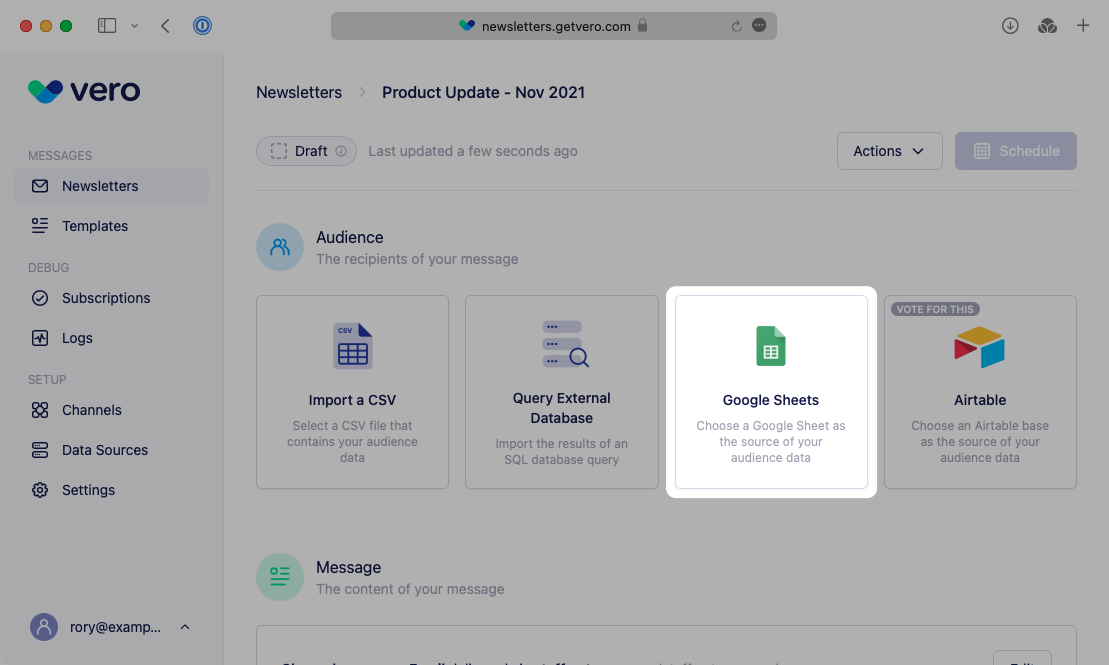 Once selected, there are two ways to add a Google Sheet.
### Option 1 - Browse your files on GDrive
From the **Browse for file** tab click ’Sign in with Google’. You will be asked to sign in and give permission by Google.
Once selected, there are two ways to add a Google Sheet.
### Option 1 - Browse your files on GDrive
From the **Browse for file** tab click ’Sign in with Google’. You will be asked to sign in and give permission by Google.
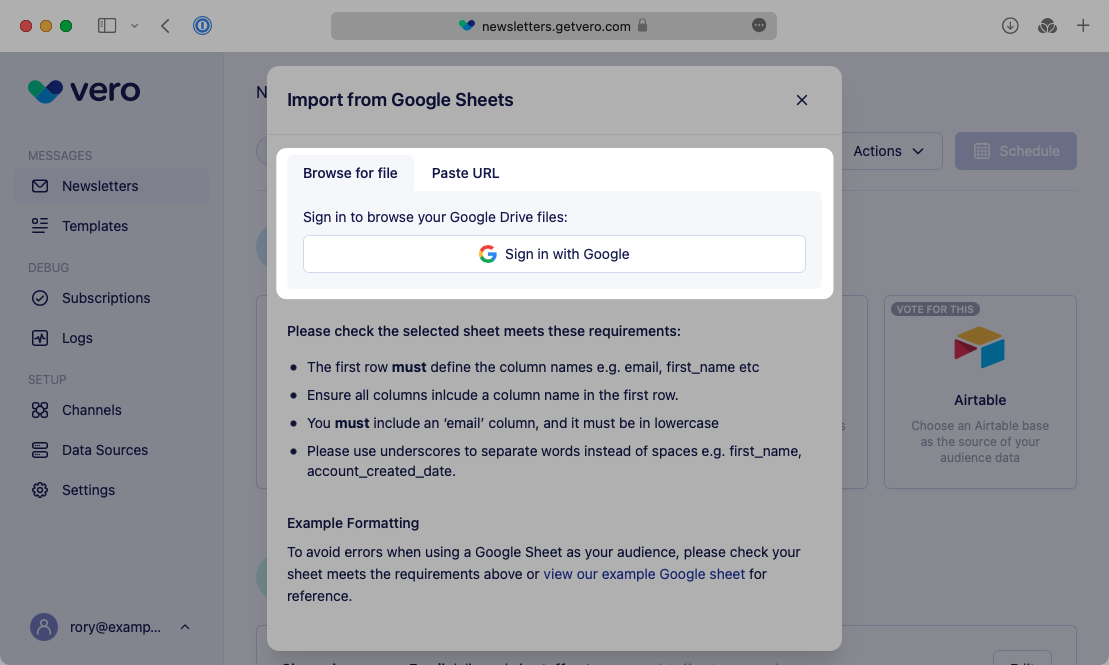 In order to access Google Sheets from your Google Account you will need to grant Vero the correct permissions. Vero requires access to both your Google Drive and Spreadsheets in order to read your file and import the final audience. **Vero will never access any files or data that you have not explicitly chosen to import into Vero**.
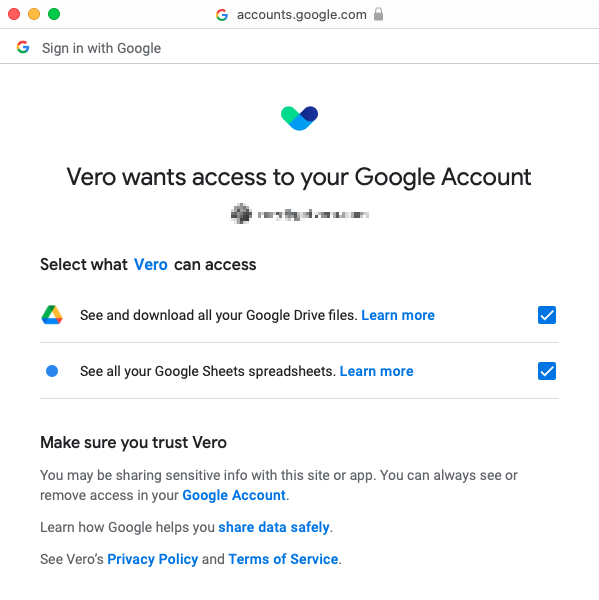 Once you have connected your Google Account and granted permission you can browse for the file you would like to use to build your audience.
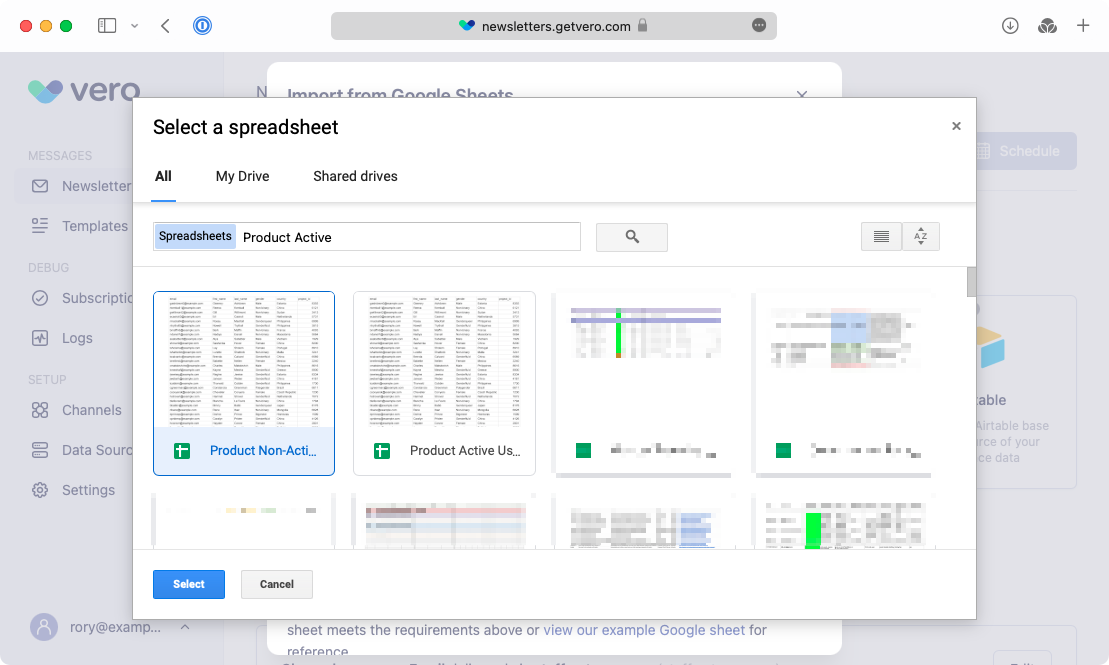
Browse or search for the spreadsheet you would like to use and click **Select**.
Once you have connected your Google Account and granted permission you can browse for the file you would like to use to build your audience.
Browse or search for the spreadsheet you would like to use and click **Select**.
 ### Option 2 - Paste a sheet URL
If you already know the URL for the sheet you wish to import, paste the URL into the URL field and select Load Sheet.
### Option 2 - Paste a sheet URL
If you already know the URL for the sheet you wish to import, paste the URL into the URL field and select Load Sheet.
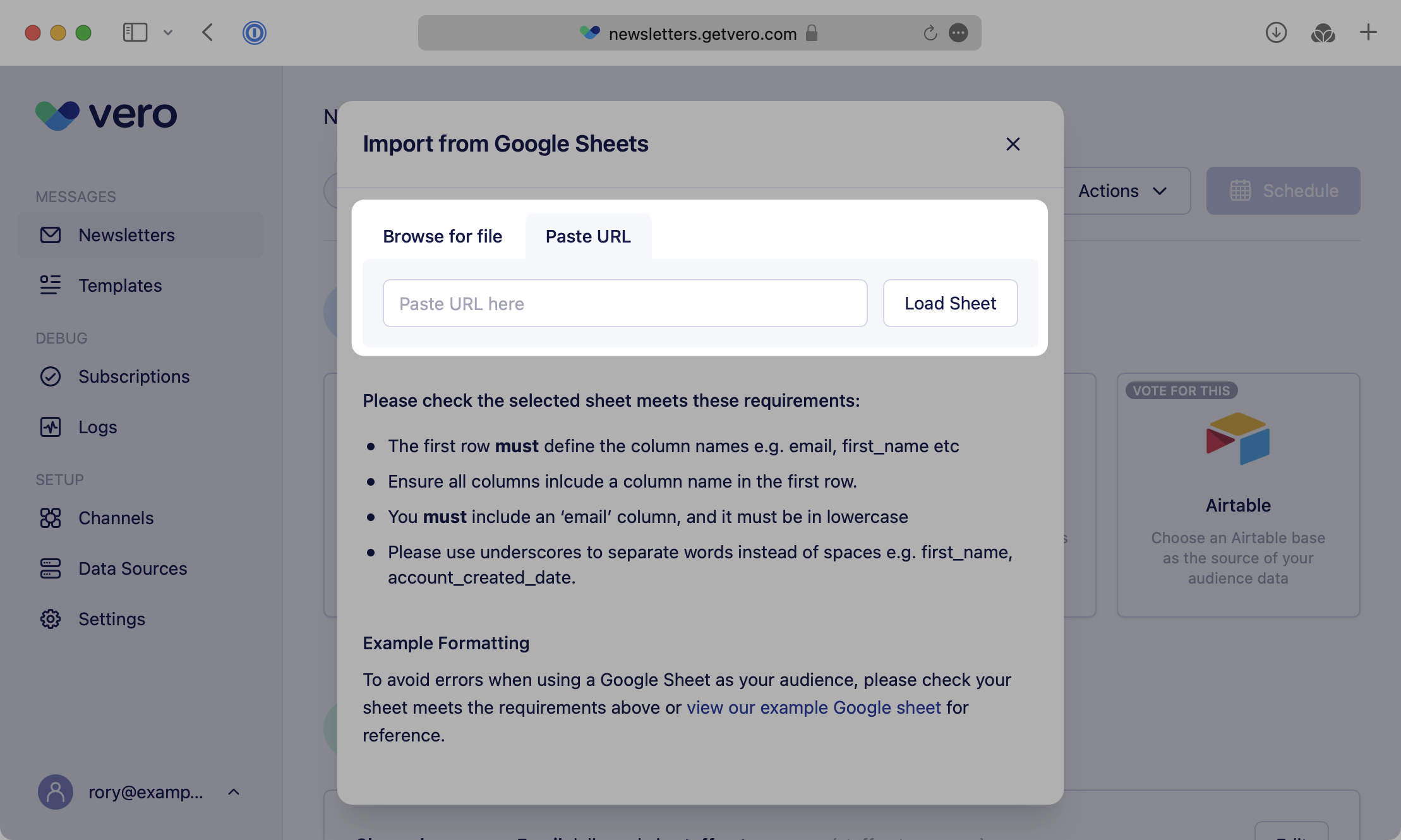 Public URLs can be imported without granting access to your Google Account.
If you input the URL of a private Google Sheet you will be asked to sign in and provide permission to your Google Account.
### Selecting a specific worksheet
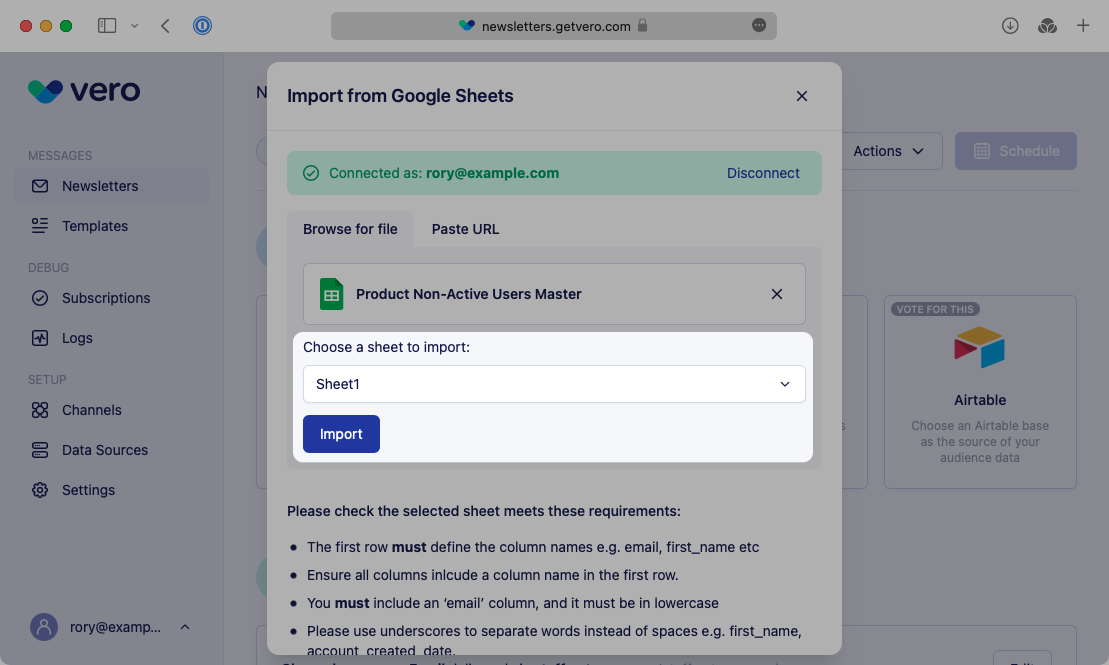
Google Sheets files may contains multiple worksheets. Once you've chosen the correct file Vero will load the available worksheets. Select the relevant sheet from the dropdown and choose Import.
Make sure the data you're importing includes at least an email column and meets the all the requirements listed below.
Public URLs can be imported without granting access to your Google Account.
If you input the URL of a private Google Sheet you will be asked to sign in and provide permission to your Google Account.
### Selecting a specific worksheet
Google Sheets files may contains multiple worksheets. Once you've chosen the correct file Vero will load the available worksheets. Select the relevant sheet from the dropdown and choose Import.
Make sure the data you're importing includes at least an email column and meets the all the requirements listed below.
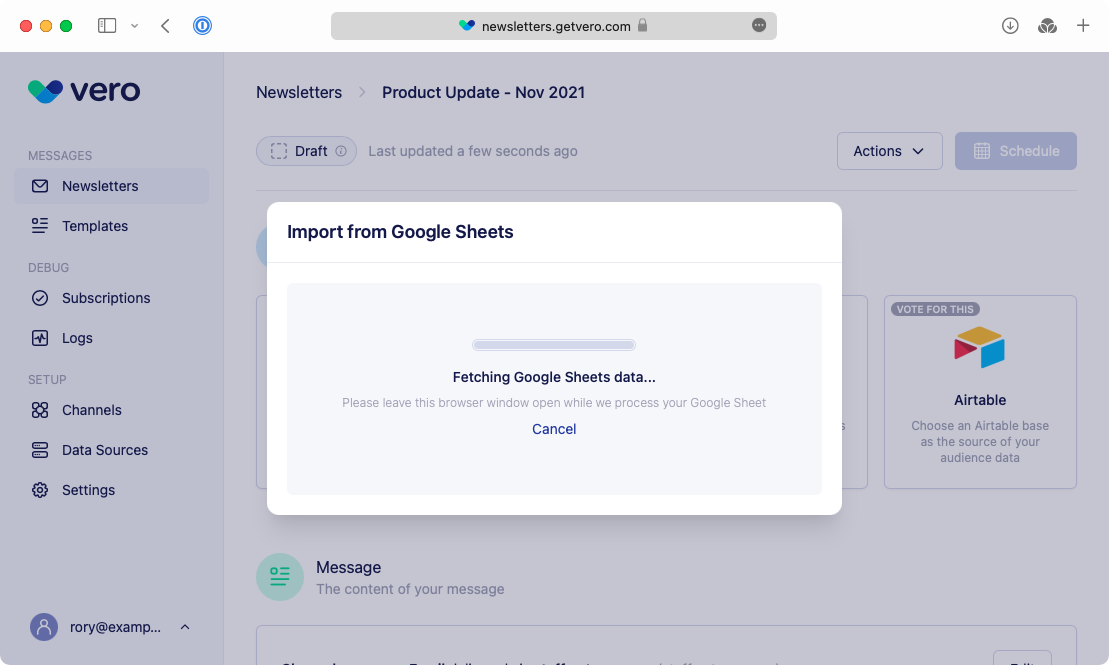
 Once chosen Vero will download your Google Sheet, process it and import it as the audience for your newsletter.
If your Google Sheet contains a large amount of data, this step may take a few minutes to complete.
Once chosen Vero will download your Google Sheet, process it and import it as the audience for your newsletter.
If your Google Sheet contains a large amount of data, this step may take a few minutes to complete.
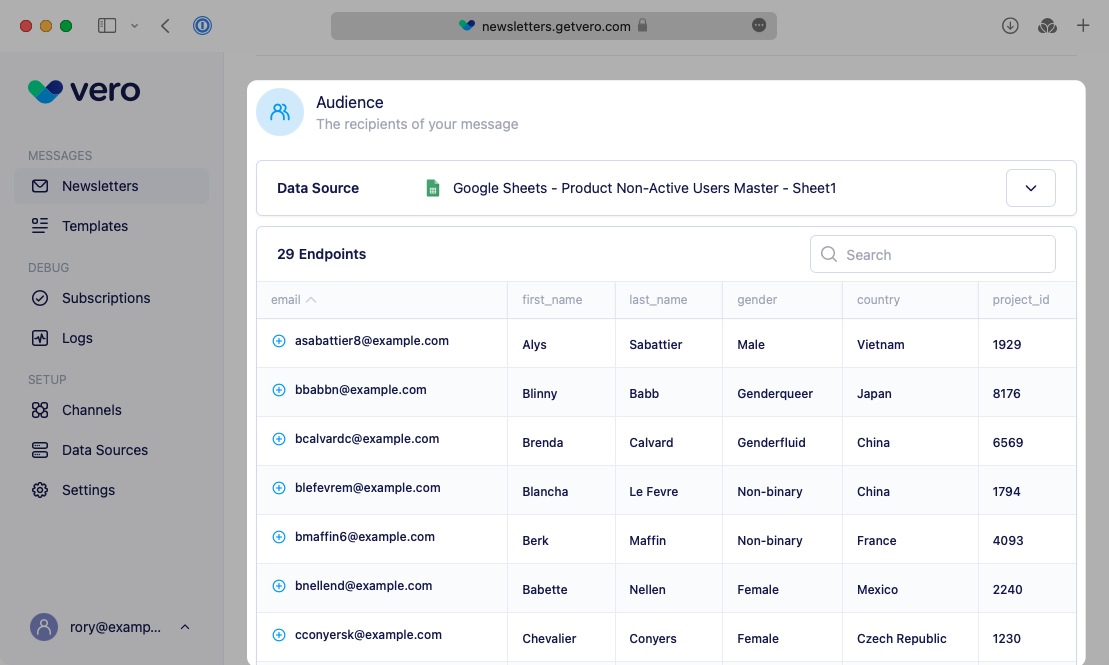
 Once your data has been imported it will be visible in the Audience section.
 ## Using spreadsheet data for content personalization
Vero supports using the Liquid templating language to personalize your messages. You can use any of the data imported from your Google Sheet to personalize your content.
You can access the data you imported by naming the relevant column, for example `first_name`. All columns must be prefixed with `user` Liquid — for example:
```liquid theme={null}
{{ user.first_name }}
```
In the above example Vero will output the value from the `first_name` column for each relevant recipient.
For more information about using Liquid in your message content, read our [Liquid Guide](https://www.getvero.com/resources/email-personalization-liquid-guide/).
## Formatting requirements
Vero is very flexible and supports most types of data you can input into a spreadsheet.
However, to make sure your data is imported correctly and is usable as an audience, you must follow these guidelines when formatting your Google Sheet data:
* **You must include an`email` column, and it must be in lowercase.** This column is used to send emails to your customers, without it you cannot send an email.
* **The first row must define the column names e.g.`email`, `first_name`. All columns must include a name.** Column names are required, Vero cannot process the data and make the data accessible throughout the application without them. Missing columns titles may result in errors when processing the data. Make sure all columns are labeled.
* **Please use underscores to separate words instead of spaces e.g.`first_name`, `account_created_date`.** Vero uses a lowercase + underscores format for data properties.
To see a simple example of correctly formatted Google Sheet, please [see our example](https://docs.google.com/spreadsheets/d/1EI2VxQaoWihK5WTEd4WKFYFbN6Yj8b6bRhr9h9riPYs/edit?usp=sharing).
## Common Issues
### Issue showing the Google Sign in pop up
## Using spreadsheet data for content personalization
Vero supports using the Liquid templating language to personalize your messages. You can use any of the data imported from your Google Sheet to personalize your content.
You can access the data you imported by naming the relevant column, for example `first_name`. All columns must be prefixed with `user` Liquid — for example:
```liquid theme={null}
{{ user.first_name }}
```
In the above example Vero will output the value from the `first_name` column for each relevant recipient.
For more information about using Liquid in your message content, read our [Liquid Guide](https://www.getvero.com/resources/email-personalization-liquid-guide/).
## Formatting requirements
Vero is very flexible and supports most types of data you can input into a spreadsheet.
However, to make sure your data is imported correctly and is usable as an audience, you must follow these guidelines when formatting your Google Sheet data:
* **You must include an`email` column, and it must be in lowercase.** This column is used to send emails to your customers, without it you cannot send an email.
* **The first row must define the column names e.g.`email`, `first_name`. All columns must include a name.** Column names are required, Vero cannot process the data and make the data accessible throughout the application without them. Missing columns titles may result in errors when processing the data. Make sure all columns are labeled.
* **Please use underscores to separate words instead of spaces e.g.`first_name`, `account_created_date`.** Vero uses a lowercase + underscores format for data properties.
To see a simple example of correctly formatted Google Sheet, please [see our example](https://docs.google.com/spreadsheets/d/1EI2VxQaoWihK5WTEd4WKFYFbN6Yj8b6bRhr9h9riPYs/edit?usp=sharing).
## Common Issues
### Issue showing the Google Sign in pop up
 Connecting to Google Sheets requires signing in with your Google account and requires opening a pop up window. You will need to make sure you have pop ups enabled or enable showing the pop up for this specific page in your browser to continue.
### Issue importing your Google sheet
Connecting to Google Sheets requires signing in with your Google account and requires opening a pop up window. You will need to make sure you have pop ups enabled or enable showing the pop up for this specific page in your browser to continue.
### Issue importing your Google sheet
 Vero needs permission from Google Drive to download the data in your spreadsheet. If your spreadsheet is located inside a shared drive, make sure the "Viewers and commenters can download, print, and copy files" option in the shared drive settings is on.