> ## Documentation Index
> Fetch the complete documentation index at: https://help.getvero.com/llms.txt
> Use this file to discover all available pages before exploring further.
# CC and BCC addresses
> Send campaign emails to additional recipients using CC and BCC addresses, including dynamic Liquid values.
Add CC and BCC recipients to emails sent from campaigns and Journey email steps.
* **CC** (carbon copy) — sends a copy to additional recipients. All recipients, including those in the To field, can see who was CC'd.
* **BCC** (blind carbon copy) — sends a copy to additional recipients, but BCC'd addresses are hidden from everyone else on the thread.
Because CC addresses are visible to every recipient, avoid using CC for internal addresses (such as a sales rep or account manager) when sending to end customers. Use BCC instead to keep those addresses private.
Both fields are free-form inputs — they accept any static email address, comma-separated list of addresses, or Liquid expression.
## Adding CC and BCC addresses
1. Open a campaign or Journey email step in the editor.
2. In the **To** section, check **Include CC/BCC**. The panel expands to reveal two inputs — **CC** and **BCC**.
3. Enter one or more email addresses in either field. Separate multiple addresses with a comma.
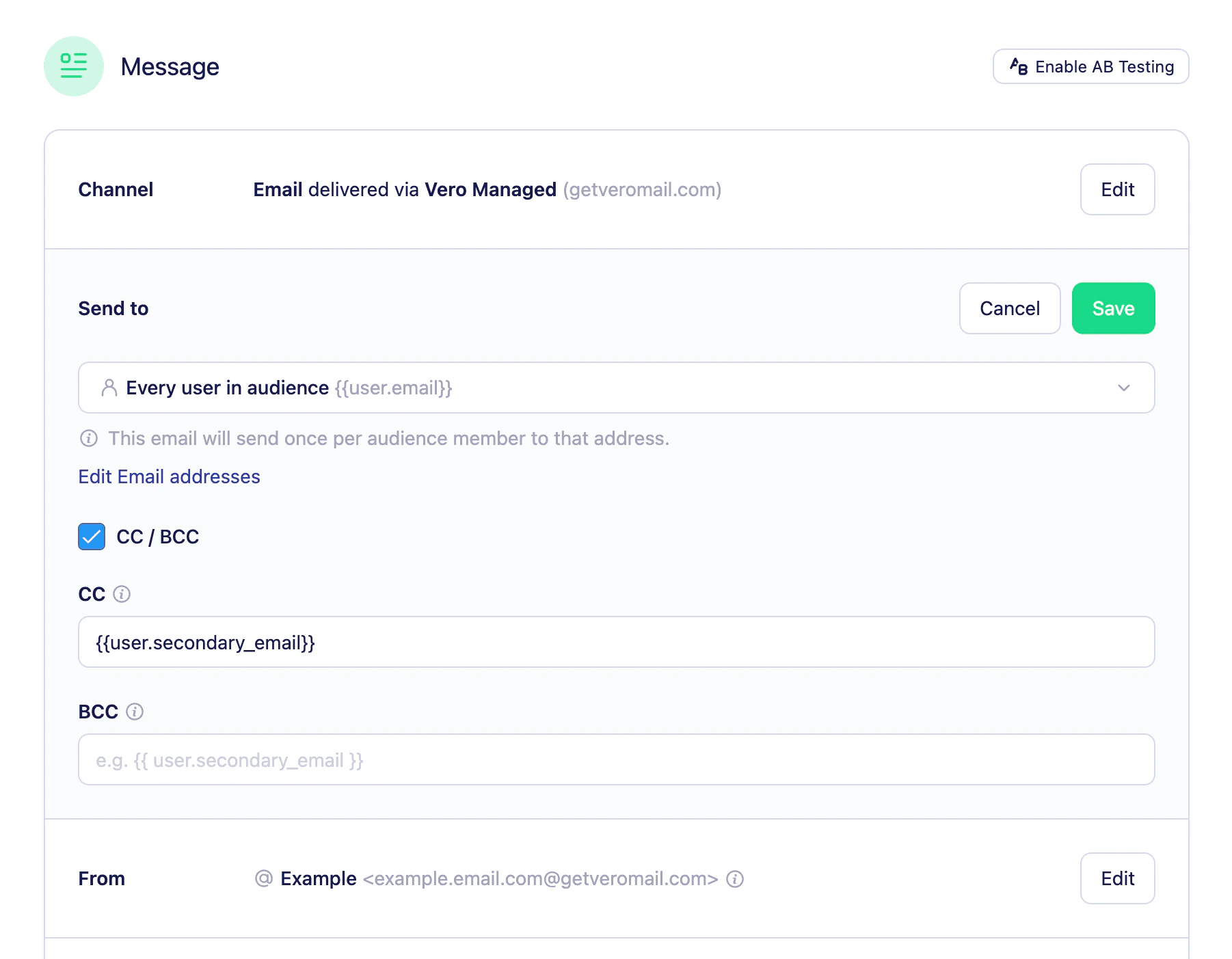 You can use Liquid in CC and BCC fields to set recipients dynamically. For example, `{{user.manager_email}}` will resolve to the value stored on each user's profile.
4. Click **Save** to apply your changes.
The panel expands automatically when you open a campaign or email step that already has CC or BCC values set. Unchecking **Include CC/BCC** clears both fields.
## Reviewing CC and BCC in the summary view
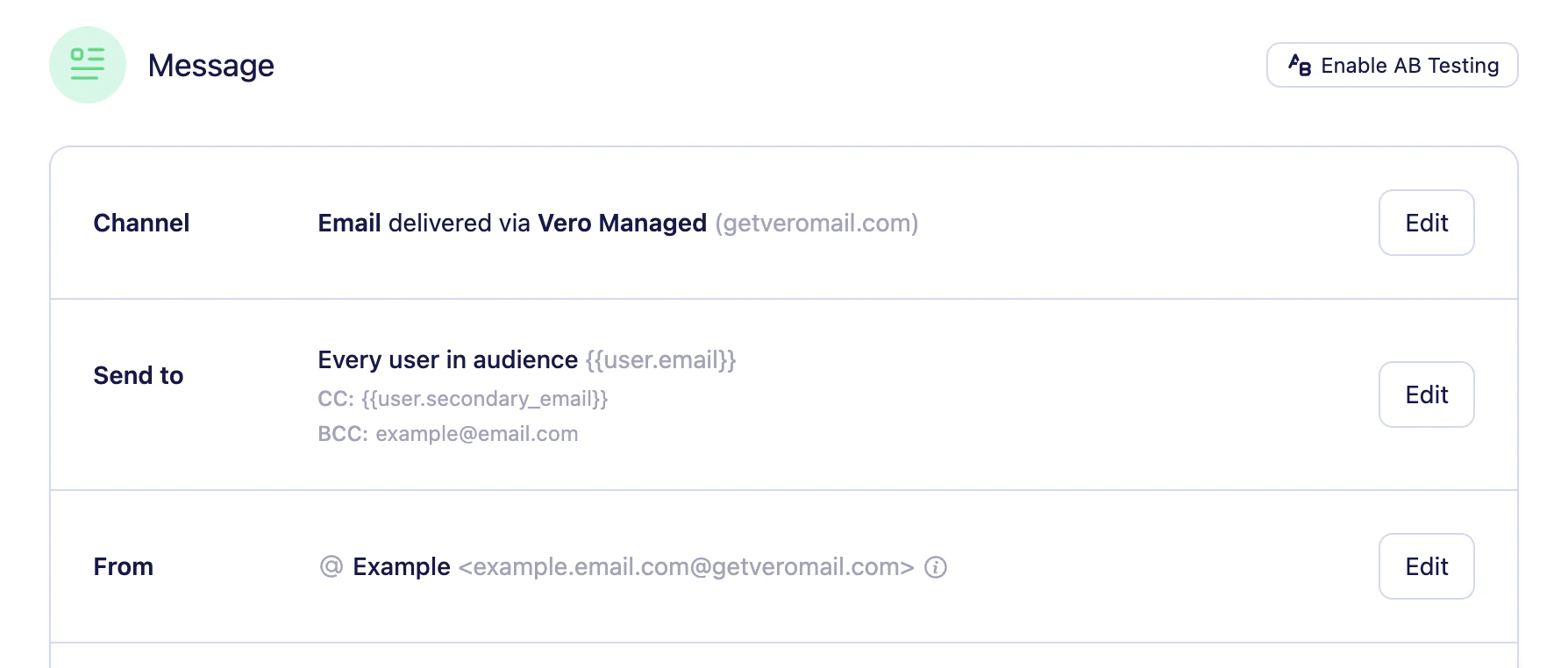
When CC or BCC addresses are set, they appear as labelled rows in the read-only campaign summary.
You can use Liquid in CC and BCC fields to set recipients dynamically. For example, `{{user.manager_email}}` will resolve to the value stored on each user's profile.
4. Click **Save** to apply your changes.
The panel expands automatically when you open a campaign or email step that already has CC or BCC values set. Unchecking **Include CC/BCC** clears both fields.
## Reviewing CC and BCC in the summary view
When CC or BCC addresses are set, they appear as labelled rows in the read-only campaign summary.
 ## Need Help?
If you have any questions, reach out to us at [support@getvero.com](mailto:support@getvero.com).
## Need Help?
If you have any questions, reach out to us at [support@getvero.com](mailto:support@getvero.com).