> ## Documentation Index
> Fetch the complete documentation index at: https://help.getvero.com/llms.txt
> Use this file to discover all available pages before exploring further.
# SMS node
> Send automated SMS messages to users as part of a multi-step Journey.
Journeys supports SMS messaging with a dedicated SMS node. You can build automated SMS workflows triggered by user events and behavior, allowing you to send timely, personalized text messages based on customer actions—whether that's order confirmations, appointment reminders, cart abandonment messages, or follow-ups.
## Prerequisites
Before adding an SMS node to a Journey, you'll need to:
1. **Track phone numbers for your users** via the API using the `phone_number` property. Phone numbers are displayed in user profiles and used as the channel address for SMS messages. [Learn how to add users via the API](/developer-docs/getting-started)
2. **Add an SMS channel provider** to enable sending SMS to profiles with a `phone_number` channel address. [Learn how to configure your SMS channel](/vero-2/channels/sms/how-to-configure-the-sms-channel)
## Tracking phone numbers
To send SMS messages, Vero needs a phone number on record for each user. You can store a phone number when identifying a user via the API:
```javascript theme={null}
vero.tracker.user.identify({
id: "user_123",
email: "alex@example.com",
phone_number: "+15551234567",
data: {
first_name: "Alex",
last_name: "Example"
}
})
```
Phone numbers are displayed on user profiles and used automatically as the delivery address for SMS nodes in Journeys.
## Adding an SMS node to a Journey
1. Open your Journey on the canvas.
2. Click the **"+"** button to open the add node menu.
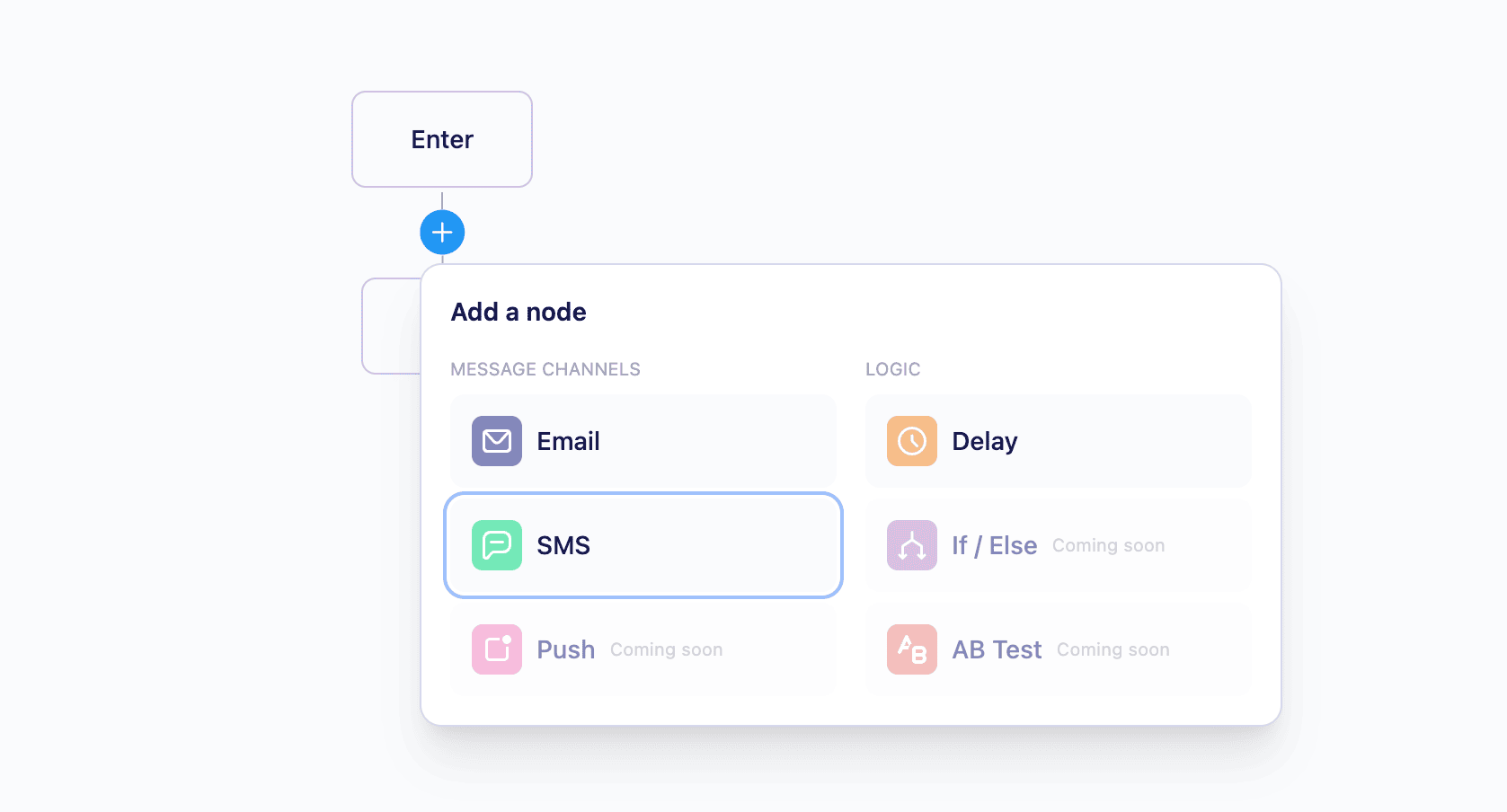 3. Select **SMS** from the list of available node types.
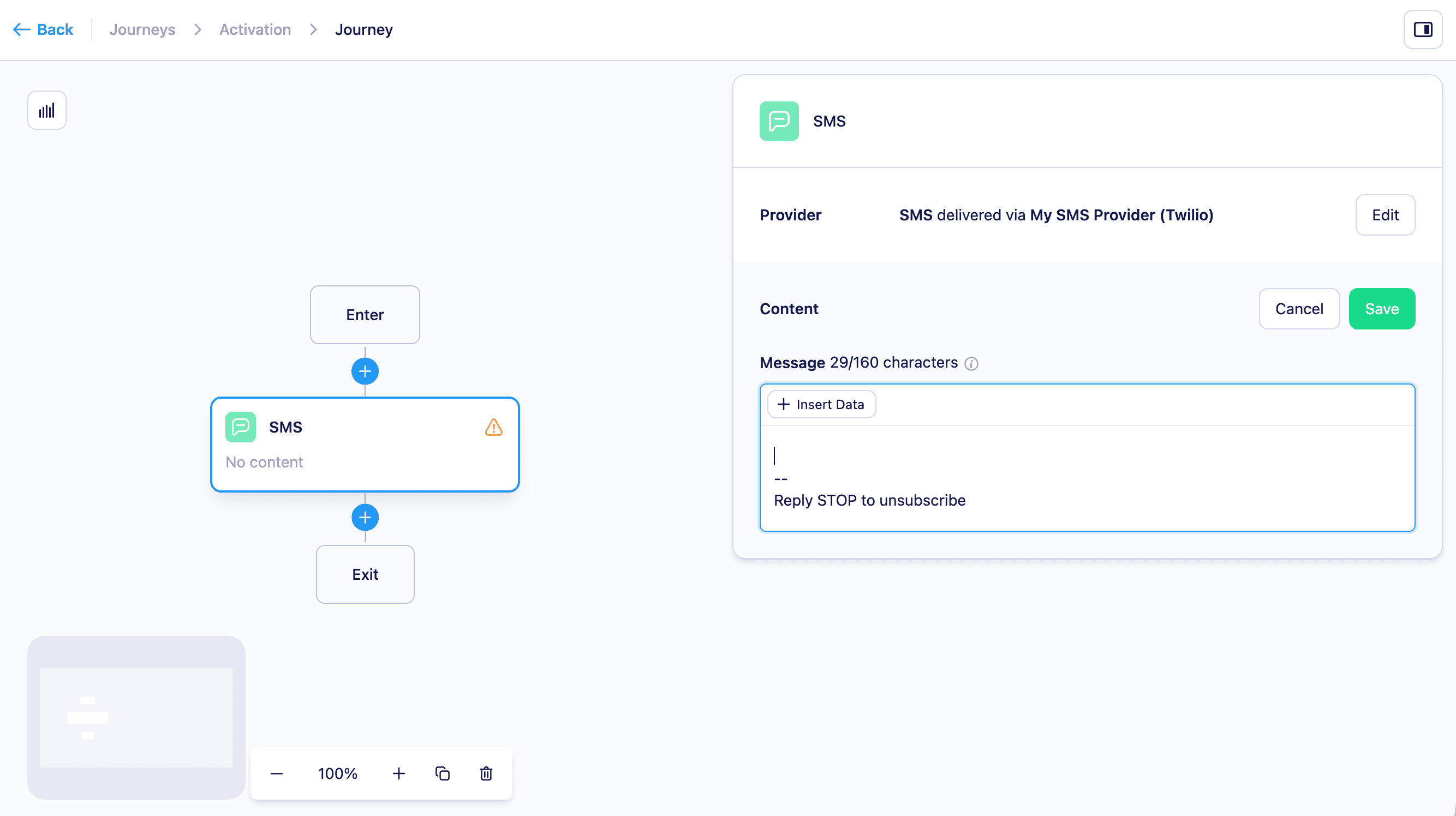
4. Click the SMS node to select it and configure it in the side panel.
3. Select **SMS** from the list of available node types.
4. Click the SMS node to select it and configure it in the side panel.
 ## Configuring the SMS node
In the SMS node side panel you can:
* **Choose an SMS channel provider** - This determines which SMS channel provider will send the message. If you have multiple providers configured, you can choose which one to use for this node.
* **Write your message body** — compose the text that will be sent to the user.
* **Personalize with Liquid** — use Liquid merge tags to insert dynamic content into your message based on user attributes or properties from the triggering event:
* `{{ user.first_name }}` — inserts a property from the recipient's user profile.
* `{{ event.property_name }}` — inserts a property from the event that triggered the journey.
Vero supports most standard Liquid functions as well as additional convenience functions. See the [Liquid personalization guide](https://www.getvero.com/email-personalization-liquid-guide/) for a full reference, or read [how to personalize messages using Liquid](/vero-2/message-content/how-to-personalise-your-message-using-liquid) for an overview of available merge tags.
**Example:**
```liquid theme={null}
Hi {{ user.first_name }}, your order #{{ event.order_id }} has been confirmed. Track it here: {{ event.tracking_url }}
```
## Reporting
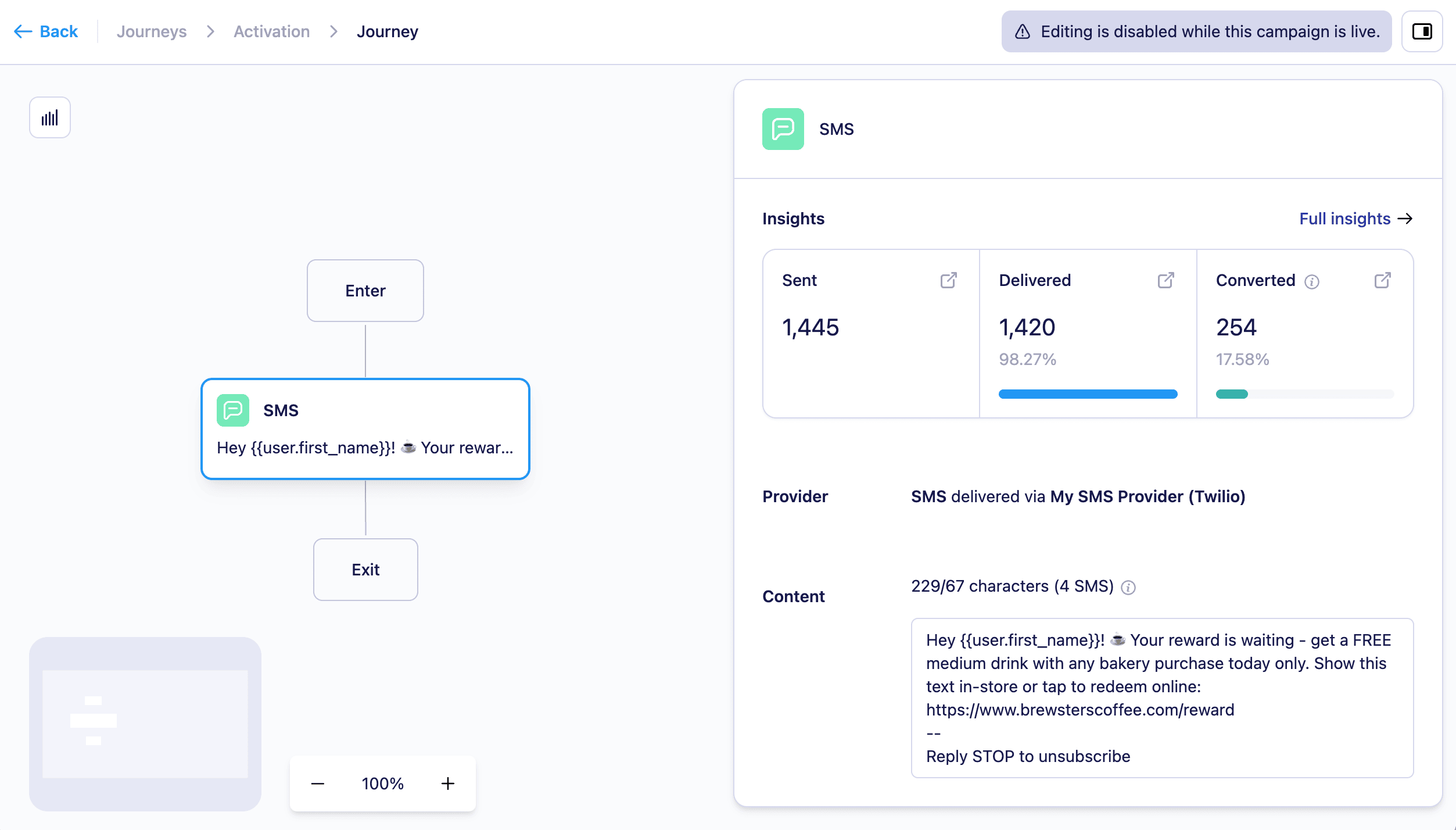
SMS nodes include delivery reporting in the Journey canvas and campaign report. The following metrics are available for each SMS node:
* **Sent** — the number of SMS messages Vero has dispatched to the SMS channel provider.
* **Delivered** — the number of messages successfully delivered to the recipient's device, as confirmed by the provider.
* **Converted** — the number of users who completed the [conversion goal](/vero-2/campaigns/conversion-tracking) attributed to this SMS node.
## Configuring the SMS node
In the SMS node side panel you can:
* **Choose an SMS channel provider** - This determines which SMS channel provider will send the message. If you have multiple providers configured, you can choose which one to use for this node.
* **Write your message body** — compose the text that will be sent to the user.
* **Personalize with Liquid** — use Liquid merge tags to insert dynamic content into your message based on user attributes or properties from the triggering event:
* `{{ user.first_name }}` — inserts a property from the recipient's user profile.
* `{{ event.property_name }}` — inserts a property from the event that triggered the journey.
Vero supports most standard Liquid functions as well as additional convenience functions. See the [Liquid personalization guide](https://www.getvero.com/email-personalization-liquid-guide/) for a full reference, or read [how to personalize messages using Liquid](/vero-2/message-content/how-to-personalise-your-message-using-liquid) for an overview of available merge tags.
**Example:**
```liquid theme={null}
Hi {{ user.first_name }}, your order #{{ event.order_id }} has been confirmed. Track it here: {{ event.tracking_url }}
```
## Reporting
SMS nodes include delivery reporting in the Journey canvas and campaign report. The following metrics are available for each SMS node:
* **Sent** — the number of SMS messages Vero has dispatched to the SMS channel provider.
* **Delivered** — the number of messages successfully delivered to the recipient's device, as confirmed by the provider.
* **Converted** — the number of users who completed the [conversion goal](/vero-2/campaigns/conversion-tracking) attributed to this SMS node.
 ## Message length and segmentation
SMS messages over 160 characters are automatically split into multiple segments for delivery. They will appear as a single message to the recipient, but each segment may be billed separately depending on your provider.
Emojis reduce the per-segment character limit and will increase the number of segments used.
When using Liquid variables, we recommend keeping your message well below 1,600 characters to account for variation in user data length. Exceeding the character limit will cause the message to fail to send.
## Limitations
* SMS messages are only sent to users who have a `phone_number` stored in their profile.
* Users without a phone number on record will skip the SMS node and continue to the next step in the journey.
## Need Help?
If you have any questions or need assistance configuring SMS in Journeys, reach out to us at [support@getvero.com](mailto:support@getvero.com).
## Message length and segmentation
SMS messages over 160 characters are automatically split into multiple segments for delivery. They will appear as a single message to the recipient, but each segment may be billed separately depending on your provider.
Emojis reduce the per-segment character limit and will increase the number of segments used.
When using Liquid variables, we recommend keeping your message well below 1,600 characters to account for variation in user data length. Exceeding the character limit will cause the message to fail to send.
## Limitations
* SMS messages are only sent to users who have a `phone_number` stored in their profile.
* Users without a phone number on record will skip the SMS node and continue to the next step in the journey.
## Need Help?
If you have any questions or need assistance configuring SMS in Journeys, reach out to us at [support@getvero.com](mailto:support@getvero.com).