> ## Documentation Index
> Fetch the complete documentation index at: https://help.getvero.com/llms.txt
> Use this file to discover all available pages before exploring further.
# Microsoft SQL Server
> Connect your Microsoft SQL Server database to Vero to query customer data for campaign audiences.
Vero can connect to your Microsoft SQL Server database, run queries against it and use the results of those queries to send email messages to your customers. In Vero, database connections are referred to as ***Data Sources***.
## Adding your database
Vero connects to your SQL Server using [SQL Server Authentication](https://learn.microsoft.com/en-us/sql/relational-databases/security/choose-an-authentication-mode?view=sql-server-ver16#connecting-through-sql-server-authentication). Ensure you have SQL Server Authentication turned on.
**Note:** we do not currently support authentication via Azure Active Directory, IAM or similar.
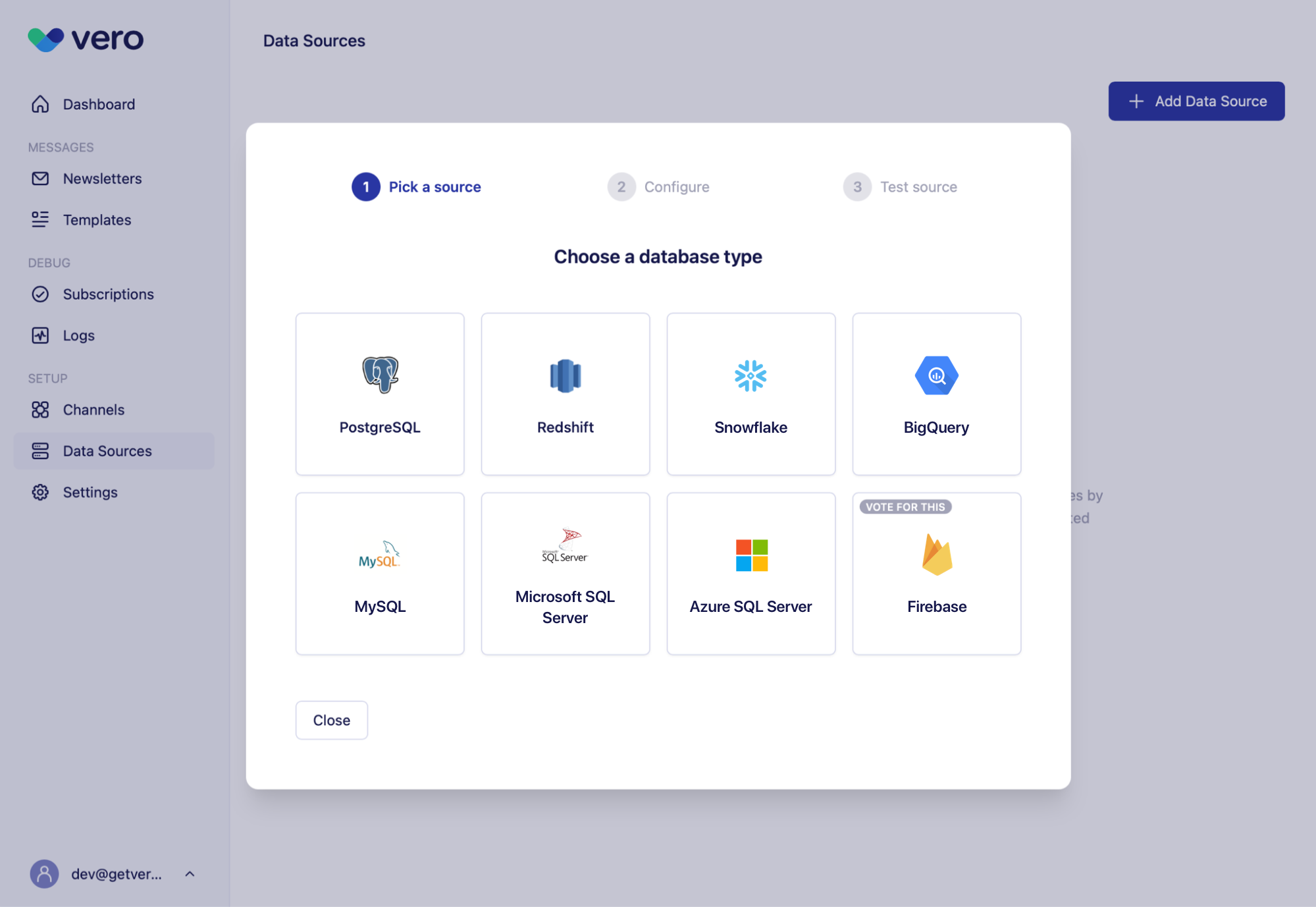
To add a Microsoft SQL Server database, click **Data Sources** and **Add Data Source**. In the menu that appears, choose Microsoft SQL Server:
 To add your database you will need the following credentials:
* **Host**. The web or IP address of the database.
* **Port**. The port that is accepting connections (e.g. typically 1433 for SQL Server).
* **Username**.
* **Password**.
* **Database name**. The name of the database to connect to.
To add your database you will need the following credentials:
* **Host**. The web or IP address of the database.
* **Port**. The port that is accepting connections (e.g. typically 1433 for SQL Server).
* **Username**.
* **Password**.
* **Database name**. The name of the database to connect to. 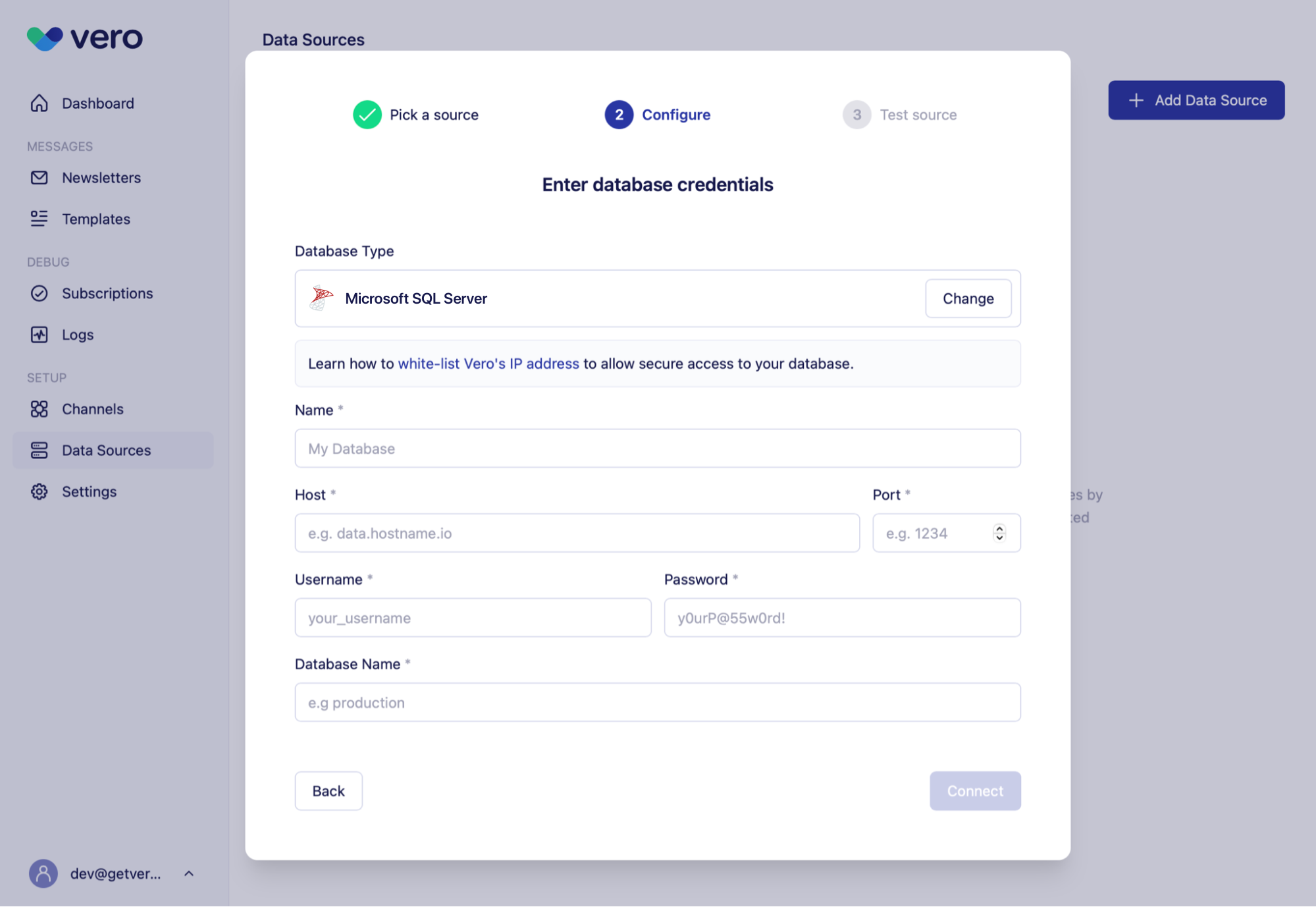 ### Testing your connection
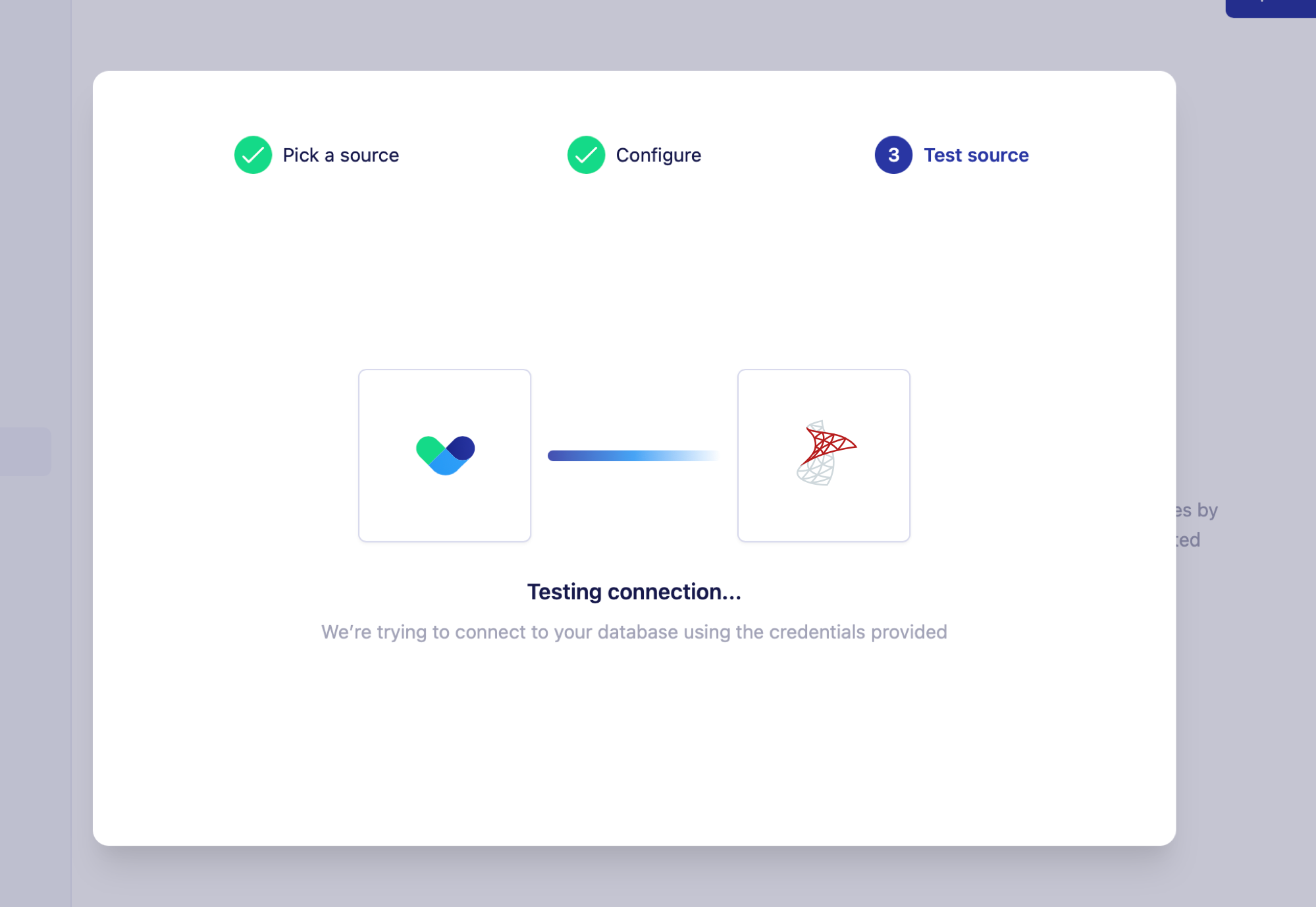
Once you’ve entered your database credentials, select Connect. Vero will automatically test the connection:
### Testing your connection
Once you’ve entered your database credentials, select Connect. Vero will automatically test the connection:
 ## Securing your connection
### Create a read-only user
Vero will only execute `SELECT` queries against your database: it is read only by design.
That said, we would recommend creating a user login that only has read access to your database.
Vero will show users all available tables when using the SQL editor in our UI. Limiting the tables and columns that Vero has access to is good practice.
### IP whitelisting
Vero will connect directly to your database over the public internet. This approach requires your network and database to be configured to allow Vero’s servers to connect to it.
Find the list of active IP addresses Vero uses to connect to your database [here](/vero-2/data-sources/ip-addresses-to-whitelist). Whitelist these addresses to secure access to your data.
## Currently supported MSSQL versions
Vero **officially** supports Microsoft SQL Server 15+ (2019+) and Azure SQL databases.
**Note:** we require SSL on all SQL Server connections and **do** validate certificates. If you run into connection issues please email us so we can confirm the certificate configuration needed to support your connection.
## FAQs
### Query limits
Vero will show your query results in blocks of 100 in the UI. In order to load an audience you will need to load your entire query (without a `LIMIT` clause).
There is no technical limit to the number of rows you can query using Vero’s UI but we have currently tested up to one million rows consistently.
### Query timeout
Vero will currently timeout queries after 12 hours.
### Known issues
We are working to fix these issues:
* Amazon RDS SQL Server connections do not work at this time.
## Securing your connection
### Create a read-only user
Vero will only execute `SELECT` queries against your database: it is read only by design.
That said, we would recommend creating a user login that only has read access to your database.
Vero will show users all available tables when using the SQL editor in our UI. Limiting the tables and columns that Vero has access to is good practice.
### IP whitelisting
Vero will connect directly to your database over the public internet. This approach requires your network and database to be configured to allow Vero’s servers to connect to it.
Find the list of active IP addresses Vero uses to connect to your database [here](/vero-2/data-sources/ip-addresses-to-whitelist). Whitelist these addresses to secure access to your data.
## Currently supported MSSQL versions
Vero **officially** supports Microsoft SQL Server 15+ (2019+) and Azure SQL databases.
**Note:** we require SSL on all SQL Server connections and **do** validate certificates. If you run into connection issues please email us so we can confirm the certificate configuration needed to support your connection.
## FAQs
### Query limits
Vero will show your query results in blocks of 100 in the UI. In order to load an audience you will need to load your entire query (without a `LIMIT` clause).
There is no technical limit to the number of rows you can query using Vero’s UI but we have currently tested up to one million rows consistently.
### Query timeout
Vero will currently timeout queries after 12 hours.
### Known issues
We are working to fix these issues:
* Amazon RDS SQL Server connections do not work at this time.