> ## Documentation Index
> Fetch the complete documentation index at: https://help.getvero.com/llms.txt
> Use this file to discover all available pages before exploring further.
# Exporting a list of profiles
> Export a CSV of subscribed or unsubscribed customer profiles from the Profiles page or from a specific segment.
You can export a CSV of your customer profiles directly from the **Profiles** page or from any **Segment**. Exports can be filtered to include subscribed or unsubscribed profiles.
## Exporting from the Profiles page
1. Navigate to **Profiles** from the main sidebar.
2. Click the **Export** button in the top-right corner of the page.
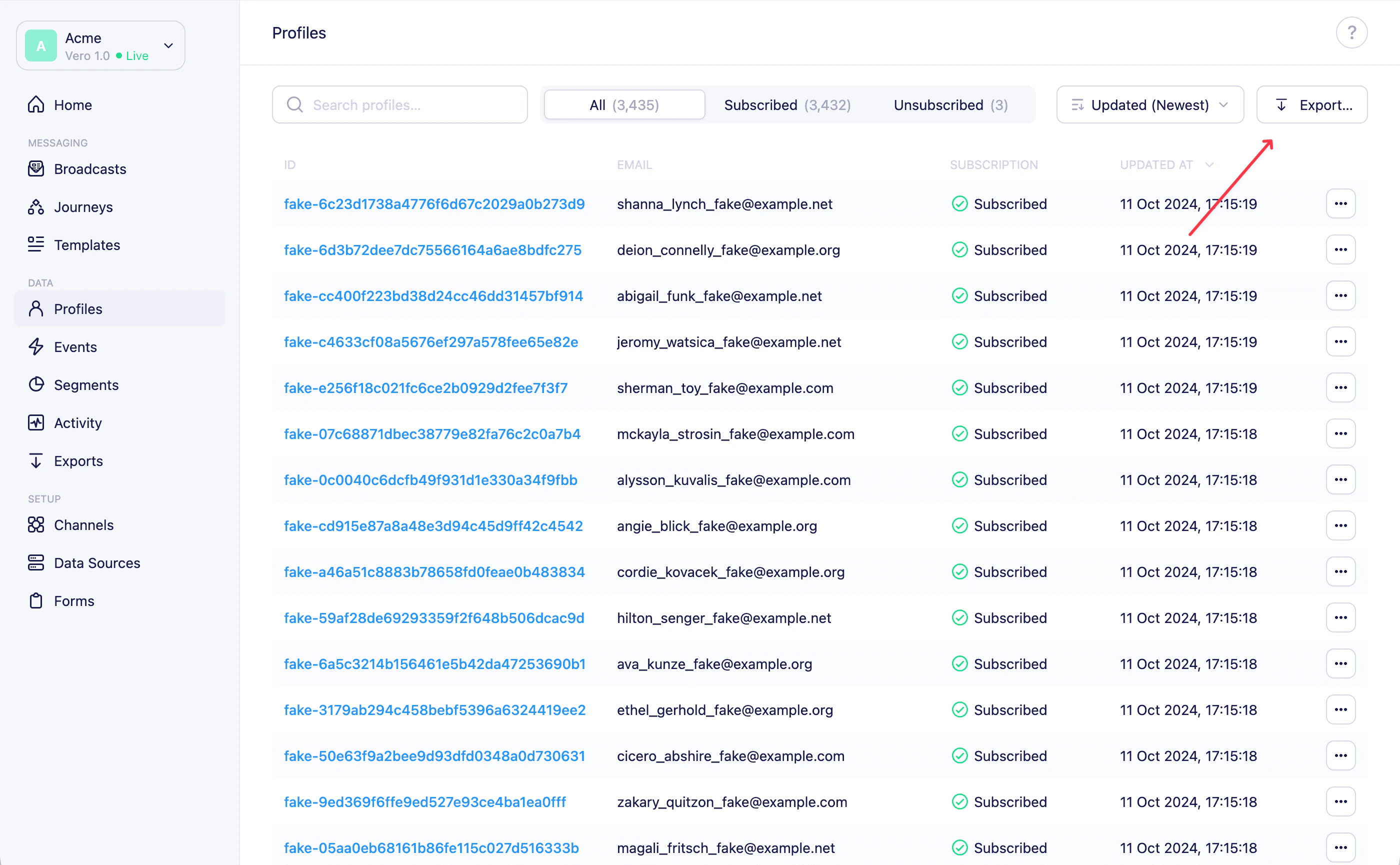 3. In the modal that appears, select the type of export:
* **Subscribed Customers** — all profiles that are currently subscribed
* **Unsubscribed Customers** — all profiles that have unsubscribed
3. In the modal that appears, select the type of export:
* **Subscribed Customers** — all profiles that are currently subscribed
* **Unsubscribed Customers** — all profiles that have unsubscribed
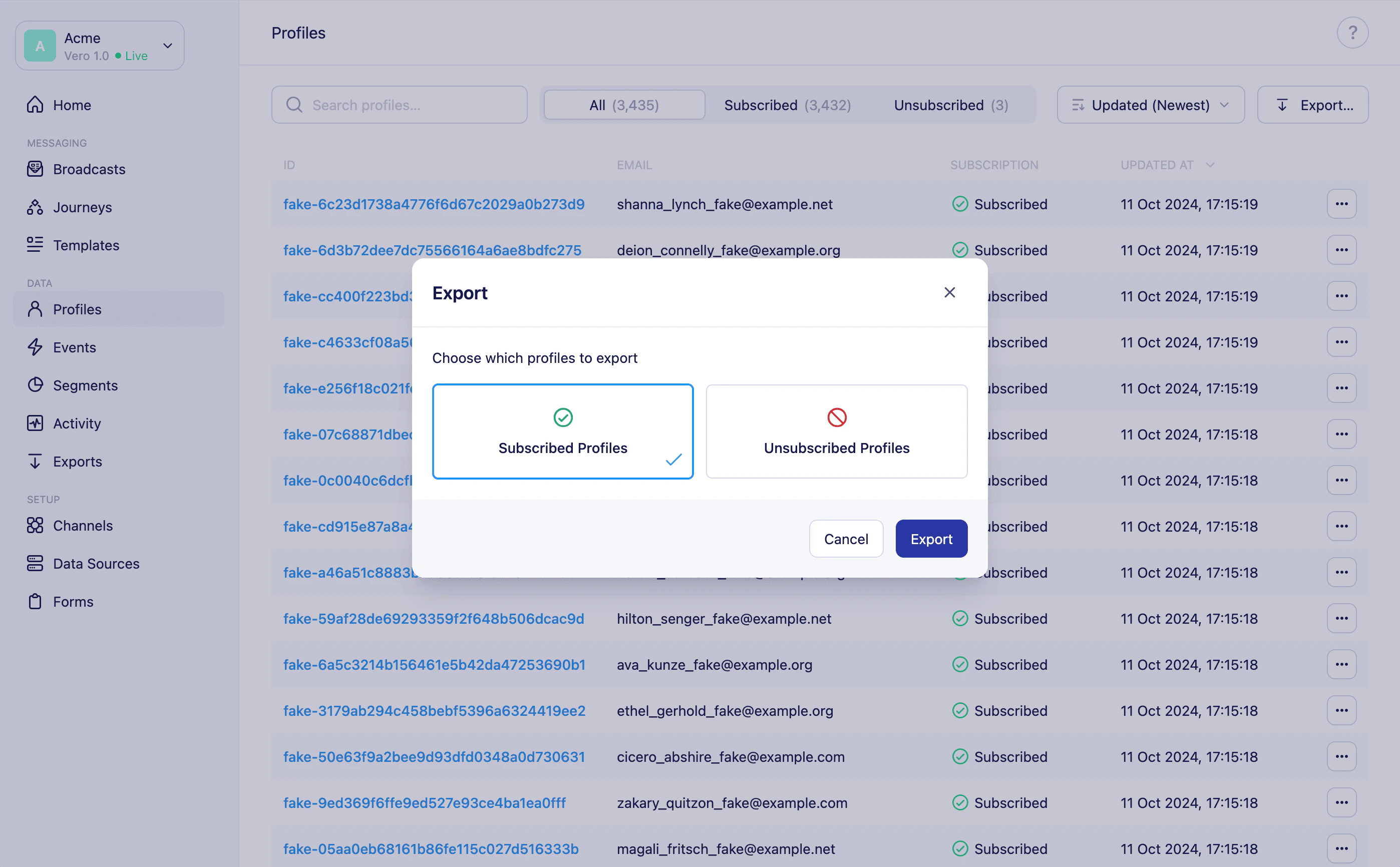 4. Click **Export** to confirm.
Vero will begin generating the export and redirect you to the [**Exports** page](/vero-2/importing-exporting/exports-overview), where you can monitor its progress and download the file when it's ready. A toast notification will confirm that the export has started.
## Exporting from a segment
You can export the profiles within a specific segment in the same way.
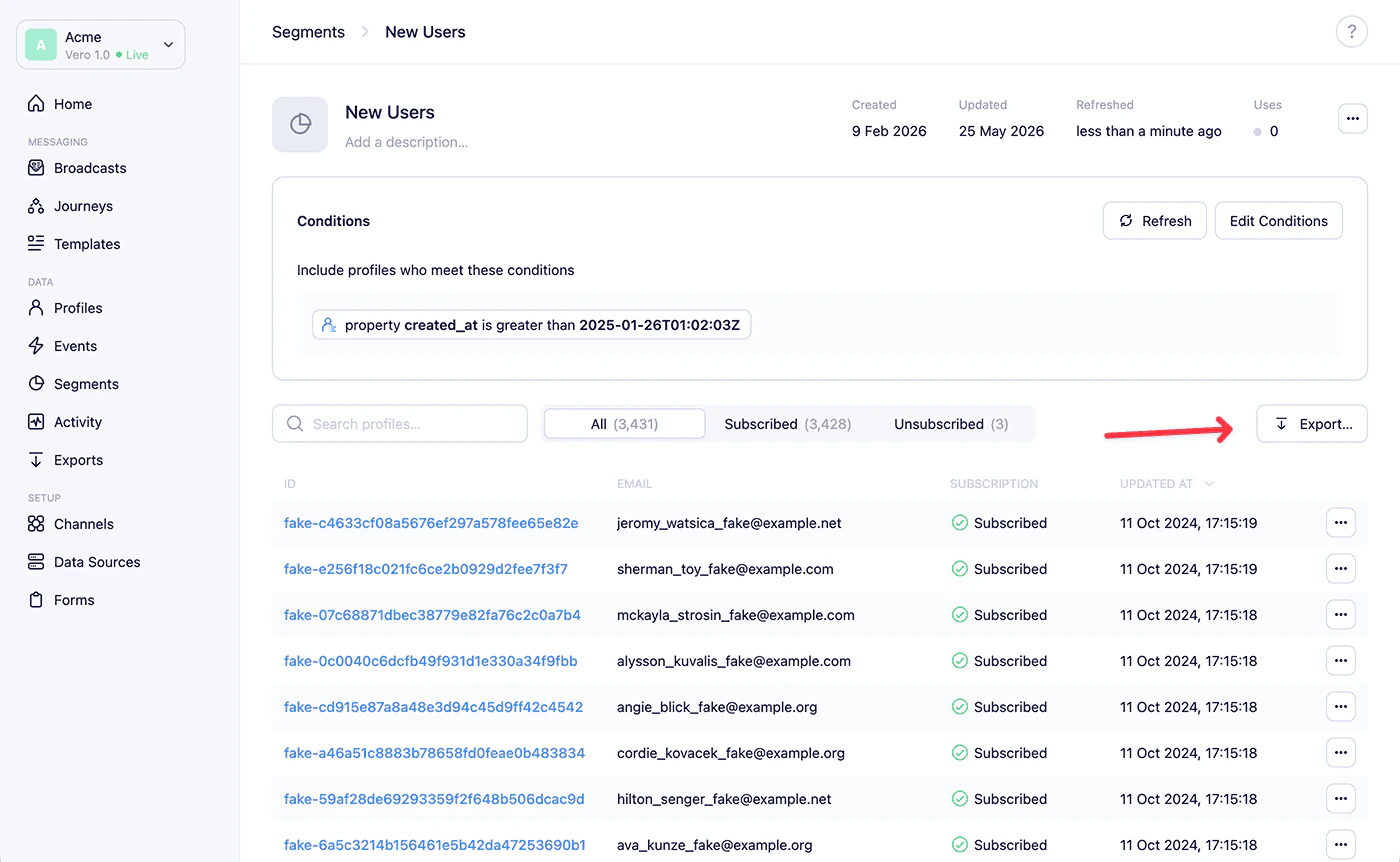
1. Navigate to **Segments** from the main sidebar and open the segment you want to export.
2. Click the **Export…** button in the top-right corner of the segment page.
4. Click **Export** to confirm.
Vero will begin generating the export and redirect you to the [**Exports** page](/vero-2/importing-exporting/exports-overview), where you can monitor its progress and download the file when it's ready. A toast notification will confirm that the export has started.
## Exporting from a segment
You can export the profiles within a specific segment in the same way.
1. Navigate to **Segments** from the main sidebar and open the segment you want to export.
2. Click the **Export…** button in the top-right corner of the segment page.
 3. In the modal that appears, select the type of export:
* **Subscribed Profiles** — subscribed customers who are in this segment
* **Unsubscribed Profiles** — unsubscribed customers who are in this segment
3. In the modal that appears, select the type of export:
* **Subscribed Profiles** — subscribed customers who are in this segment
* **Unsubscribed Profiles** — unsubscribed customers who are in this segment
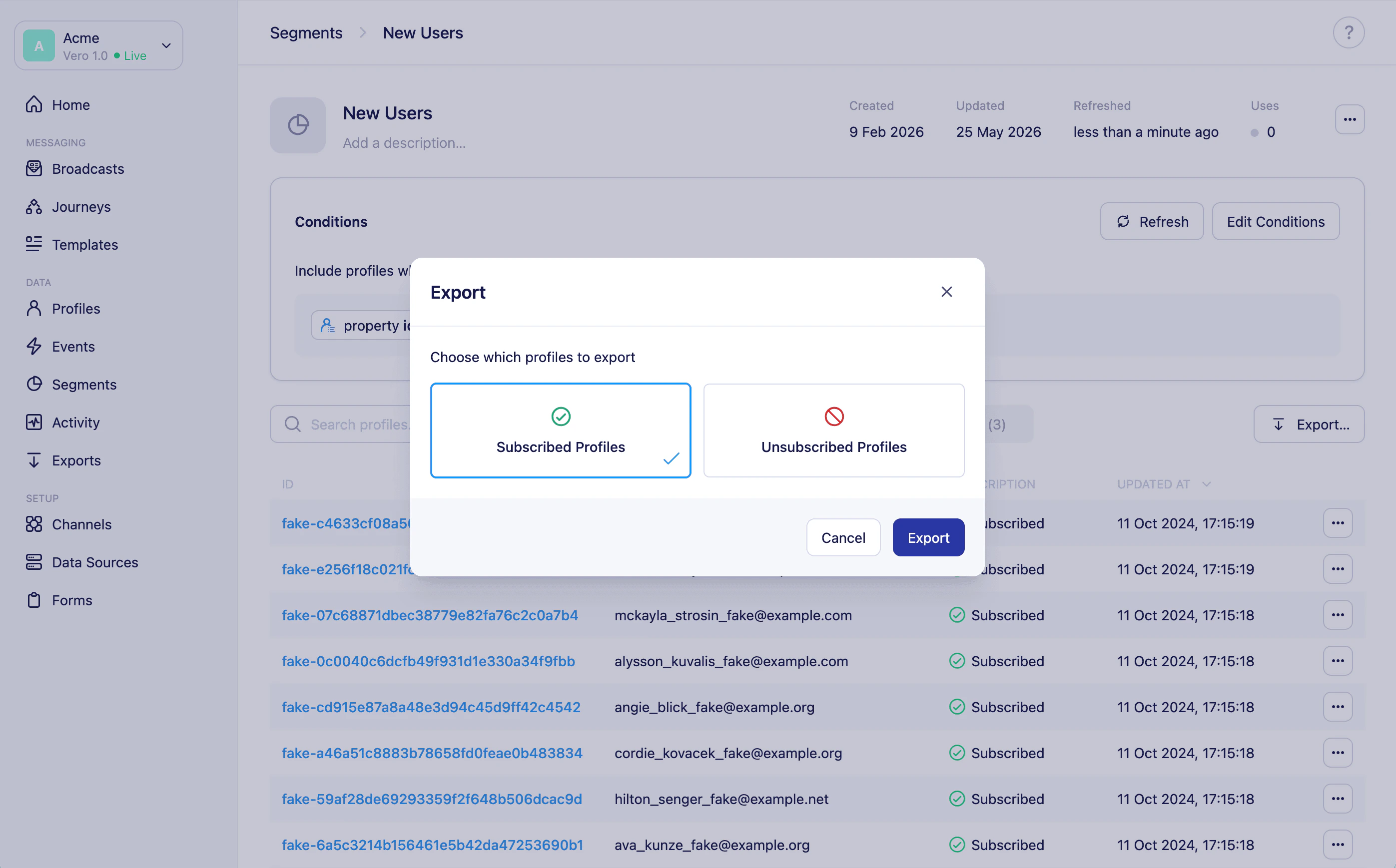 4. Click **Export** to confirm.
Vero will redirect you to the [**Exports** page](/vero-2/importing-exporting/exports-overview) and begin generating the file.
## Downloading your export
Once the export is complete, go to the [**Exports** page](/vero-2/importing-exporting/exports-overview) to generate a secure download link and save the CSV file. See [Exports overview](/vero-2/importing-exporting/exports-overview) for details on download links and file expiry.
## Need help?
If you have any questions, reach out to us at [support@getvero.com](mailto:support@getvero.com).
4. Click **Export** to confirm.
Vero will redirect you to the [**Exports** page](/vero-2/importing-exporting/exports-overview) and begin generating the file.
## Downloading your export
Once the export is complete, go to the [**Exports** page](/vero-2/importing-exporting/exports-overview) to generate a secure download link and save the CSV file. See [Exports overview](/vero-2/importing-exporting/exports-overview) for details on download links and file expiry.
## Need help?
If you have any questions, reach out to us at [support@getvero.com](mailto:support@getvero.com).