> ## Documentation Index
> Fetch the complete documentation index at: https://help.getvero.com/llms.txt
> Use this file to discover all available pages before exploring further.
# Exports overview
> View and download CSV exports you've requested in Vero, including profile and customer exports.
The **Exports** page is where all CSV exports you initiate in Vero are collected. You can monitor the status of in-progress exports and download completed files from one place.
## The exports page
Navigate to **Exports** from the main sidebar under the **Data** section, or go to [connect.getvero.com/exports](https://connect.getvero.com/exports).
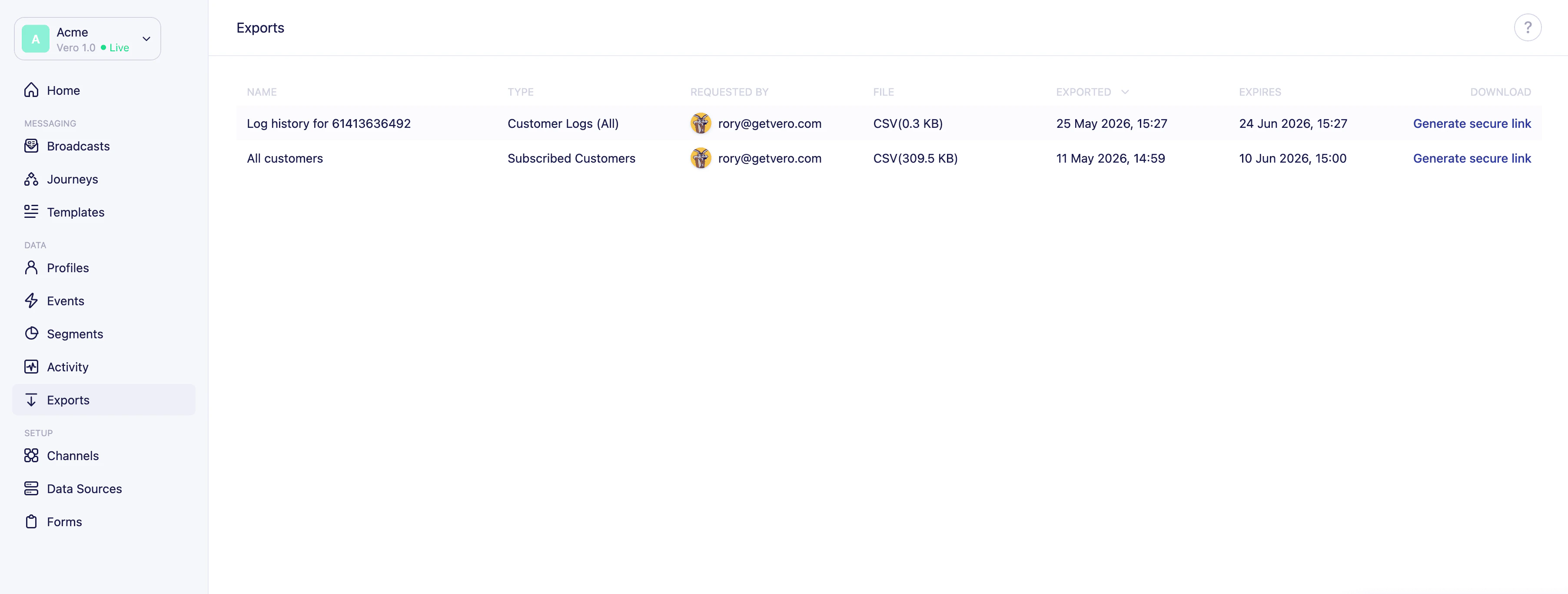 Each row in the exports list shows:
| Column | Description |
| ---------------- | ------------------------------------------------------------------ |
| **Name** | A description of the export, e.g. "Activity history for user\_123" |
| **Type** | The type of data exported, e.g. "Subscribed Customers" |
| **Requested by** | The email address of the team member who initiated the export |
| **File** | The file format — all exports are CSV |
| **Size** | File size once the export is complete |
| **Exported** | The date the export was requested |
| **Expires** | The date the export file expires |
Exports from Vero 1.0 are also visible in this list.
## Downloading an export
Exports are generated asynchronously — they may take a few moments to complete depending on the size of your data.
1. Once an export is ready, click **Generate secure link** in the download column.
2. Vero will generate a time-limited download link. The button will show **Generating…** briefly while this happens.
3. Once the link is ready, click **Download** to download the CSV file.
### Export and link expiry
* **Download links** expire after **7 days**. After that, you can generate a new link from the same row.
* **Export files** are available for **30 days** from the date they were requested. After 30 days, the export is no longer available and you'll need to run a new export.
If a download link expires before you use it, you can generate a new one. However, if the export file itself has expired (after 30 days), you will need to re-run the export.
If you have any questions, reach out to us at [support@getvero.com](mailto:support@getvero.com).
Each row in the exports list shows:
| Column | Description |
| ---------------- | ------------------------------------------------------------------ |
| **Name** | A description of the export, e.g. "Activity history for user\_123" |
| **Type** | The type of data exported, e.g. "Subscribed Customers" |
| **Requested by** | The email address of the team member who initiated the export |
| **File** | The file format — all exports are CSV |
| **Size** | File size once the export is complete |
| **Exported** | The date the export was requested |
| **Expires** | The date the export file expires |
Exports from Vero 1.0 are also visible in this list.
## Downloading an export
Exports are generated asynchronously — they may take a few moments to complete depending on the size of your data.
1. Once an export is ready, click **Generate secure link** in the download column.
2. Vero will generate a time-limited download link. The button will show **Generating…** briefly while this happens.
3. Once the link is ready, click **Download** to download the CSV file.
### Export and link expiry
* **Download links** expire after **7 days**. After that, you can generate a new link from the same row.
* **Export files** are available for **30 days** from the date they were requested. After 30 days, the export is no longer available and you'll need to run a new export.
If a download link expires before you use it, you can generate a new one. However, if the export file itself has expired (after 30 days), you will need to re-run the export.
If you have any questions, reach out to us at [support@getvero.com](mailto:support@getvero.com).