> ## Documentation Index
> Fetch the complete documentation index at: https://help.getvero.com/llms.txt
> Use this file to discover all available pages before exploring further.
# Import events via CSV
> Backfill historical user events in Vero 2.0 by importing them via CSV, with the option to trigger campaigns.
Vero tracks the [events](/vero-2/events/events-overview) your users perform in your application. There are times when you'll want to add events that happened before you started tracking — for example, importing your users' past orders. You can do this by importing a CSV of events.
## Required data
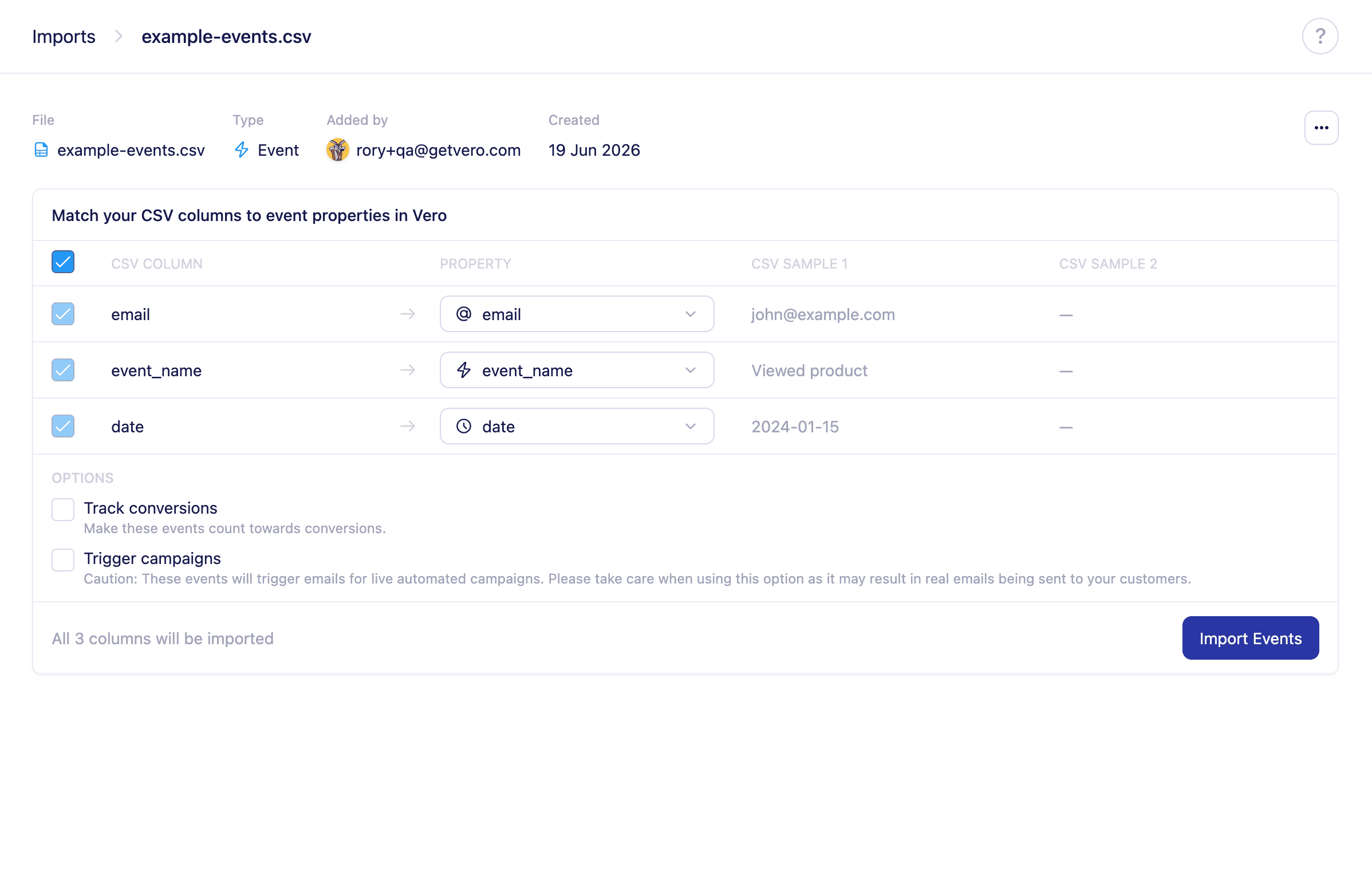
An events CSV supports three core columns:
* `email` – who performed the event.
* `event_name` – the name of the event, for example `Completes checkout`.
* `date` – the date and time of the event, for example `2022-01-15 02:00+10`.
You can include any additional columns as **event properties**, which are stored alongside each event.
Here's an example that adds three checkout events, each with an `item_type` property:
```
email,event_name,date,item_type
tyrion.lannister@casterlyrock.com,Completes checkout,2022-01-02 13:05+10,yellow_shirt
tyrion.lannister@casterlyrock.com,Completes checkout,2022-01-15 02:00+10,green_shirt
tyrion.lannister@casterlyrock.com,Completes checkout,2022-01-25 04:20+10,red_hat
```
## Importing your file
1. Select **Imports** in the left sidebar.
2. Select **Import** and choose **Events** as the import type.
3. Upload your `.csv` file.
4. Map each column in your file to the matching Vero field.
5. Select **Import Events** to start the import.
 Once the import completes, a summary page shows how many rows were successfully imported and how many failed.
## Import options
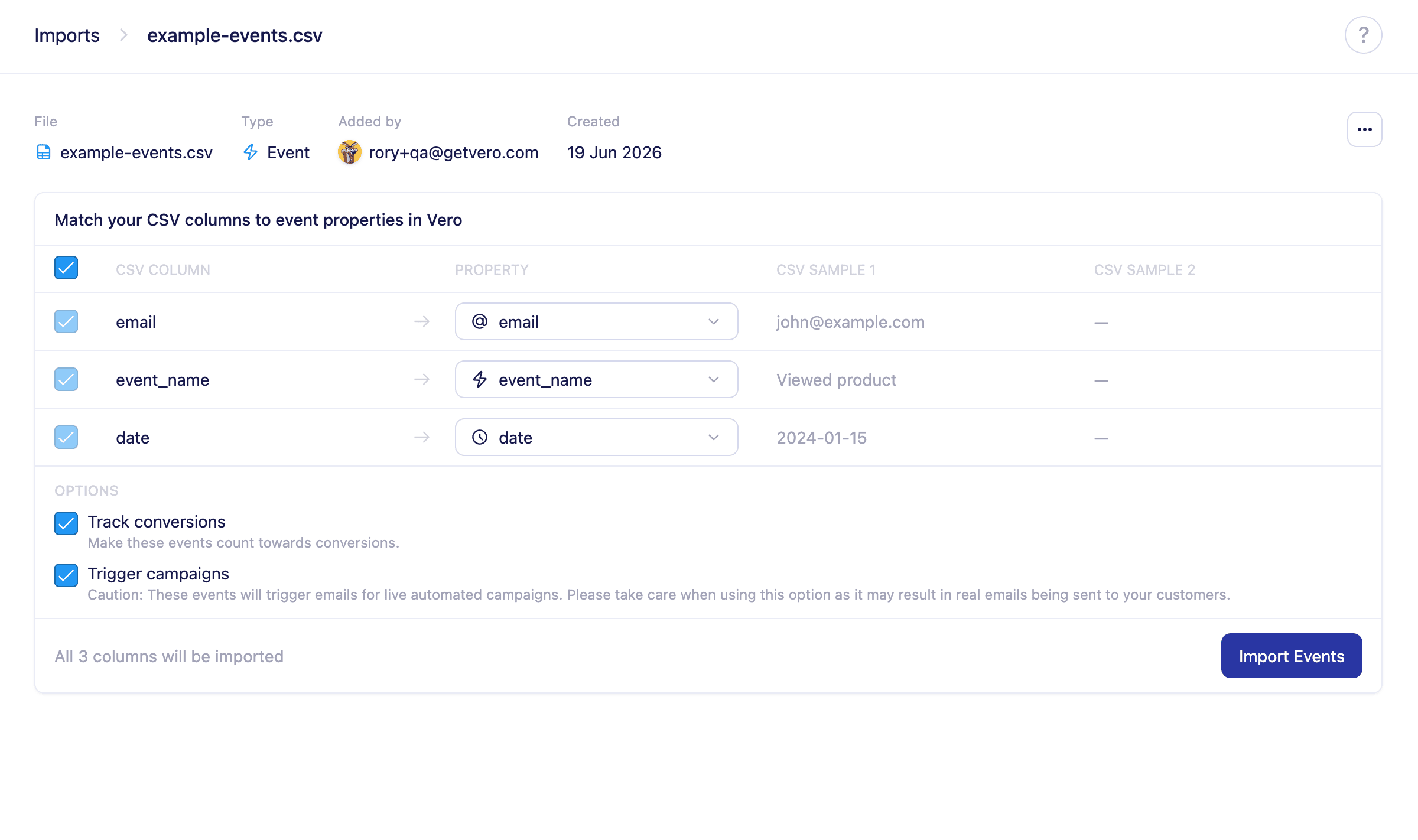
The events mapping screen includes two optional settings:
* **Track conversions** – count these imported events towards your campaign conversion metrics.
* **Trigger campaigns** – allow these events to trigger live automated campaigns. Use with care, as this may result in real messages being sent to your customers.
Once the import completes, a summary page shows how many rows were successfully imported and how many failed.
## Import options
The events mapping screen includes two optional settings:
* **Track conversions** – count these imported events towards your campaign conversion metrics.
* **Trigger campaigns** – allow these events to trigger live automated campaigns. Use with care, as this may result in real messages being sent to your customers.
 ### How dates affect triggering
When you import events as triggers, the event's `date` determines what happens next:
* If a campaign sends a set time after an event, Vero calculates that delay from the imported event's `date`. For example, if a campaign sends 10 days after `Completes checkout` and you import an event dated 9 days ago, the user receives the message 1 day from now.
* If the delay has already fully elapsed — the event is 10 or more days old in the example above — the user is discarded and does not continue through the campaign.
Events cannot be triggered for a future date and time.
## After the import
If any rows fail, the summary page lists them so you can correct those rows, export them to a new CSV, and import them again.
## Next steps
* [Events overview](/vero-2/events/events-overview)
* [Import user profiles via CSV](/vero-2/importing-exporting/import-user-profiles-via-csv)
## Need Help?
If you have any questions, reach out to us at [support@getvero.com](mailto:support@getvero.com).
### How dates affect triggering
When you import events as triggers, the event's `date` determines what happens next:
* If a campaign sends a set time after an event, Vero calculates that delay from the imported event's `date`. For example, if a campaign sends 10 days after `Completes checkout` and you import an event dated 9 days ago, the user receives the message 1 day from now.
* If the delay has already fully elapsed — the event is 10 or more days old in the example above — the user is discarded and does not continue through the campaign.
Events cannot be triggered for a future date and time.
## After the import
If any rows fail, the summary page lists them so you can correct those rows, export them to a new CSV, and import them again.
## Next steps
* [Events overview](/vero-2/events/events-overview)
* [Import user profiles via CSV](/vero-2/importing-exporting/import-user-profiles-via-csv)
## Need Help?
If you have any questions, reach out to us at [support@getvero.com](mailto:support@getvero.com).