> ## Documentation Index
> Fetch the complete documentation index at: https://help.getvero.com/llms.txt
> Use this file to discover all available pages before exploring further.
# Imports overview
> Bulk add or update user profiles, events, and subscription status in Vero 2.0 by importing CSV files.
The **Imports** page is where you bring data into Vero in bulk. Instead of adding users or events one at a time through the API, you can upload a CSV and Vero will create or update records for every row in the file.
In Vero 1.0 this lived under **Import/Export**. In Vero 2.0 it has its own **Imports** item in the left sidebar, and exports are managed separately. See [Exports overview](/vero-2/importing-exporting/exports-overview).
## What you can import
* **User profiles** – create or update users along with their channel addresses (such as `email`) and properties (such as `first_name`). See [Import user profiles via CSV](/vero-2/importing-exporting/import-user-profiles-via-csv).
* **Events** – backfill historical actions your users have taken, such as past orders. See [Import events via CSV](/vero-2/importing-exporting/import-events-via-csv).
* **Unsubscribes** – mark a list of users as unsubscribed in one operation. See [Unsubscribe users via CSV](/vero-2/importing-exporting/unsubscribe-users-via-csv).
## How an import works
Every import follows the same basic flow:
1. Select **Import** on the **Imports** page and choose the type of import (profiles or events).
2. **Upload** your CSV file.
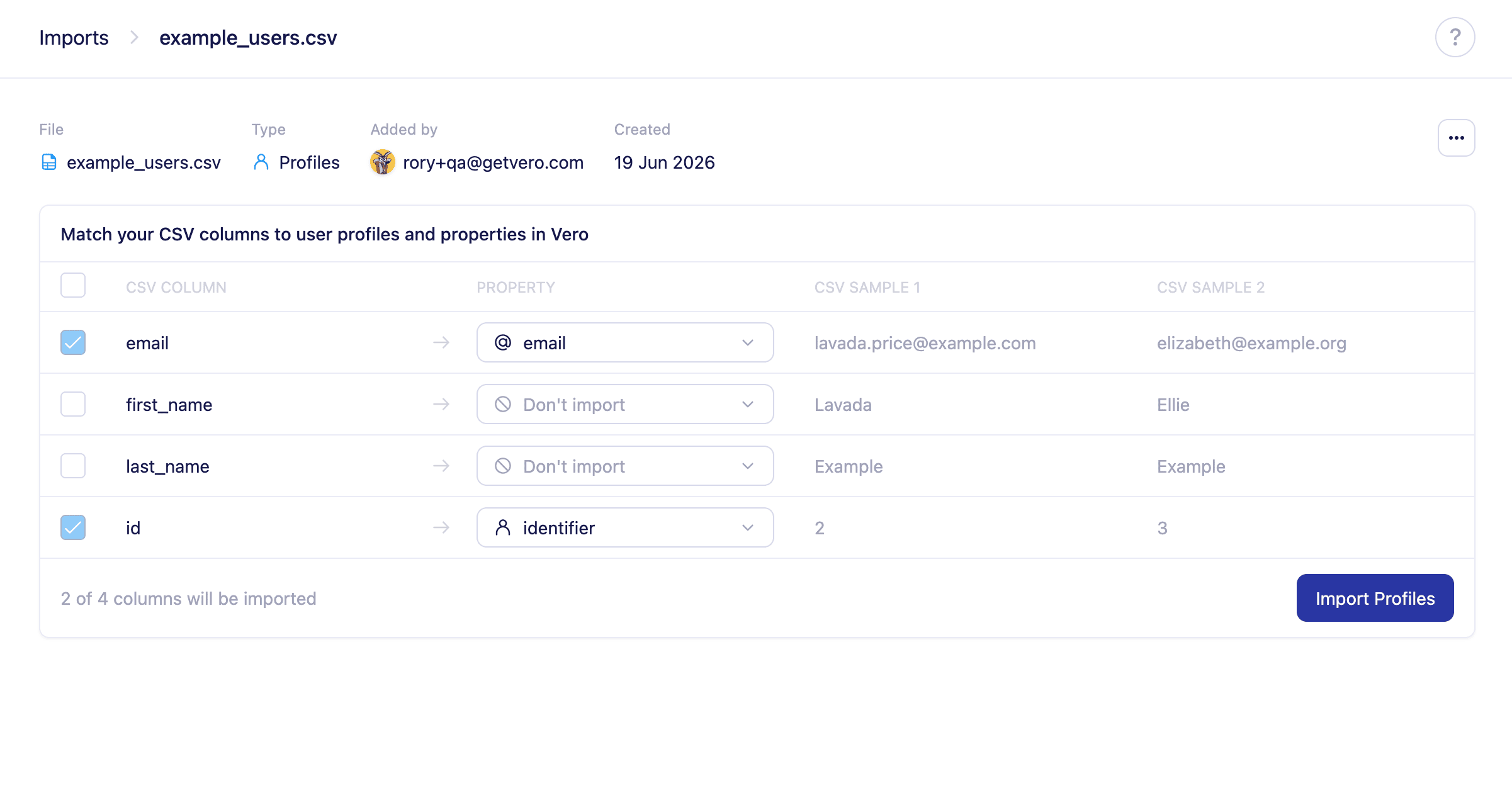
3. **Map** each column in your file to the matching Vero field. Vero detects your columns and suggests mappings where it recognises them.
4. Select **Import** to start the import. Vero processes each row and creates or updates the relevant records.
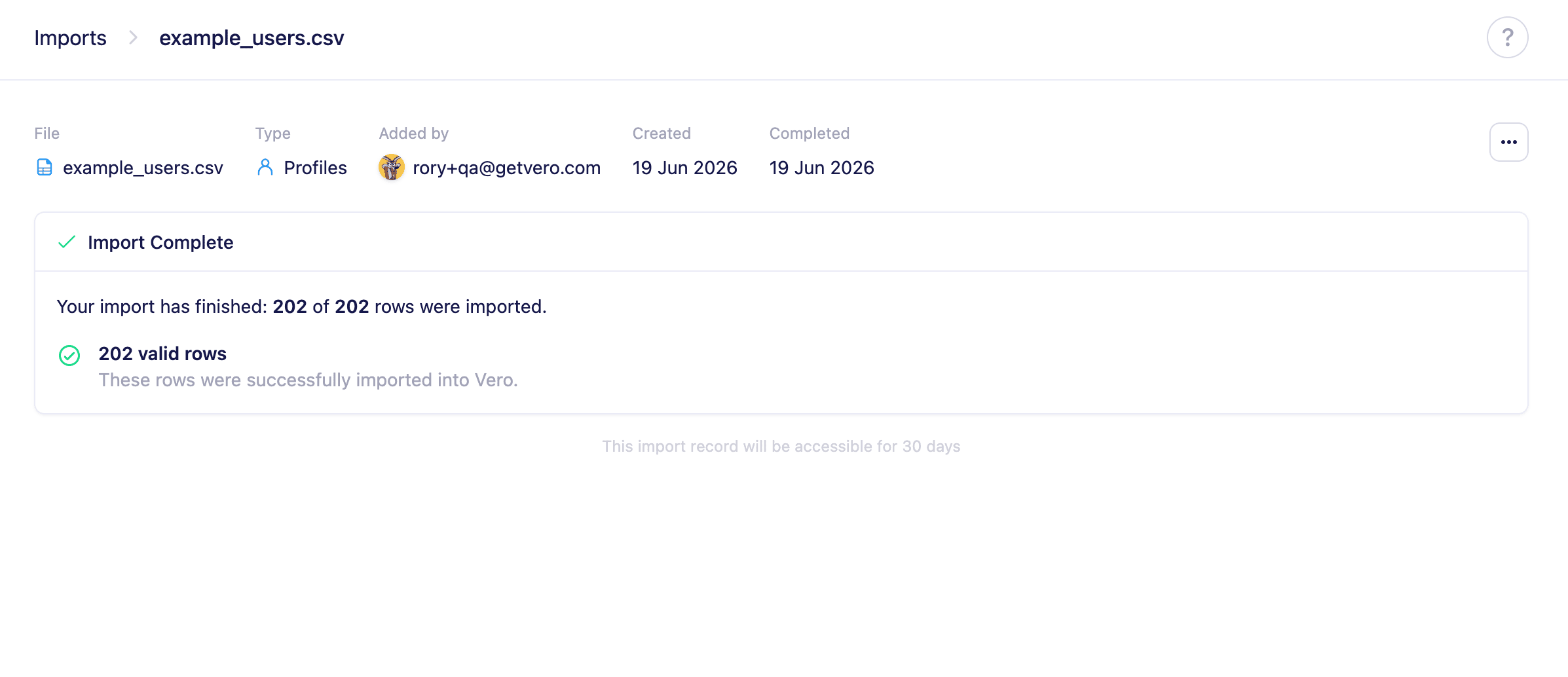
5. Once complete, a **summary page** shows how many rows were successfully imported and how many failed.
 ## File requirements
* Files must be in `.csv` format, using **commas** as the delimiter. Tabs, semicolons, and other delimiters are not supported. If you're working in Microsoft Excel or Apple Numbers, choose **File > Save As… > CSV** to export. `.xls`, `.xlsx`, and other formats are not accepted.
* Files must be encoded as **UTF-8** without a Byte Order Mark (BOM). Files saved with a different character set (such as Latin-1 or Windows-1252) may fail to import or produce garbled data. A BOM can also corrupt the first column name, preventing Vero from recognising it.
* Files must be **2 GB or smaller**.
* Files must contain at least one data row in addition to the header row.
* Values containing commas or newlines must be enclosed in double quotes, and quotes within a quoted value must be escaped by doubling them (e.g. `"She said ""hello"""`).
* Uploads have a **30-minute time limit**. If your connection is slow or the file is very large, the upload may time out.
## After an import
Once an import finishes, a summary page shows how many rows were successfully imported and how many failed. If any rows couldn't be processed, you can correct them, export them to a new CSV, and import them again.
## File requirements
* Files must be in `.csv` format, using **commas** as the delimiter. Tabs, semicolons, and other delimiters are not supported. If you're working in Microsoft Excel or Apple Numbers, choose **File > Save As… > CSV** to export. `.xls`, `.xlsx`, and other formats are not accepted.
* Files must be encoded as **UTF-8** without a Byte Order Mark (BOM). Files saved with a different character set (such as Latin-1 or Windows-1252) may fail to import or produce garbled data. A BOM can also corrupt the first column name, preventing Vero from recognising it.
* Files must be **2 GB or smaller**.
* Files must contain at least one data row in addition to the header row.
* Values containing commas or newlines must be enclosed in double quotes, and quotes within a quoted value must be escaped by doubling them (e.g. `"She said ""hello"""`).
* Uploads have a **30-minute time limit**. If your connection is slow or the file is very large, the upload may time out.
## After an import
Once an import finishes, a summary page shows how many rows were successfully imported and how many failed. If any rows couldn't be processed, you can correct them, export them to a new CSV, and import them again.
 ## Need Help?
If you have any questions, reach out to us at [support@getvero.com](mailto:support@getvero.com).
## Need Help?
If you have any questions, reach out to us at [support@getvero.com](mailto:support@getvero.com).