

Send immediately
Select Immediate as your trigger to send your broadcast as soon as you click Start Campaign. This option makes sense for:- Urgent announcements
- Time-sensitive promotions
- Quick one-off messages
Schedule for later
- Product launches
- Event invitations
- Timed announcements aligned with other marketing activities
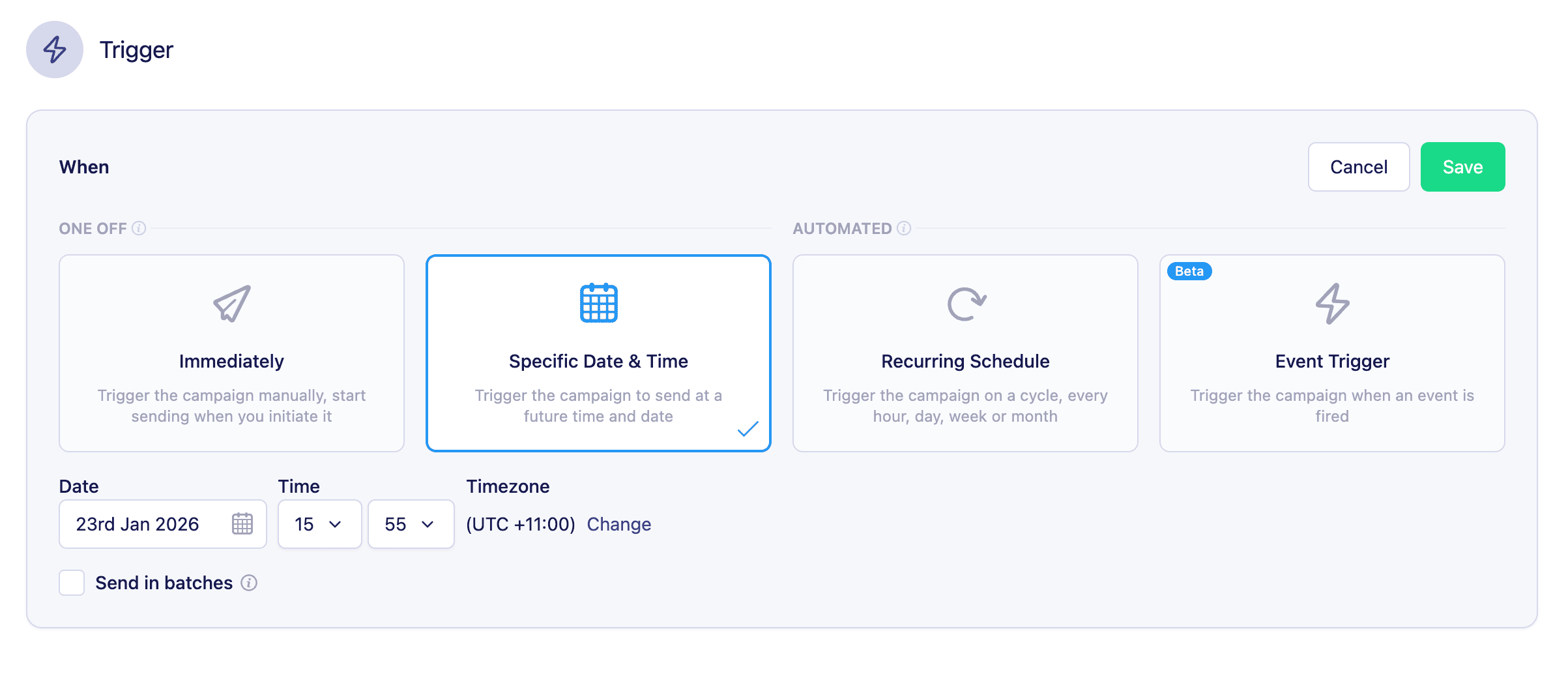
- Select Specific Date & Time as your trigger type
- Choose the date and time you want the campaign to send
- Specify the timezone that your date and time are in
- Click Save. When you launch the campaign, Vero will send messages at the scheduled time.
Scheduled campaigns use your project’s timezone setting by default if you don’t specify a timezone. Make sure your project timezone is configured correctly in your project settings.
Timezone handling
When scheduling broadcasts, Vero uses your project’s timezone setting to determine when to send. If your audience spans multiple timezones, messages will be sent at the scheduled time in your project’s timezone, not the recipient’s local time. For example, if your project is set to US Eastern Time and you schedule a broadcast for 9:00 AM, all recipients will receive the message at 9:00 AM Eastern, regardless of their local timezone.Batch sending
- Building sender reputation — Gradually increase sending volume to establish trust with email providers
- Managing deliverability — Avoid overwhelming mailbox providers with large volumes at once
- Warming up new domains or IPs — Send in smaller increments while building your sending reputation
How to enable batch sending
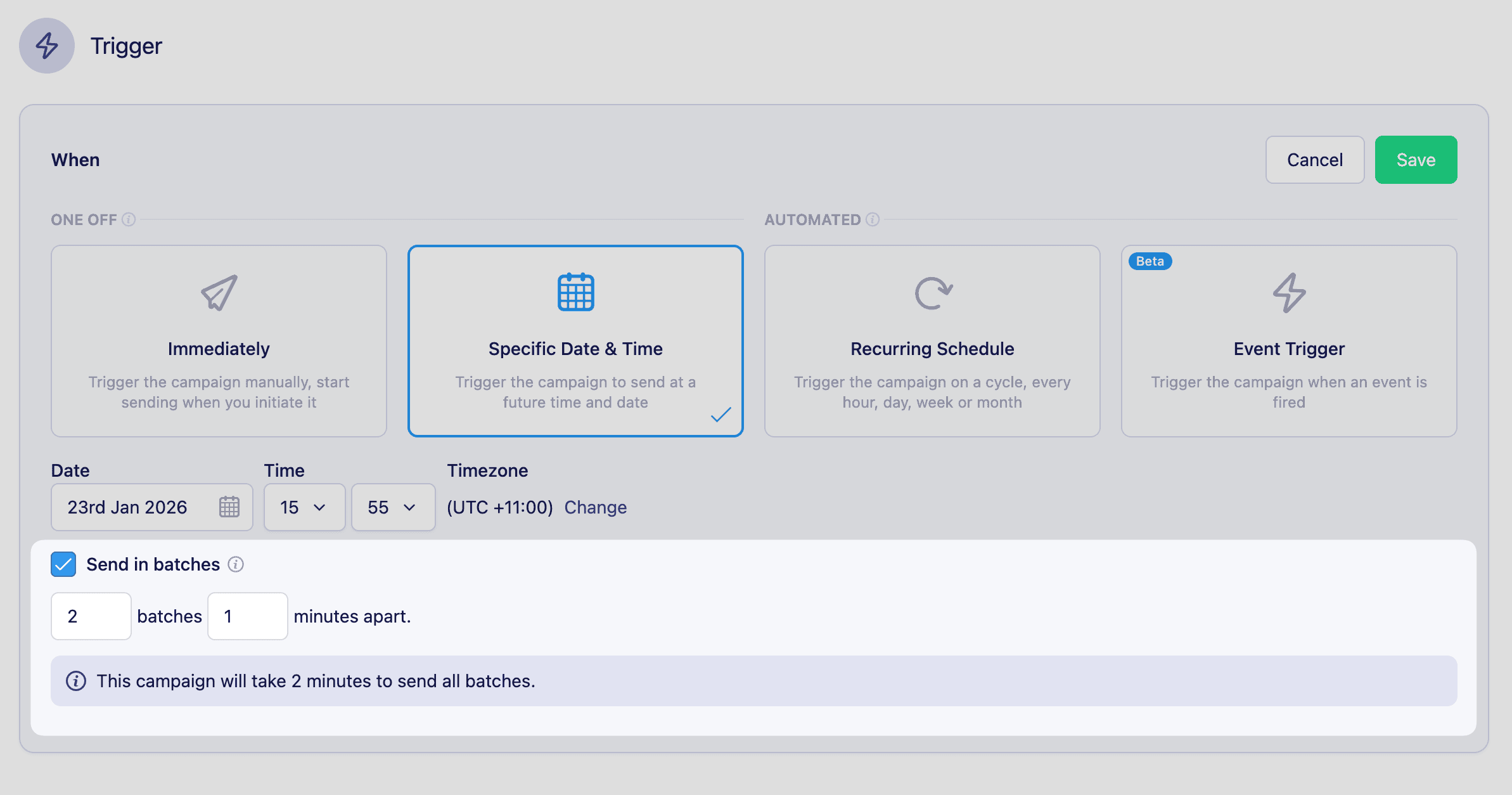
- In your broadcast’s trigger settings, select Scheduled as your trigger type
- Check the Send in batches option
- Choose the number of batches to split your audience across
- Set the minutes apart (the delay between each batch send)
- Click Save
- Batch 1: 2,000 recipients sent immediately at the scheduled time
- Batch 2: 2,000 recipients sent 1 hour later
- Batch 3: 2,000 recipients sent 2 hours later
- Batch 4: 2,000 recipients sent 3 hours later
- Batch 5: 2,000 recipients sent 4 hours later
Review and launch
Before launching your broadcast:- Click Review and Schedule or Review and Sendat the top of the campaign page
- Review your campaign schedule, audience size, and message type
- Click Send