

Adding your database
To add an external database, click Data Sources and Add Data Source. In the menu that appears, choose the database you want to add: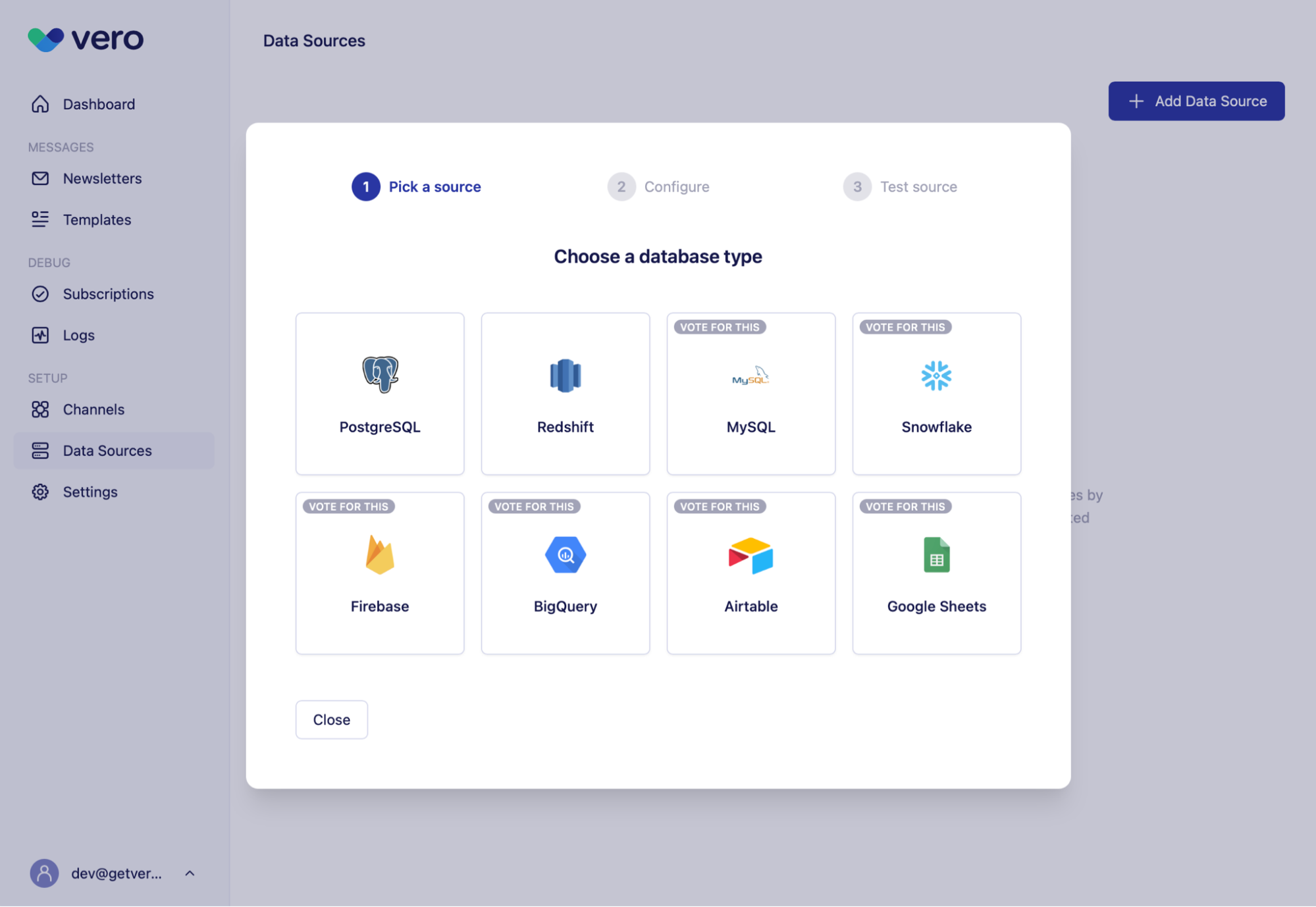
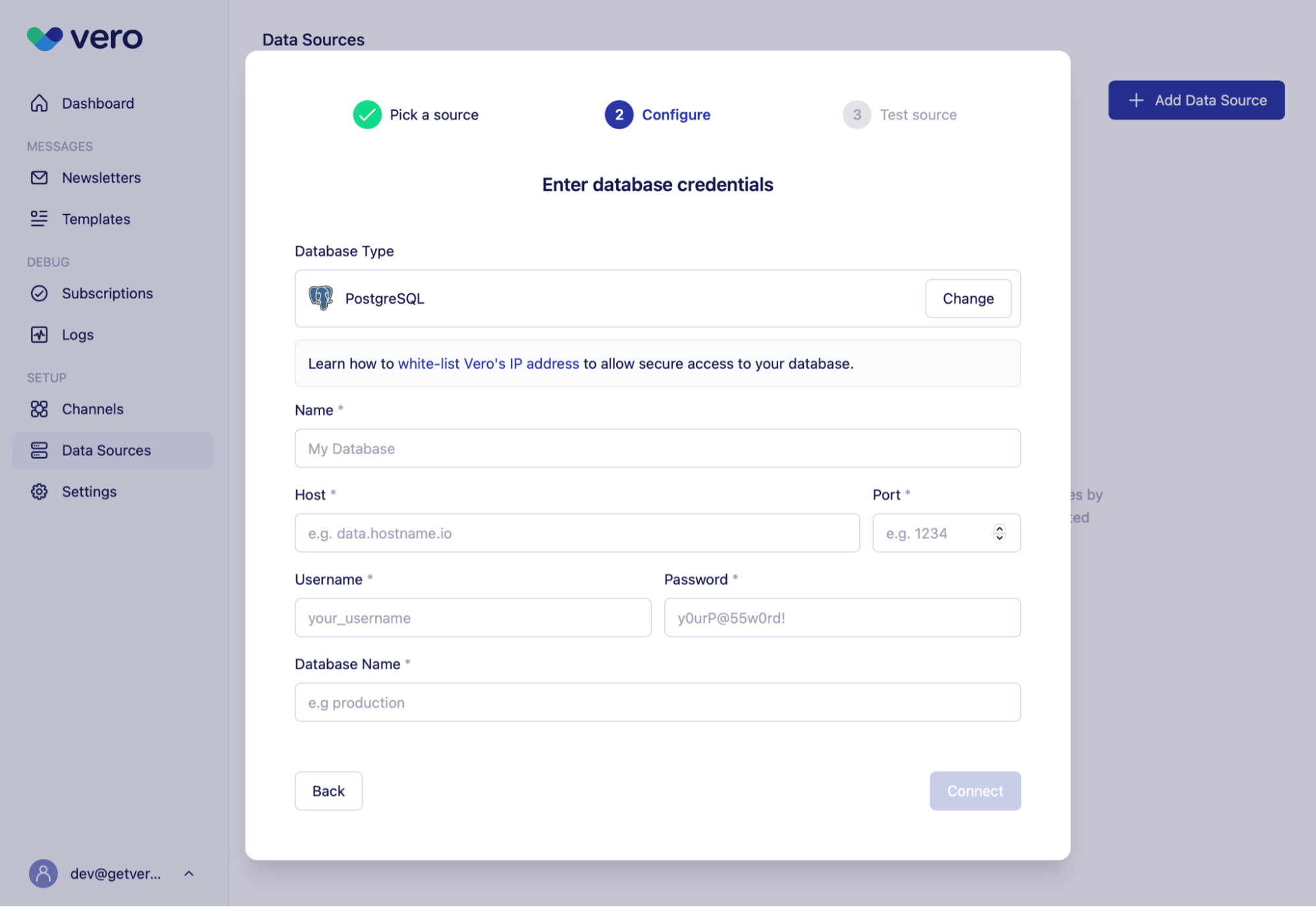
- Host. The web or IP address of the database.
- Port. The port that is accepting connections (e.g. typically 5432 for PostgreSQL).
- Username.
- Password.
- Database name. The name of the database to connect to.
Testing your connection
Once you’ve entered your database credentials, select Connect. Vero will automatically test the connection: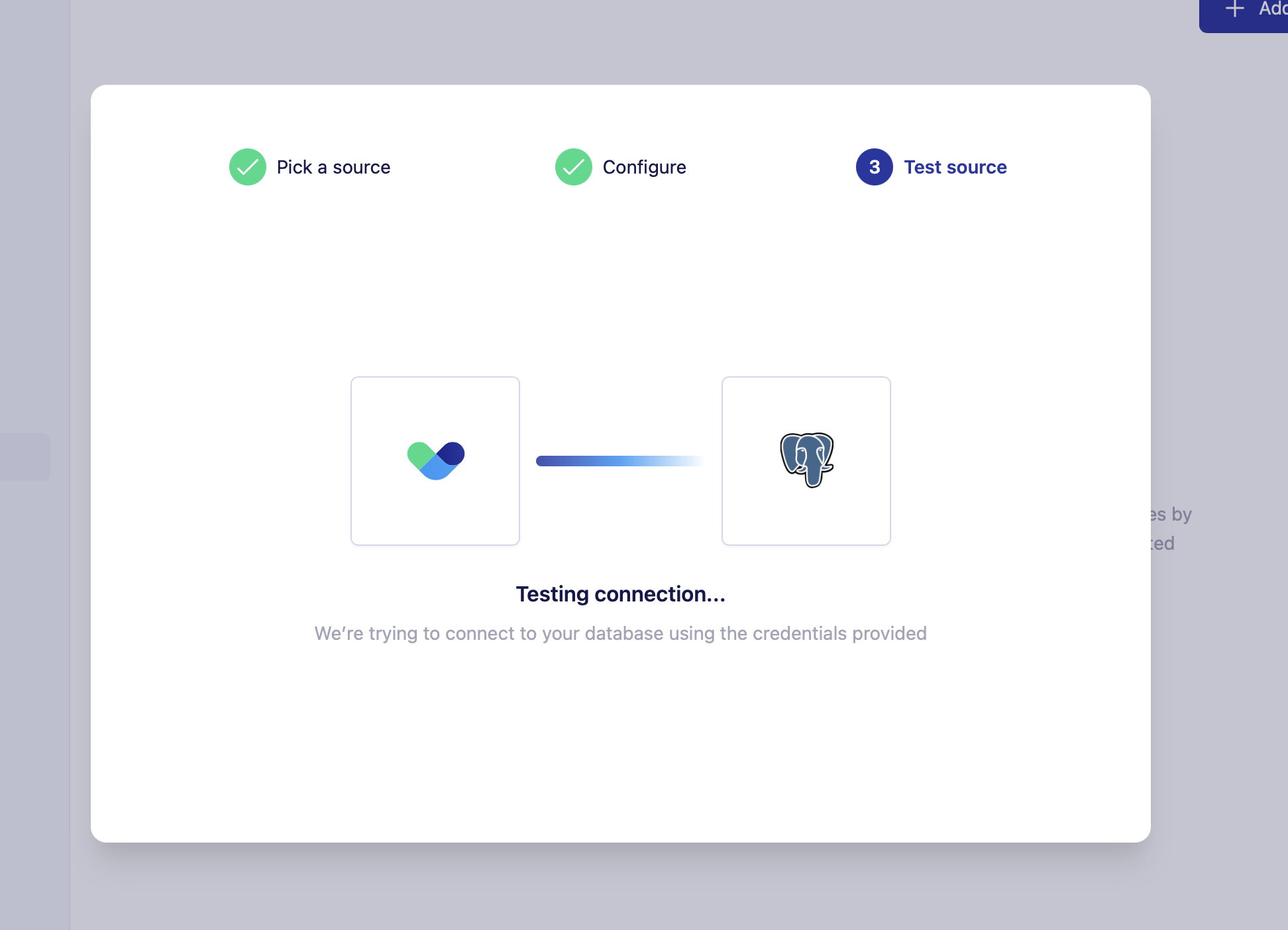
Create a read-only user
Vero will only executeSELECT queries against your database: it is read only by design.
That said, we would recommend creating a user login that only has read access to your database.
Vero will show users all available tables when using the SQL editor in our UI. Limiting the tables and columns that Vero has access to is good practice.
Direct connect with IP whitelisting
Vero will connect directly to your database over the public internet. This approach requires your network and database to be configured to allow Vero’s servers to connect to it. In order to use Direct Connect, your database must:- Be publicly accessible over the internet
- Be allowed to accept incoming connections from our IP addresses (listed below)
3.208.52.255.
Currently supported database versions
Vero officially supports PostgreSQL (9.6+). At the moment we support PostgreSQL-style databases and it’s possible configurations outside of the above may work. That said, we currently only provide support for the databases listed above. We will be adding support for more database and data stores in the future, please let us know what you would like to see us support onour Vero feedback board.FAQs
Query limits
Vero will show your query results in blocks of 100 in the UI. In order to load an audience you will need to load your entire query (without aLIMIT clause).
There is no technical limit to the number of rows you can query using Vero’s UI but we have currently tested up to one million rows consistently.