

How to use the Google Sheets integration
Start by creating a new newsletter from the Newsletters page. Select the Google Sheets option in the Audience section.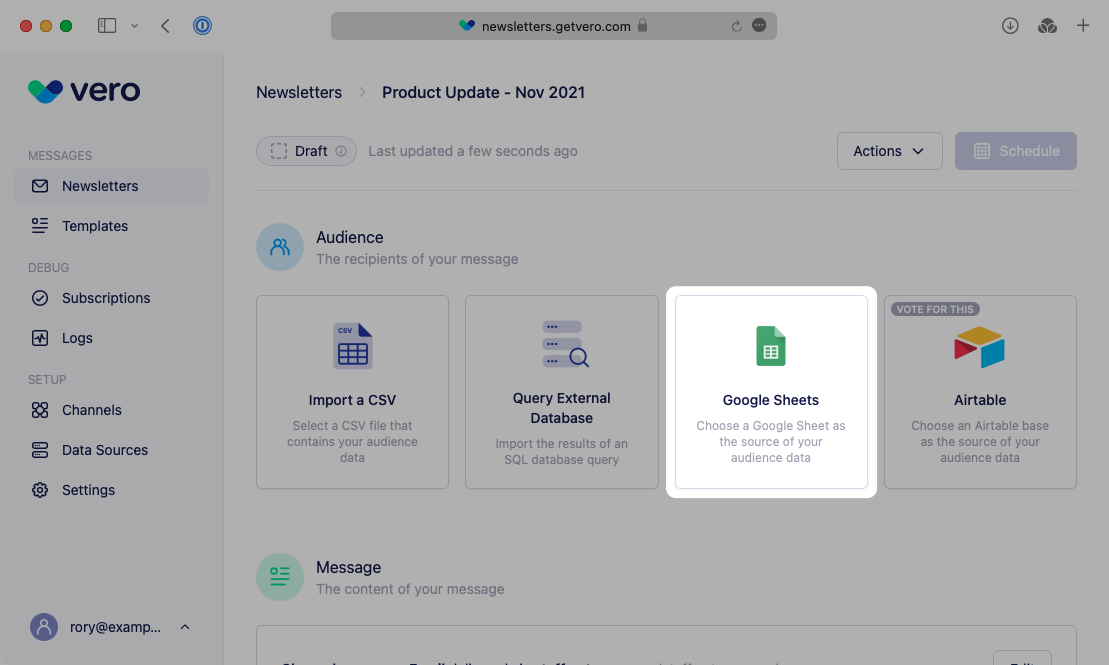
Option 1 - Browse your files on GDrive
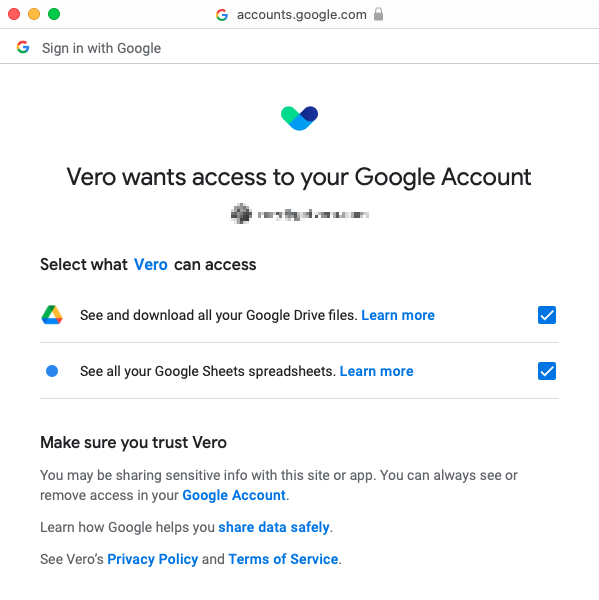
From the Browse for file tab click ’Sign in with Google’. You will be asked to sign in and give permission by Google.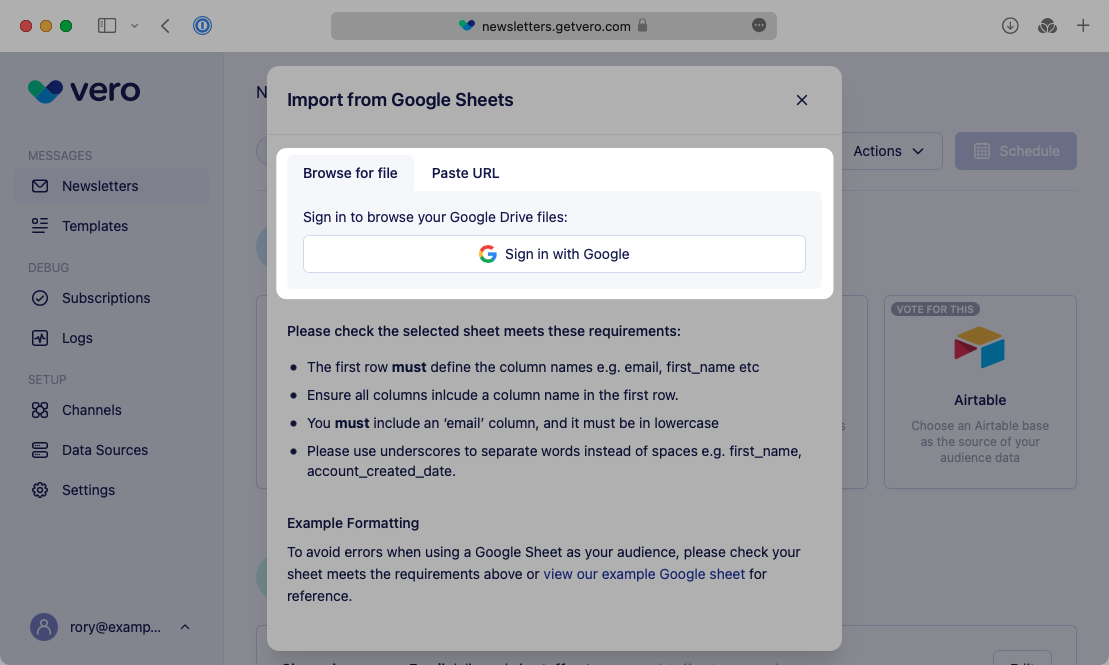
Option 2 - Paste a sheet URL
If you already know the URL for the sheet you wish to import, paste the URL into the URL field and select Load Sheet.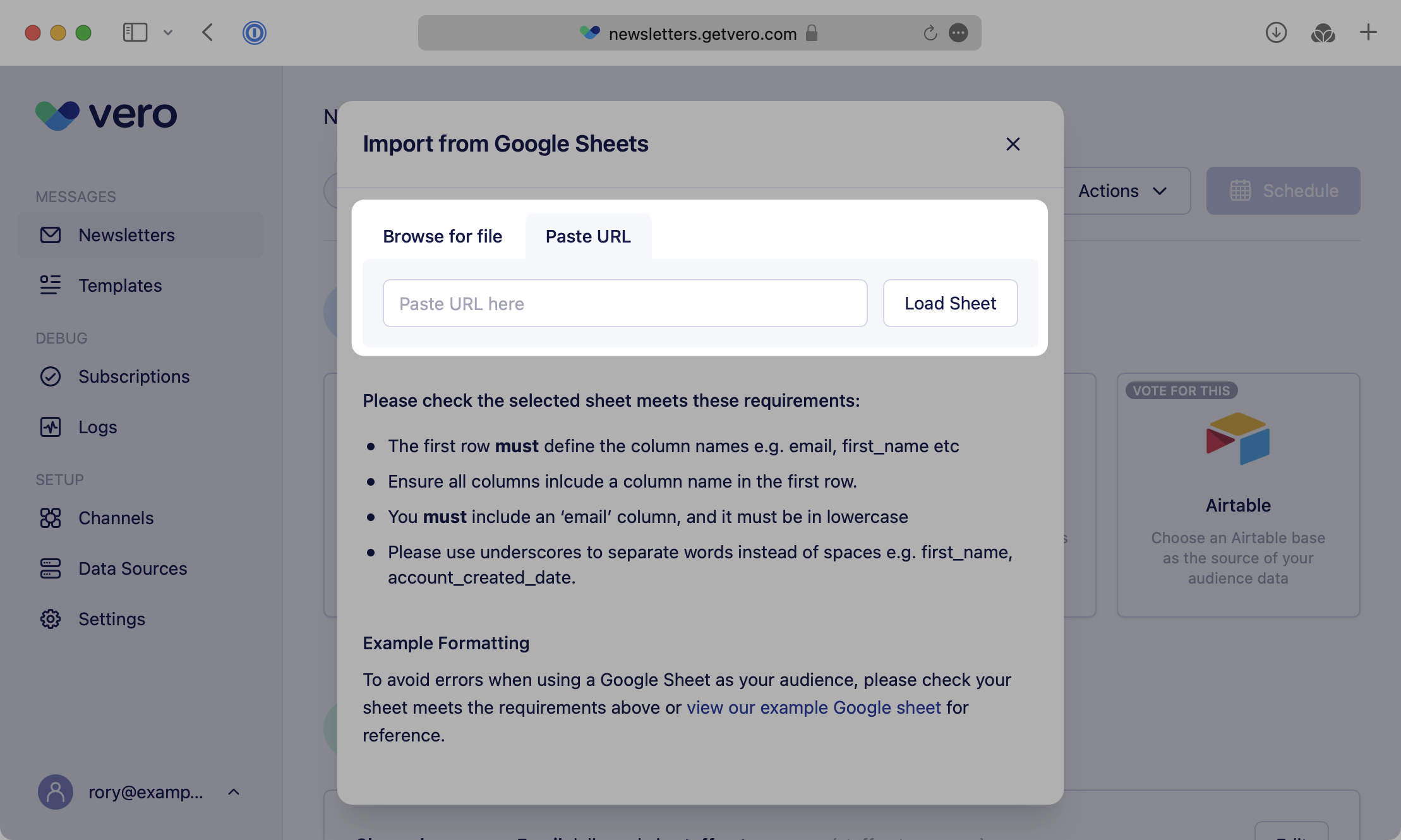
Selecting a specific worksheet
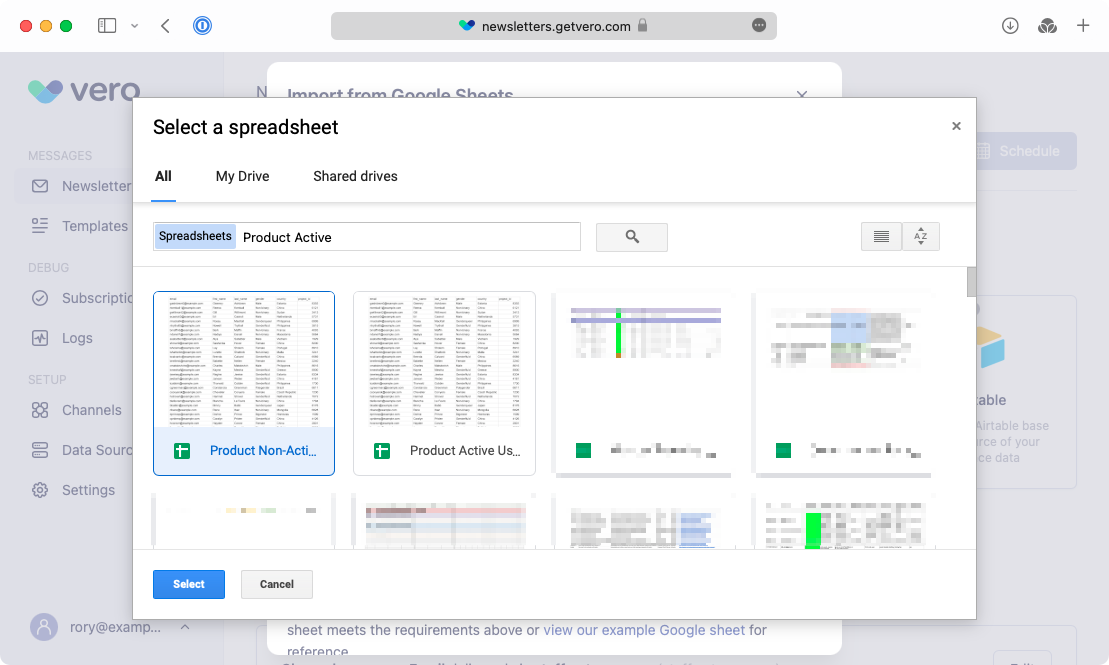
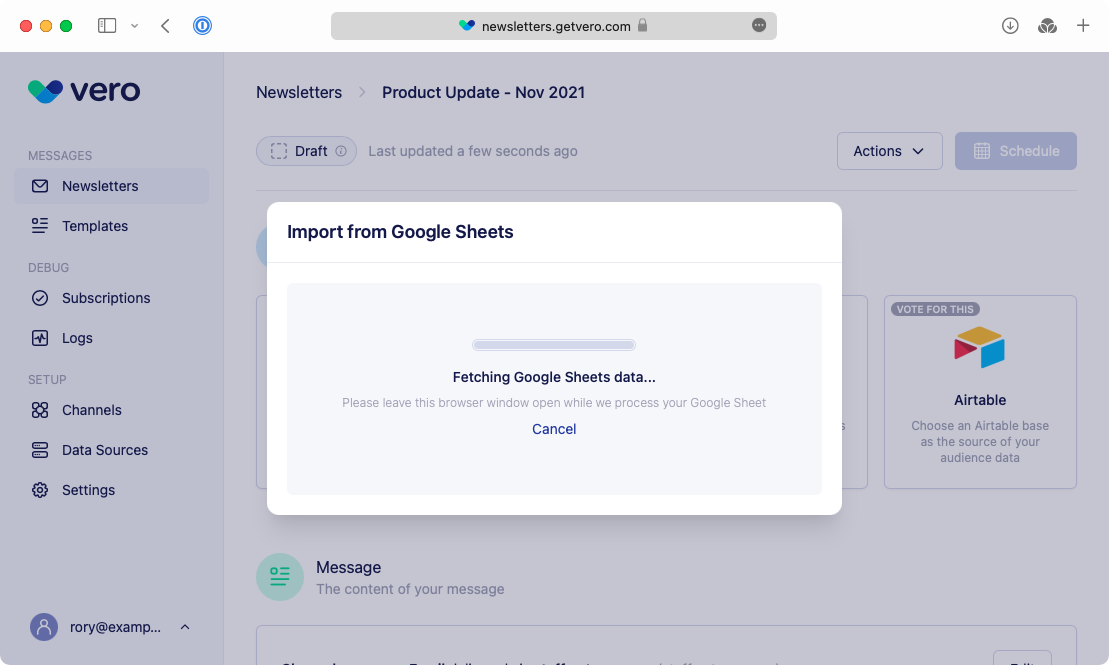
Google Sheets files may contains multiple worksheets. Once you’ve chosen the correct file Vero will load the available worksheets. Select the relevant sheet from the dropdown and choose Import. Make sure the data you’re importing includes at least an email column and meets the all the requirements listed below.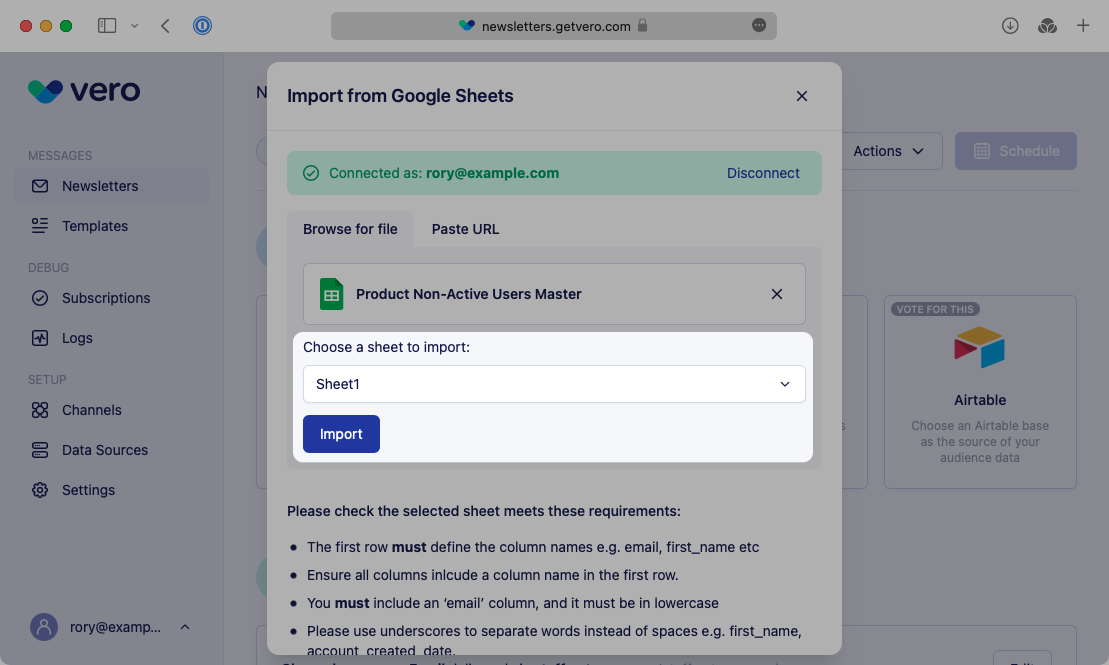
Using spreadsheet data for content personalization
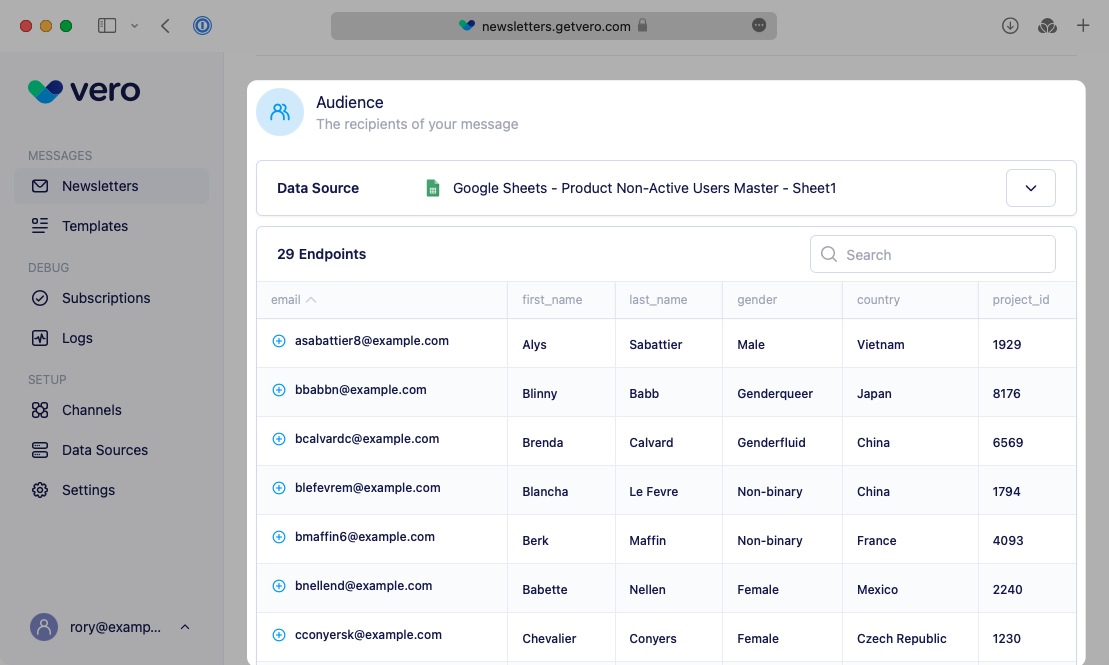
Vero supports using the Liquid templating language to personalize your messages. You can use any of the data imported from your Google Sheet to personalize your content. You can access the data you imported by naming the relevant column, for examplefirst_name. All columns must be prefixed with user Liquid — for example:
first_name column for each relevant recipient.
For more information about using Liquid in your message content, read our Liquid Guide.
Formatting requirements
Vero is very flexible and supports most types of data you can input into a spreadsheet. However, to make sure your data is imported correctly and is usable as an audience, you must follow these guidelines when formatting your Google Sheet data:- You must include an
emailcolumn, and it must be in lowercase. This column is used to send emails to your customers, without it you cannot send an email. - The first row must define the column names e.g.
email,first_name. All columns must include a name. Column names are required, Vero cannot process the data and make the data accessible throughout the application without them. Missing columns titles may result in errors when processing the data. Make sure all columns are labeled. - Please use underscores to separate words instead of spaces e.g.
first_name,account_created_date. Vero uses a lowercase + underscores format for data properties.
Common Issues
Issue showing the Google Sign in pop up

Issue importing your Google sheet
