

Adding a custom header to your campaign
If you’d like to set up a custom header across all campaigns, you can edit this in the Advanced section of Settings. If you use this option, please note the extra instructions below. If you’d like to set up a custom header on a per campaign basis you can do this by visiting the Advanced section at the bottom of your campaign and clicking Add header.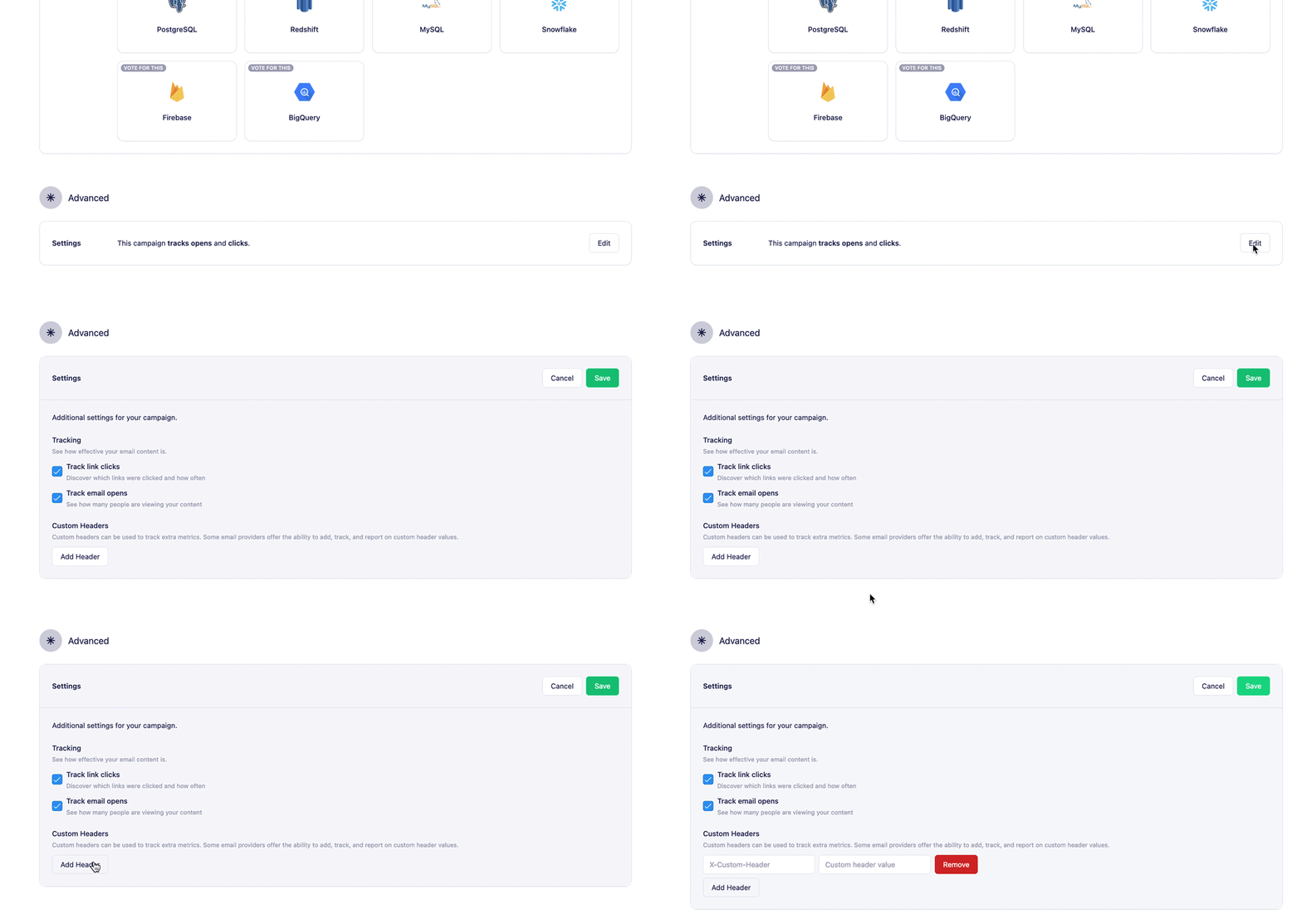
Adding a custom list-unsubscribe header
By Default, Vero automatically adds the one-click list-unsubscribe option across all campaigns.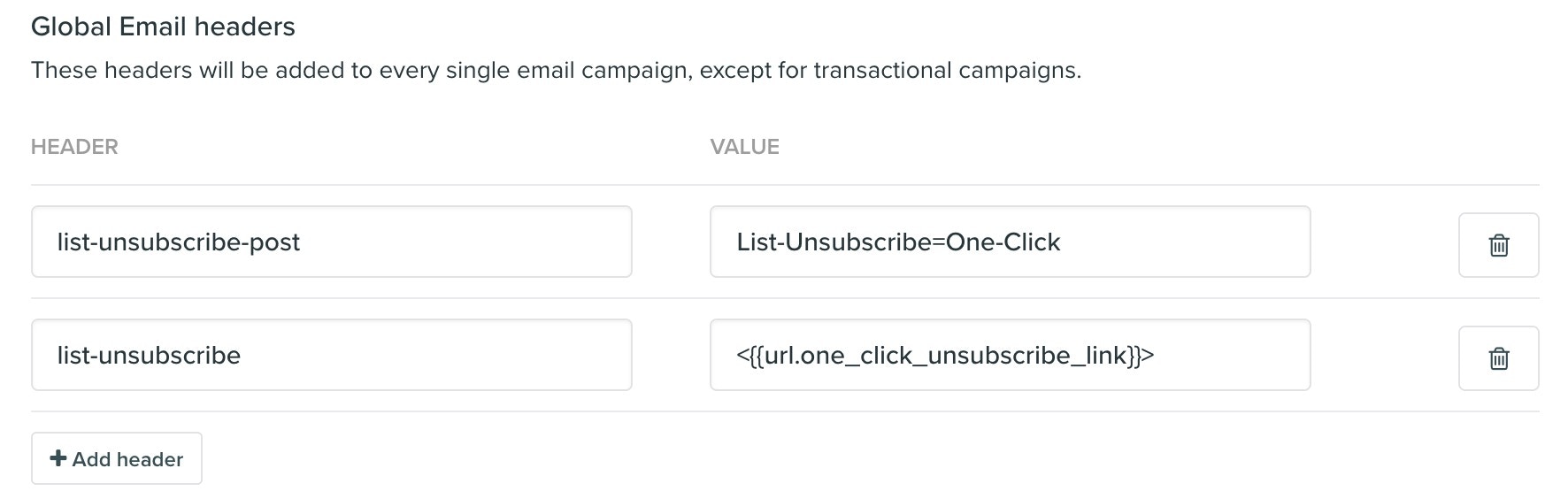
list-unsubscribe: <mailto:unsubscribe@domain.com>,<{{url.one_click_unsubscribe_link}}>

mailto: address (ie. unsubscribe@yourdomain.com) should be a valid email address that you control. It must be monitored, and emails sent to that address will need to be unsubscribed.
Requirements for custom list-unsubscribe headers
The following is for customers that want to add their own custom list-unsubscribe option rather than using the default option provided by Vero.- Using a One-Click URL: The URL used in the
list-unsubscribeheader must be a one-click unsubscribe endpoint. This endpoint must be capable of accepting a POST request in the following format:
?user_id={{ user.id }}).
- Adding the list-unsubscribe-post header: If you use a
list-unsubscribeheader with a URL, you also need to include thelist-unsubscribe-postheader:
list-unsubscribe-post: List-Unsubscribe=One-Click