

- View and edit properties and channel addresses
- View a user’s message history
- See which segments they belong to
- Manage a user’s devices (for push notifications)
- Manage channel subscriptions (email, SMS, push, etc.)
- View and change topic subscriptions
- Add or remove tags
- Delete a profile (note: this is permanent and cannot be undone)
Finding a profile
You can access a user’s profile in several ways:- Browse profiles via the Profiles page (in the sidebar).
- Search for a profile from the Profiles page by user ID, email address, or another identifier.
- From user activity (logs) – click the profile link from any event or activity log.
- From a segment (coming soon) – you’ll be able to click into user profiles directly from a segment list.
www.getvero.com/profiles/{uniuqe_id}). This is separate from the id you track via the API. This ensures uniqueness across all users in your project.
Profile overview
The Overview tab shows a snapshot of all information stored for a user:- Created / Last updated – when the profile was first created and last updated (via property change or tracked activity).
- Subscribed status – shows whether the user is currently subscribed.
- To update, select the Actions menu (…) and choose Unsubscribe or Resubscribe.
- Delete user – permanently removes the profile and all associated data.
- Suppressions – shown when the profile has bounced or been suppressed, with the reason and an option to remove the suppression. Learn how suppressions are managed on a profile
- Data snapshots – quick summaries of Properties, Tags, Devices, Segments, and Activity. Use the tabs to drill into full detail.
Adding and editing user data
Properties
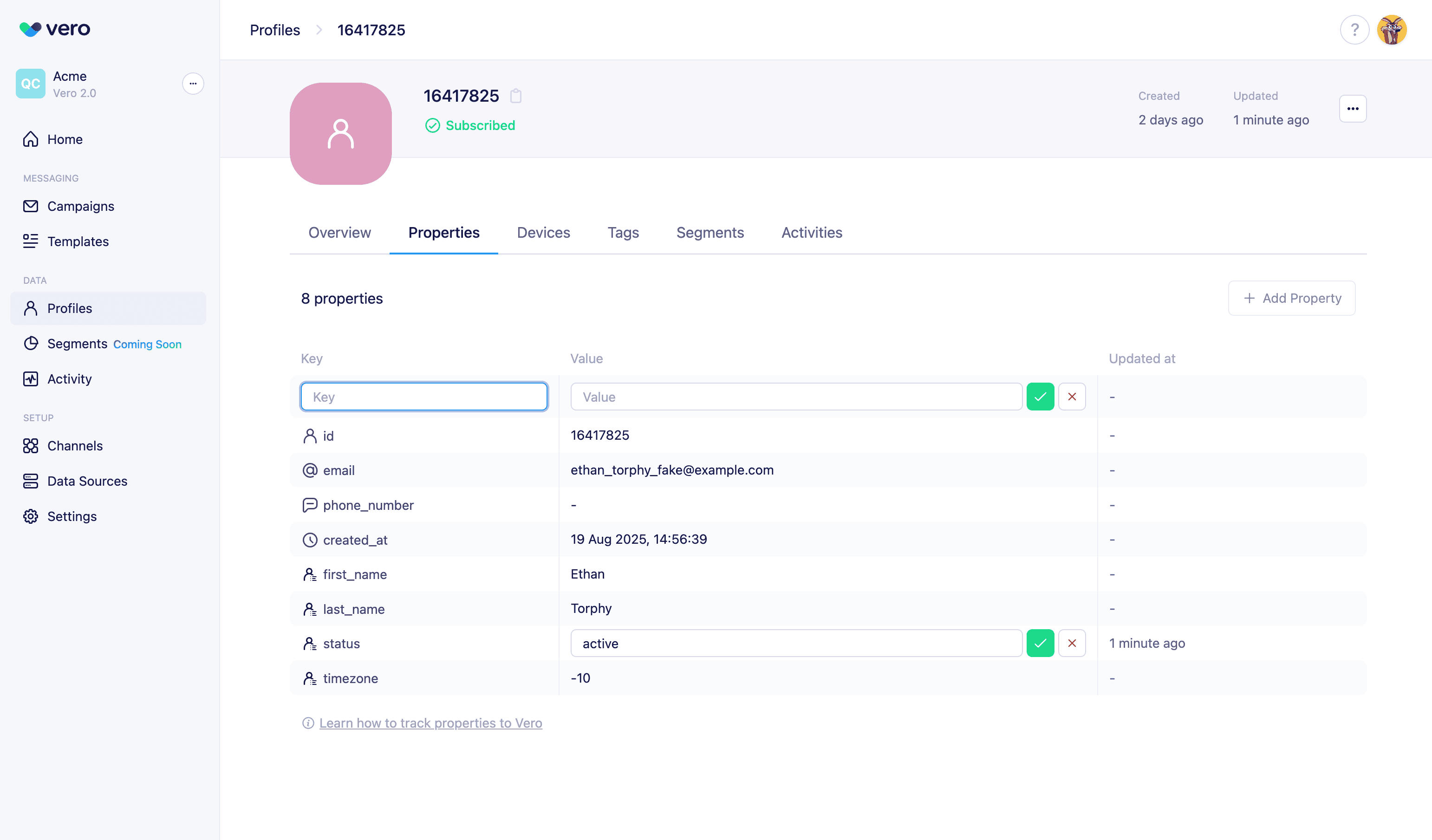
first_name, company, or date_of_birth. They can be tracked automatically via the API, imported via CSV or updated manually in the UI.
Learn more about user properties
To add a property in the UI:
- Open the user profile.
- Go to the Properties tab (or select Manage all properties from the overview box).
- Click + Add property.
- Enter a property name (this becomes available for all users).
- Enter a value for this user and click Save.
- Open the user profile → Properties tab.
- Find the property you want to edit.
- Click the edit icon ✏️, update the value, and click Save.
- Find the property you want to delete.
- Click the edit icon ✏️, remove the value, and click Save.
Tags
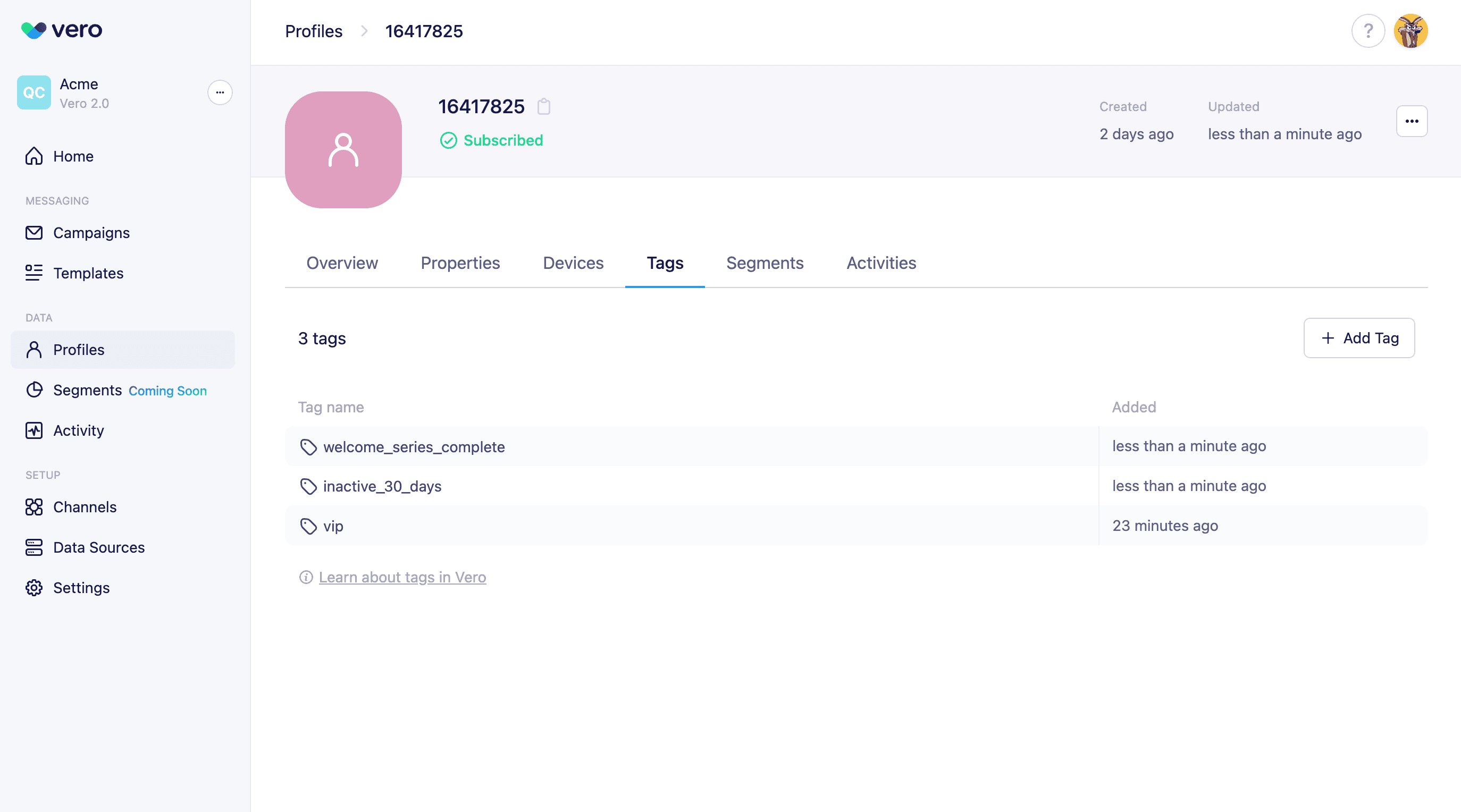
- Open the user profile → Tags tab.
- Click + Add tag.
- Enter the tag name and click Save.
- Open the Tags tab.
- Hover over the tag you want to delete
- Click the Delete button at the end of the row.
Devices (push notifications)
If you’re using push messaging, the Devices tab shows registered devices for a user. From here you can:- View device details (platform, address, device, etc.) for each push device added to the profile
Channel subscriptions
You can manage a user’s email subscription status directly from their profile page. To update subscription status:- Open the user profile.
- Click the Actions menu (…) in the top-right.
- Select Subscribe or Resubscribe.
Deleting a profile
Deleting a profile is permanent. All associated data (properties, activity logs, message history, devices, etc.) will be removed and cannot be restored. To delete a profile:- Open the user profile.
- Click the Actions menu (…) in the top-right.
- Select Delete profile.
- Confirm the deletion.