Add an SMS channel
Click Channels then, under the SMS heading, select Add next to the channel provider you want to configure.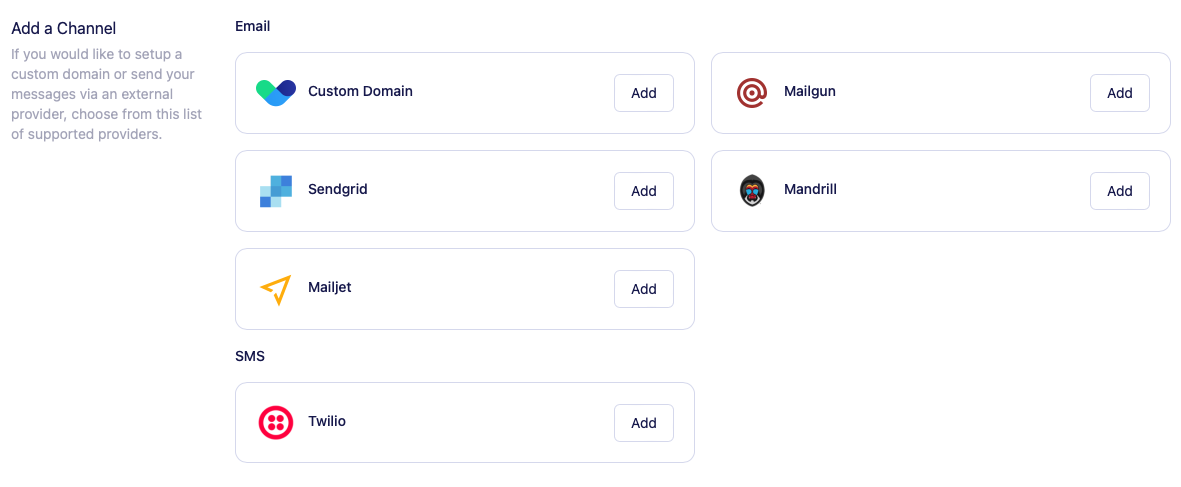
Details on specific channel providers
Twilio
Before integrating Twilio with Vero, ensure you have a Twilio account. If not, you can create one at Twilio’s website.Steps to Set Up the Messaging Service:
1. Log in to Twilio Access your Twilio Console using your credentials. 2. Create a Messaging Service- Navigate to the Messaging Services section in the Twilio Console.
- Click on Create Messaging Service.
- Provide a descriptive name for your service (e.g., “Vero SMS Service”).
- Choose the Use Case that best fits your needs, such as Notifications or Marketing.
- Click Create Messaging Service to proceed.
- Within your newly created Messaging Service, go to the Sender Pool tab.
- Click on Add Senders and select Phone Numbers.
- Choose an existing Twilio phone number or purchase a new one to associate with this service.
- In Vero, navigate to the Channels section.
- Under the SMS heading, select Add next to Twilio.
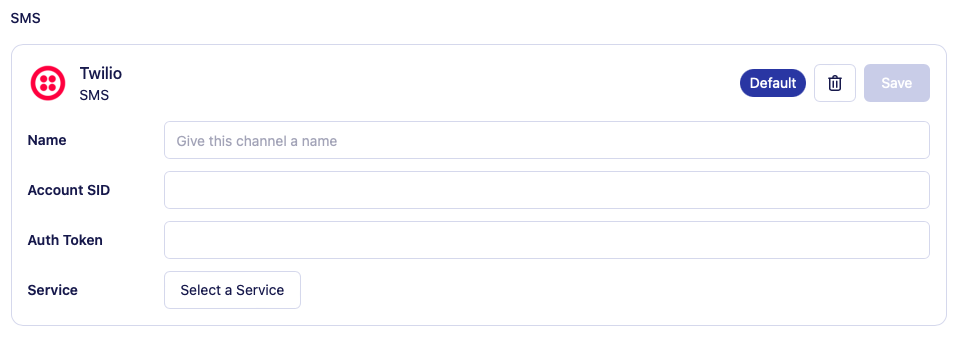
- Enter your Twilio Account SID and Auth Token (found in your Twilio Console’s Account Info section).
- Once entered, Vero will retrieve and display the Messaging Services you’ve set up in Twilio.
- Select the appropriate Messaging Service from the dropdown menu.
- Click Save to finalize the integration.