

Defining a conversion goal
A conversion goal tells Vero which event to watch for after a message is sent. Any event you track via the Track API can be used as a conversion goal, and the setup is the same for all campaign types (broadcasts and journeys). To set a conversion goal:- Open your campaign and scroll to the Conversion Goal section.
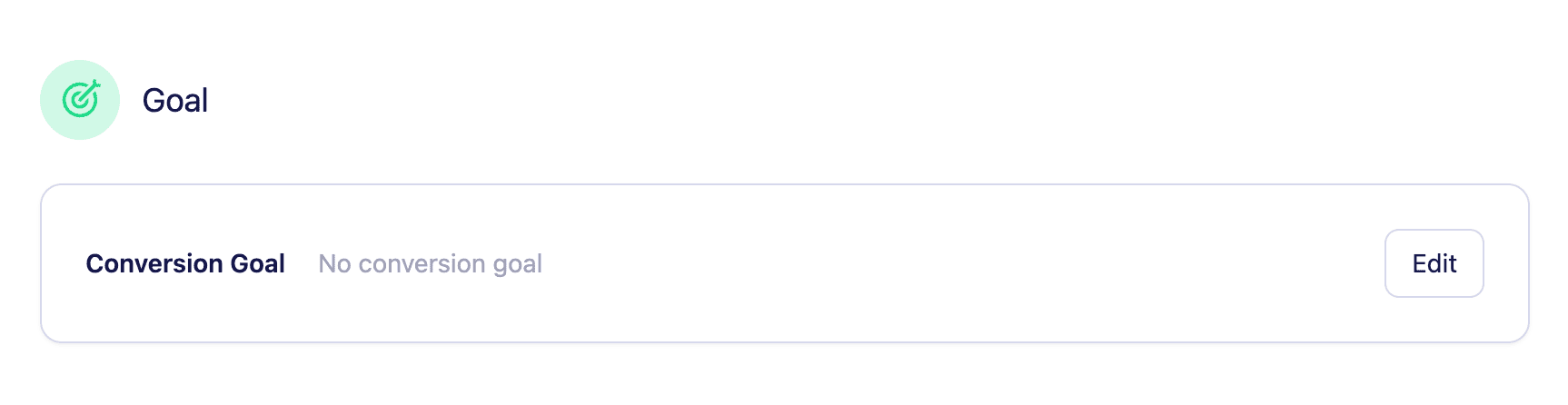
- Click Edit.
- Select Set a goal (by default this is set to “Don’t set a goal”).
- Choose the event you want to track as a conversion.
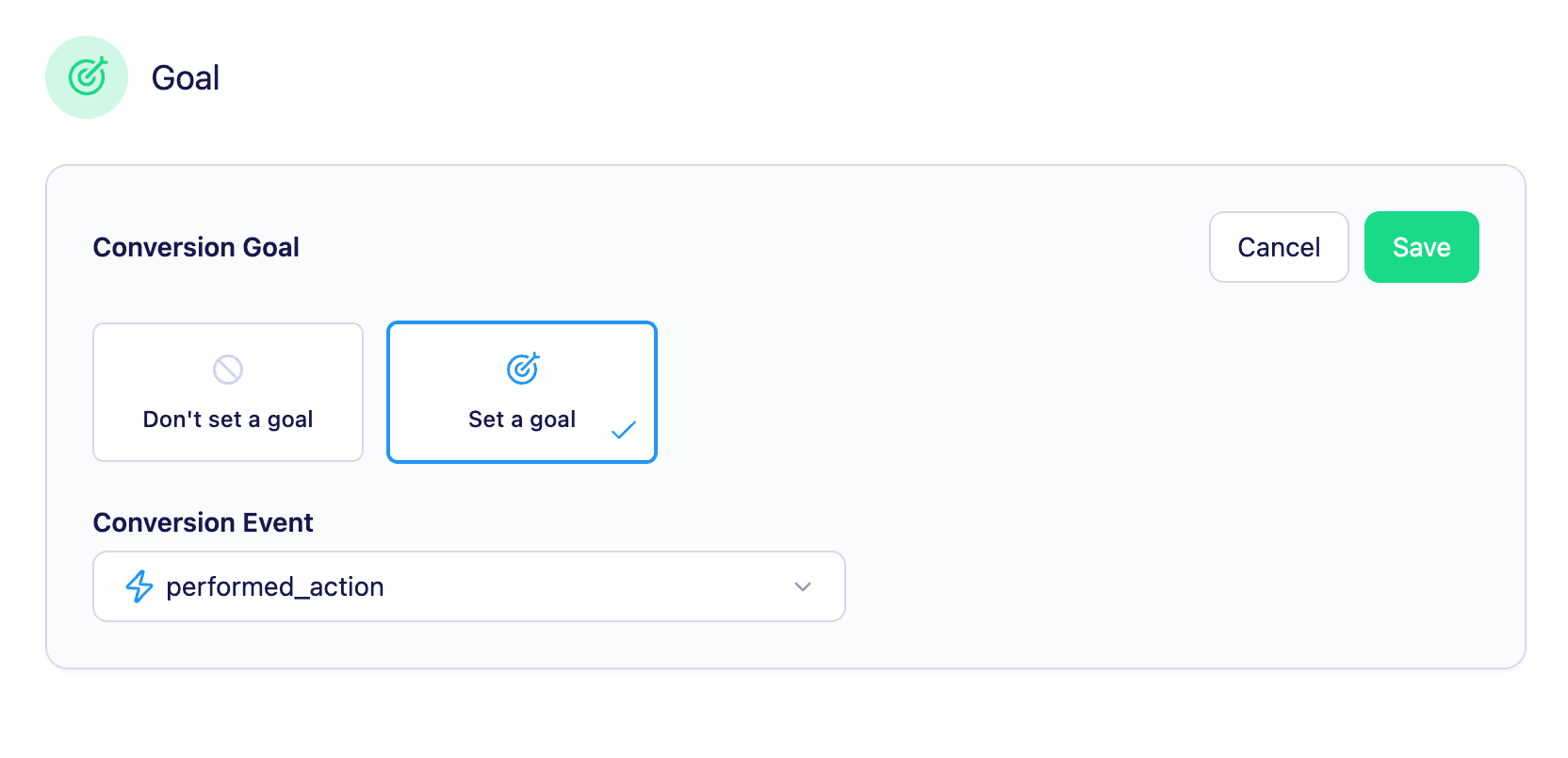
- Click Save.
Viewing conversions
Conversions appear in two places:- Activity logs — individual conversion events are recorded against each user.
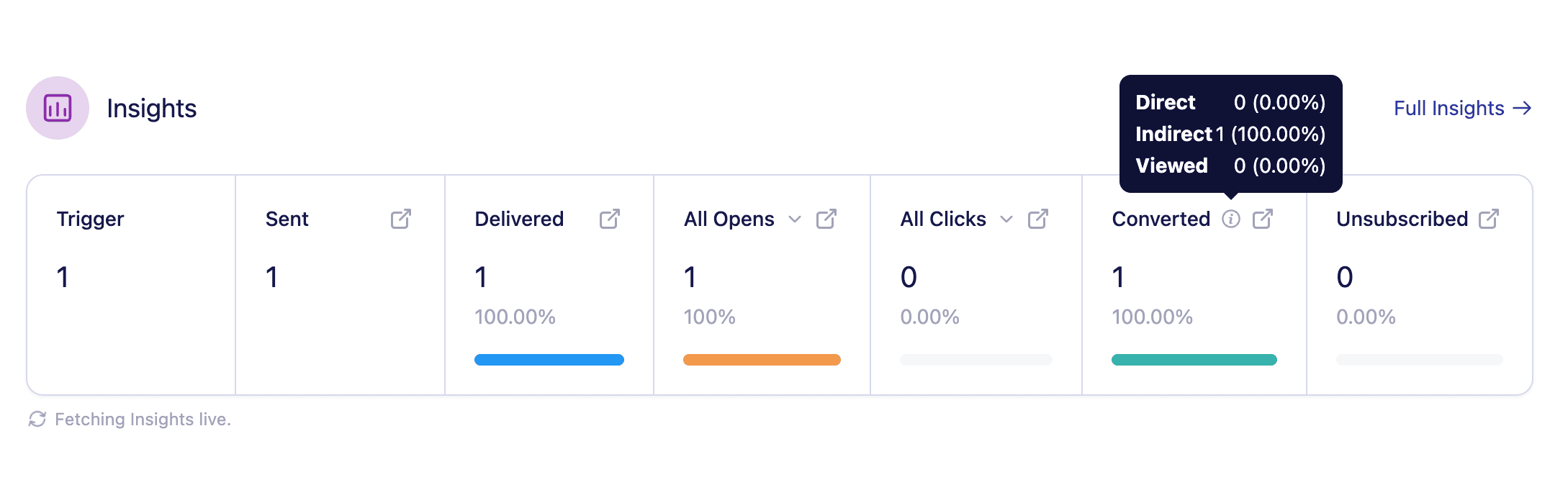
- Insights page and summary — the insights summary at the top of a sent or live campaign (broadcast or journey) shows a conversion count, and the full insights page breaks this down further.
Conversion types
Once a conversion event is defined, Vero tracks three types of conversions automatically:-
Direct conversions — tracked when a recipient clicks a link in one of your messages and completes the conversion event in the same session. Vero handles this using a
vero_convparameter automatically appended to links in your campaigns. Learn more about setting up direct conversion tracking. - View-through conversions — tracked when a user opens a message but does not click a link, then later completes the conversion event within the conversion window. The conversion is attributed to the most recent campaign the user received and opened.
- Indirect conversions — tracked when a user receives a campaign without opening or clicking, and later completes the conversion event within the conversion window. The conversion is attributed to the most recently received campaign. This is particularly useful when running A/B tests with hold-out groups, as it lets you measure actions taken by users who did not receive a message at all.
Conversion window
The conversion window determines how long after receiving a message a conversion can be attributed to a campaign. By default this is set to 30 days. You can customise the conversion window in Settings > Advanced.Setting up direct conversion tracking with the Vero API
When using Vero’s JavaScript library, direct conversion tracking is handled automatically. The library detects thevero_conv parameter on incoming requests and associates it with any events tracked in that session.
If you are using one of Vero’s backend libraries, you will need to handle the vero_conv parameter manually:
- Grab and store the
vero_convquery parameter in a temporary session cookie when it is present on a request. - Append this value to any
trackevent requests made to Vero while the cookie is set, using theextrasarray.