

Selecting a segment as your audience
To use a segment in your campaign, follow these steps: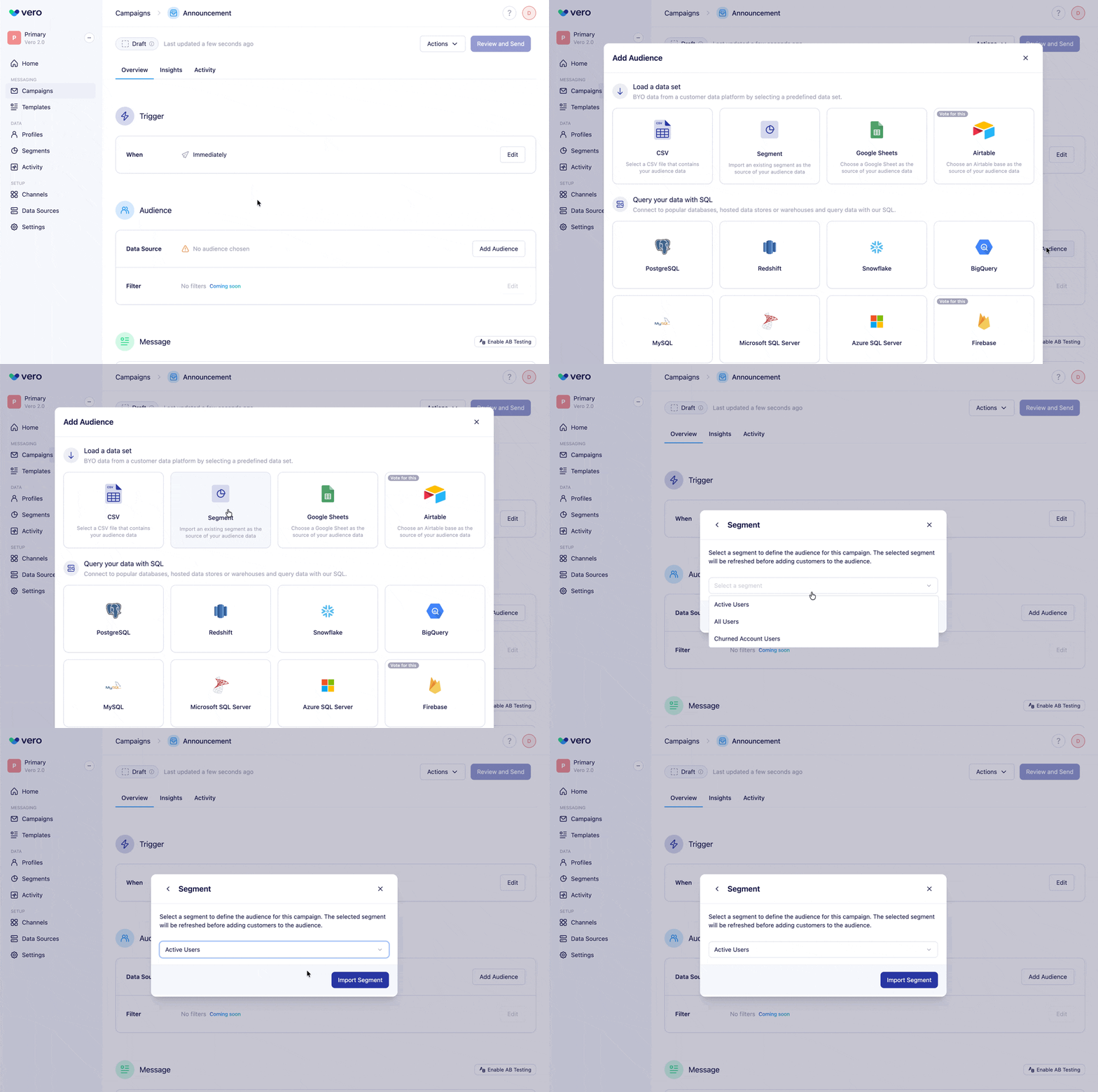
- In a campaign, navigate to the Audience section
- Click Add Audience
- Select Segment from the available audience types
- Choose an existing segment from the Select a segment dropdown
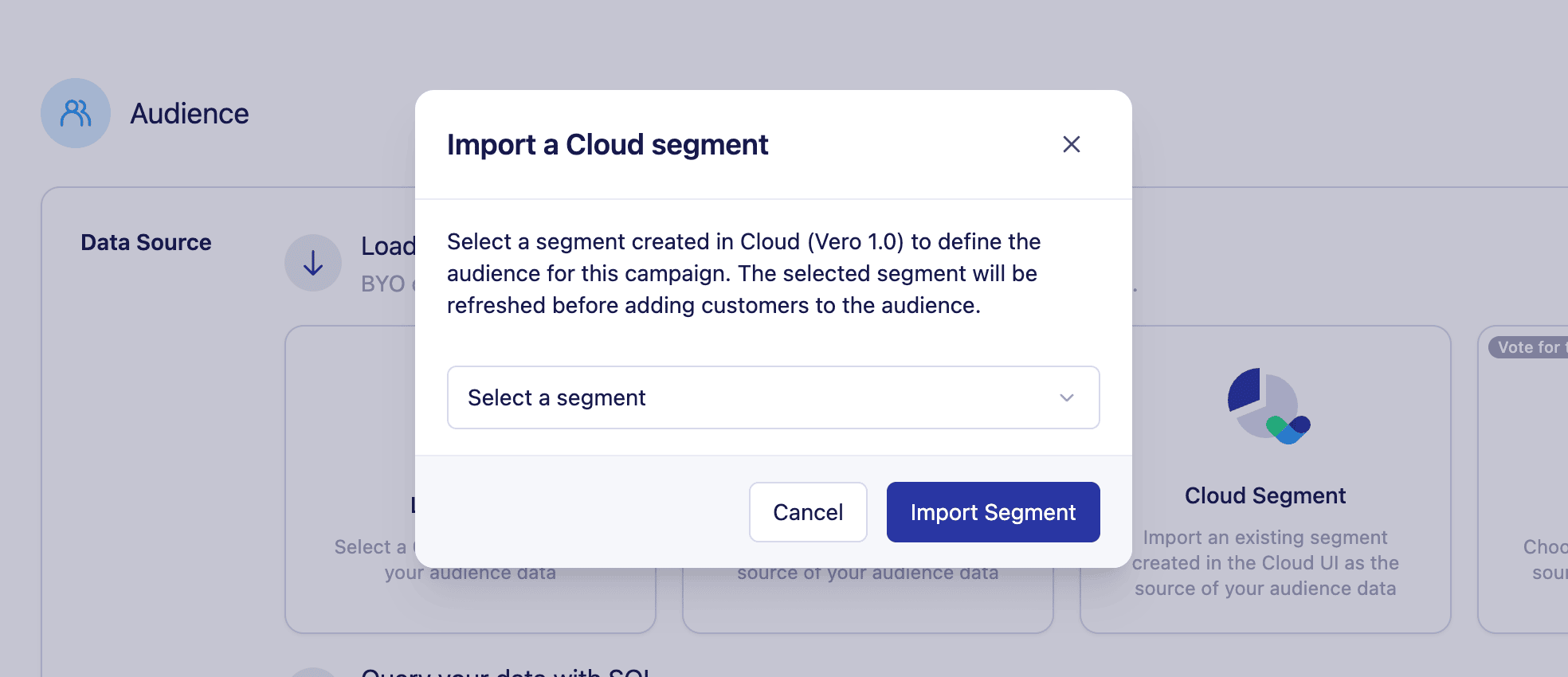
What happens when you add a segment
When you add a segment to your campaign audience:- Your selected segment is evaluated and added to your campaign audience
- The audience preview displays users from the segment and their data
- The subscription status for users in the segment is honored
- If a user unsubscribes after being added to an audience but before the campaign is sent, they won’t receive the message
Managing your segment audience
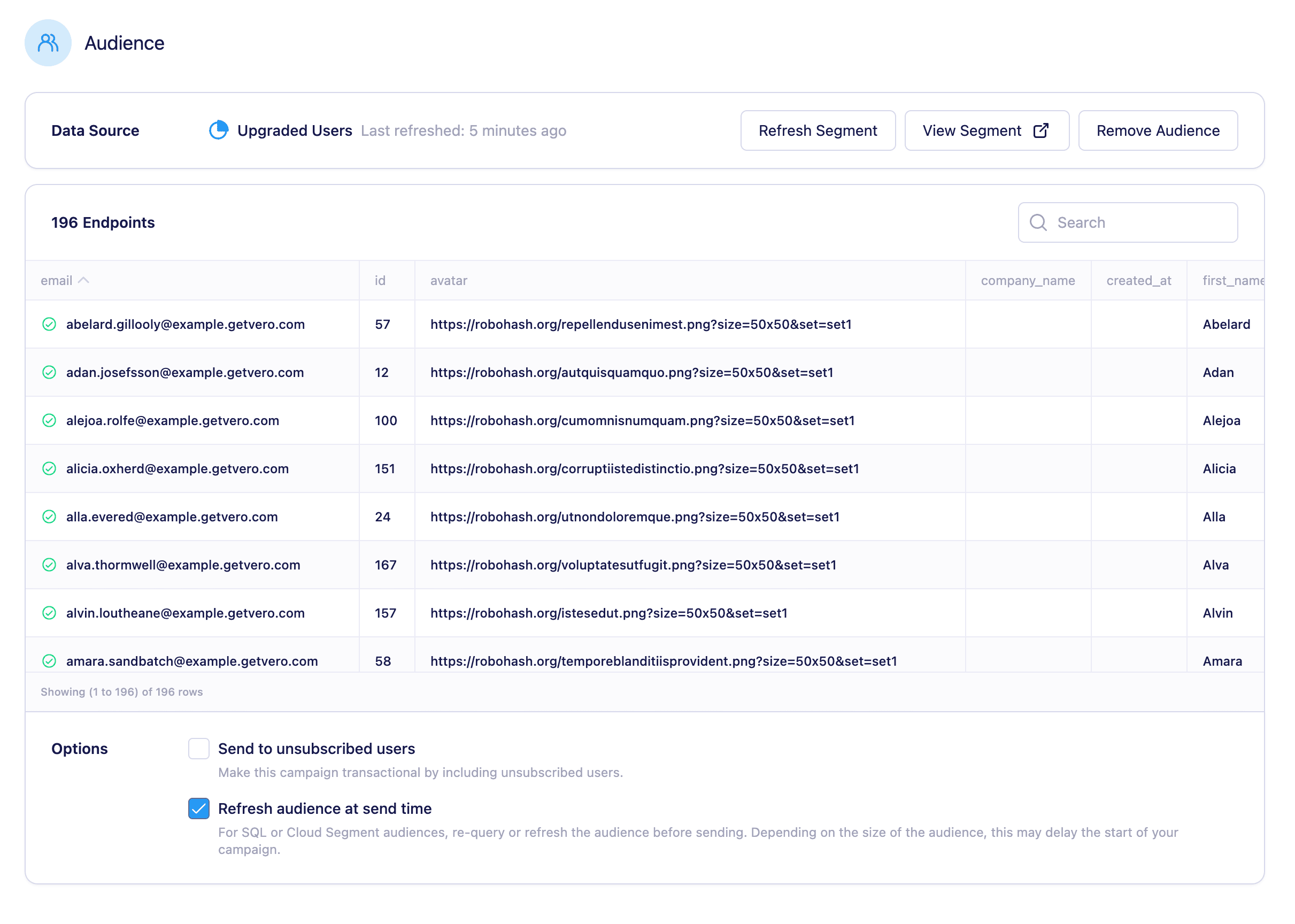
- Refresh the segment to retrieve an updated list of users for your audience
- Remove the audience if you want to switch to another type
- View the segment details to see the conditions and criteria
Refresh at send time
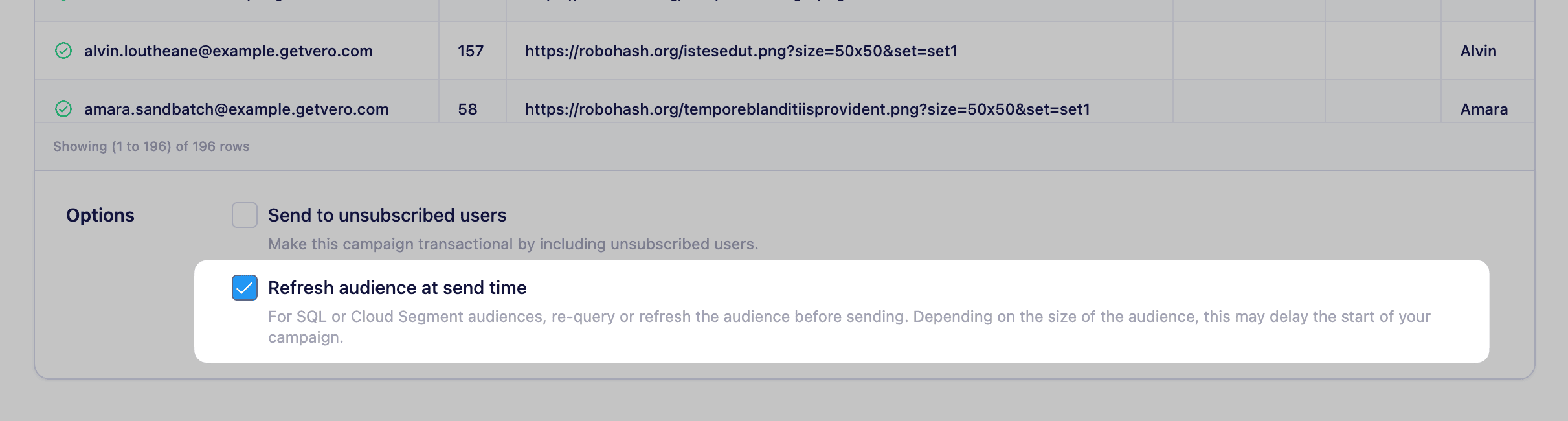
- When enabled, Vero refreshes the segment immediately before sending your campaign
- This ensures users who recently met (or no longer meet) the segment conditions are included or excluded appropriately
- The campaign send may be slightly delayed while the segment refresh completes
Available segment types
You can use any of your segments as a campaign audience: Custom segments Any segment you’ve created using the segment builder can be used as a campaign audience. System segments Vero provides several built-in system segments that are automatically available:- All Push Users – All users with iOS or Android device tokens
- All iOS Users – iPhone and iPad users only
- All Android Users – Android device users only