

Documentation Index

Fetch the complete documentation index at: https://help.getvero.com/llms.txt

Use this file to discover all available pages before exploring further.

The Exports page is where all CSV exports you initiate in Vero are collected. You can monitor the status of in-progress exports and download completed files from one place.

The exports page

Navigate to Exports from the main sidebar under the Data section, or go to connect.getvero.com/exports. Exports page showing a list of exports with status and download options Each row in the exports list shows:
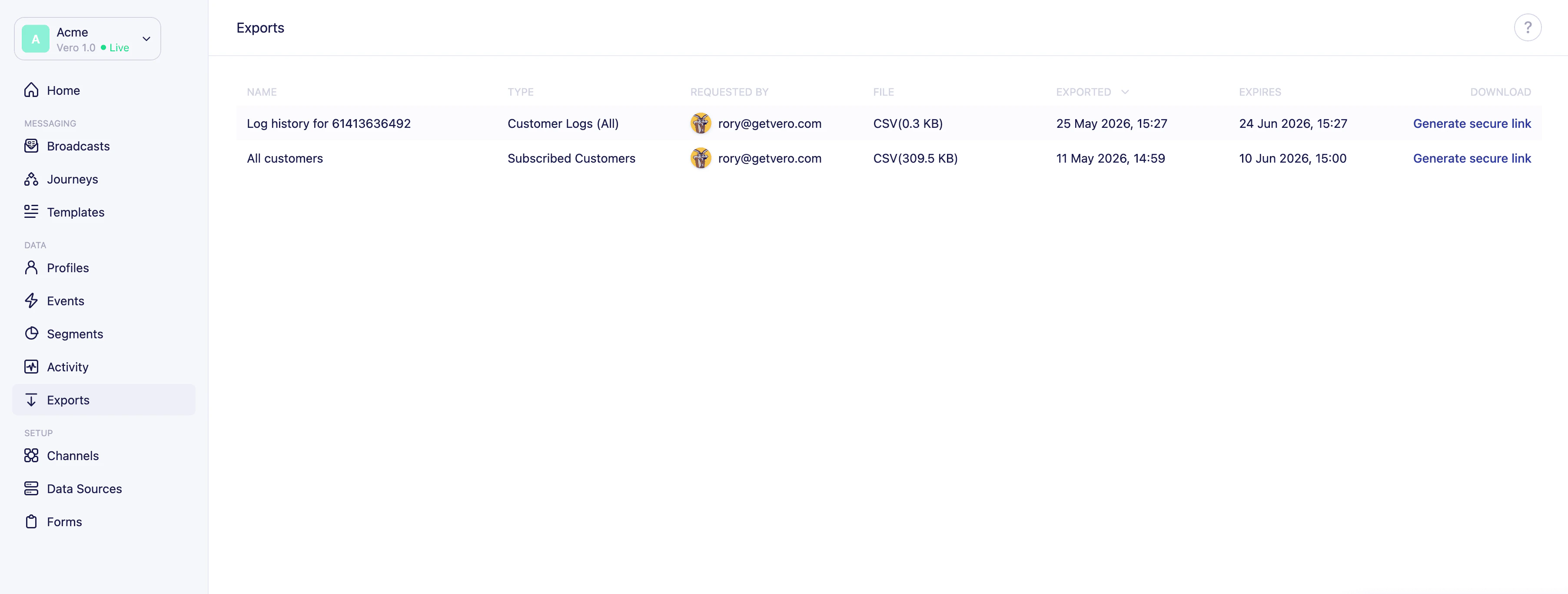
ColumnDescription
NameA description of the export, e.g. “Activity history for user_123”
TypeThe type of data exported, e.g. “Subscribed Customers”
Requested byThe email address of the team member who initiated the export
FileThe file format — all exports are CSV
SizeFile size once the export is complete
ExportedThe date the export was requested
ExpiresThe date the export file expires
Exports from Vero 1.0 are also visible in this list.

Downloading an export

Exports are generated asynchronously — they may take a few moments to complete depending on the size of your data.
  1. Once an export is ready, click Generate secure link in the download column.
  2. Vero will generate a time-limited download link. The button will show Generating… briefly while this happens.
  3. Once the link is ready, click Download to download the CSV file.
  • Download links expire after 7 days. After that, you can generate a new link from the same row.
  • Export files are available for 30 days from the date they were requested. After 30 days, the export is no longer available and you’ll need to run a new export.
If a download link expires before you use it, you can generate a new one. However, if the export file itself has expired (after 30 days), you will need to re-run the export.
If you have any questions, reach out to us at support@getvero.com.