

Documentation Index

Fetch the complete documentation index at: https://help.getvero.com/llms.txt

Use this file to discover all available pages before exploring further.

You can export a CSV of your customer profiles directly from the Profiles page or from any Segment. Exports can be filtered to include subscribed or unsubscribed profiles.

Exporting from the Profiles page

  1. Navigate to Profiles from the main sidebar.
  2. Click the Export button in the top-right corner of the page.
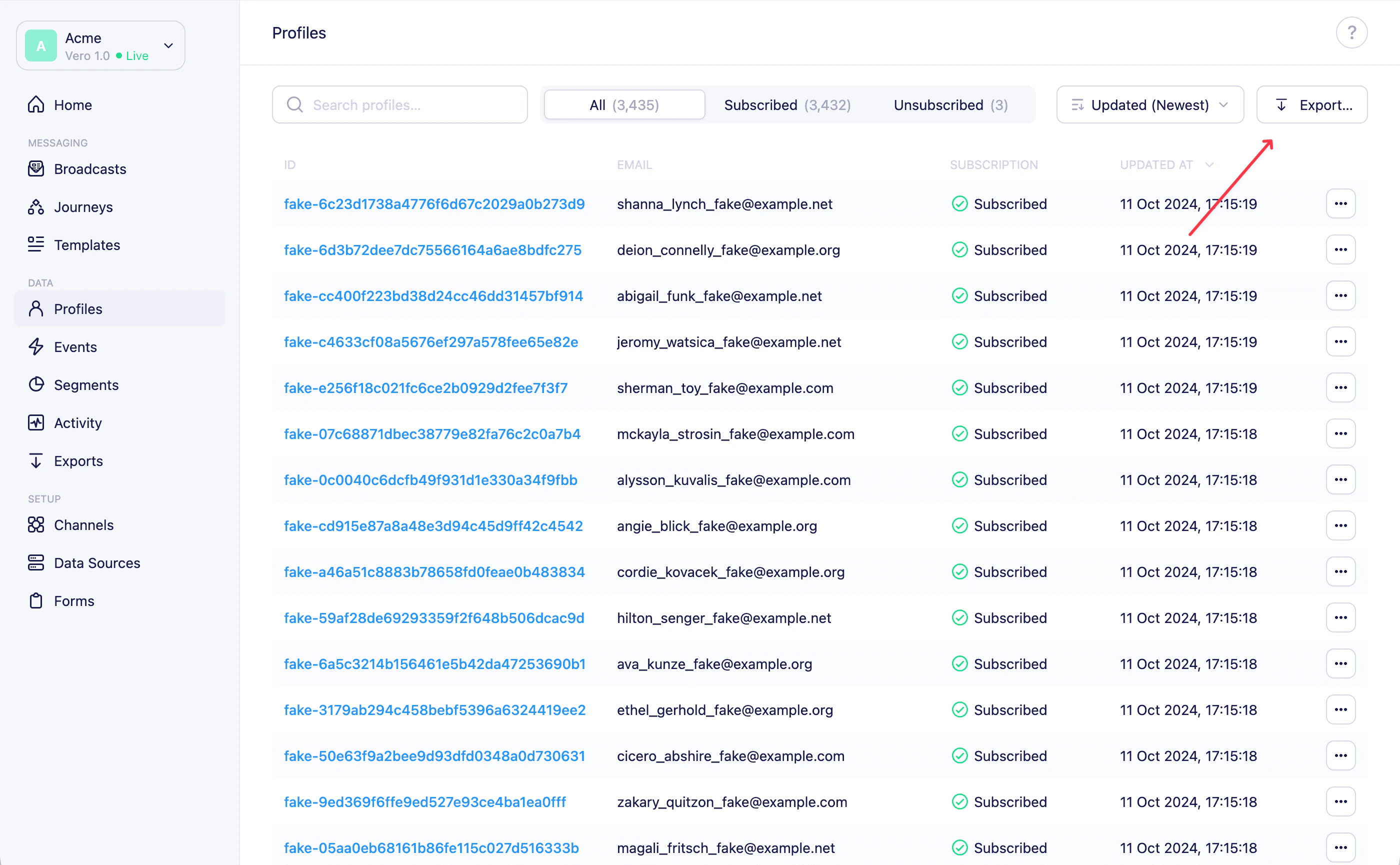
Profiles page with the Export button highlighted
  1. In the modal that appears, select the type of export:
    • Subscribed Customers — all profiles that are currently subscribed
    • Unsubscribed Customers — all profiles that have unsubscribed
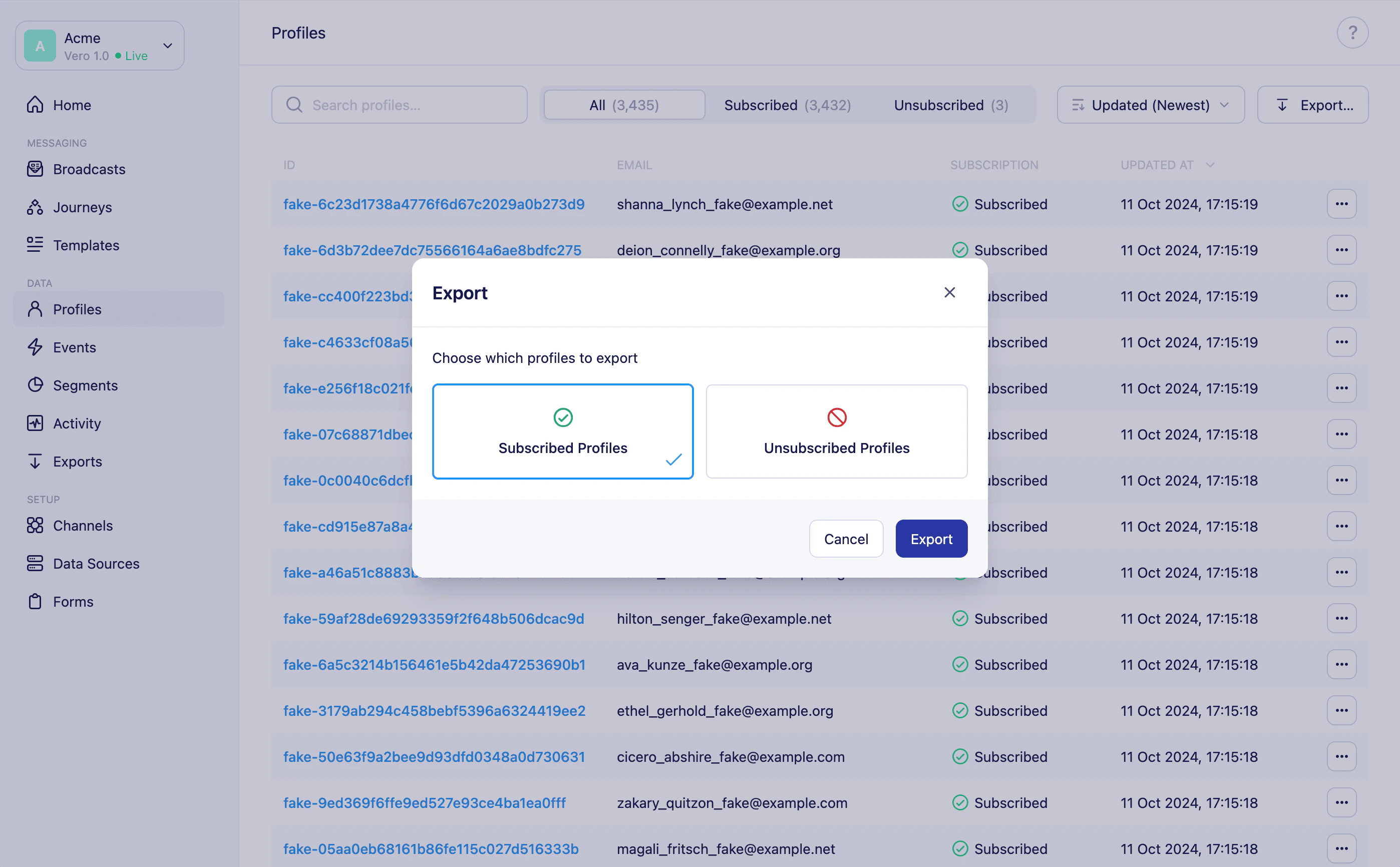
Export modal on the Profiles page showing Subscribed and Unsubscribed options
  1. Click Export to confirm.
Vero will begin generating the export and redirect you to the Exports page, where you can monitor its progress and download the file when it’s ready. A toast notification will confirm that the export has started.

Exporting from a segment

You can export the profiles within a specific segment in the same way.
  1. Navigate to Segments from the main sidebar and open the segment you want to export.
  2. Click the Export… button in the top-right corner of the segment page.
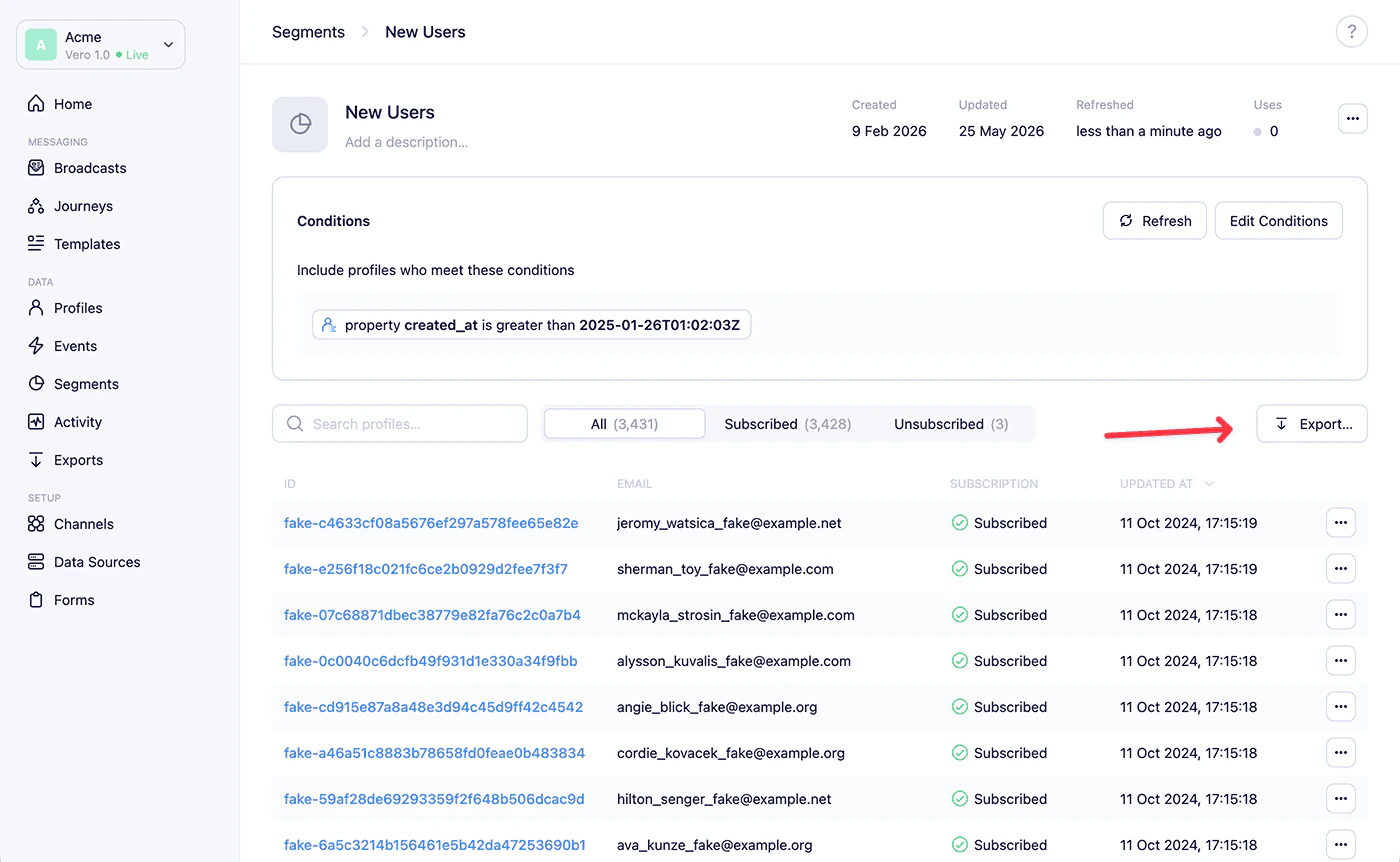
Segment page with the Export button highlighted
  1. In the modal that appears, select the type of export:
    • Subscribed Profiles — subscribed customers who are in this segment
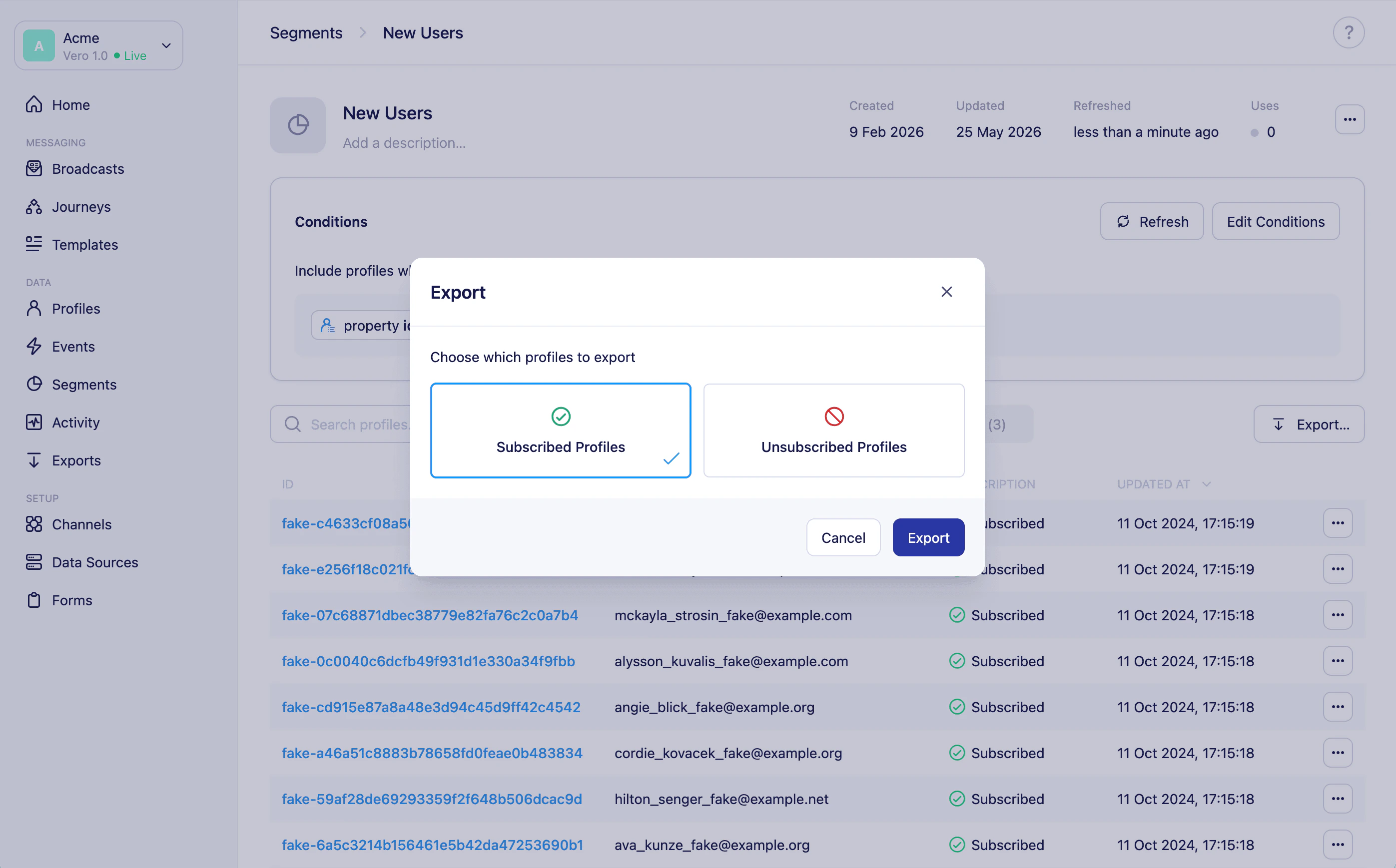
    • Unsubscribed Profiles — unsubscribed customers who are in this segment
Export modal on the segment page showing Subscribed and Unsubscribed Profiles options
  1. Click Export to confirm.
Vero will redirect you to the Exports page and begin generating the file.

Downloading your export

Once the export is complete, go to the Exports page to generate a secure download link and save the CSV file. See Exports overview for details on download links and file expiry.

Need help?

If you have any questions, reach out to us at support@getvero.com.