

Send modes
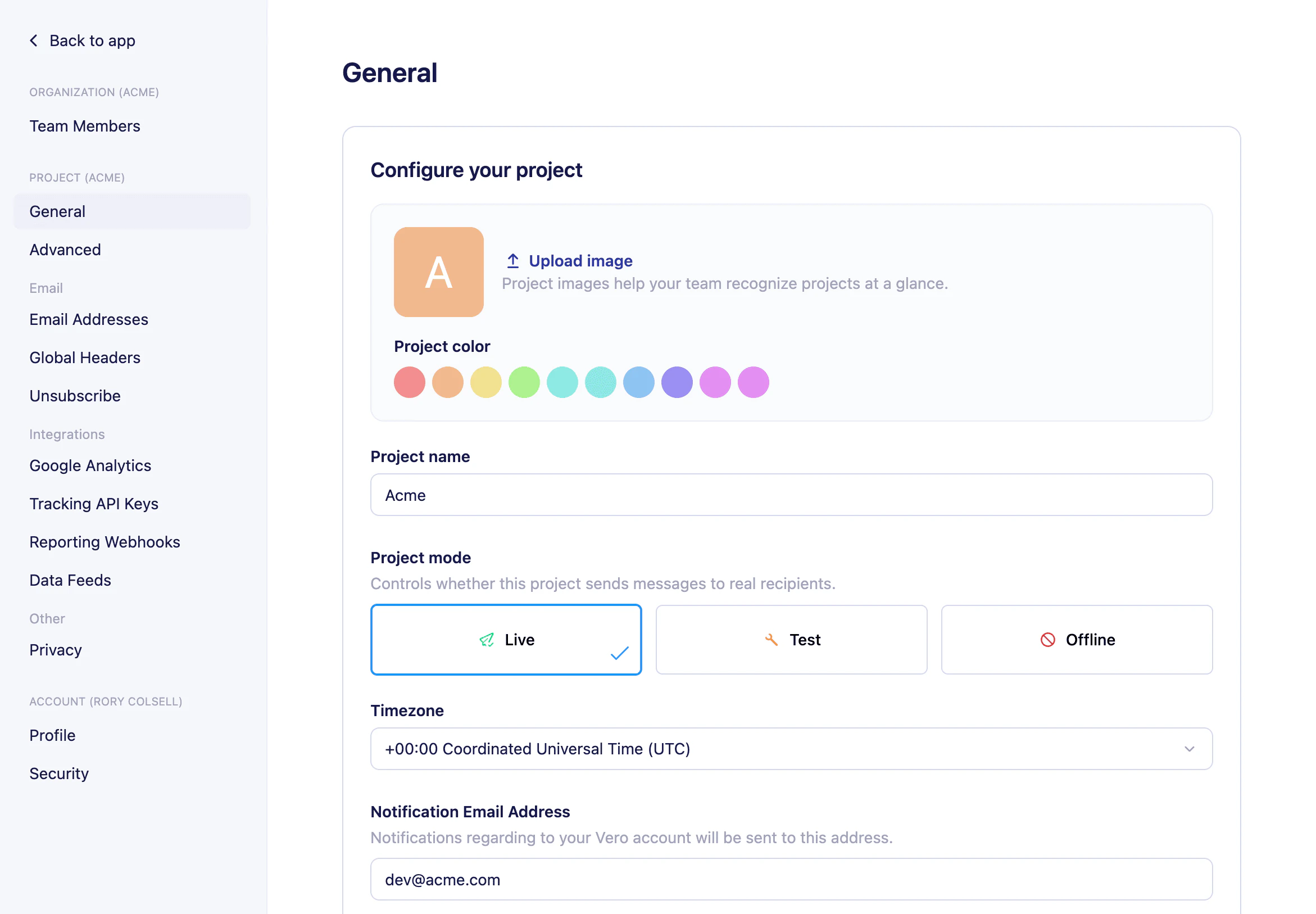
Each project operates in one of three send modes:- Live — All emails are triggered and sent normally to your customers.
- Test — All emails triggered by customer events are redirected to a single test email address. For newsletters, only a single email is sent to your test address.
- Offline — Data is still captured and emails are triggered, but nothing is sent. You can see triggered emails in the logs.
Changing your project’s send mode
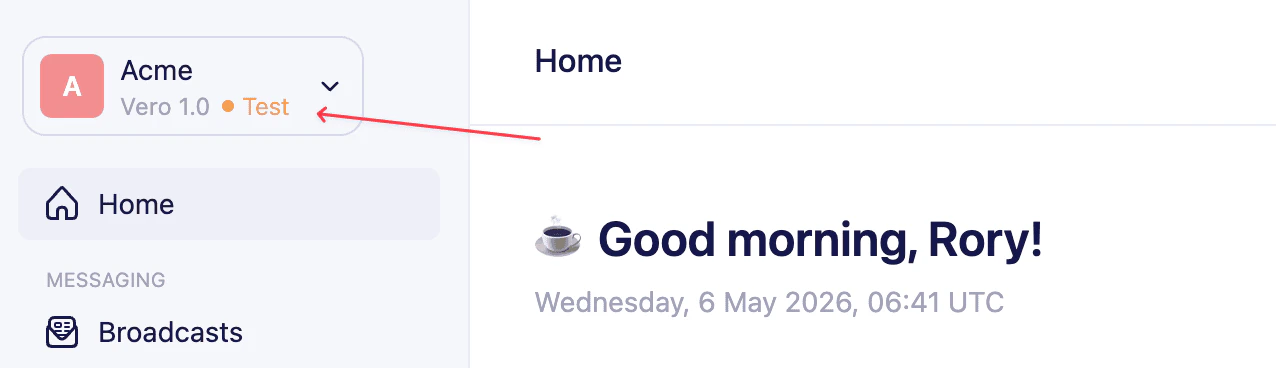
By default, new projects are set to Test mode, indicated by the label in the project menu in the sidebar.
- In the sidebar, click the project you want to configure.
- From the project menu, navigate to Project settings.
- Under Project mode, select Live, Test, or Offline.
- If you selected Test, enter a Test email address. All emails will be sent to this address instead of real users.
- Click Save.
Recommended workflow
Keep your project in Test mode while you get set up. This prevents any emails from being sent to real customers before you’re ready. Once you have completed the following, switch to Live mode:- Set up event tracking — connect your application and start sending events.
- Add your customer data — bring in your existing user records.
Switching to Live mode requires a paid and verifiedaccount. If you’re on a free plan or haven’t verified your account, contact support@getvero.com for help.