In Vero 1.0 this lived under Import/Export. In Vero 2.0 it has its own Imports item in the left sidebar, and exports are managed separately. See Exports overview.
What you can import
- User profiles – create or update users along with their channel addresses (such as
email) and properties (such asfirst_name). See Import user profiles via CSV. - Events – backfill historical actions your users have taken, such as past orders. See Import events via CSV.
- Unsubscribes – mark a list of users as unsubscribed in one operation. See Unsubscribe users via CSV.
How an import works
Every import follows the same basic flow:- Select Import on the Imports page and choose the type of import (profiles or events).
- Upload your CSV file.
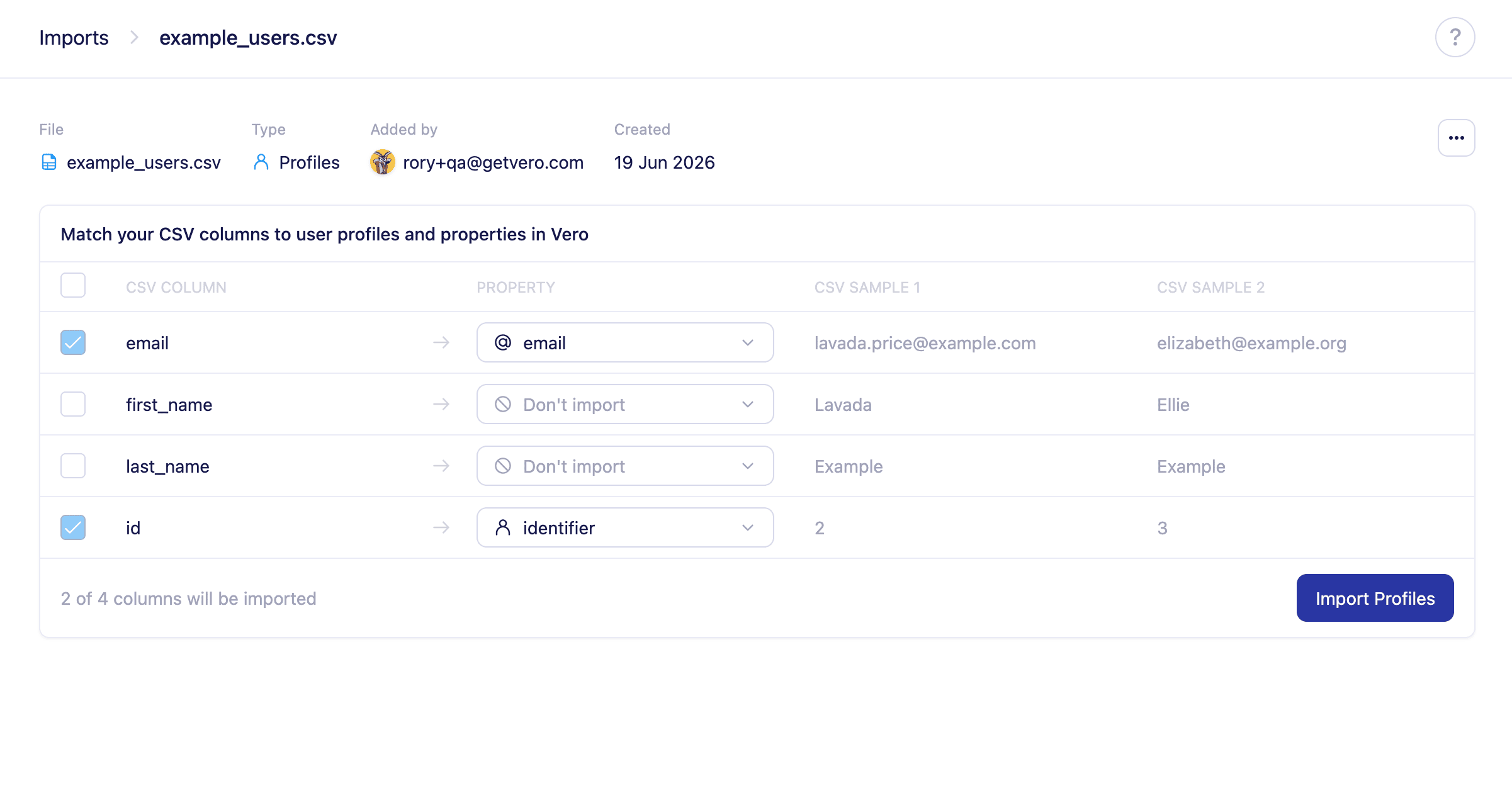
- Map each column in your file to the matching Vero field. Vero detects your columns and suggests mappings where it recognises them.
- Select Import to start the import. Vero processes each row and creates or updates the relevant records.
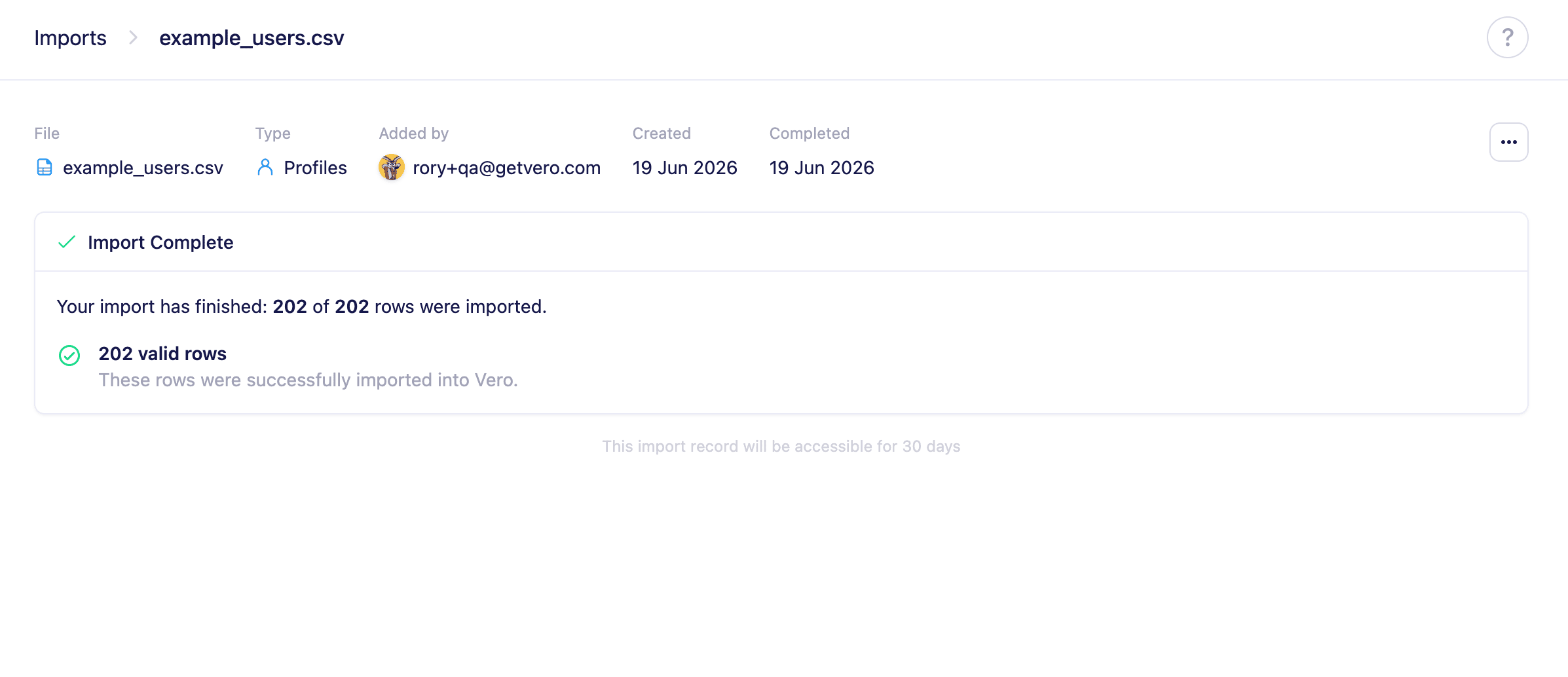
- Once complete, a summary page shows how many rows were successfully imported and how many failed.
File requirements
- Files must be in
.csvformat, using commas as the delimiter. Tabs, semicolons, and other delimiters are not supported. If you’re working in Microsoft Excel or Apple Numbers, choose File > Save As… > CSV to export..xls,.xlsx, and other formats are not accepted. - Files must be encoded as UTF-8 without a Byte Order Mark (BOM). Files saved with a different character set (such as Latin-1 or Windows-1252) may fail to import or produce garbled data. A BOM can also corrupt the first column name, preventing Vero from recognising it.
- Files must be 2 GB or smaller.
- Files must contain at least one data row in addition to the header row.
- Values containing commas or newlines must be enclosed in double quotes, and quotes within a quoted value must be escaped by doubling them (e.g.
"She said ""hello"""). - Uploads have a 30-minute time limit. If your connection is slow or the file is very large, the upload may time out.
After an import
Once an import finishes, a summary page shows how many rows were successfully imported and how many failed. If any rows couldn’t be processed, you can correct them, export them to a new CSV, and import them again.