

Required data
An events CSV supports three core columns:email– who performed the event.event_name– the name of the event, for exampleCompletes checkout.date– the date and time of the event, for example2022-01-15 02:00+10.
item_type property:
Importing your file
- Select Imports in the left sidebar.
- Select Import and choose Events as the import type.
- Upload your
.csvfile. - Map each column in your file to the matching Vero field.
- Select Import Events to start the import.
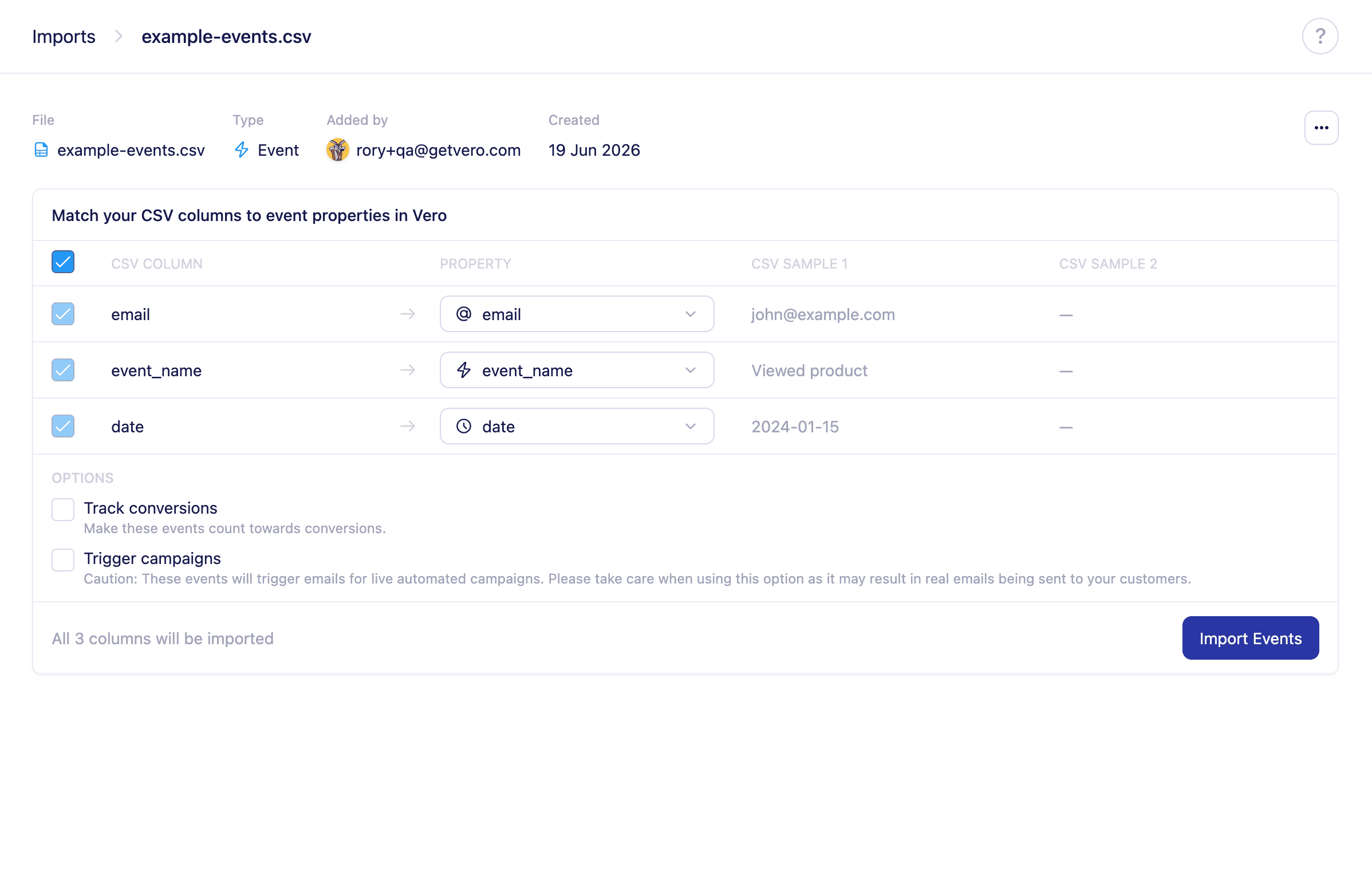
Import options
The events mapping screen includes two optional settings:- Track conversions – count these imported events towards your campaign conversion metrics.
- Trigger campaigns – allow these events to trigger live automated campaigns. Use with care, as this may result in real messages being sent to your customers.
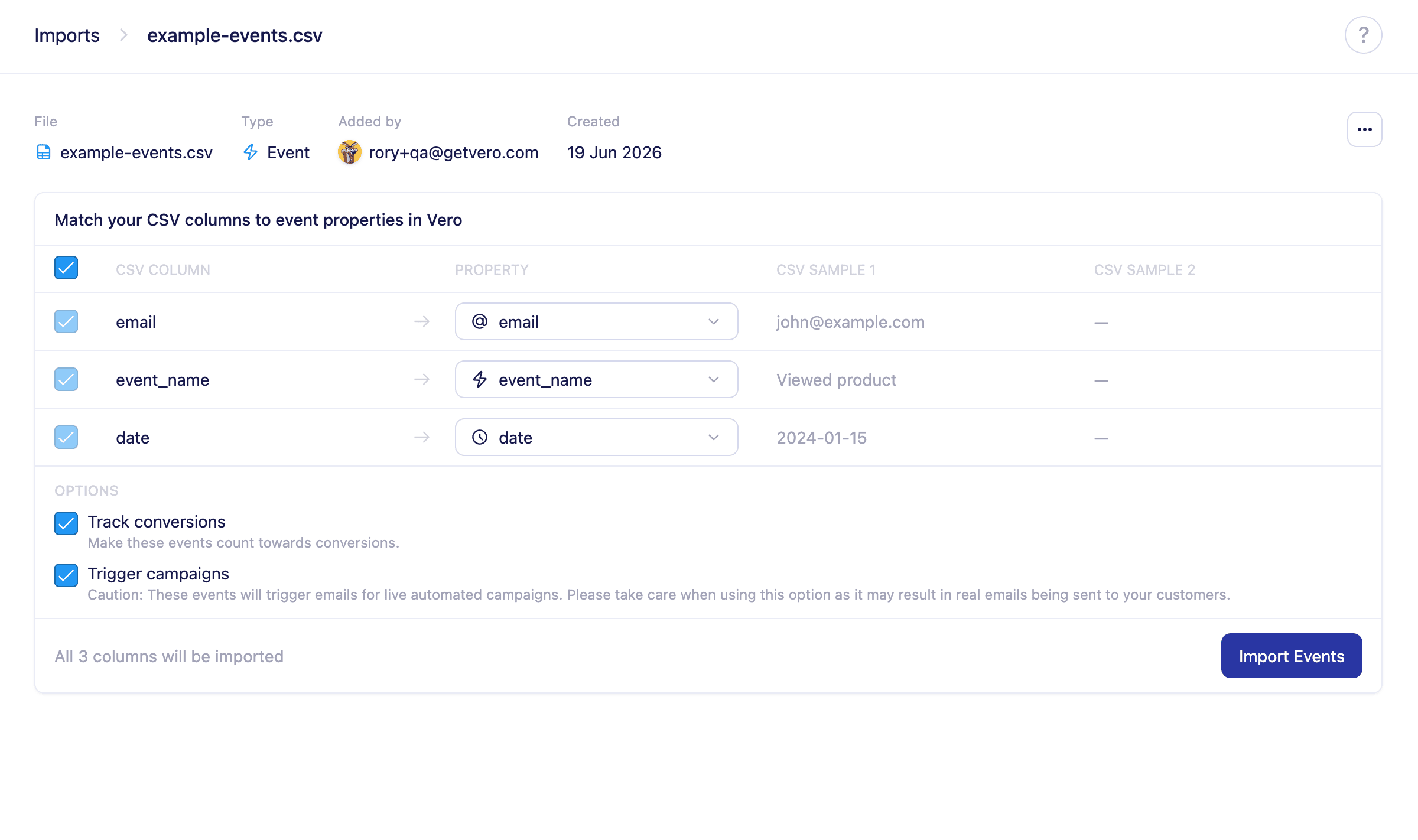
How dates affect triggering
When you import events as triggers, the event’sdate determines what happens next:
- If a campaign sends a set time after an event, Vero calculates that delay from the imported event’s
date. For example, if a campaign sends 10 days afterCompletes checkoutand you import an event dated 9 days ago, the user receives the message 1 day from now. - If the delay has already fully elapsed — the event is 10 or more days old in the example above — the user is discarded and does not continue through the campaign.
Events cannot be triggered for a future date and time.