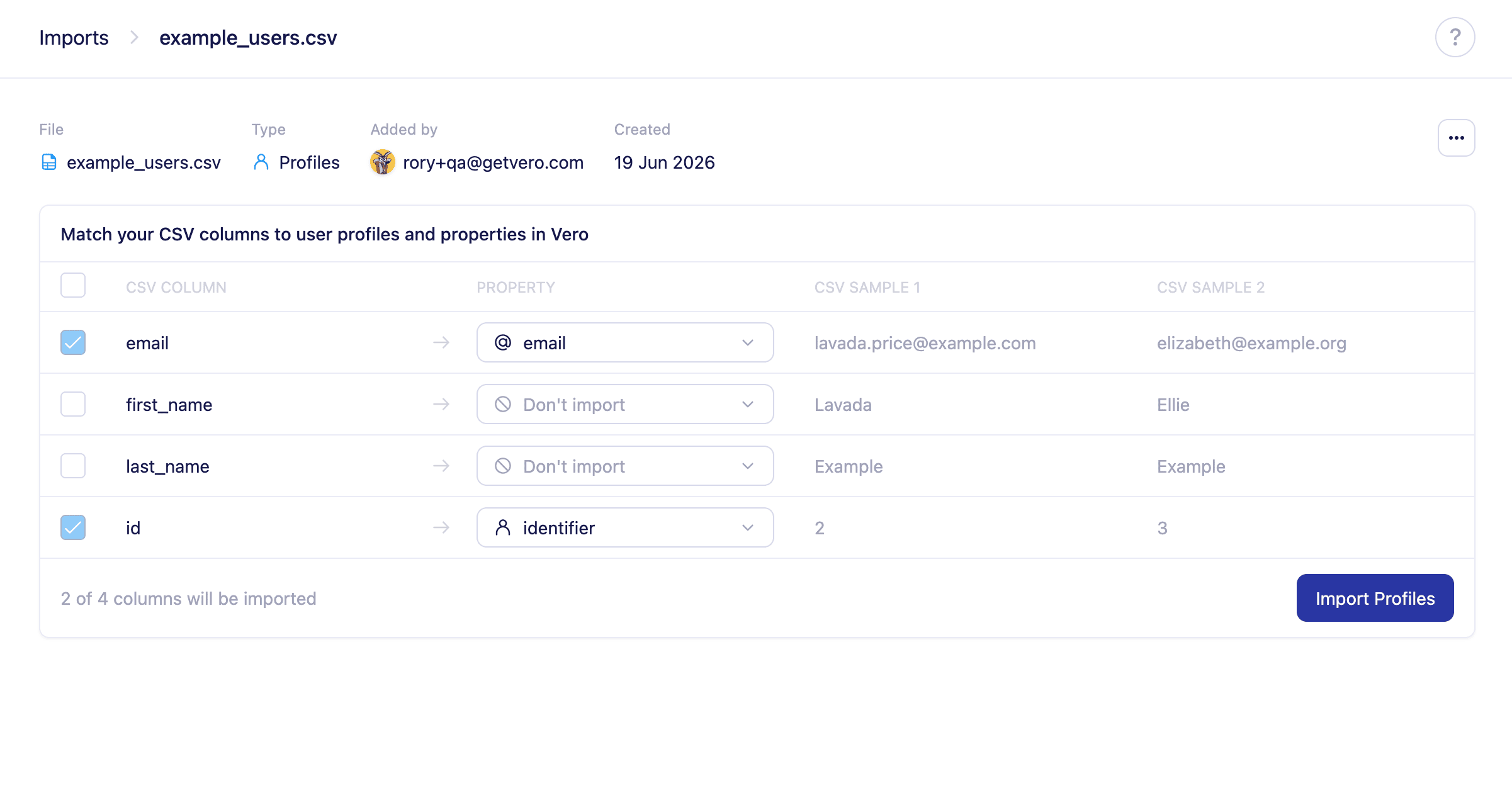
Add or update user profiles in bulk in Vero 2.0 by importing a CSV of identifiers, channel addresses, and properties.
Each row in your CSV creates a new profile or updates an existing one, depending on the identifiers in the file and your account’s identity stitching rules. You can import channel addresses such as email, identifiers such as id, and any number of custom properties such as first_name or location.
Your CSV must contain at least an id or an email column. You can include any other columns you like as user properties, and Vero will store them against each profile.Here’s an example of a CSV that imports cleanly:
id,email,first_name,last_name,location1859,tyrion.lannister@casterlyrock.com,Tyrion,Lannister,Casterly Rock
Imports respect the identity stitching rules configured on your account. By default, Vero:
Matches users on id where one is provided.
Uses email as the id when no id is given, then matches on that value.
You can change how Vero resolves identities — for example, matching directly on email. Read more in Identity stitching and resolution.
If your identity stitching rules require an id and your file doesn’t include one, you may create duplicate profiles. Confirm your stitching settings before importing a file without an id column.
Select Import and choose Profiles as the import type.
Upload your .csv file.
Check that Vero has detected each of your columns correctly and map them to the matching Vero fields. If you’ve imported before or sent data via the API, Vero suggests mappings to properties it already knows about.
Select Import to start the import.
Vero uses the matched identifier to find existing profiles and updates all other properties with the latest values from your file. Once the import completes, a summary page shows how many rows were successfully imported and how many failed.