

When to use condition scoping
Use condition scoping when:- Your trigger event fires once per item (e.g.
viewed_product,added_to_cart,viewed_listing) - You want a true/false node condition to check whether the user acted on that specific item, not on any item
- Users should be eligible to receive follow-up messages for each item independently
purchased_product” sees a purchase exists and suppresses the follow-up for all three products. With scoping on sku, Vero checks each product independently — so the user still receives follow-up messages for products B and C, but not A.
Setting up condition scoping
Condition scoping is configured inside each true/false node’s conditions — not at the Journey level. Each true/false node can have its own scoping configuration.- Open your Journey and add or select a true/false node.
-
In the true/false node’s conditions panel, add your conditions — for example, “user has not triggered
purchased_product.” -
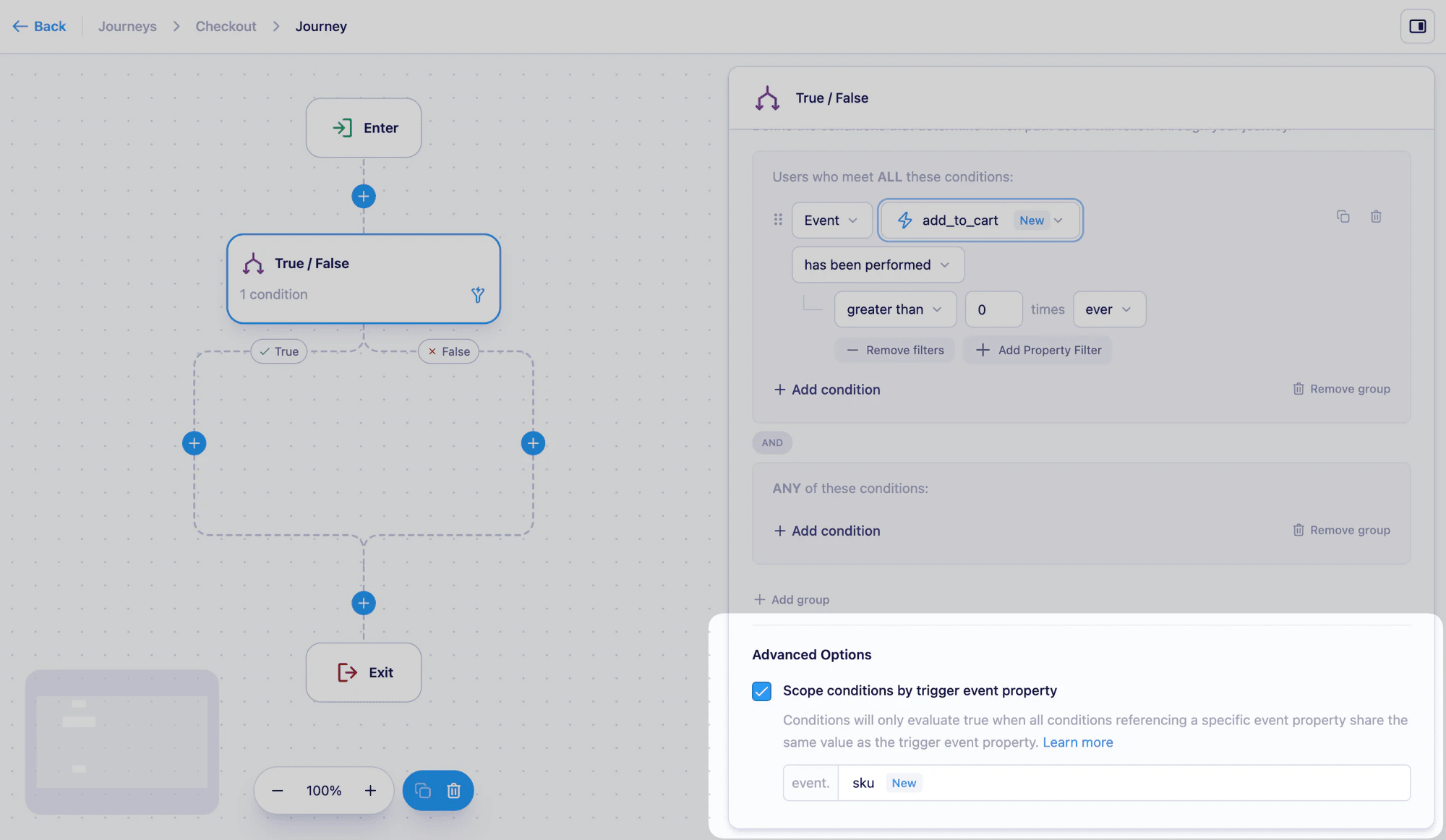
In the Advanced options section at the bottom of the conditions panel, check the “Scope conditions by trigger event property” option:
-
In the Scope conditions by dropdown, select the event property you want to use as the matching key (e.g.
sku). You can search for a property or enter a custom value. - Save the node and continue building your Journey.
You can configure scoping independently on each true/false node. This means some nodes can evaluate conditions globally while others scope to a specific property — configure it only where it’s relevant.
How Vero evaluates scoped conditions
When scoping is enabled on a true/false node, Vero requires that any events referenced in that node’s conditions share the same value for the scoped property as the trigger event that started the user’s journey. Using thesku example:
- Trigger:
viewed_productwithsku: "1234" - Scoped property:
sku - Condition: user has not triggered
purchased_product
purchased_product event where sku equals "1234". A purchased_product event with a different sku does not satisfy the condition — so the Journey continues for the unmatched product.
Personalizing messages with scoped event data
Because each journey instance is scoped to a specific property value, you can use the trigger event’s properties in your message content to personalize for the specific item. For example, if yourviewed_product event includes name and price:
Limitations
- Condition scoping is available on true/false nodes only.
- The scoped property must be present on all events referenced in that node’s conditions.
- Each true/false node is scoped independently — there is no journey-wide scoping setting.
In Vero 1.0, this feature was called “scope by” and was configured at the campaign level, applying to all conditions across a Workflow. In Vero 2.0, scoping is set per true/false node, giving you more control over which conditions are scoped and which evaluate globally.
Next steps
- Creating and editing a Journey — Build your first Journey
- Event triggers — Learn how event-triggered Journeys work
- Personalize content with Liquid — Use event data in your message content