

Prerequisites
- Configure a push channel – Add an Amazon SNS or Twilio Notify provider on the Channels page before adding a push node. Learn how to configure a push channel.
- Register device tokens against your user profiles – Vero needs an iOS or Android
device_tokenon each user’s profile to deliver a push message. Device tokens are added via the Vero API. See the mobile push integration guide. - Track an event to trigger your Journey – Journeys are event-triggered, so you’ll need a tracked event to enter users into the flow. Learn about event triggers.
Adding a push node
- Open your Journey on the campaign canvas.
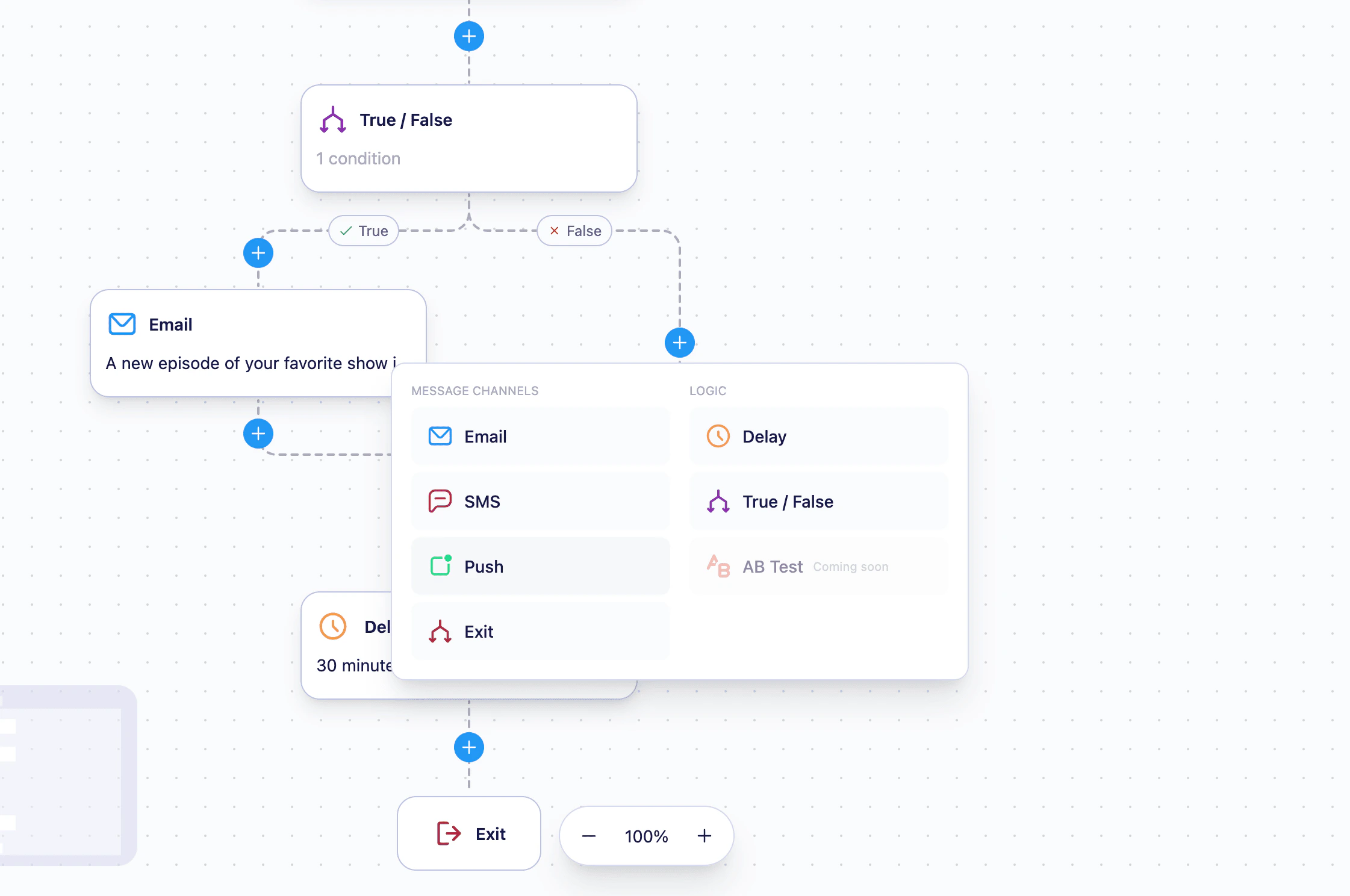
- Click the ”+” button to open the add node menu.
- Select Push.
- The push node is added to the canvas. Click the node to open the side panel and configure it.
Choose your push channel and platform
In the side panel, select the Provider Vero should use to send, or stick with the default.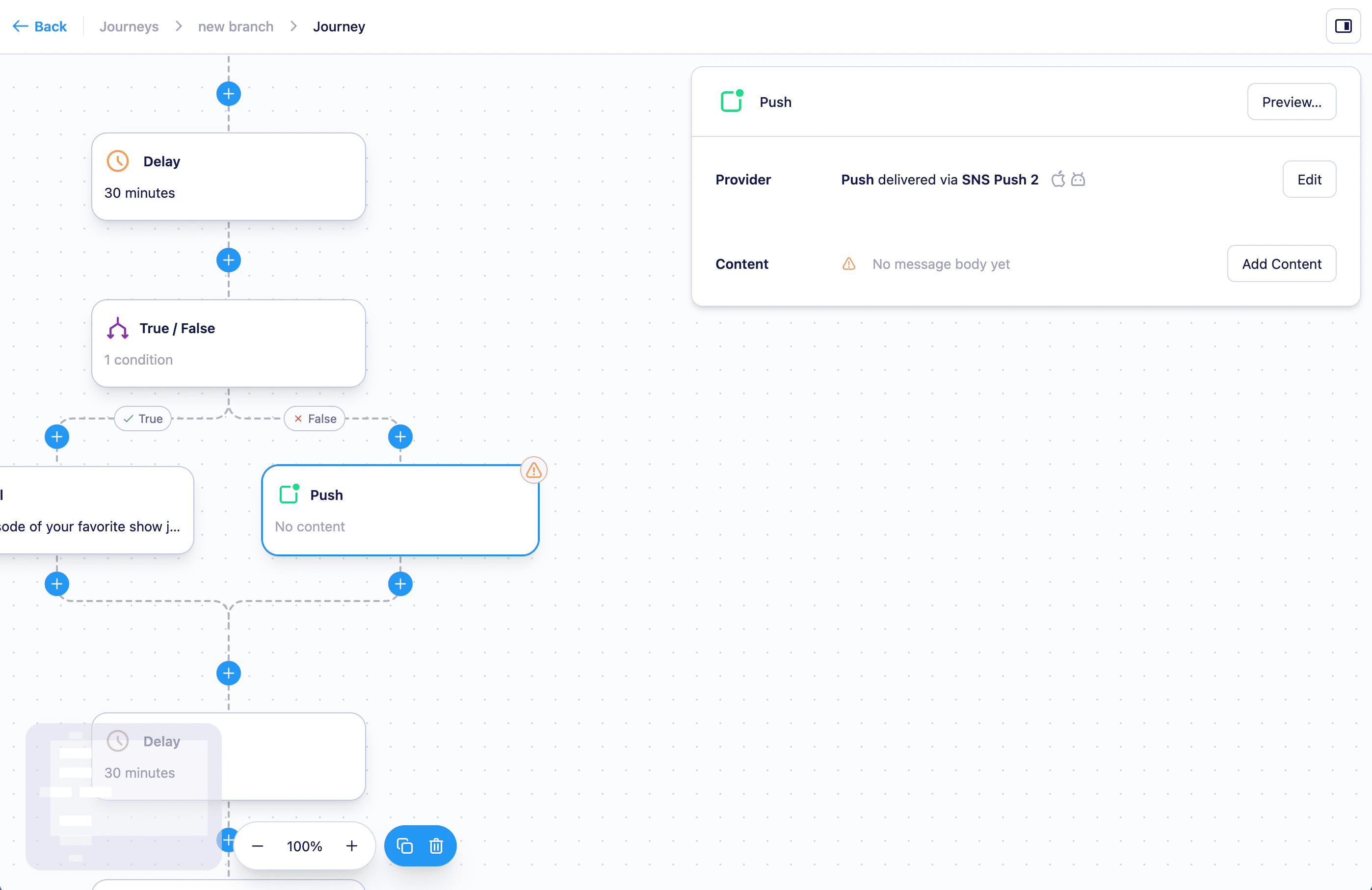
Add your push content
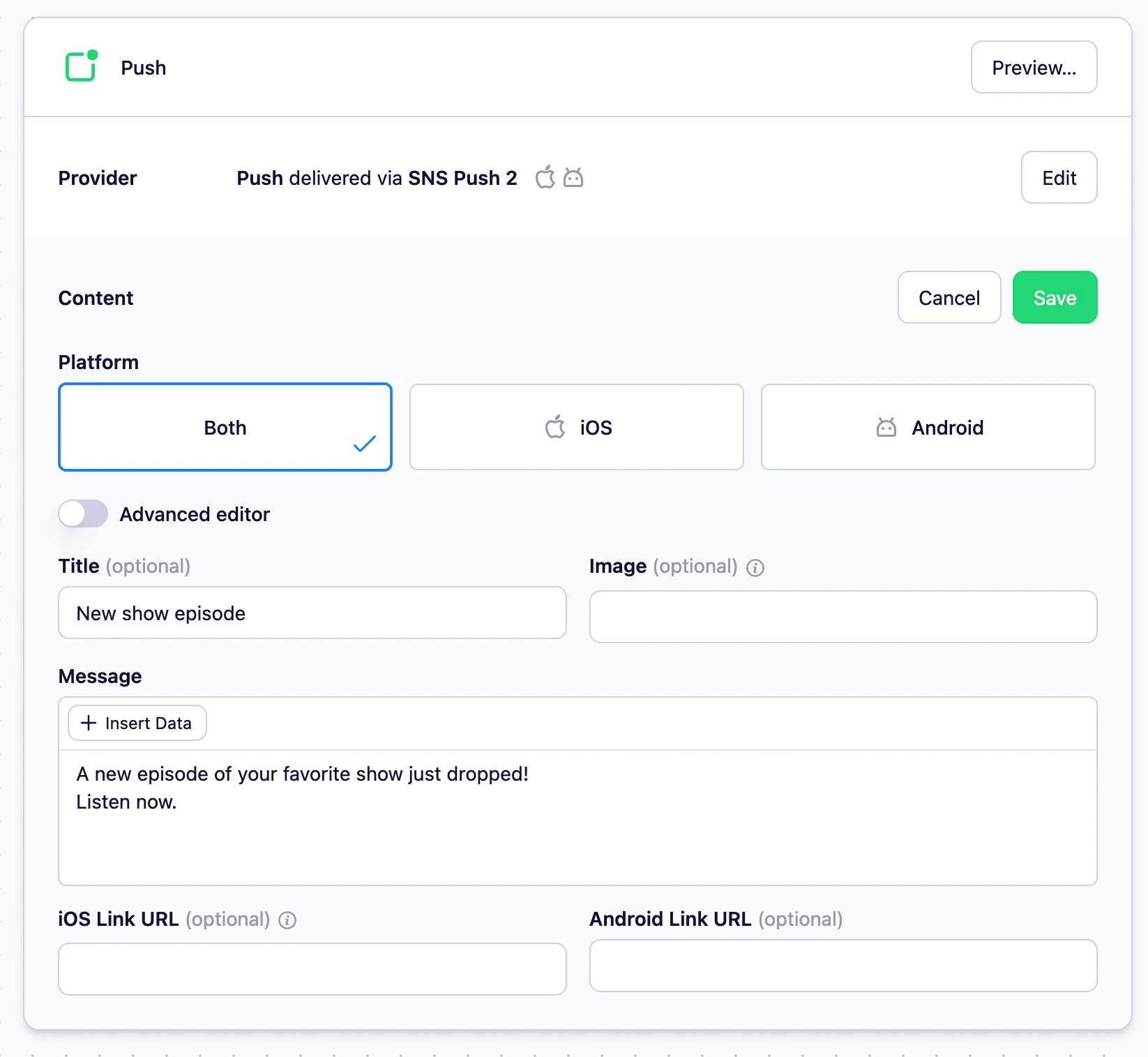
First, choose which device platform the message should target: iOS, Android, or both.Vero only sends to users with a
device_token matching the selected platform. If you select iOS, users with only an Android token won’t receive the message at this step.-
Basic editor — Add a title, body, optional image, and iOS/Android tap-through links.
-
Advanced editor — Write the raw iOS (
aps) and Android (notification) payloads directly in a code editor for finer control.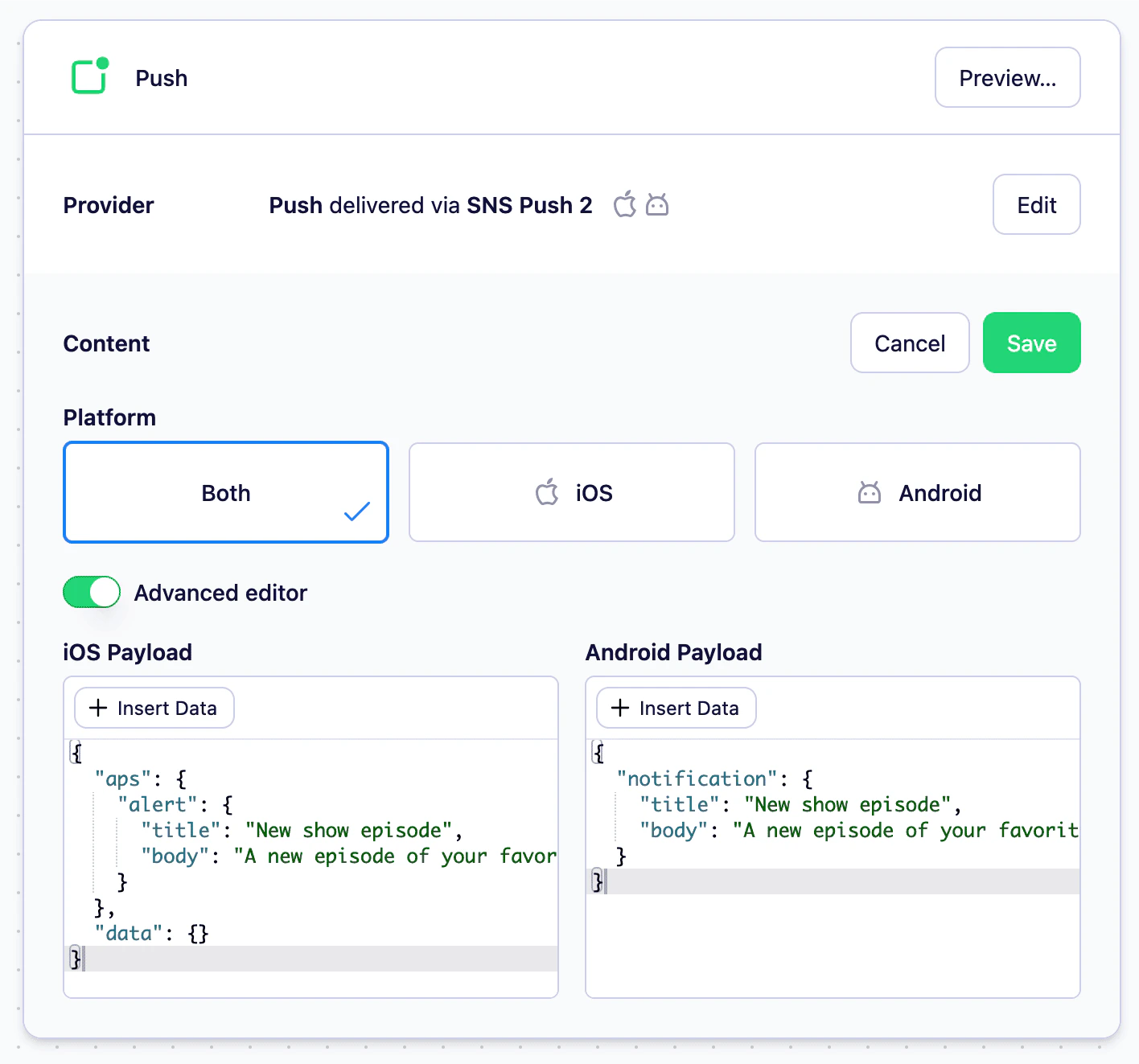
Reporting on a push node
Once your Journey is live or stopped, the push node displays Sent, Opened and Converted (indirect) stats directly on the canvas, so you can see how the step is performing without leaving the journey view. Opened stats require your app to be tracking push opens.Limitations
- Push is supported for event-triggered Journeys only.
- A user must have a
device_tokenon their profile matching the selected platform to receive the push. - Reporting is limited to Sent and Opened interaction stats. Clicked stats are not supported.
Next steps
- Creating a push message — learn about the basic and advanced content editors.
- Push channel — configure an Amazon SNS or Twilio Notify provider.
- Creating and editing a Journey — see how the push node fits alongside other node types.