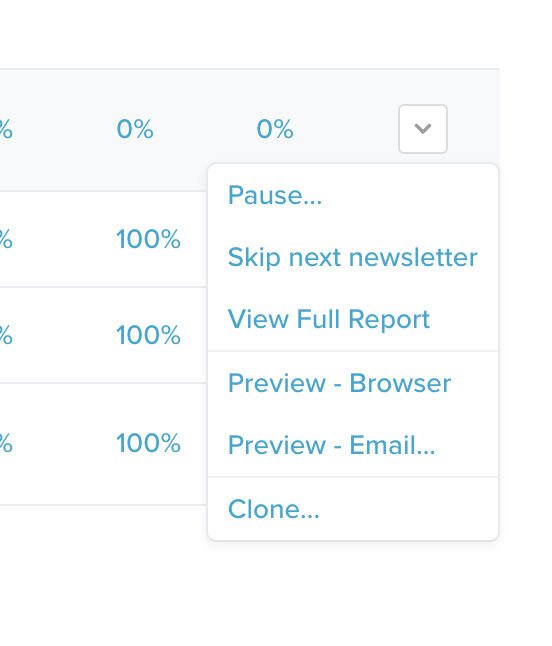
Creating a recurring newsletter
To create a recurring newsletter, simply create a new Newsletter, just as you would typically. The difference happens when you click Schedule.Scheduling a recurring newsletter
To launch your newsletter on a recurring schedule, select Schedule from the newsletter actions header bar of any draft newsletter: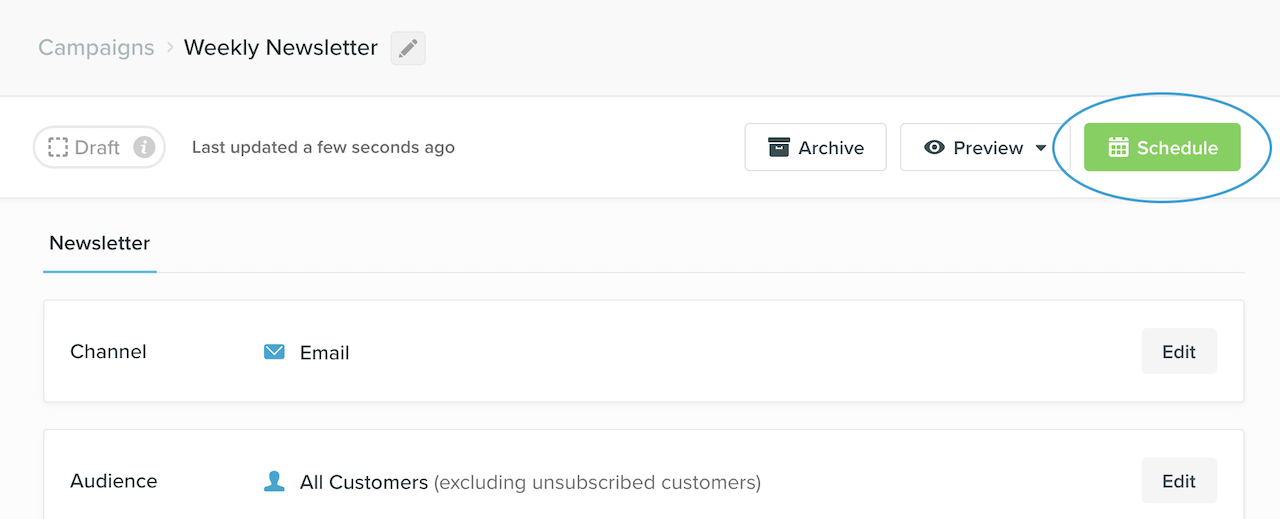
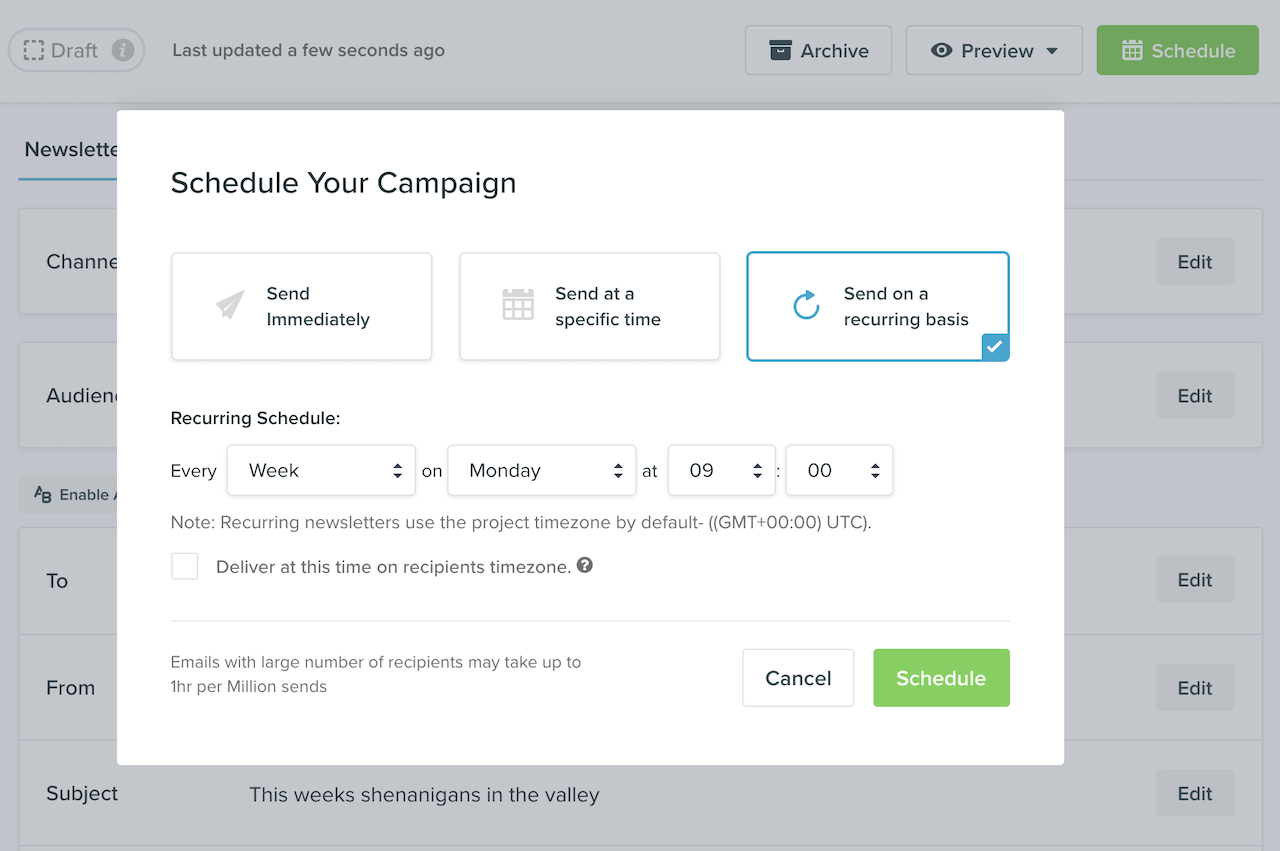
Without timezone support
When scheduling a standard recurring newsletter you select the time (in the selected timezone) that you wish the newsletter to be sent. For example, you might schedule your newsletter to be sent each week on Monday at 9:00am UTC-7 (PT). This would mean that each Monday, at that time, a copy of your newsletter would be sent to all customers currently matching your segment conditions.Timezone support
You can also select to send the newsletter in your customer’s timezone by selecting Deliver at this time on recipients timezone. For example you might send a newsletter each day at 10:00am. This newsletter will be sent each day at this time in the customers’s timezone wherever they are in the world. For customers with a blanktimezone property, Vero will use your Project’s default timezone to schedule the newsletter at 10:00am.
Note that when launching a campaign with timezone support, the first email will be sent when the time specified is first reached in the International Dateline West timezone (GMT+13).
For example, if you elect to schedule an email daily at 2pm with timezone support, the first email will be sent at the next closest 2pm UTC+13. This ensures all customers are treated equally with the initial send.
Editing a recurring newsletter
To edit a recurring newsletter, simply select its name on the Campaigns page. You will then be taken to the Recurring Newsletter Overview page.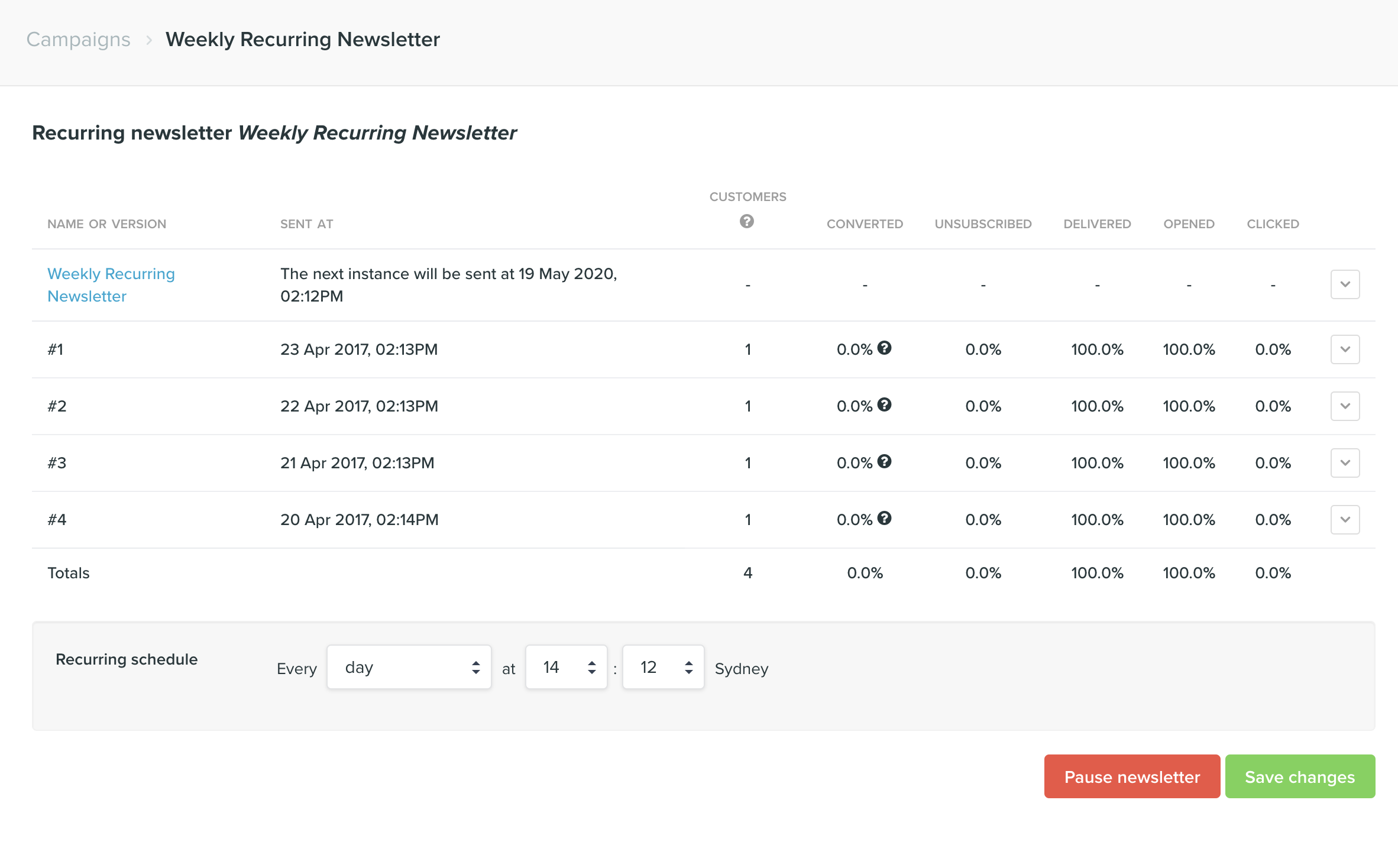
Re-scheduling, cancelling and pausing a recurring newsletter
On the recurring newsletter snapshot page, you can change the schedule. Simply select the new schedule you would like to use, hit save and click Save changes on the confirmation dialog. Note that any previously scheduled instances will not send. The newsletter will begin emailing on the new schedule immediately. You can also select to cancel a recurring newsletter. This will not delete the newsletter but it will ensure that it is no longer sent to your customers. You can select to uncancel a recurring newsletter at any time, resuming it’s last saved schedule.