Step 1
Grab the following tag code belowStep 2
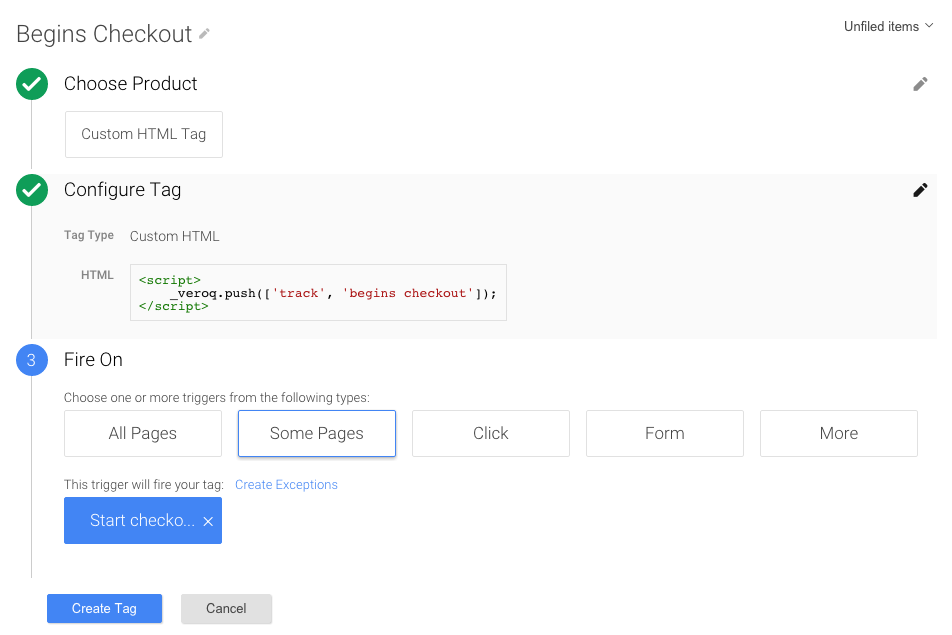
Head over to Google Tag manager and click New Tag. Configure your options so that it looks like this
Step 3
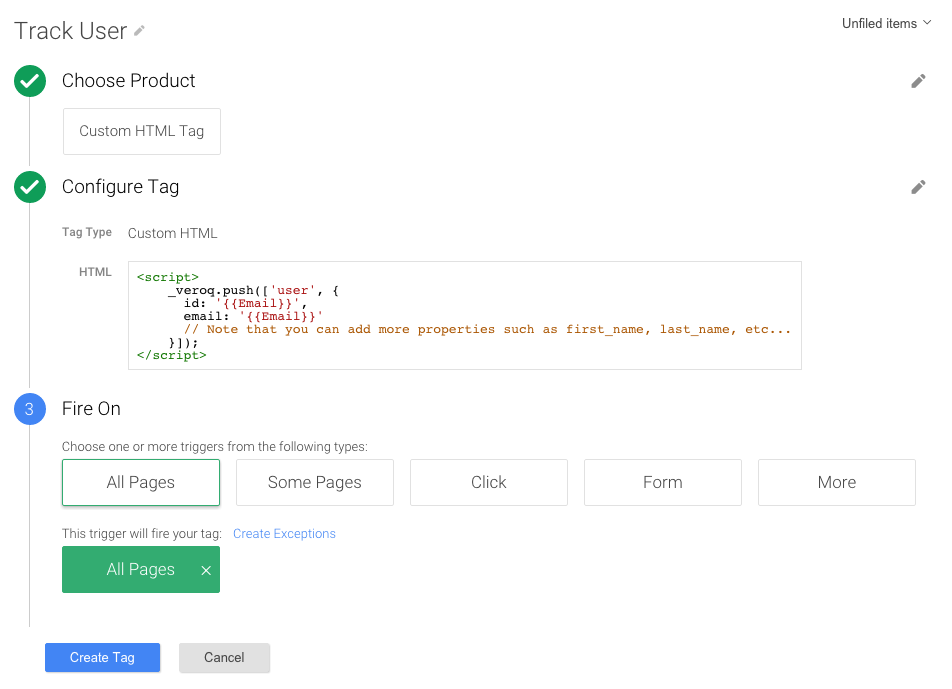
Now that our library is setup you need to configure Vero to track your customers. In Google Tag Manager, create a new tag that loads on every page. Copy and paste this code: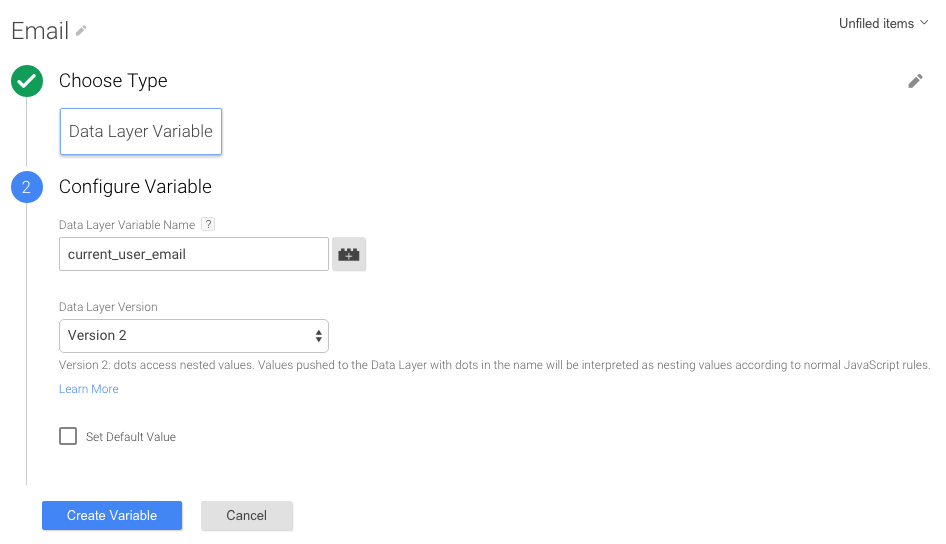
Step 4
You’re virtually setup and good to go! The final step is tracking events that are important to your business. This may take a series of tags, depending what you want to achieve. Here is an example that an eCommerce site could use. This tag is loaded on the first page of the checkout and tracks when a customer begins the checkout process! You can grab the example tracking code from