

How do I add HTML to a campaign in Vero?
There are two ways to use HTML in an email campaign:1. Add HTML directly to a single campaign
It’s easy to use HTML in Vero for a specific campaign. When you are creating your newsletter or workflow campaign, simply choose the ‘HTML’ option when selecting a starting point for your content.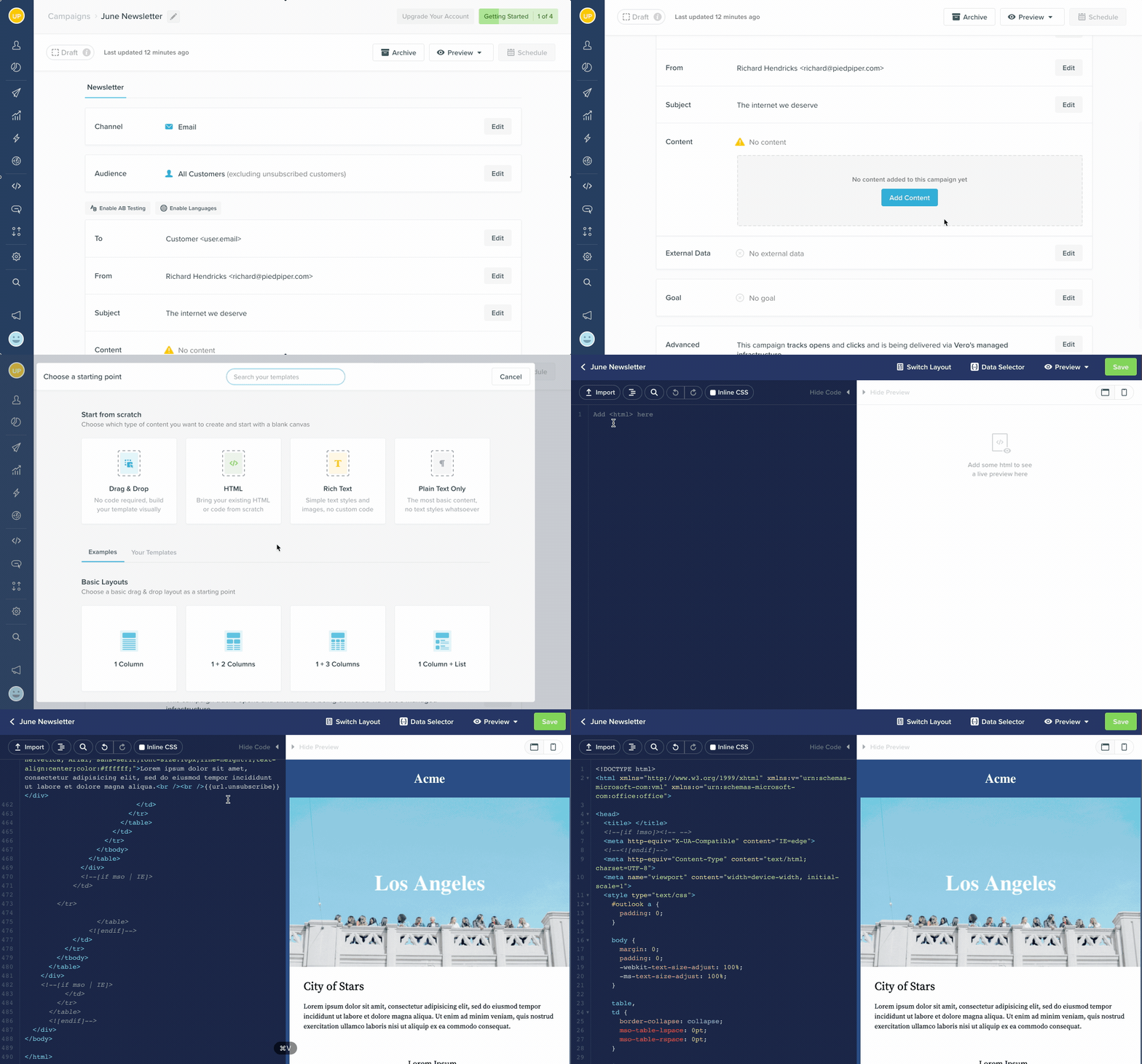
2. Save a HTML template and re-use it on multiple campaigns
It is common when working with email communications to have one or multiple HTML templates that can be used as starting points when creating a new campaign. If you have existing HTML that you or a team member has created, you can store those templates in Vero and reuse them in any new newsletter or workflow email campaign.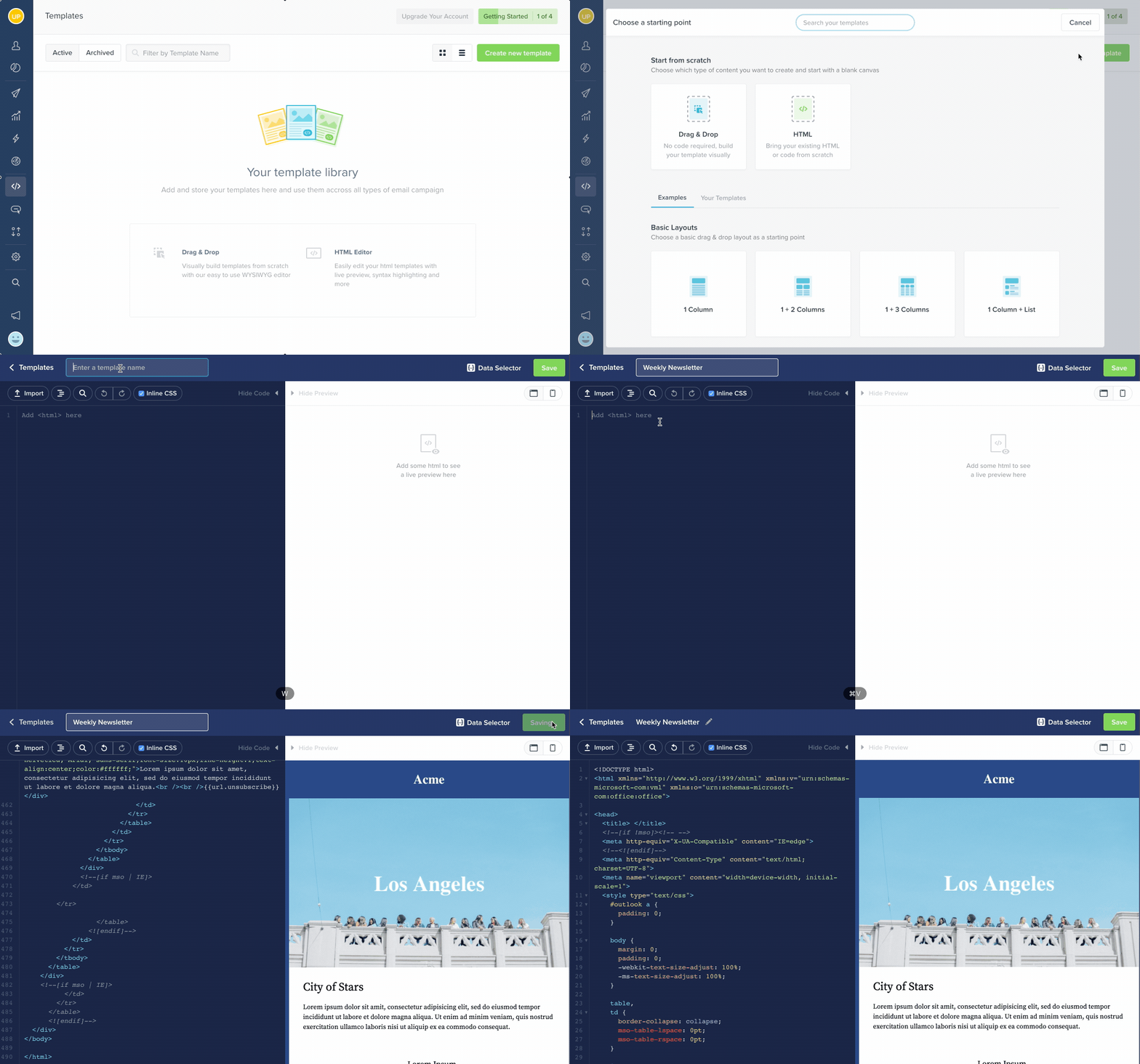
- To create a new template, navigate to the Templates section of Vero.
- Select New Template to create a brand new template.
- Select HTML from the start from scratch section.
- Give your template a name in the highlighted field at the top of the page:
- From here you’ve got two options for getting HTML into the template editor.
- Copy and paste - Simply copy your existing HTML from your code editor of choice and paste it into the text editor on the left of the page.
- Import a .html file - Click on the ‘Import’ option, navigate to your HTML file and select upload, this will copy to contents of the file into the code editor in Vero.
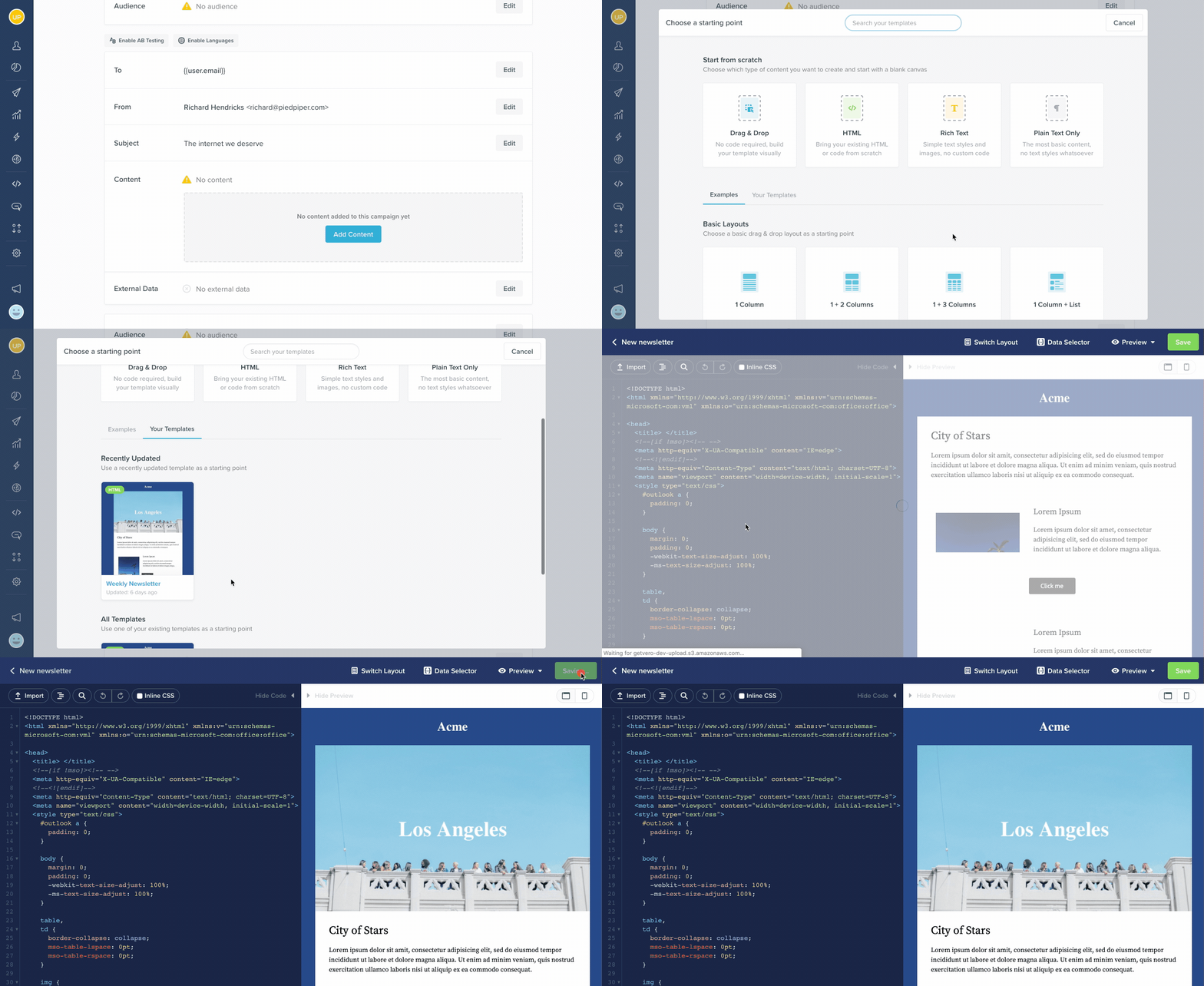
Using a saved template in a newsletter or workflow email
What features does Vero’s HTML editor have?
Whether you are copying HTML code into a single campaign or creating a reusable HTML template in Vero, the HTML interface is exactly the same. Here’s a few features of the editor that are worth knowing about:- Import - Import the contents of a html file into Vero.
- Search - Simply search for words or terms used in your template to quickly find what you’re looking for.
- Beautify - This will make your html code easier to read by formatting the code with the correct whitespace at the beginning and end of tags.
- Undo/Redo - Just like your any other text editor, undo your changes when editing.
-
Inline CSS - Convert all css styles inside the
<style>tags of your HTML to inline styles on each individual element. Read more about the inline css option - Data inspector - View user and event properties and copy the liquid merge tags into your HTML code. Read more about using liquid merge tags
How do I add personalized data to my HTML emails?
Personalization is one of the easiest ways to make your email messages more engaging and impactful. To provide you with powerful personalisation options, Vero uses Liquid, an open-source templating language created by Shopify. You can use Liquid to load dynamic content in your emails based on the data you have stored in Vero. Read more about using Liquid in your HTMLDoes Vero automatically inline my css styles?
In each of Vero’s HTML editors, we have an option labeledInline CSS. When selecting this option your HTML will be inlined at send time.
Read more about the inline css option
Are media queries supported in Vero?
Yes, Vero fully supports media queries, however if you have the Inline CSS option turned on, you must move your media queries into a separate<style> element add the data-premailer=ignore tag to make sure Vero doesn’t try to inline those styles.
Read more about using media queries in Vero