

- email (who did the event).
- name (the name of the event, e.g.
Completes checkout), and - date and time of the event (e.g.
2021-01-15 01:15+10).
tyrion.lannister@casterlyrock.com with records of three checkout events and their item_type properties in January 2022.
 You’ll then select the Upload CSV option to import your CSV file:
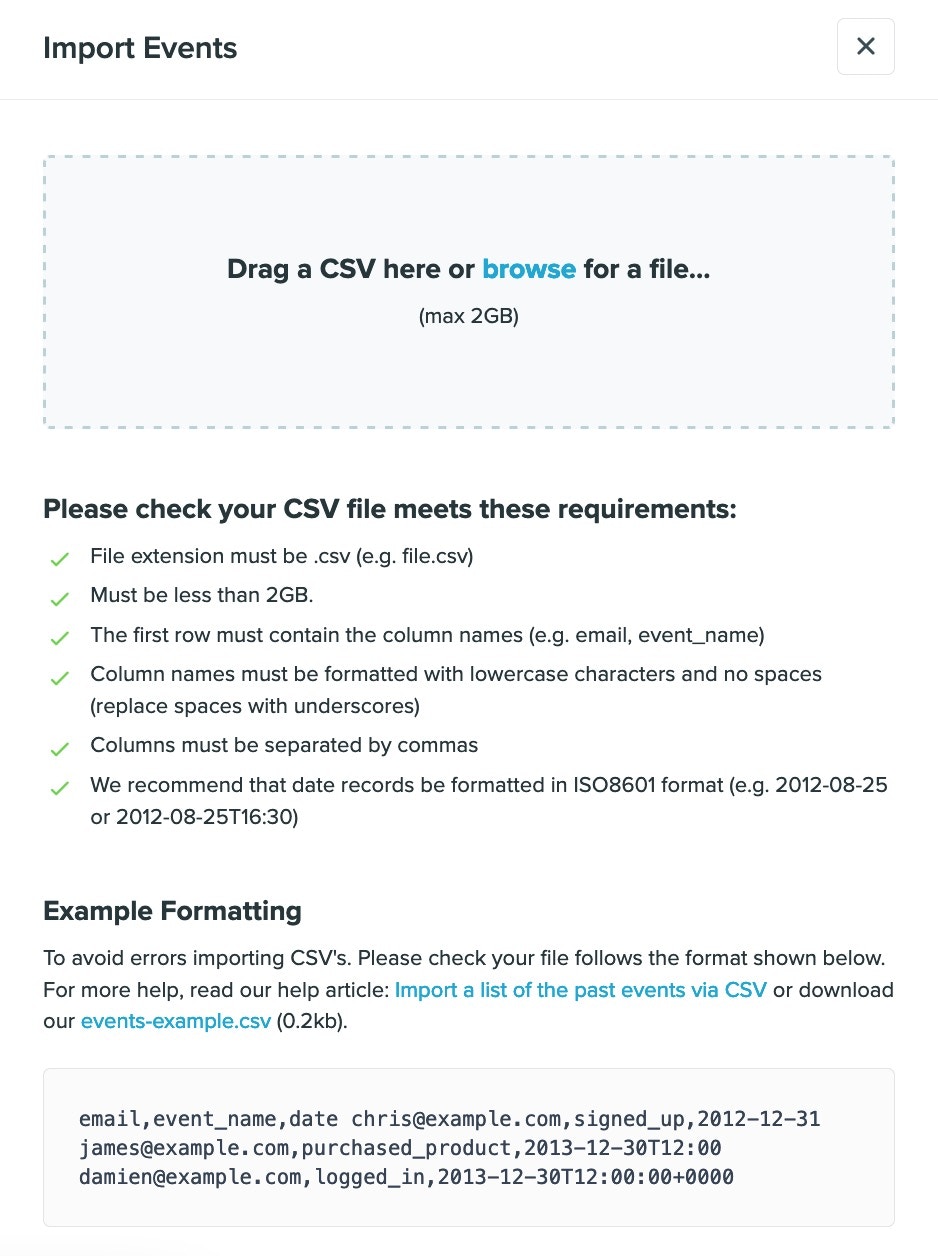
.csv files. If you are using Microsoft Excel or Mac Sheets, select File > Save as… > CSV to export your data in the correct format. .xls, .xlsx and other formats will not be accepted when you try to upload your file.
Before finalising the import, Vero will ask you if you want these events to trigger emails in Vero. By default, importing CSV files with a list of events is passive a these events will not trigger your automated campaigns. If you want to have these events act as triggers, simply tick the appropriate box as part of your import:
