How to add drag and drop content to a campaign
There are two areas in Vero where you can use the drag and drop content editor.1. Creating content on a newsletter or workflow email from scratch
To add drag and drop content to a campaign, you can select to start from a blank drag and drop template, use a basic layout, or select one of our example templates as a starting point after choosing to add content on a newsletter or workflow campaign.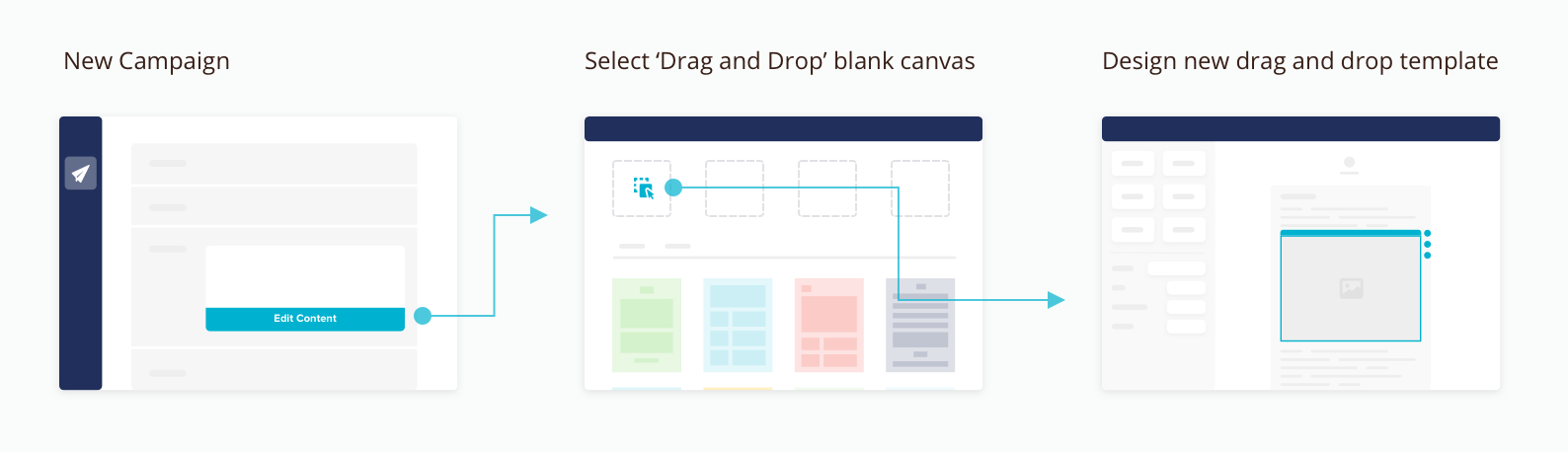
2. Create a drag and drop template and select this template when defining your newsletter or workflow content
Create a drag and drop template by selecting the Drag and Drop option after hitting the New template option on Templates page. You can select a saved drag and drop template from the your templates section after selecting to add content to any campaign.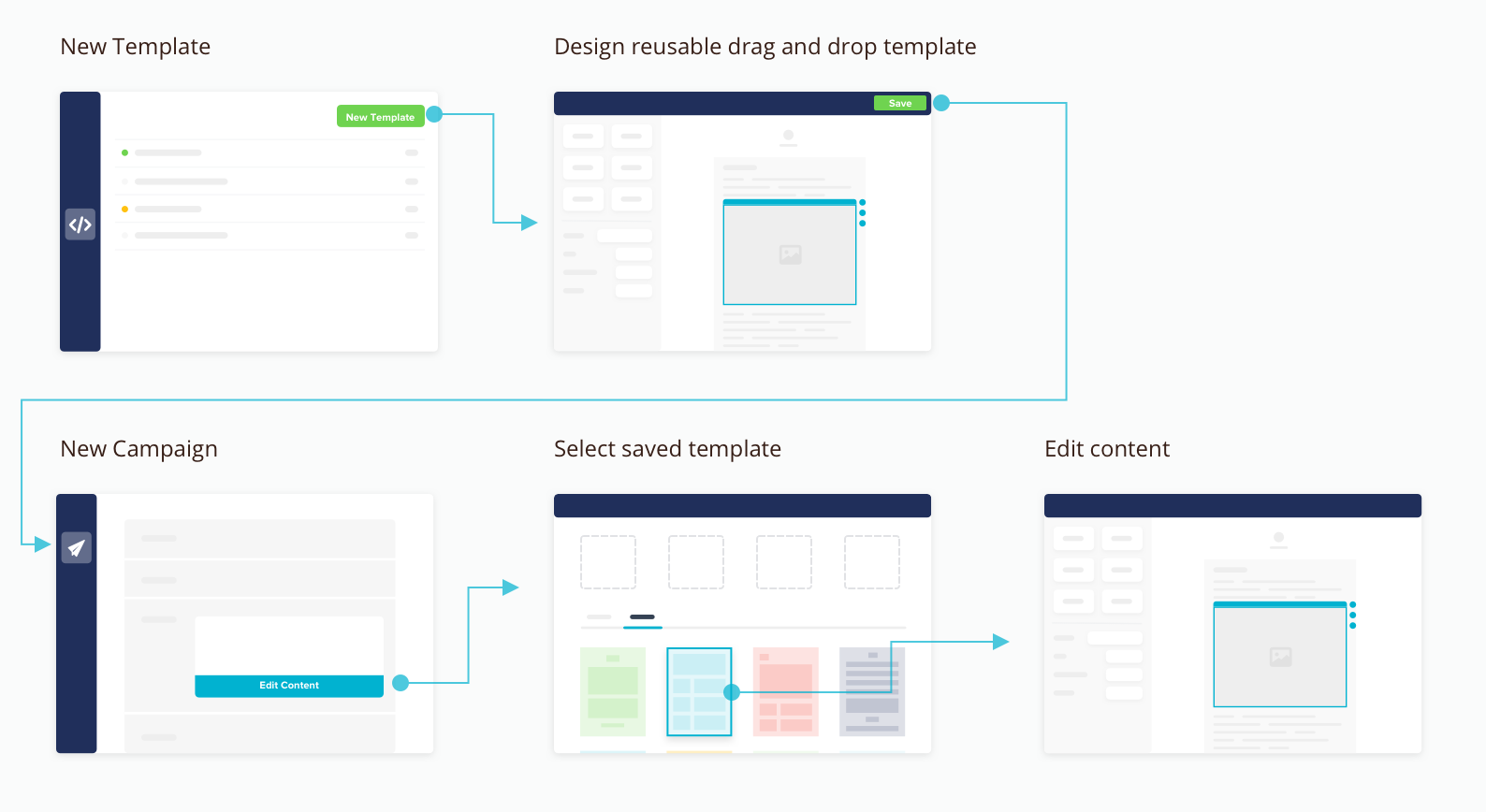
How the editor works
Every template you build with the drag and drop editor is based on the popular MJML framework and outputs email specific HTML that has been thoroughly tested on all the major email clients and a huge variety of devices. This means that almost everything you create in the drag and drop editor will be seen by your customers in exactly the same way. When you create and edit your templates using the drag and drop editor you won’t need to edit a single line of code, every aspect of your template is handled visually using a combination of inline editing mode and contextual options. Read more about the types of components and options you have control over below.Body settings
Each template has a set of parent attributes that control both the mail body of the email and the default styles for some of the other components.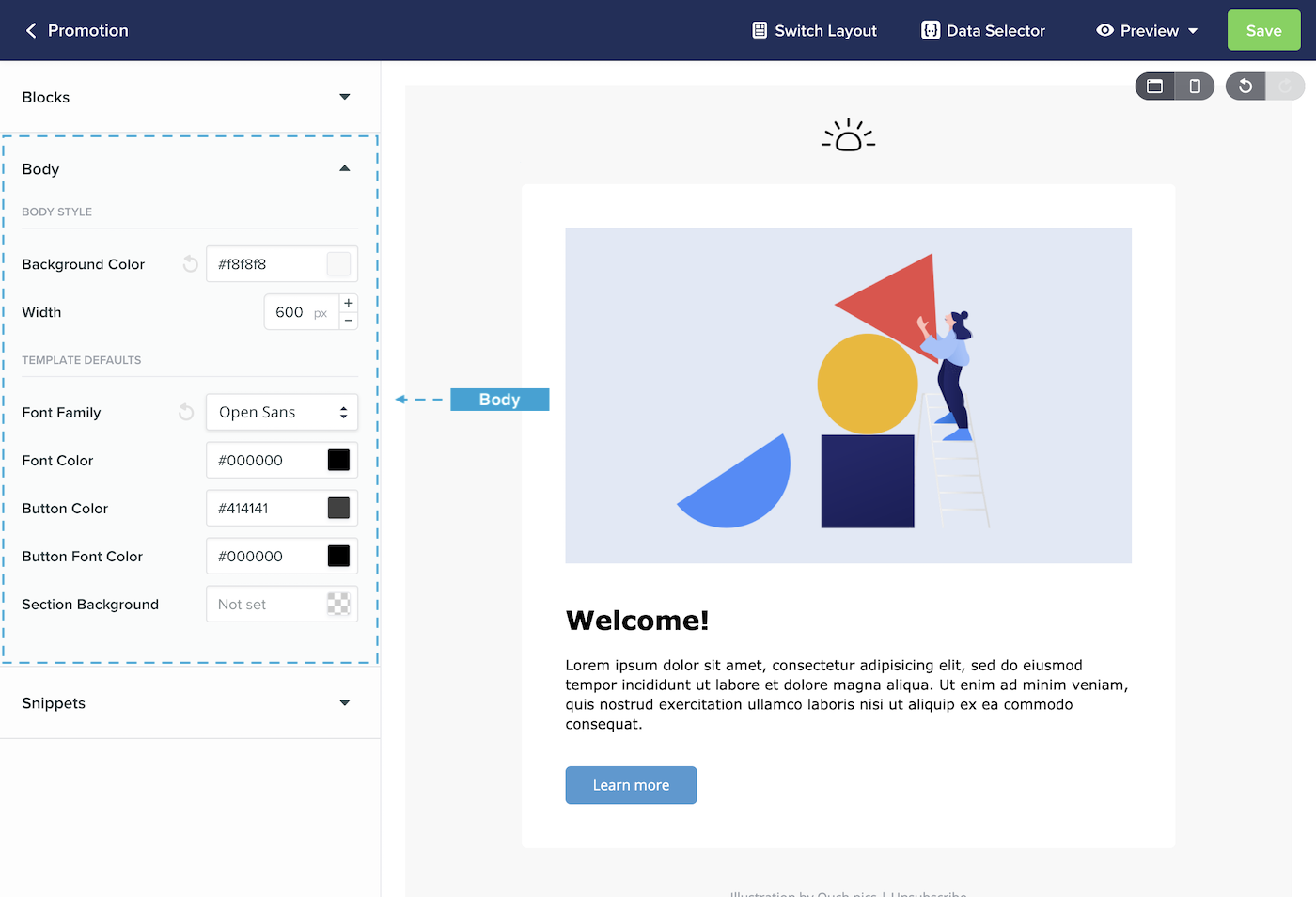
- The base font used for all text in your template
- The base color of text and buttons used in your template
- The base background color of any section components used in your template When you change these properties, they will update all components in your template that don’t have a specific overriding style. Think of these as your parent styles that can be overridden in specific parts of your template using the component’s own properties.
Blocks
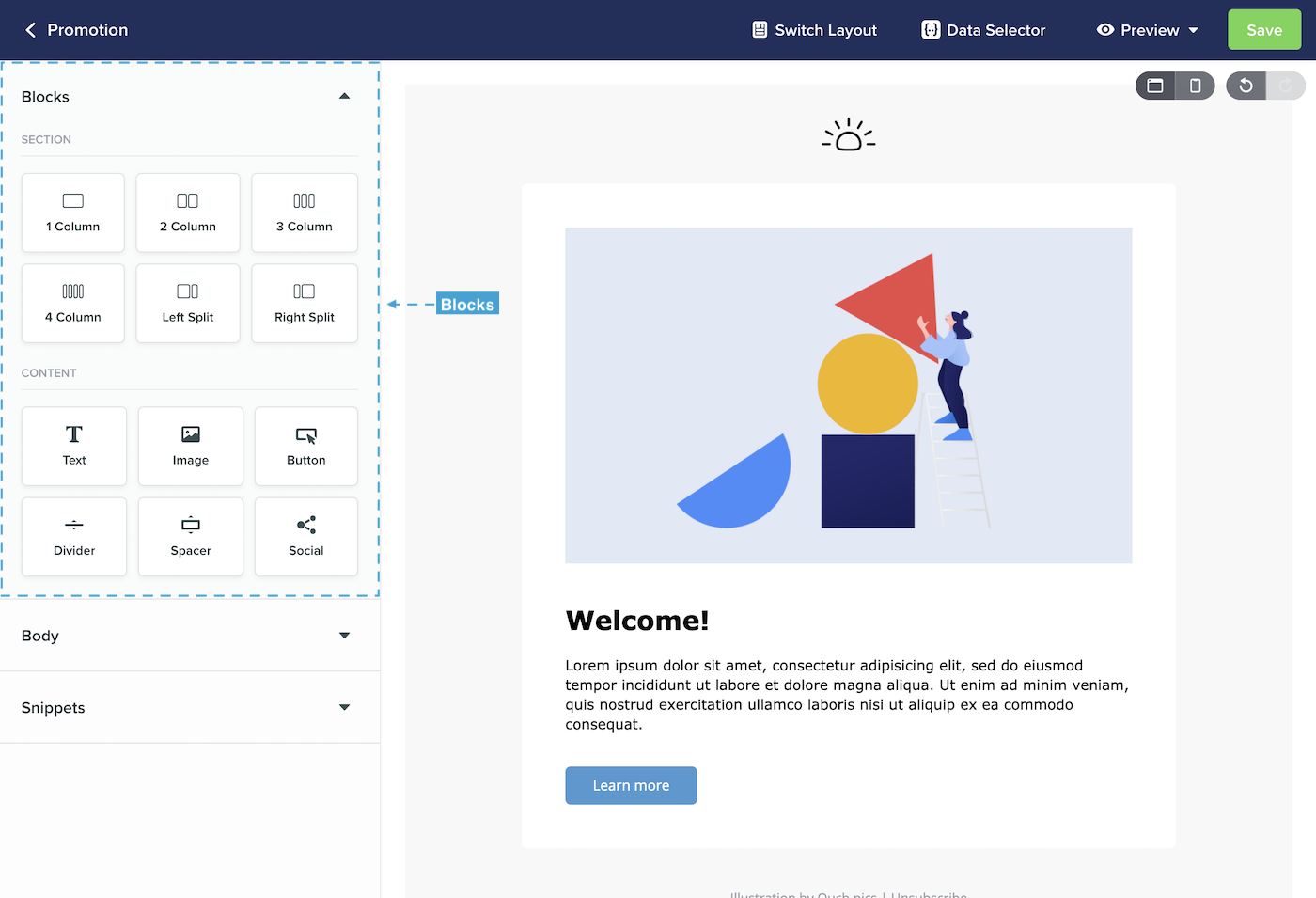
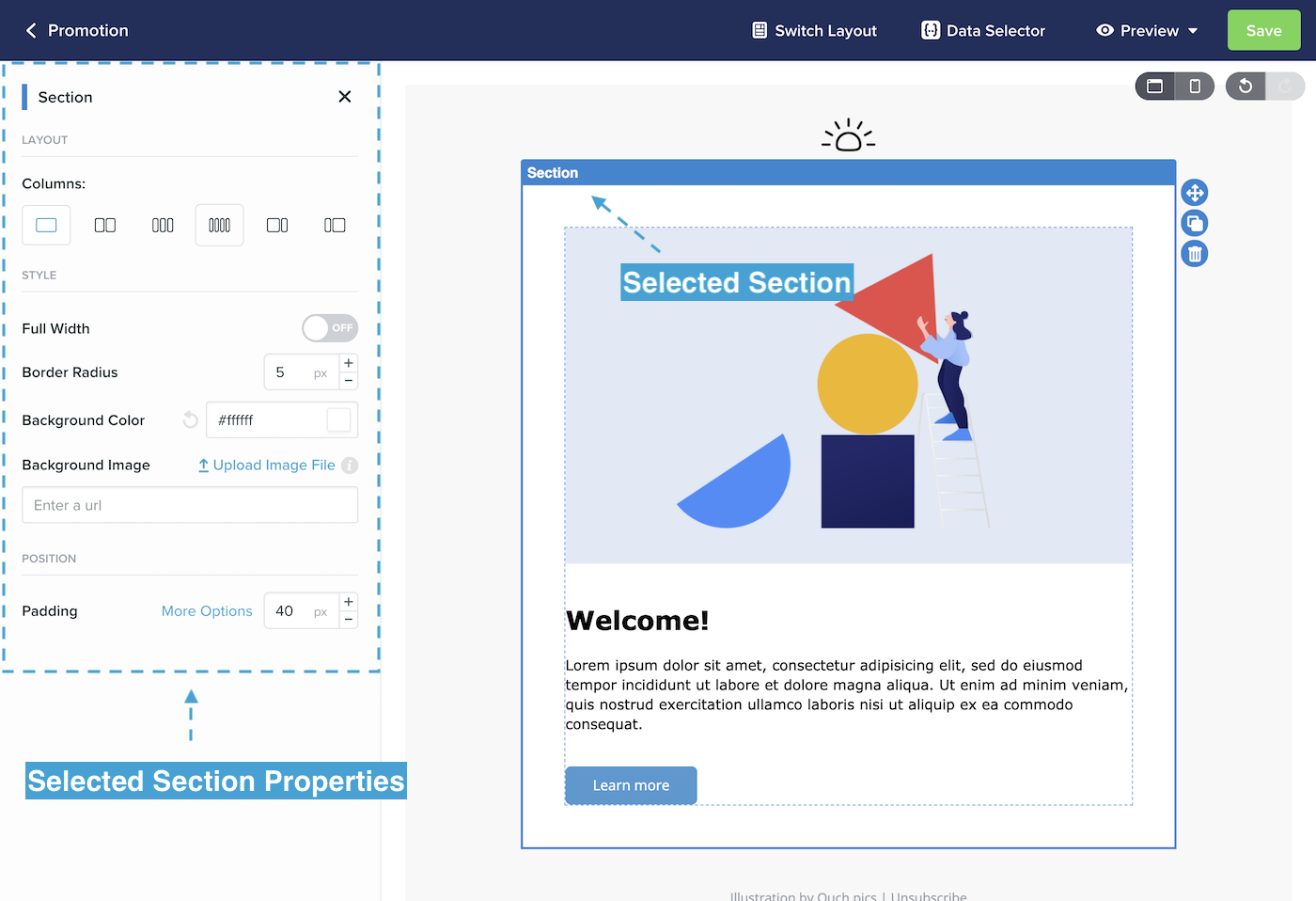
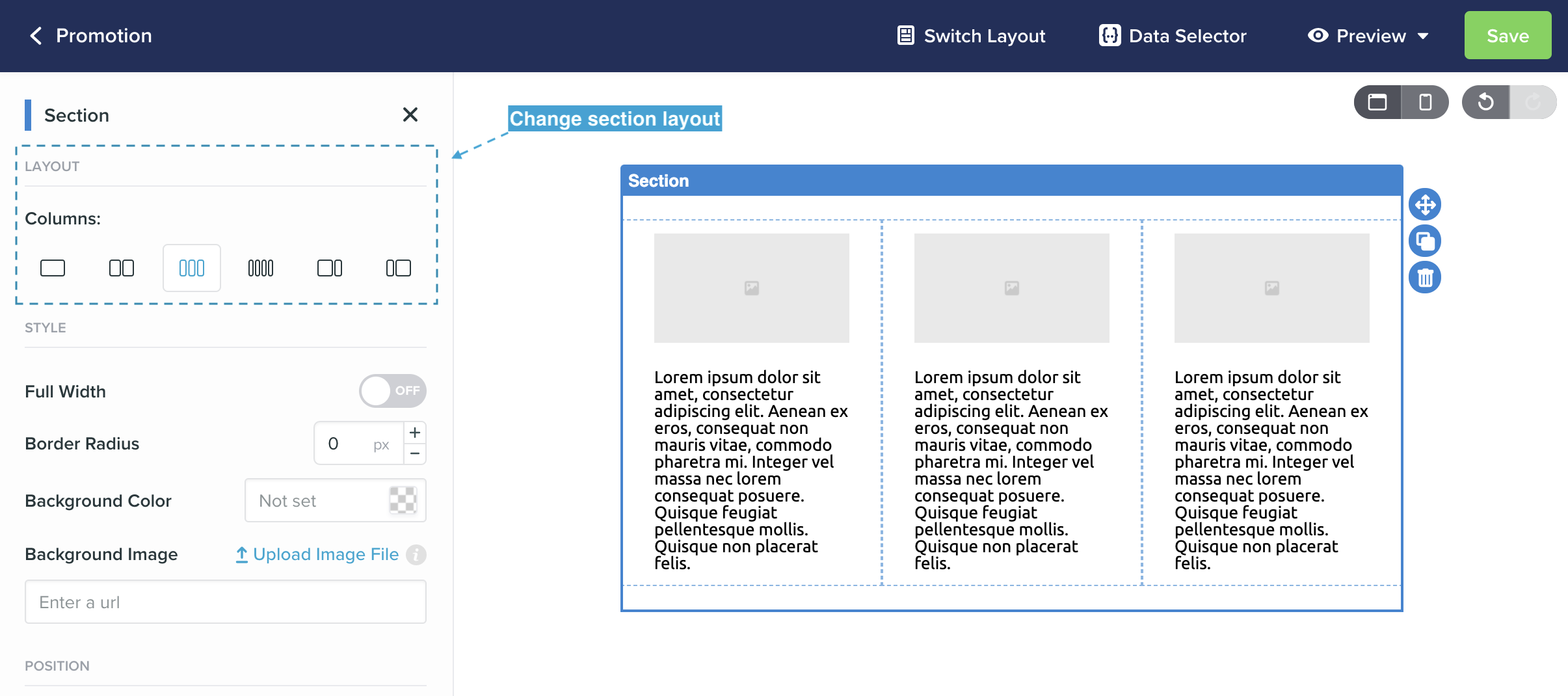
Section Blocks
Content Blocks
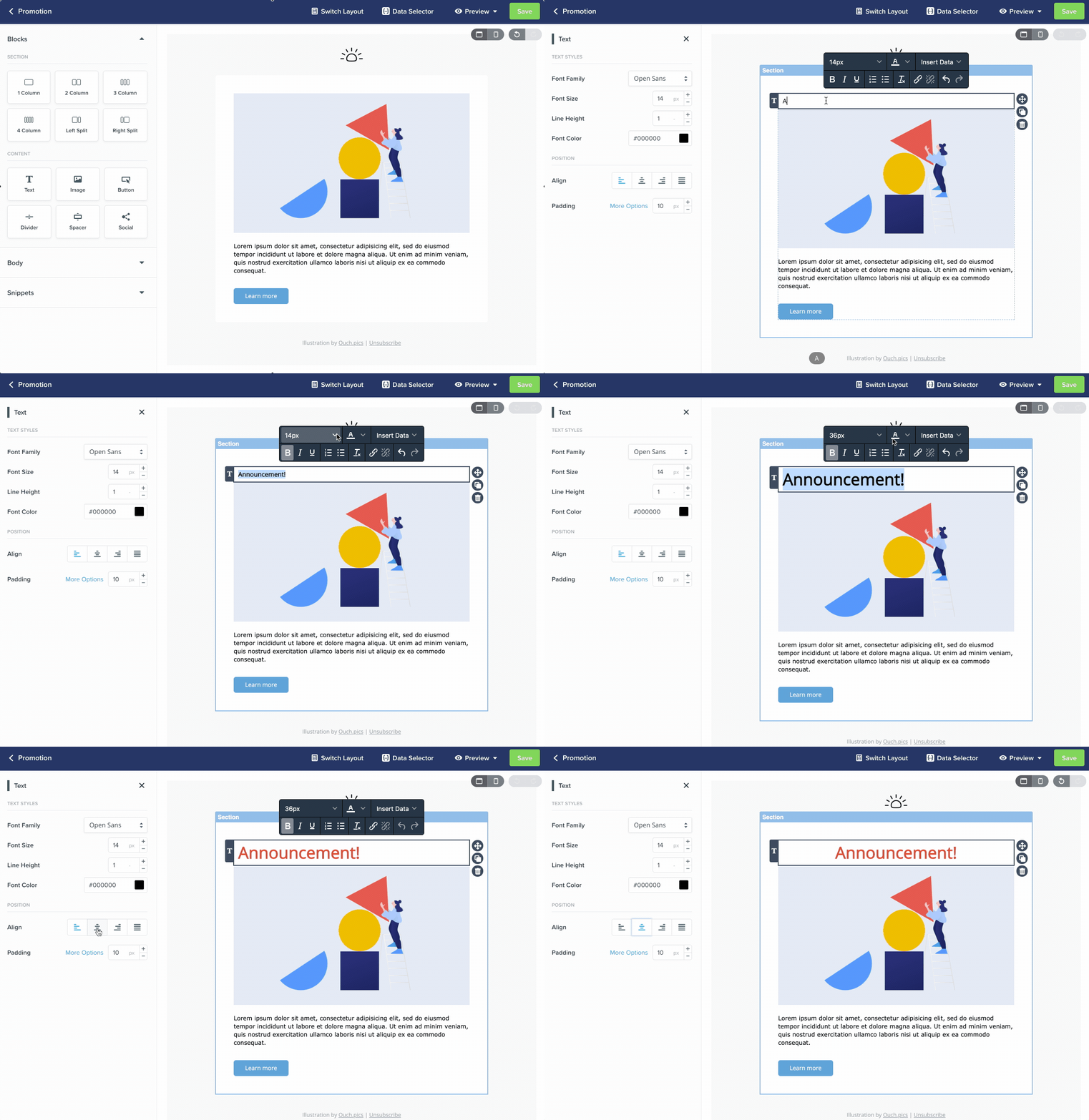
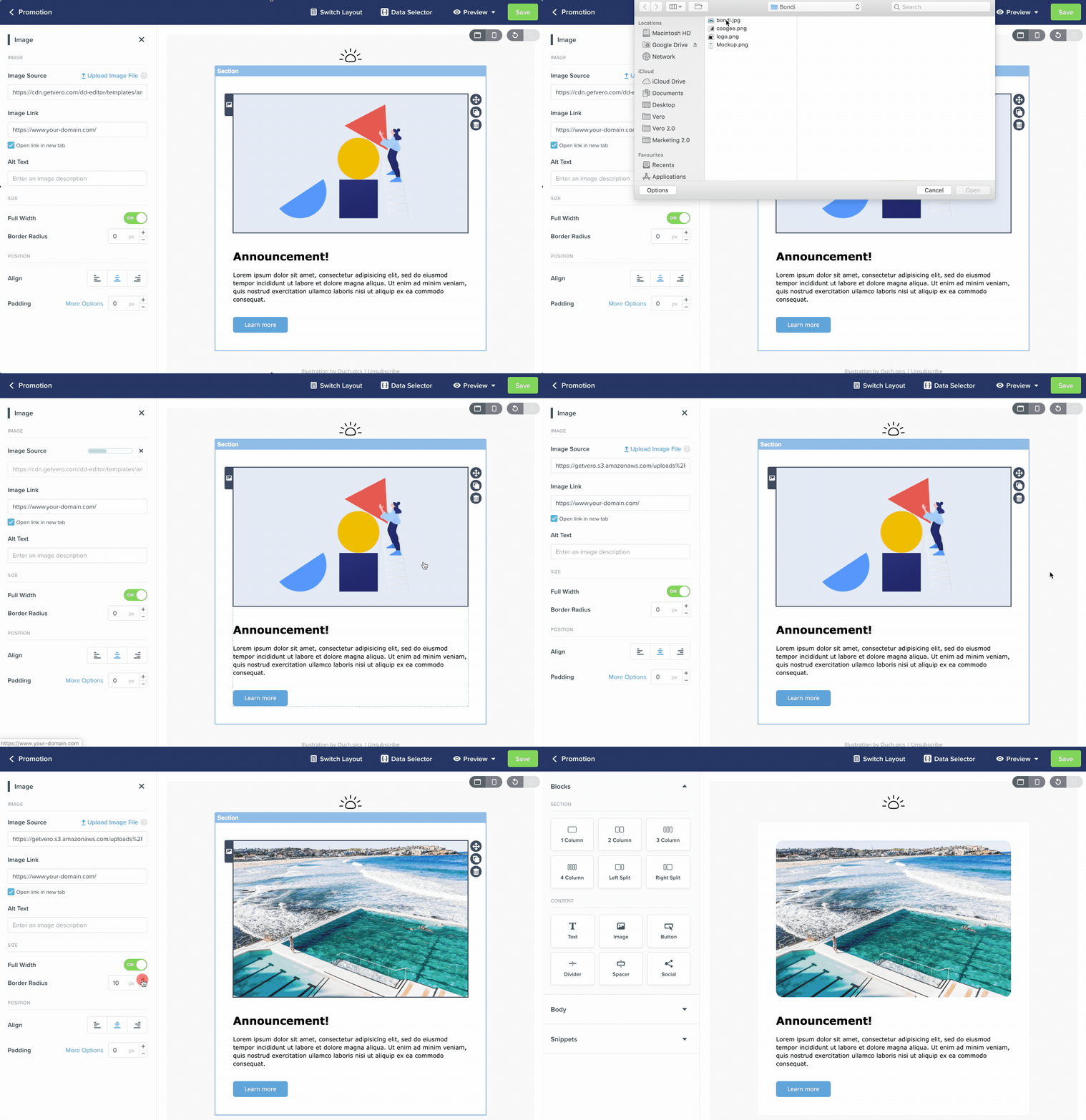
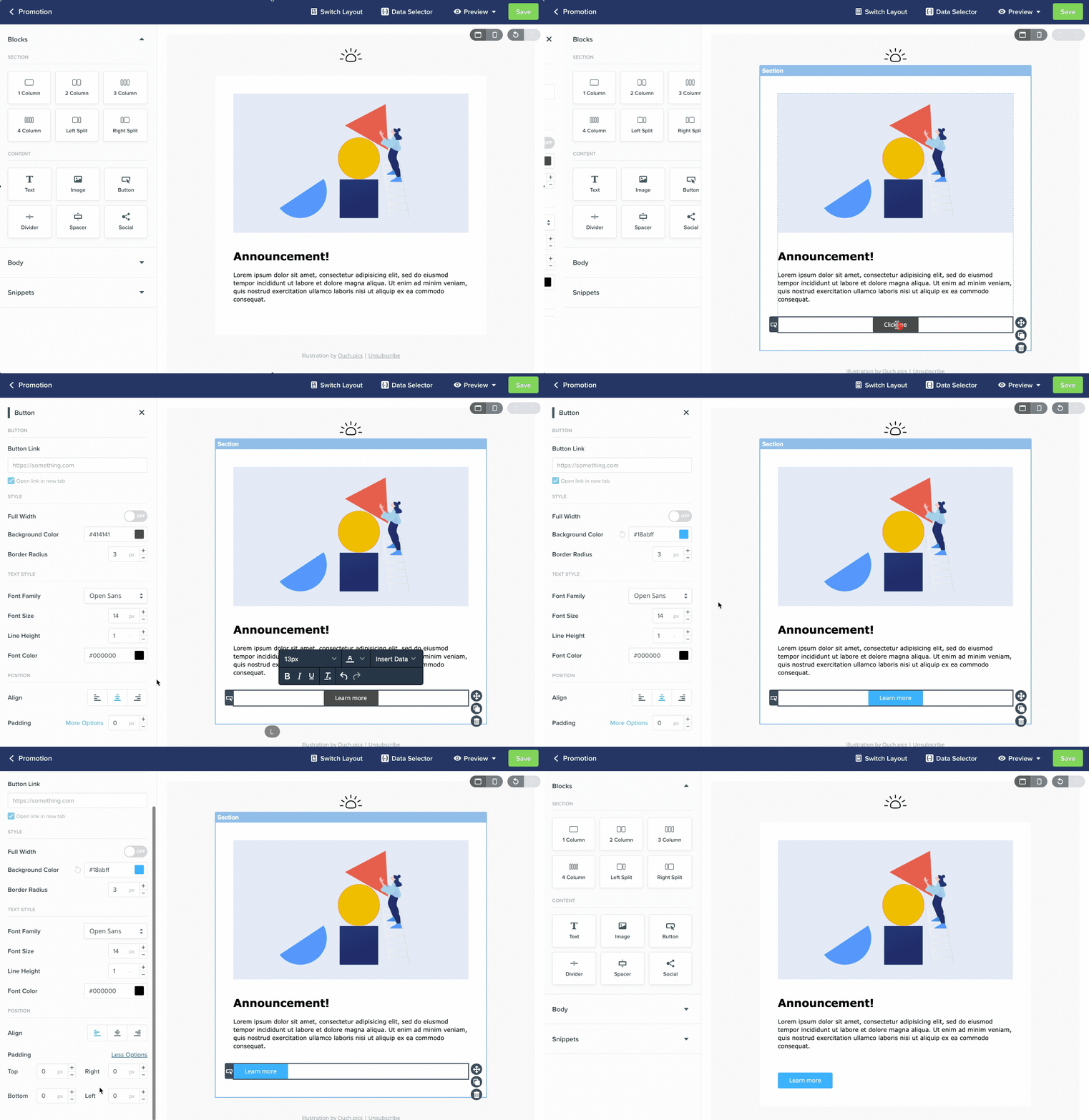
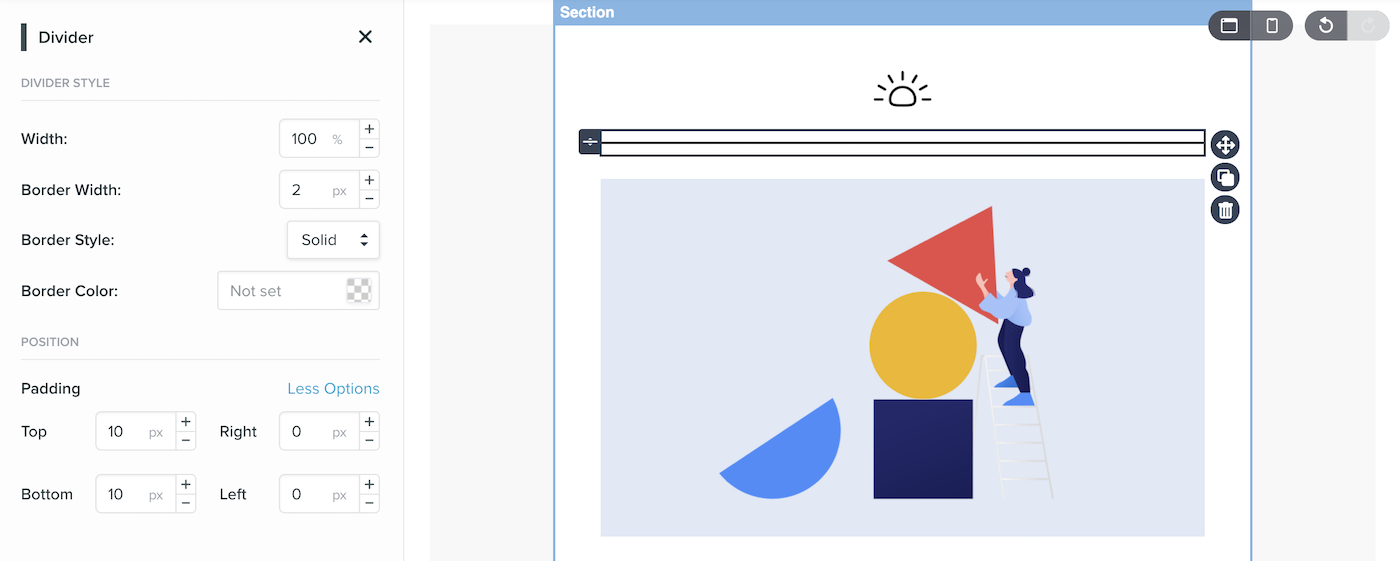
Content blocks are the elements that make up your email, such as text, images and buttons. You can only drag content blocks into a section. Vero offers several content blocks ready-to-go, and we’ll discuss each below.Text
Image
Button
Divider
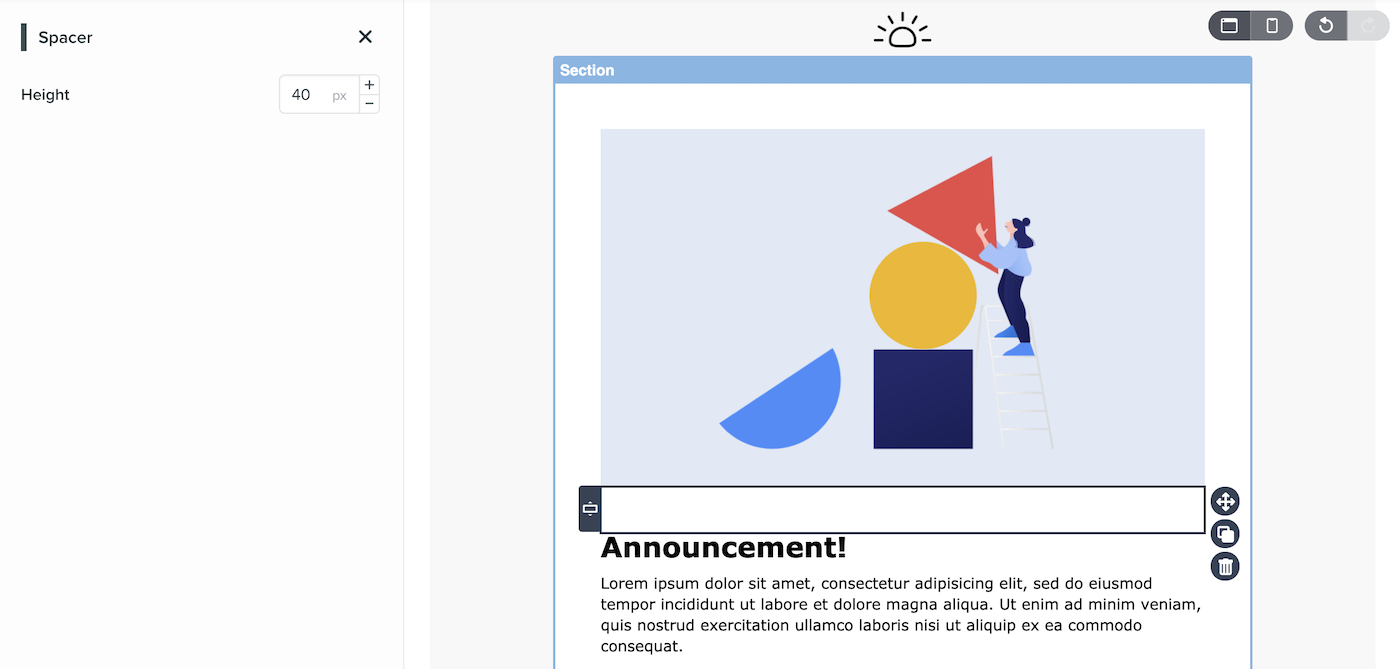
Spacer
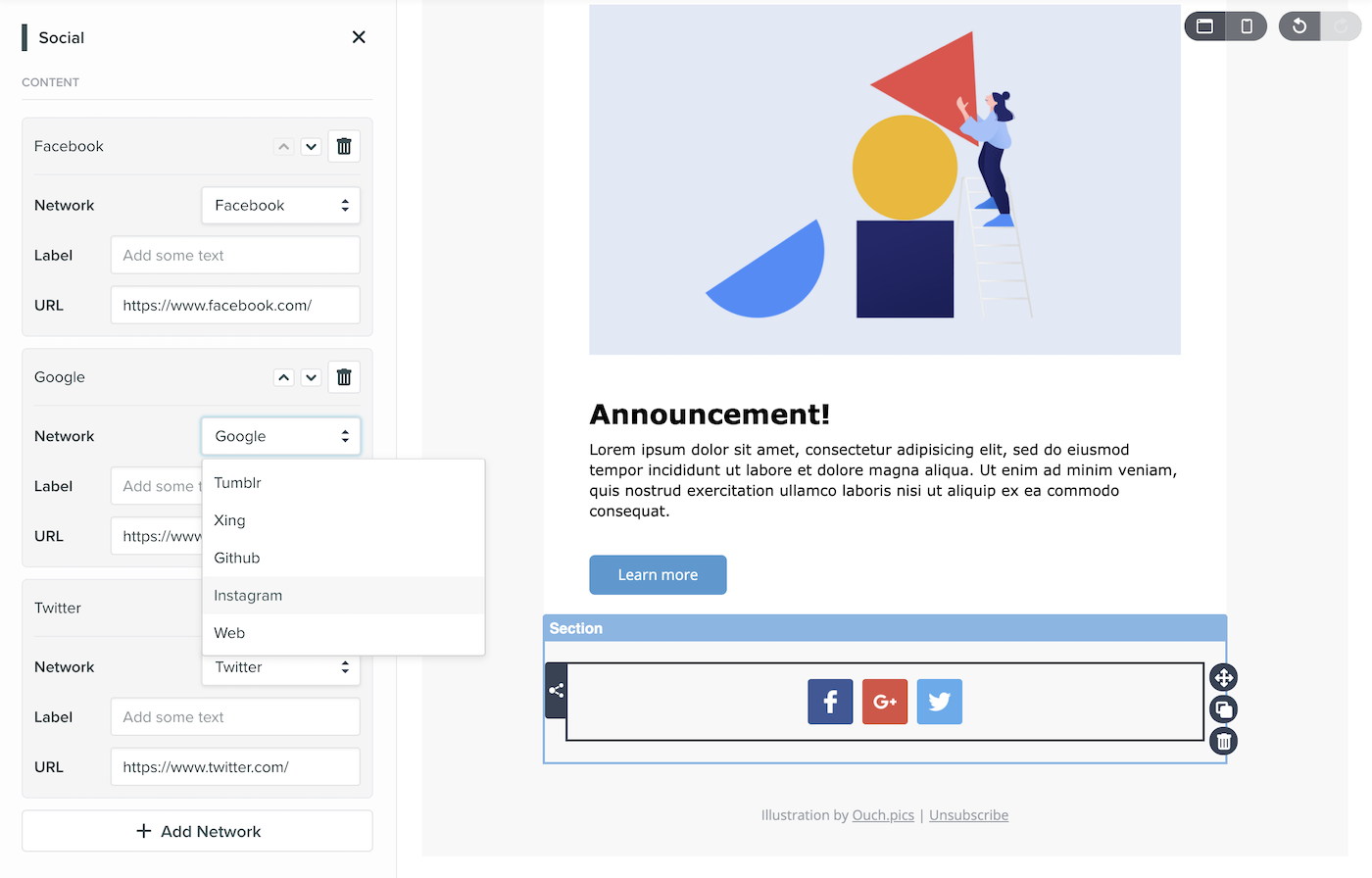
Social
Block Actions
Each block added to your template has a few actions to help you control its placement.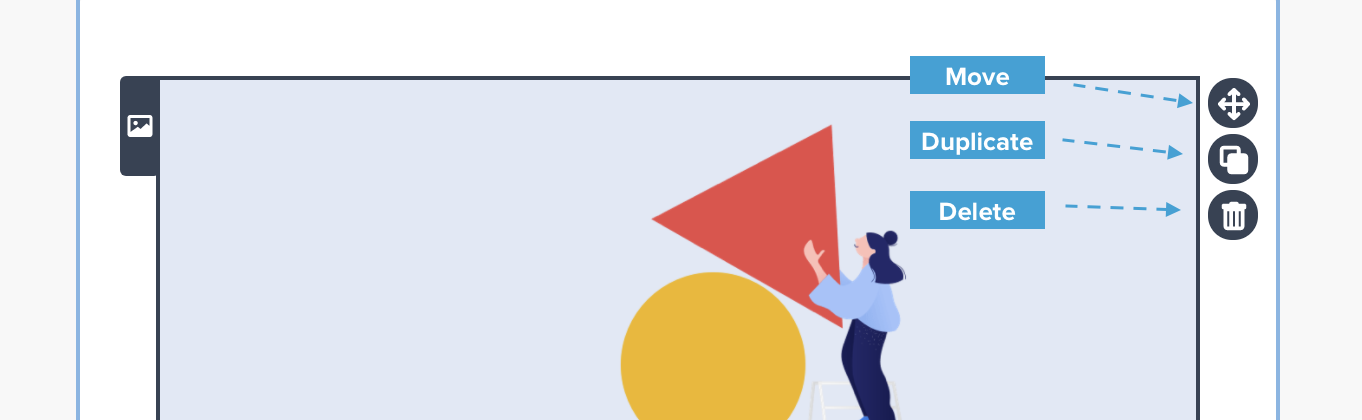
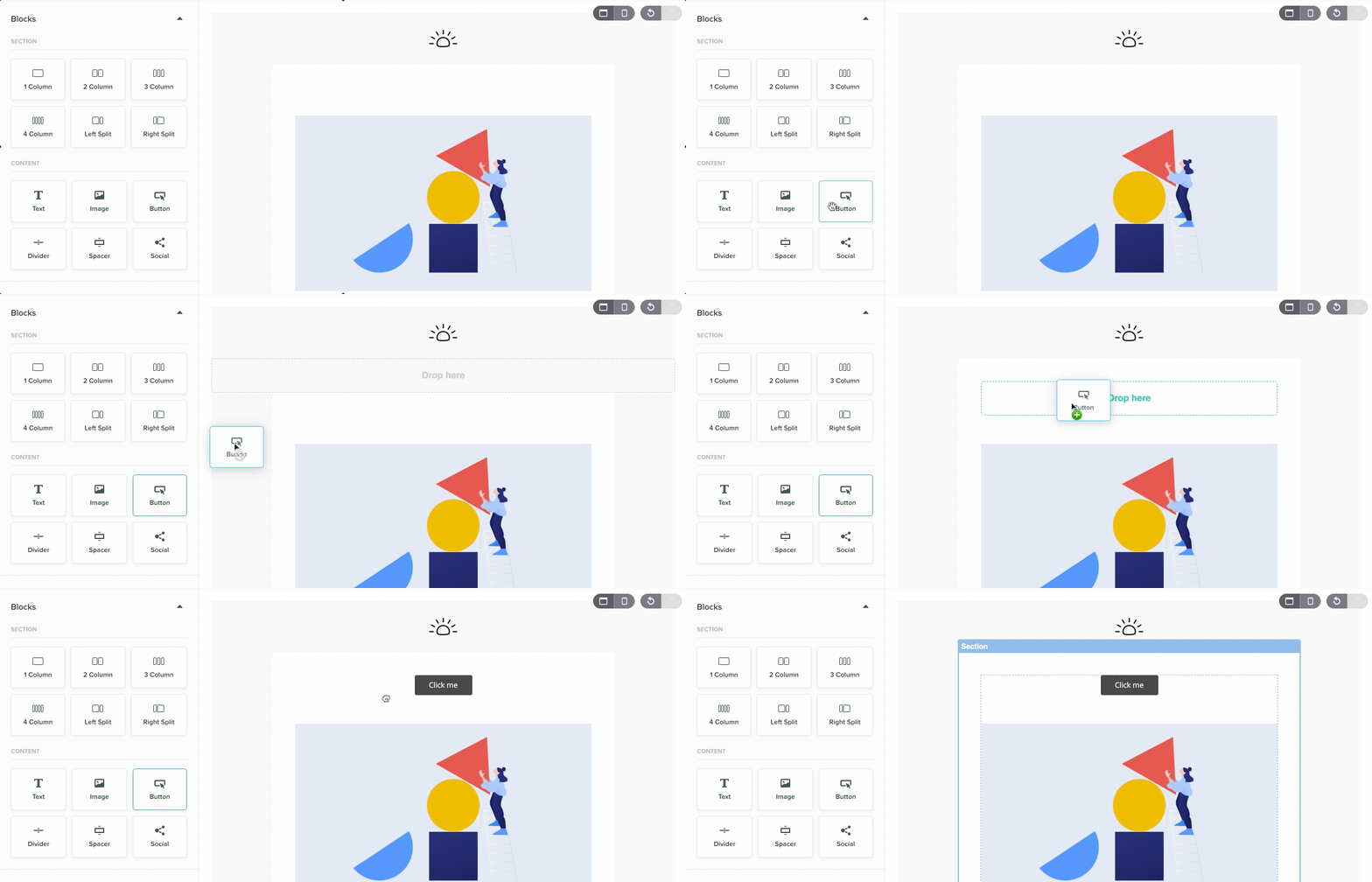
- Move - Click and drag this icon to move your block to a different spot in the template. Areas you can drop the block will be shown with a gray ‘Drop Here’ marker, which will turn green to confirm your selection.
- Duplicate - Click this icon to create an exact copy of the selected block. The duplicate block will be placed directly below the current block, ready to be dragged wherever you need it.
- Delete - Click this icon to remove the selected block entirely.
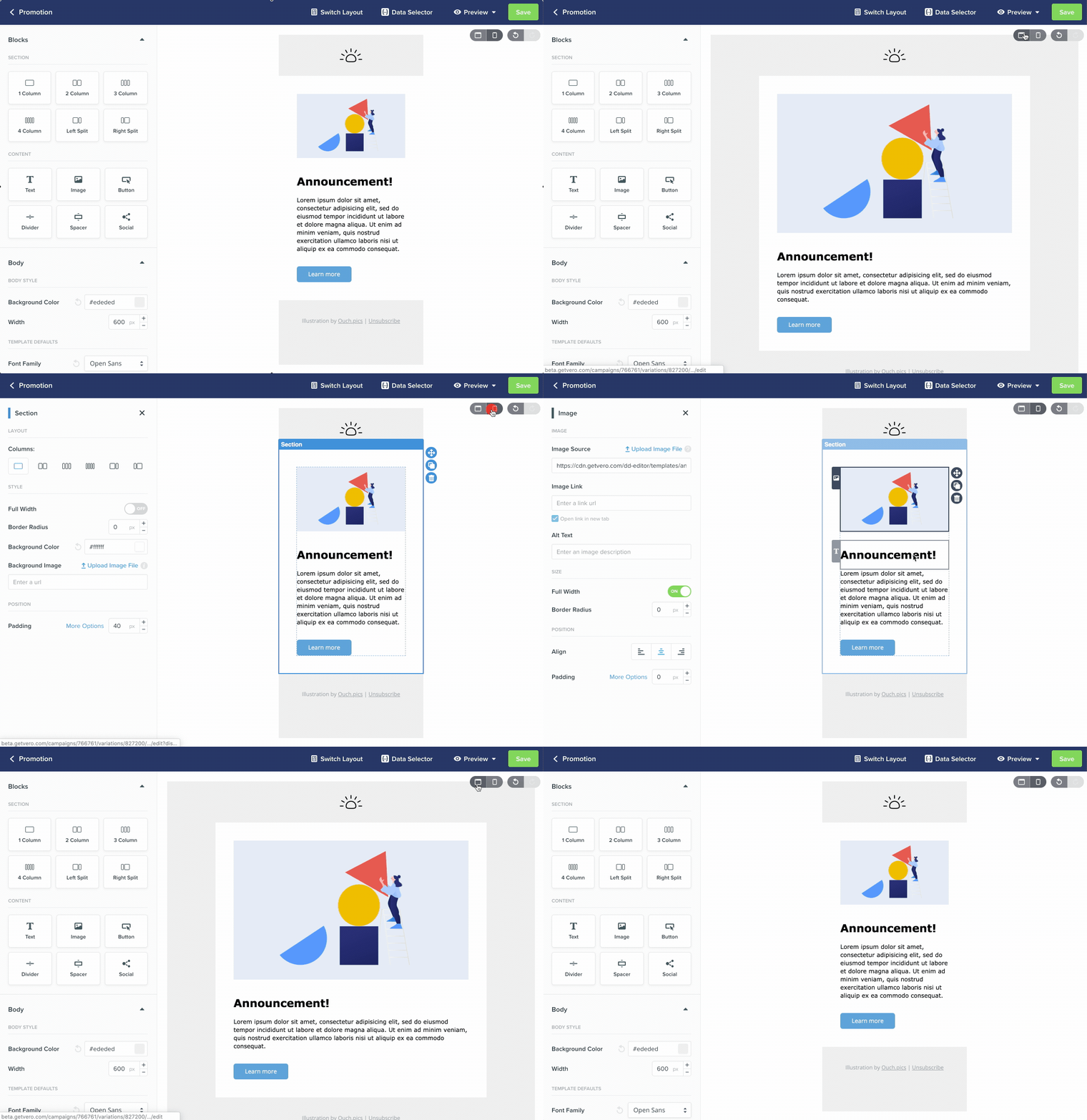
Desktop and mobile rendering
How do I add personalized data to my Drag and Drop emails?
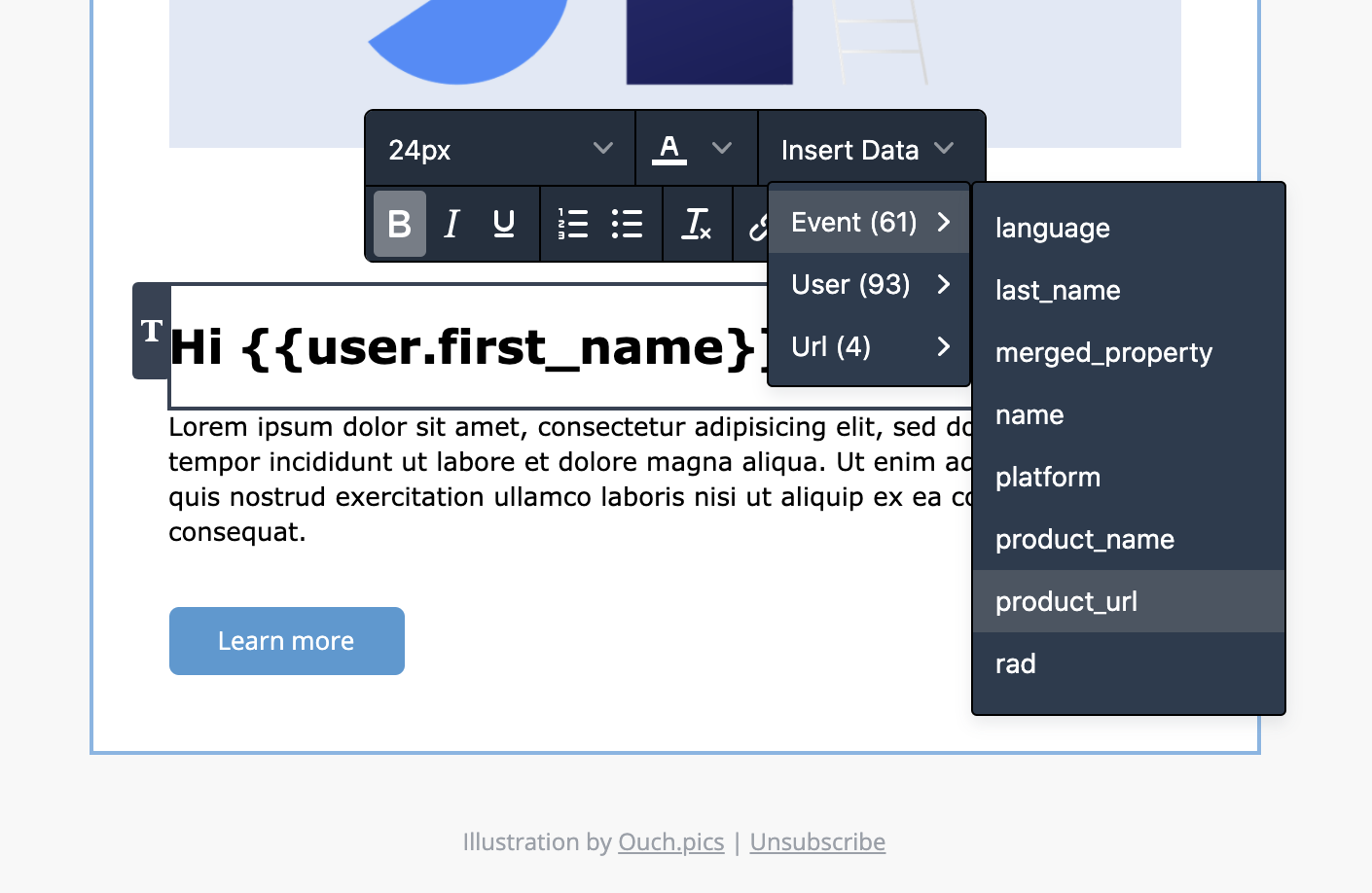
Personalization is one of the easiest ways to make your email messages more engaging and impactful. To provide you with powerful personalisation options, Vero uses Liquid, an open-source templating language created by Shopify. You can use Liquid in any Drag and Drop text block to load dynamic content in your emails based on the data you have stored in Vero. When editing a text block, select the “Insert Data” menu to see a list of all the user and event data you can insert into your email via liquid.