

How to add custom HTML to your template
To add custom HTML and CSS to your template, simply drag an HTML block into your template. HTML blocks can be added to any Section block and will create a new containing section if dragged between existing sections.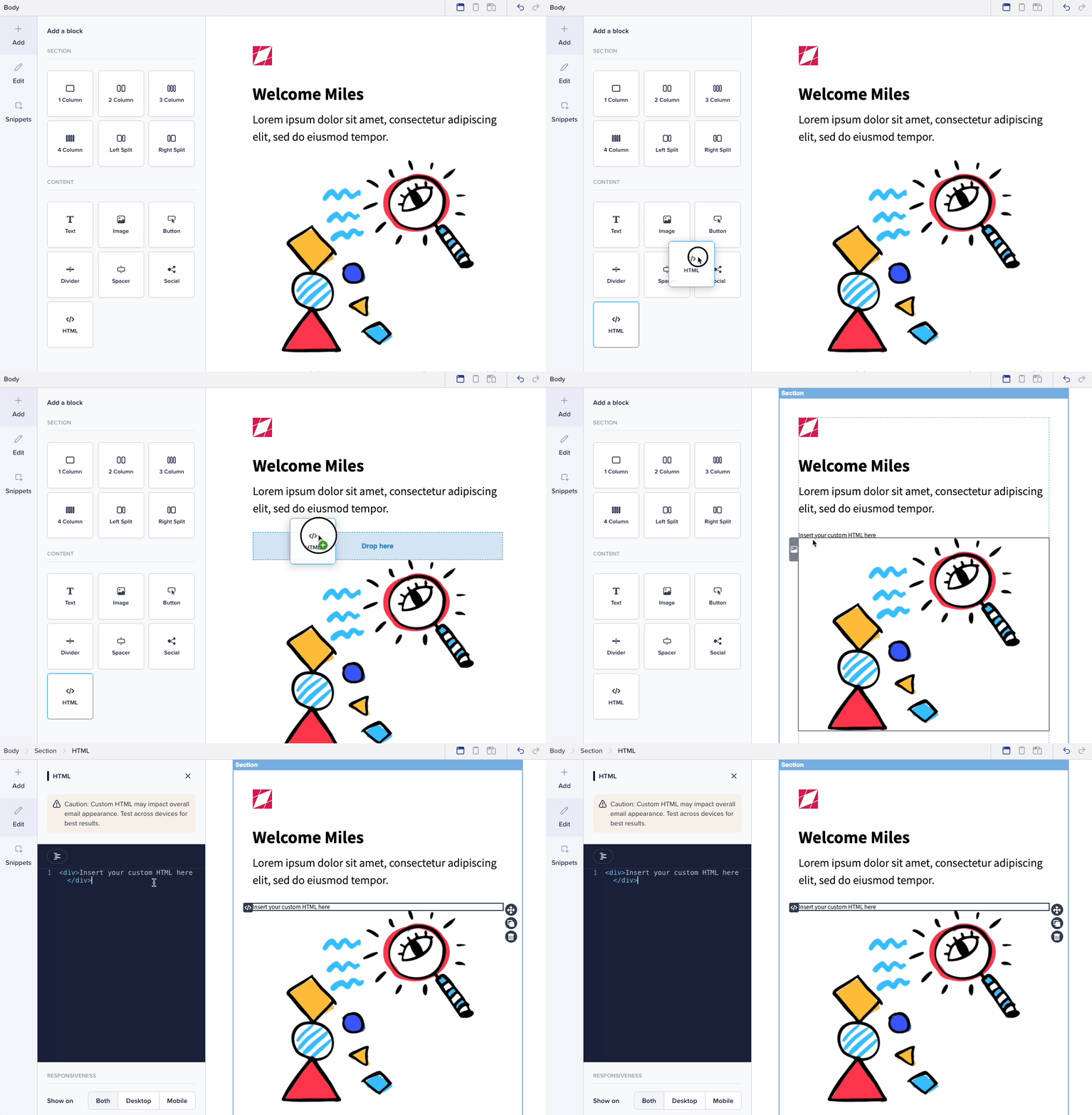
Styling your custom HTML
Styling your HTML is possible using CSS styles, this can be done in two ways:- Adding a style tag above or below your content.
- Adding inline styles.
Email compatibility
Due to the flexible nature of HTML and CSS, when adding custom markup and styles using the new HTML block we cannot 100% guarantee that the template will look as intended in every email client and device. We recommend testing your email on multiple devices and email clients using a service such as litmus or email on acid for the best results. When adding custom HTML and CSS we also recommend referring to https://www.caniemail.com for more information about which elements and styles are compatible with the various email clients and devices.Validation and code sanitization
When using the HTML block, you may notice that your code is reformatted after being entered. This is because it is being validated and sanitized to ensure that invalid HTML is removed and that all necessary ending tags are in place. This must be done to ensure the integrity of the template as a whole and to make sure all content outside the custom HTML block will render correctly. Please make sure all code added to the template is valid.Liquid personalization inside an HTML block
The custom HTML block supports using Liquid syntax to include object variables to your template using double curly brackets, such as:if, unless, for in comments to ensure they are not removed for being invalid HTML. For example the following logic tags must be wrapped in comments because it is invalid to include content directly inside the <table> tag.