

- Subject lines
- From addresses
- Body content
- Templates
Newsletter A/B Testing
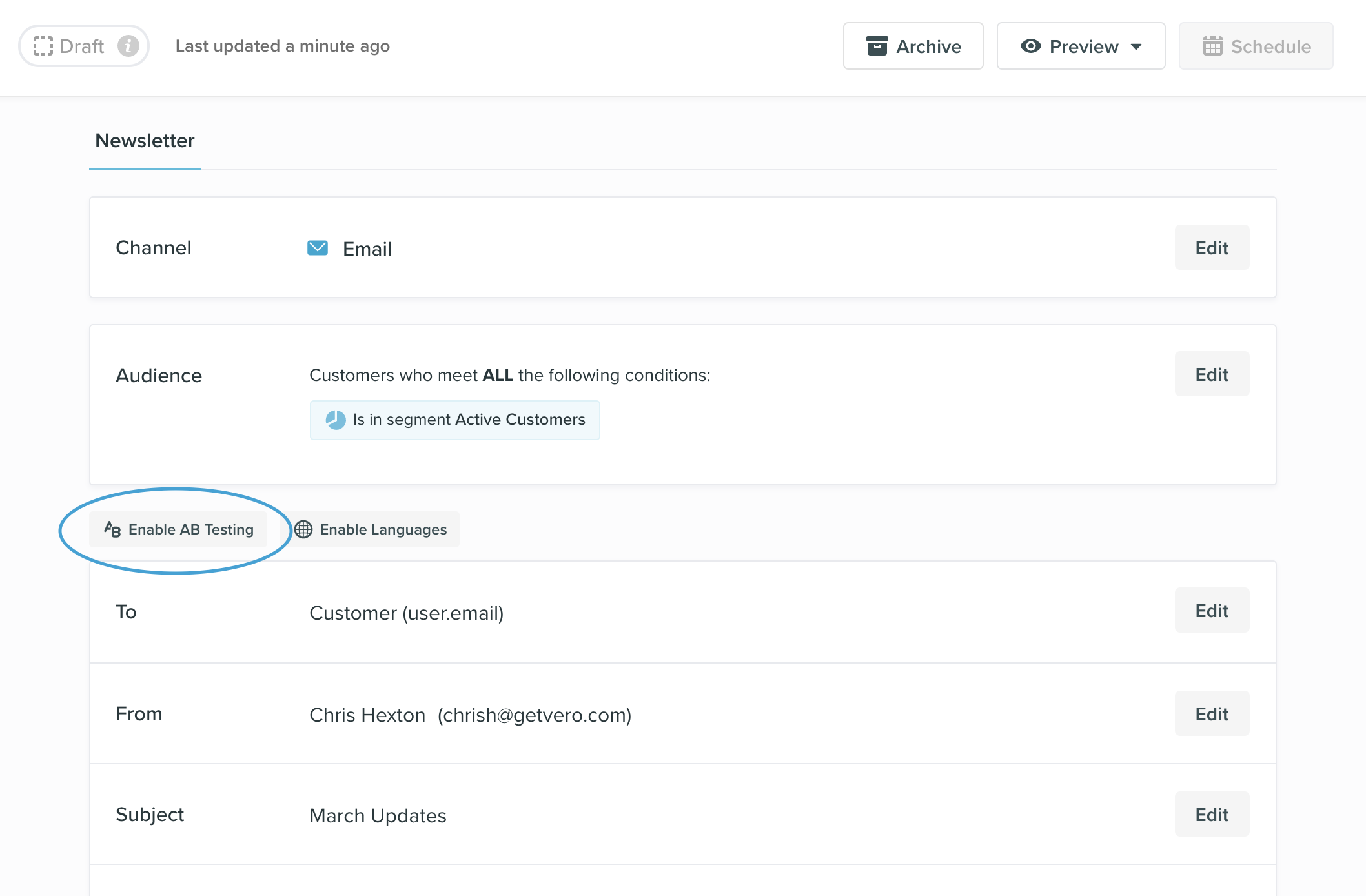
To create an A/B test on an existing newsletter:- Select the ‘Enable A/B Testing’ option below the ‘Audience’ section.
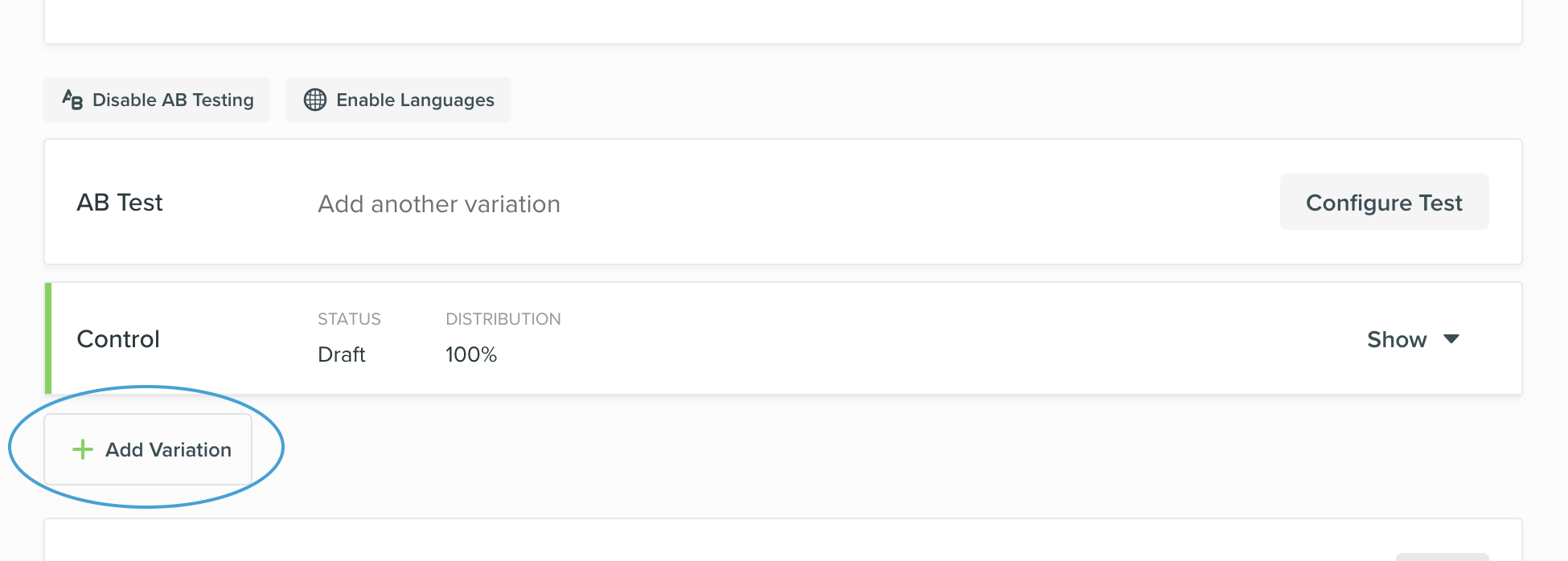
- Use the ‘Add variation’ button to create the variation(s) for your test.
- To edit the content of each email variation open the variation with the ‘show/hide’ toggle. Each variation can have a separate from address , subject , and content.
Manual
This is the default mode for testing. It allows you to input the percentage of users you’d like each email variation to be sent to. By default, Vero sets an equal split between all the variations but you can simply change it before sending. Vero uses a randomisation mechanism to split the recipients into the percentages selected for each variation and sends the emails. Sending a manual test To send a manual A/B test, schedule the newsletter as you would normally. All variations will be sent out at the scheduled time. Reporting on a manual test To view the report on a manual A/B test head to the Reports section in Vero and choose the campaign, this will show you detailed performance metrics for each variation and the winner of the test will be highlighted. Alternatively, you can go to the main menu and navigate to Campaigns > Newsletters and use the drop down menu to select ‘View full report’.Pick a winner
This mode allows you to determine the percentage of customers you’d like to send the A/B test, and the percentage of customers who will receive the winning email, after a set period of time.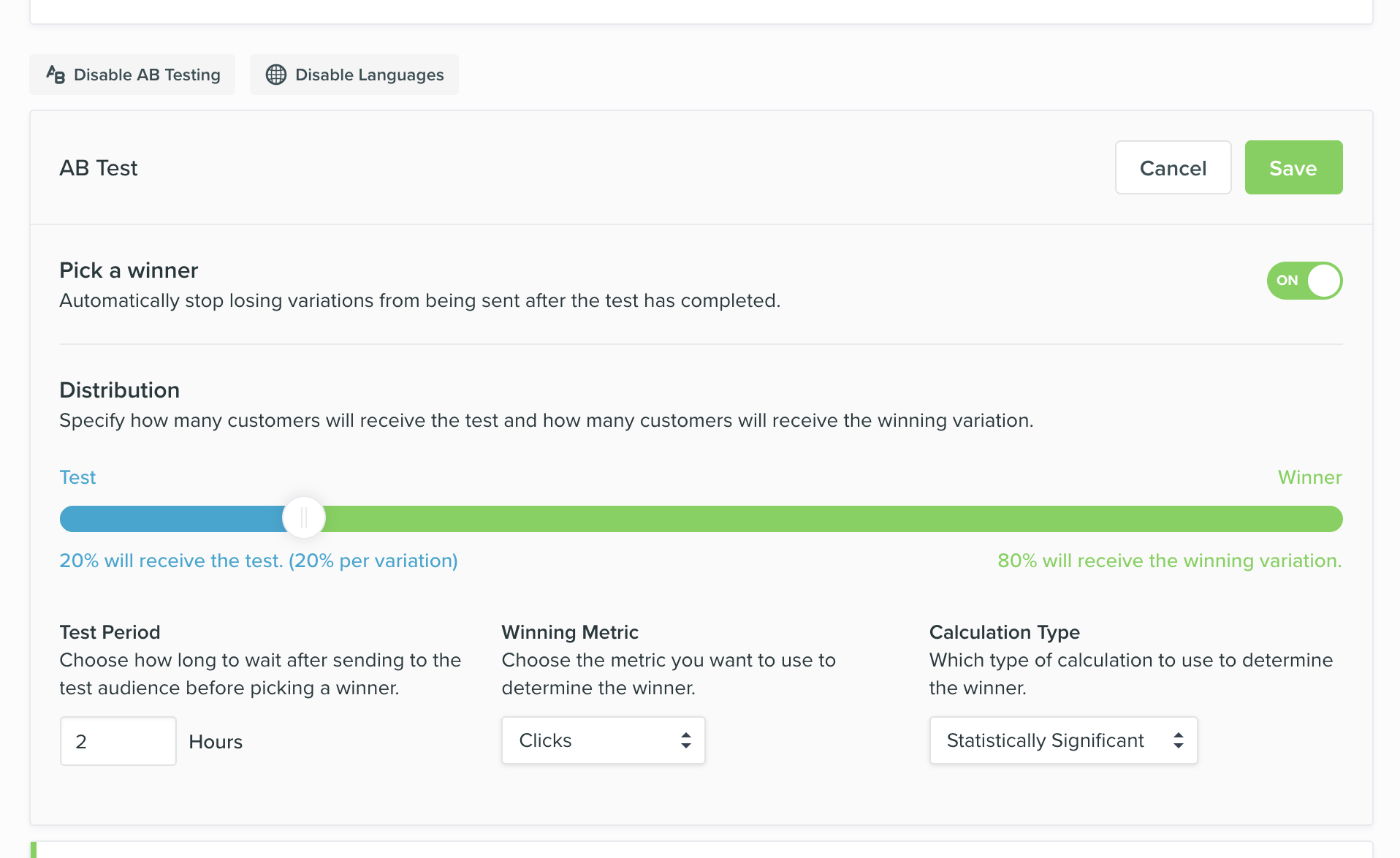
- Toggle the ‘Pick a winner’ button ‘on’
- Use the Distribution slider to select the percentage of customers you would like to send the A/B test.
- Enter the number of hours you would like the test to run before sending the winner.
- Select the metric that you want to use to determine the winner of the variations. You have choose from one of the following:
- Deliveries
- Opens
- Clicks
- Unsubscribes (the variant with more unsubscribes will be discarded)
- Conversions (the number of users that took an action after receiving the campaign, such as a purchase).
- Select ‘Show advanced settings’ to select the type of calculation you would like to use to determine the winner of your test. By default, tests will use a calculation that ensures the result is statistically significant to a 95% confidence level. If you would like to use the bigger number wins calculation, you can select this from the drop down menu and the winner will simply be determined by the email with the highest number.
- Save your settings.
Behavioural & Transactional A/B Testing
An A/B test can be set up at any time on a behavioural or transactional campaign, even for campaigns that have already been launched.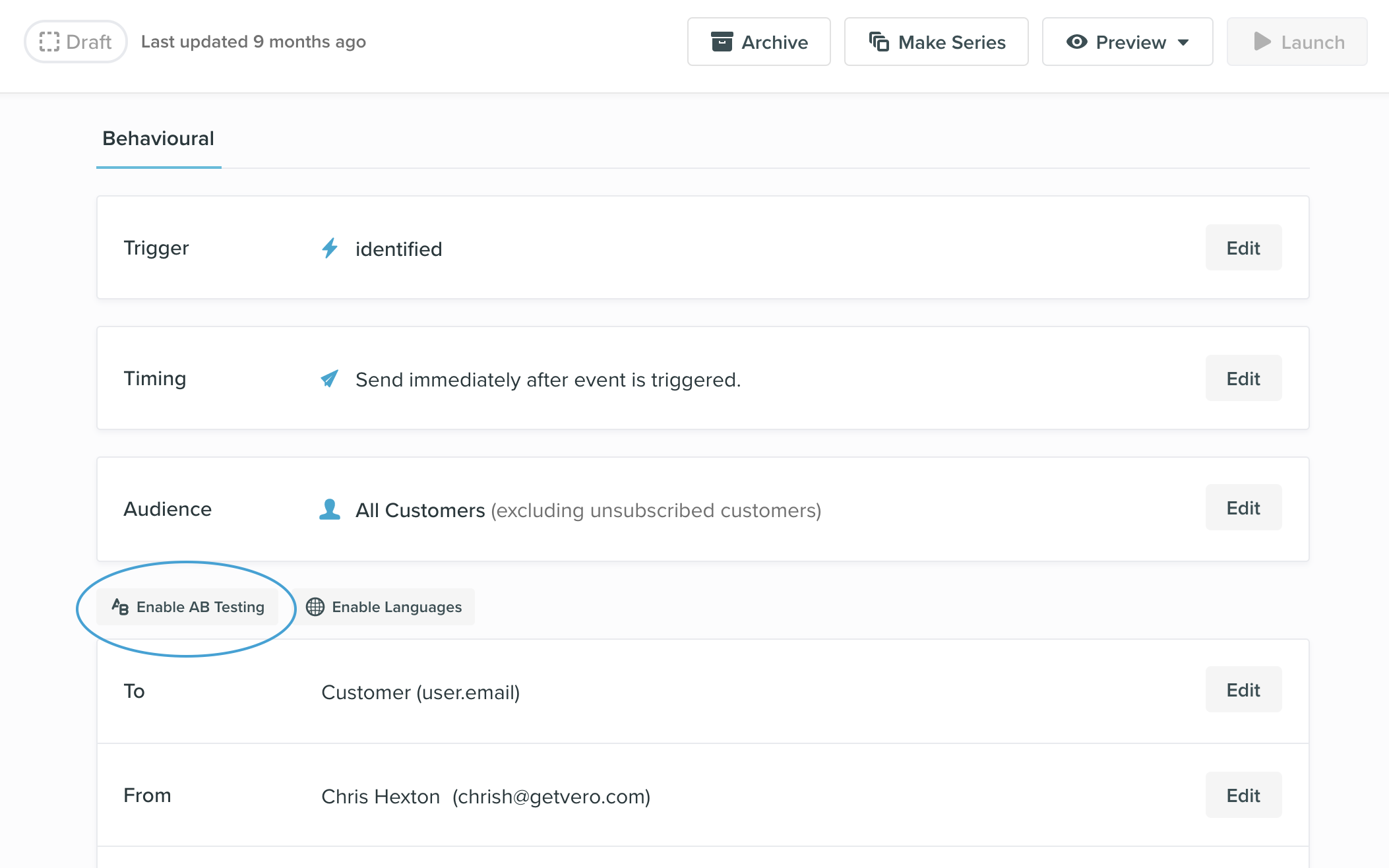
- Select the ‘Enable AB Testing’ button inside your campaign.
- Use the ‘Add variation’ button to create some variation(s) for your test.
- (Optional) By using the ‘Add negative variation’ button you can create a ‘hold out’ control group. Recipients in this group will not receive any email. This is useful for testing to see if sending no email performs better than sending an email.
- To edit the content of each email variation open the variation with the ‘show/hide’ toggle button. Each variation can have a separate from address , subject line , and content. We would generally recommend to only test a single hypothesis with each variation.