

Sending without DNS verification
If you have not set up DNS verification for your own domain, Vero will automatically adjust the ‘From’ address of your emails to meet the email authentication requirements from Google and Yahoo. Specifically, we will use eitherveromailer.com or getveromail.com as the sending domain to ensure alignment with DMARC policies. This means that when you send a campaign, your email address will be transformed to match the sending domain.
For example, if your original email address is sellingsomething@example.com, it will be modified to sellingsomething.example.com@veromailer.com. This ensures that the sending domain and the ‘From’ domain align correctly, improving deliverability and compliance with authentication requirements.
To remove this automatic adjustment and send from your own domain without modification, we recommend setting up your Vero DNS records.
Add your DNS records
To sign your domain you will need to add two to three records to your domain’s DNS configuration. Add the domain you want to send from under Settings > Email Delivery in Vero. Once this is done, visit Settings > Email Delivery and select Request DNS records. Vero will then generate the DKIM, CNAME and MX records you need to add to your domain to show that you are authenticated to use it for sending.)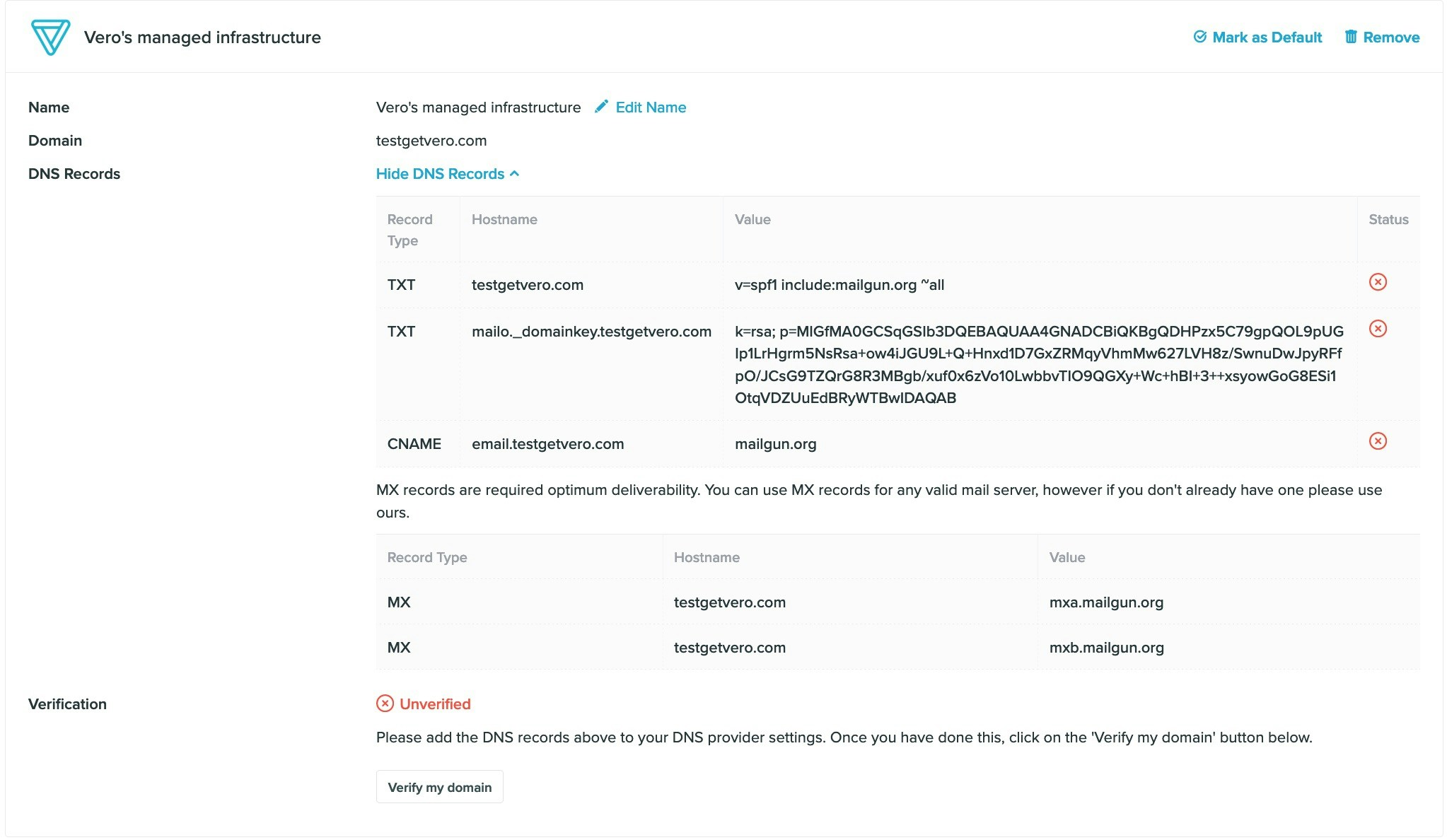
Setting up a custom CNAME
By default, we provide a CNAME record for the subdomainemail.yourdomain.com. This CNAME is used to track links.
If you already have a CNAME setup on the email subdomain, please email us and we will update the subdomain to something else that works for you.
MX records
MX records can have an affect on delivery as missing MX records may raise suspicion when a recipient server is decided whether to accept an email for delivery or not. We recommend sticking to one provider for MX records. For example, if you’ve already got Google records set up, to remedy this you’ll want to remove the Mailgun records.SPF records
It is possible to have more than one SPF. The key is to ensure you don’t have more than 10 lookups associated with the records which relate to IPs.Verify your records
Once you have added the DNS records to your domain, return to Settings > Email Delivery and select the Verify DNS link.the Verify DNS Records button.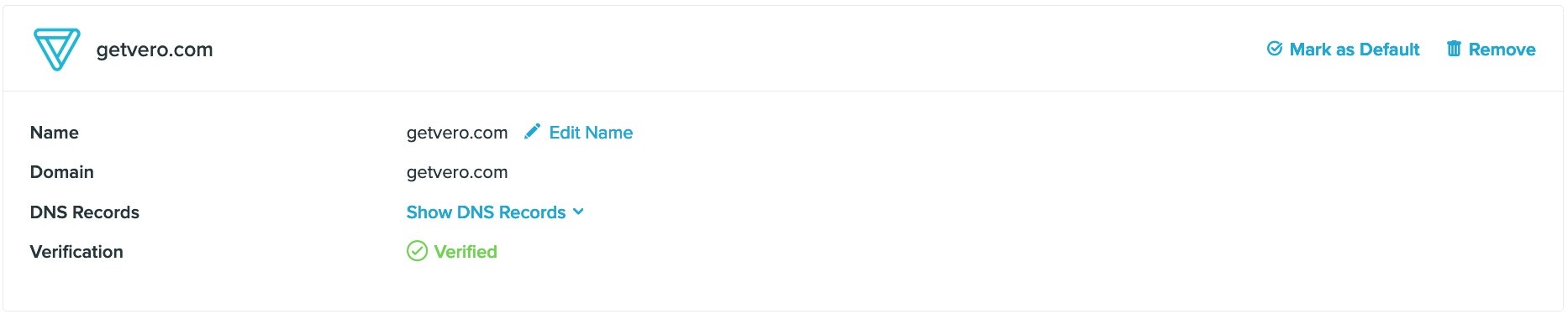
Good meaning everything is setup correctly. At this point, emails will begin going out from the domain you have elected.
Note that it can take as many as 24 hours for your DNS records to propagate and for Vero to recognise the valid records.
Once your DNS records are verified, https click-tracking links can be enabled by contacting support.