

When a user clicks the unsubscribe link in your email, Vero unsubscribes them straight away and shows a confirmation page. To show them a page on your own website, set a custom unsubscribe page and Vero will redirect them there.

Prerequisites

  1. An unsubscribe link in your emails – {{url.unsubscribe_link}} inserts the URL and {{url.unsubscribe}} inserts a link reading Unsubscribe. See Personalize content with Liquid.
  2. Edit access to your project – Member (View only) users can see the setting but not change it.

Setting your custom unsubscribe page

  1. Go to Settings → Subscription Management.
  2. Under Custom Unsubscribe URL, click the URL field. It shows Not set if no page has been added. The Custom Unsubscribe URL field on the Subscription Management settings page, showing Not set
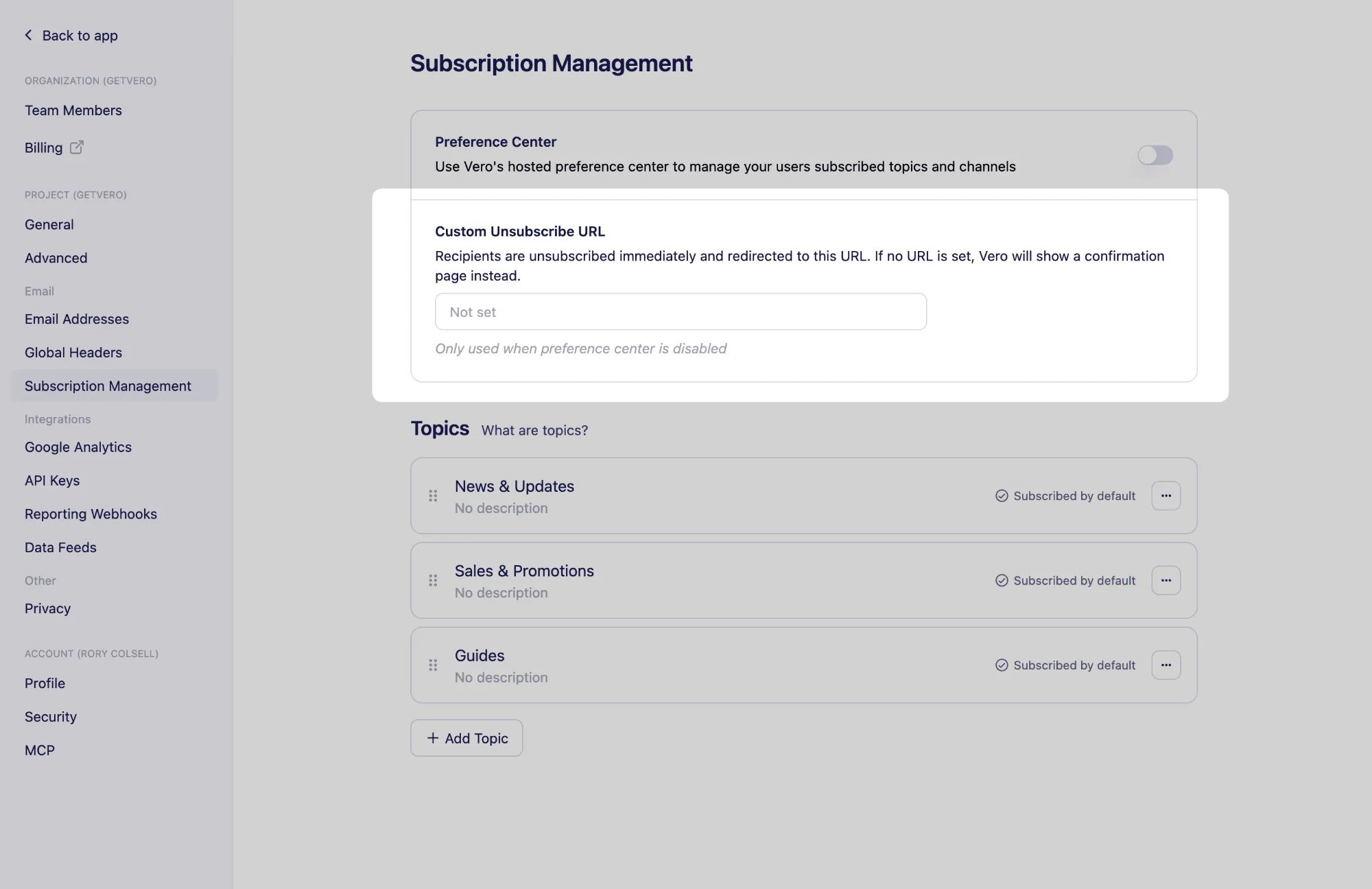
  3. Enter the full URL of your page, for example https://example.com/unsubscribe-confirm.
  4. Click Save.
Users are still unsubscribed as soon as they click the link. The redirect happens afterwards, so your page does not need to unsubscribe them. To go back to Vero’s confirmation page, clear the URL and click Save.
The custom page is only used while the preference center is turned off. With the preference center on, Vero hosts the unsubscribe pages so users can change their topics or resubscribe without leaving the page. See Setting up a preference center.

Next steps

Need Help?

If you have any questions, reach out to us at support@getvero.com.