

- Triggering workflows in tools like Zapier or Segment.
- Syncing events to your data warehouse for analysis.
- Keeping your systems up to date with Vero activity.
What are webhooks?
A webhook is a simple HTTP request that Vero sends to a URL you specify whenever certain events occur in your project (e.g. a message is sent or a user unsubscribes). Each webhook includes a JSON payload with details about the event.Add or edit webhooks
To manage your webhooks:- Go to Settings → Project → Reporting Webhooks.
- Click Add webhook.
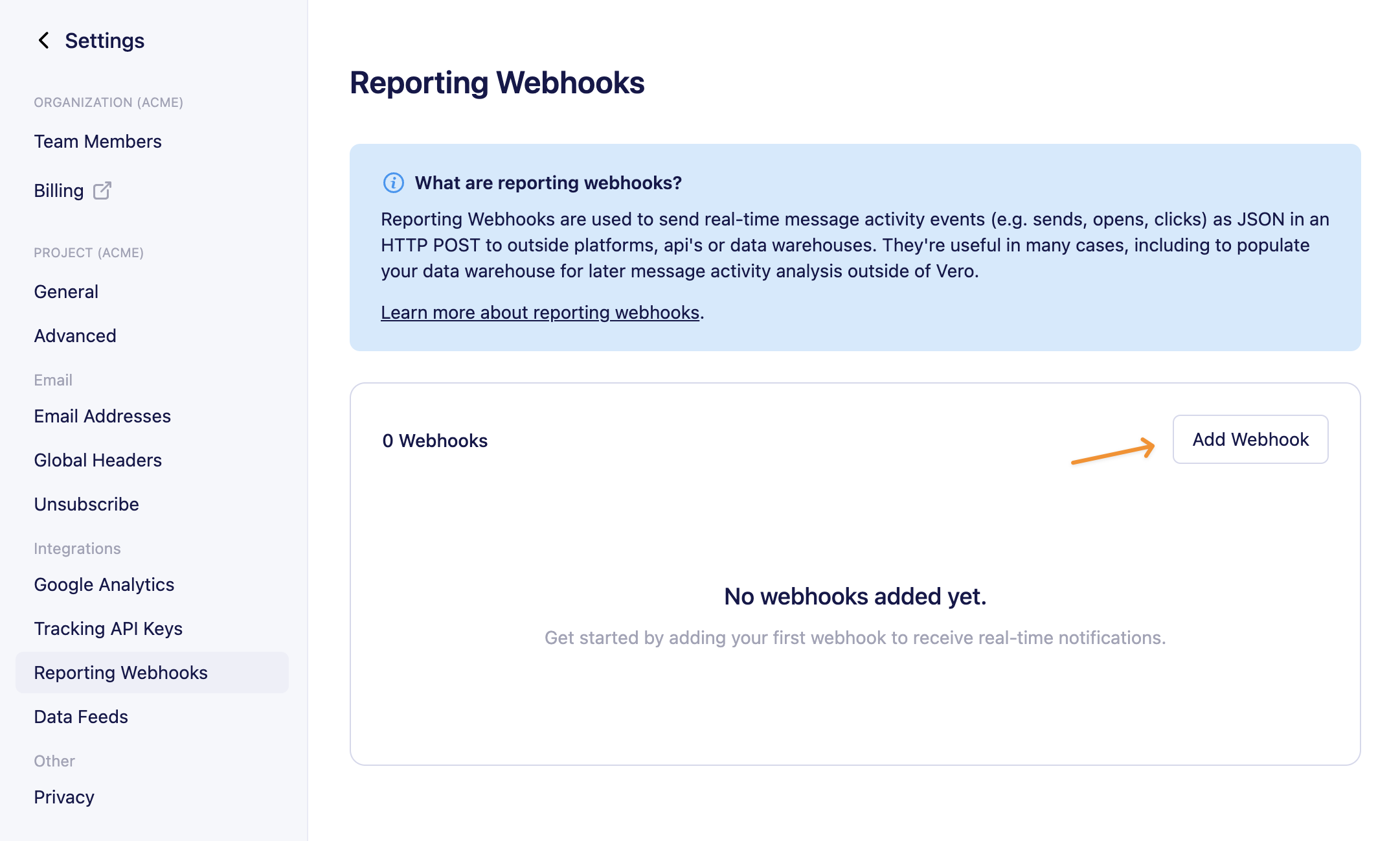
- Enter the following details:
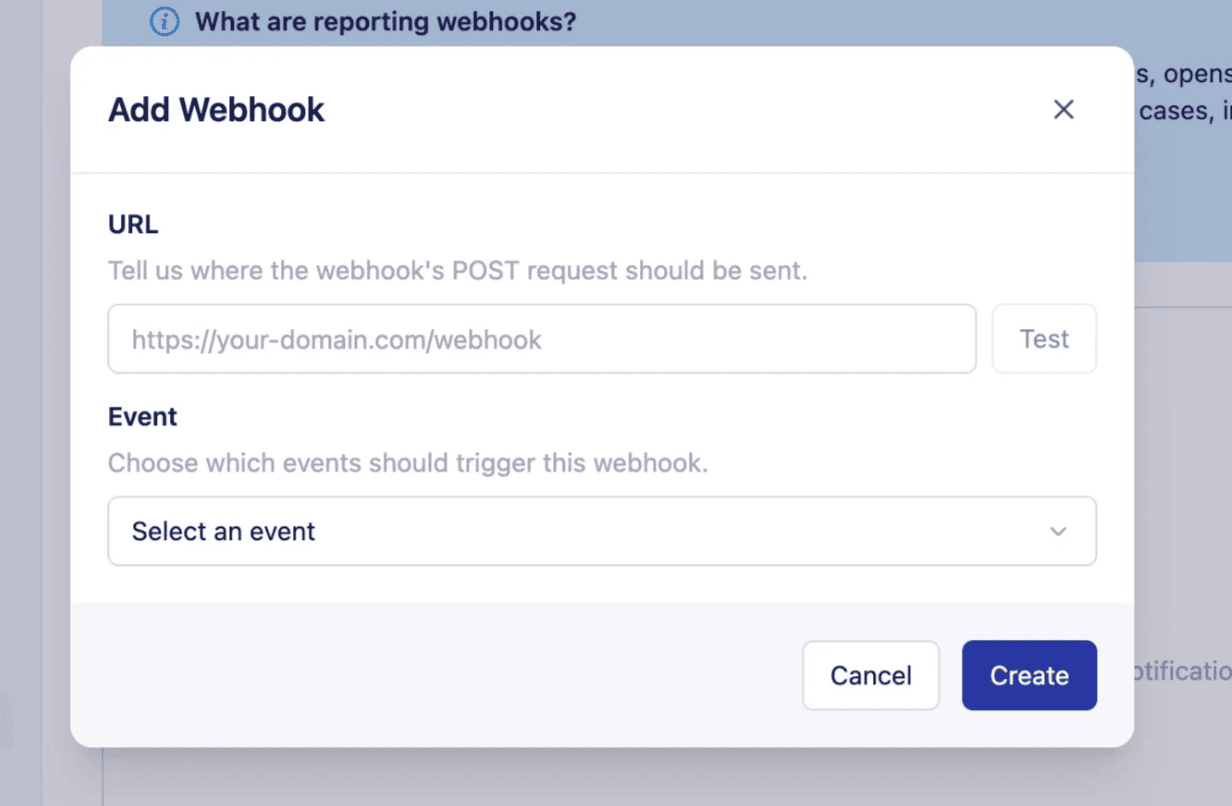
- URL – The endpoint in your system that should receive the webhook payload.
- Event – Choose which activity will send data to this URL:
- Sent (email has been sent by Vero)
- Delivered (email has been delivered to the recipient email server)
- Opened
- Clicked
- Failed
- Bounced (hard and soft)
- Converted
- Unsubscribed
- Resubscribed
- Complained
- User created
- User updated
- Click Save. To edit an existing webhook, use the actions menu and select Edit.
Test your webhooks
You can test a webhook to ensure your endpoint is set up correctly:- In the webhooks list, click the actions menu next to a webhook and choose Test.
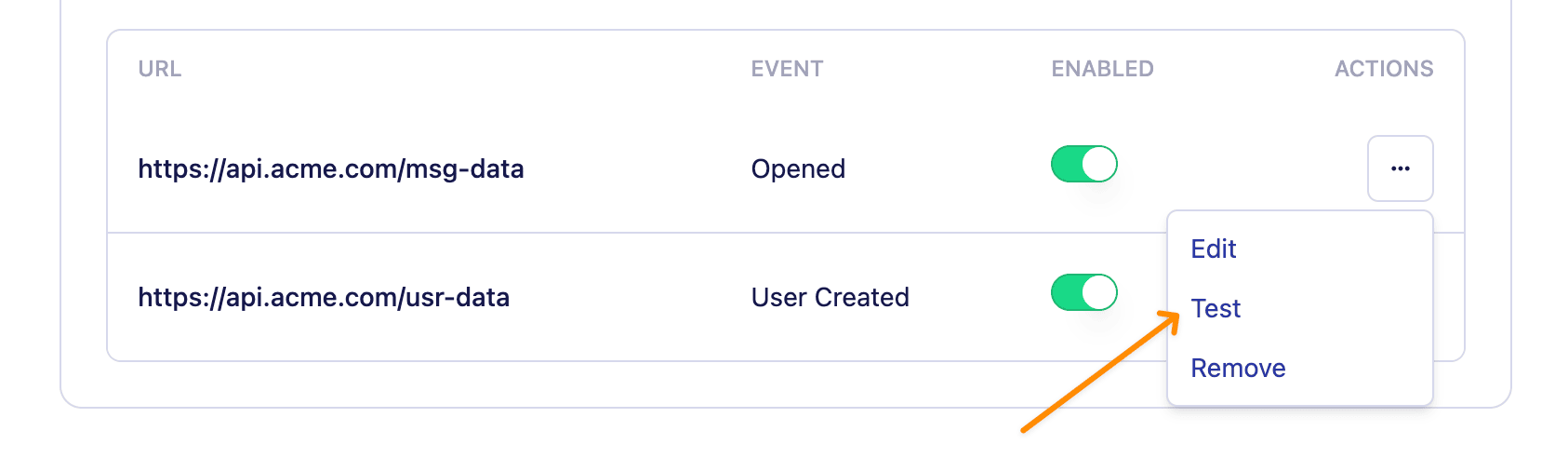
- Vero will send a sample payload to your webhook URL.
- You’ll see a success or failure message in the app.
Enable or disable webhooks
Next to each webhook you’ll find an enable webhooks toggle, with this you can enable/disable each webhook individually.
Webhook payloads
Each webhook sends a JSON payload containing details about the event:sent – When an email has been sent by Vero
delivered – When an email has been delivered to the ISP server:
opened – When a customer has opened an email
clicked – When a customer has clicked an email
failed - When an email could not send due to an error (such as a bad Fusion response)
bounced – When an email has not been delivered to the ISP server
converted – When a customer has converted on an email campaign
resubscribed – When a customer has resubscribed
unsubscribed – When a customer has unsubscribed
complained – When a customer complains through their email client
user_created - When a user profile is created via the API or import
user_updated - When a user profile is updated via the API or import
Best practices
To ensure your experience with Vero’s webhooks is a good one, take these best practices into consideration:- Ensure your webhook URL is secure and only accepts requests from Vero or other trusted sources.
- Respond quickly (within 5 seconds) to webhook requests to avoid timeouts. Note: Vero does not currently retry failed webhook requests. If your endpoint returns a non-2xx response or times out, that webhook will not be resent.
- Consider queueing incoming webhook data in your system to handle spikes in traffic.