

Every broadcast and journey has a Subscription setting that decides which users in its audience receive it. By default, it sends to subscribed users.

Prerequisites

  • Permission to edit campaigns – without it, you can see the setting but not change it. See Set up team access.
  • A draft or stopped campaign – you can’t change the setting while a campaign is live.
  • Topics in your project, to send to a topic – see Managing topics.

Subscription options

  • All subscribed – the default. Users who are subscribed.
  • All subscribed and unsubscribed (Transactional) – everyone in the audience, including unsubscribed users.
  • A topic, listed under Topics – users who are subscribed and have also subscribed to that topic.
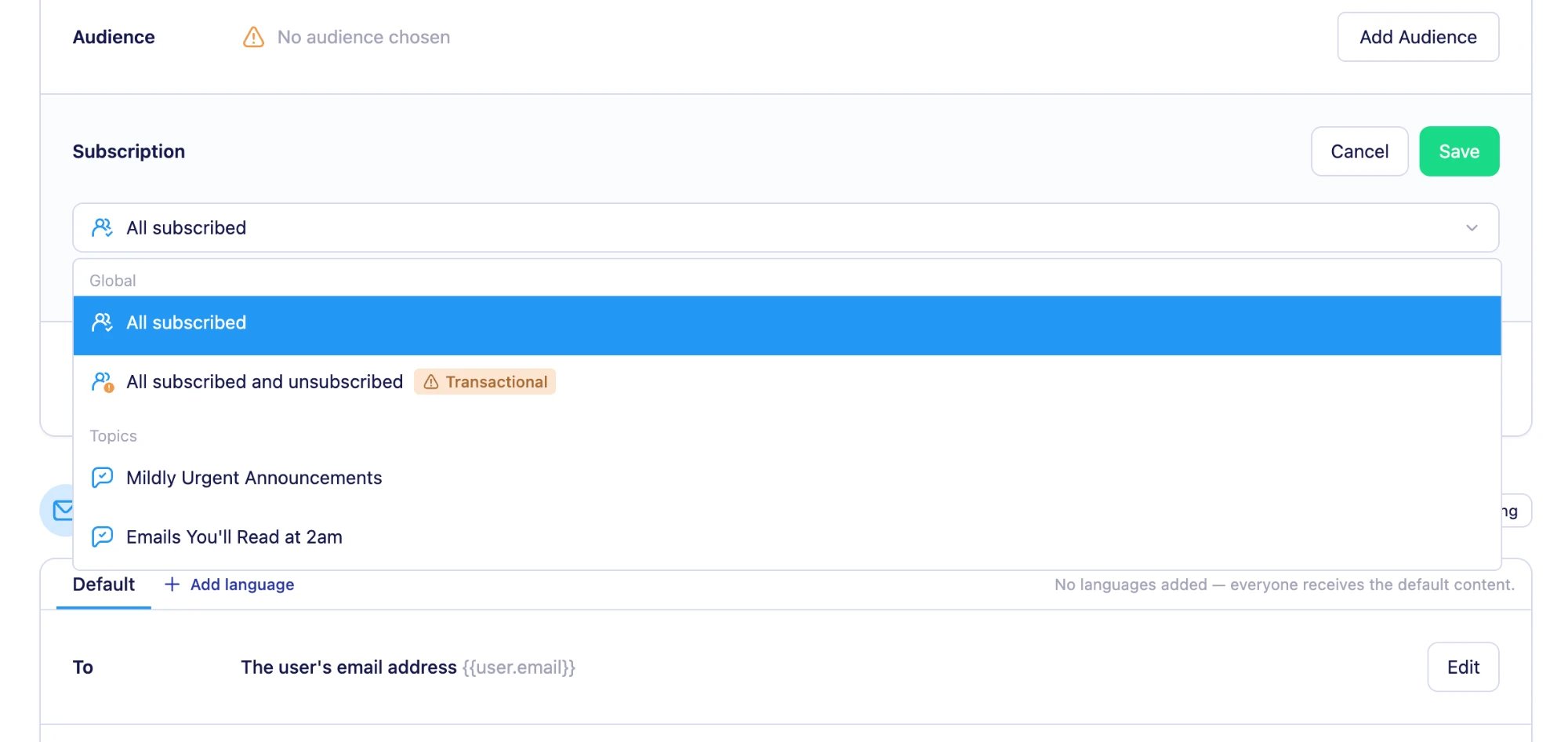
The Subscription dropdown on a broadcast, with All subscribed and All subscribed and unsubscribed (Transactional) under Global, and two topics under Topics Only use transactional for messages a user has to receive, such as an order or delivery notification. Check your local laws and regulations before sending to unsubscribed users.

How each channel uses the setting

Topics apply to every channel: a topic setting only sends to users subscribed to that topic. When a user profile is unsubscribed, what that means depends on the channel and campaign type:
  • Email – unsubscribed users don’t receive broadcasts or journey emails unless the setting is transactional.
  • SMS – unsubscribed users don’t receive SMS broadcasts unless the setting is transactional. Journey SMS messages are sent whether or not the user is unsubscribed. Transactional SMS messages, in broadcasts and journeys, are also sent during quiet hours.
  • Push – unsubscribed users don’t receive push broadcasts unless the setting is transactional. Journey push messages are sent whether or not the user is unsubscribed, so in a journey, transactional works the same as All subscribed.

Setting the subscription on a broadcast

The Subscription section sits under Targeting, after Audience. Click Edit, choose an option, and save. A draft broadcast's Targeting section with the Subscription section open for editing between Audience and Goal
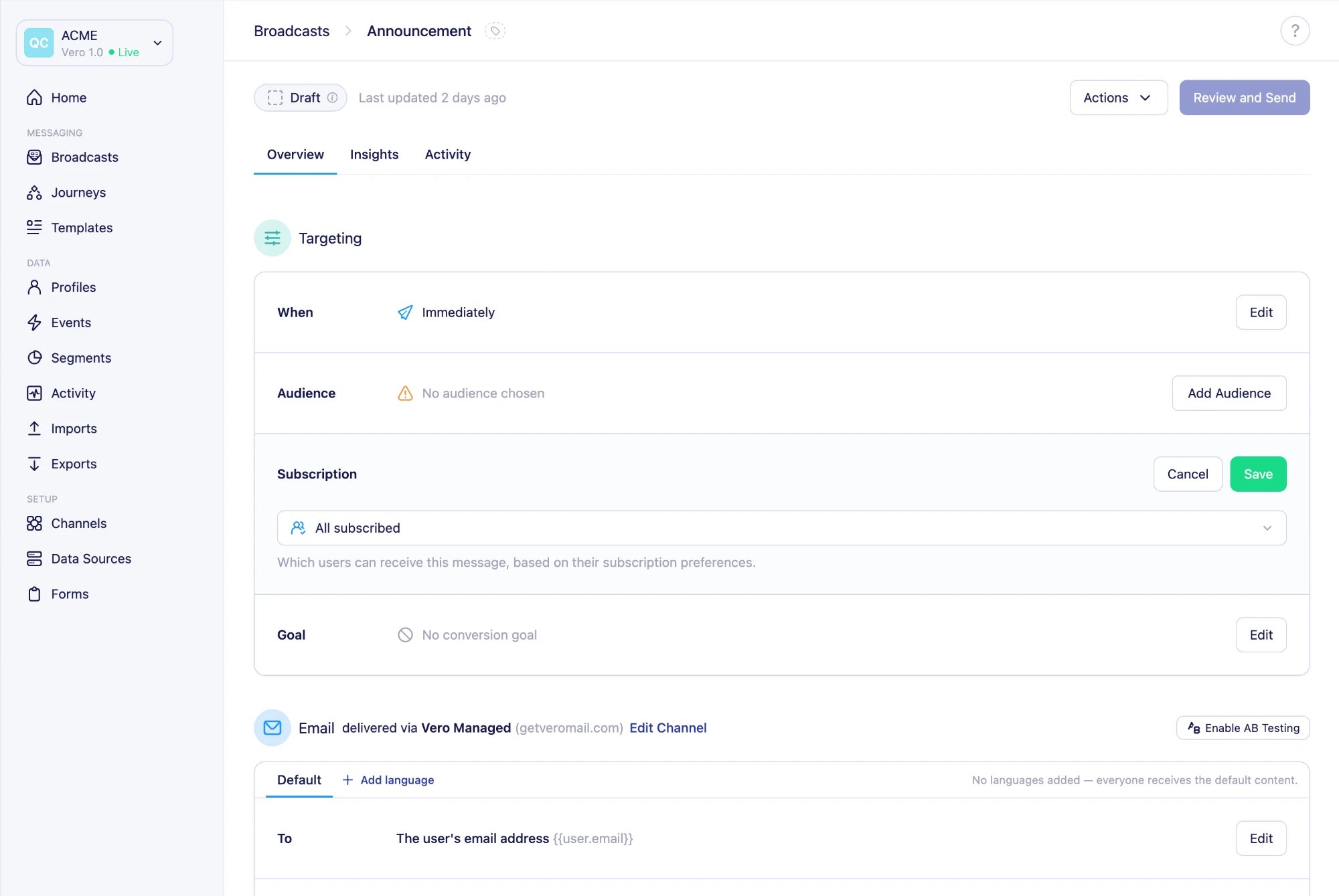
Transactional isn’t available for broadcasts with a recurring schedule.

Setting the subscription on a journey

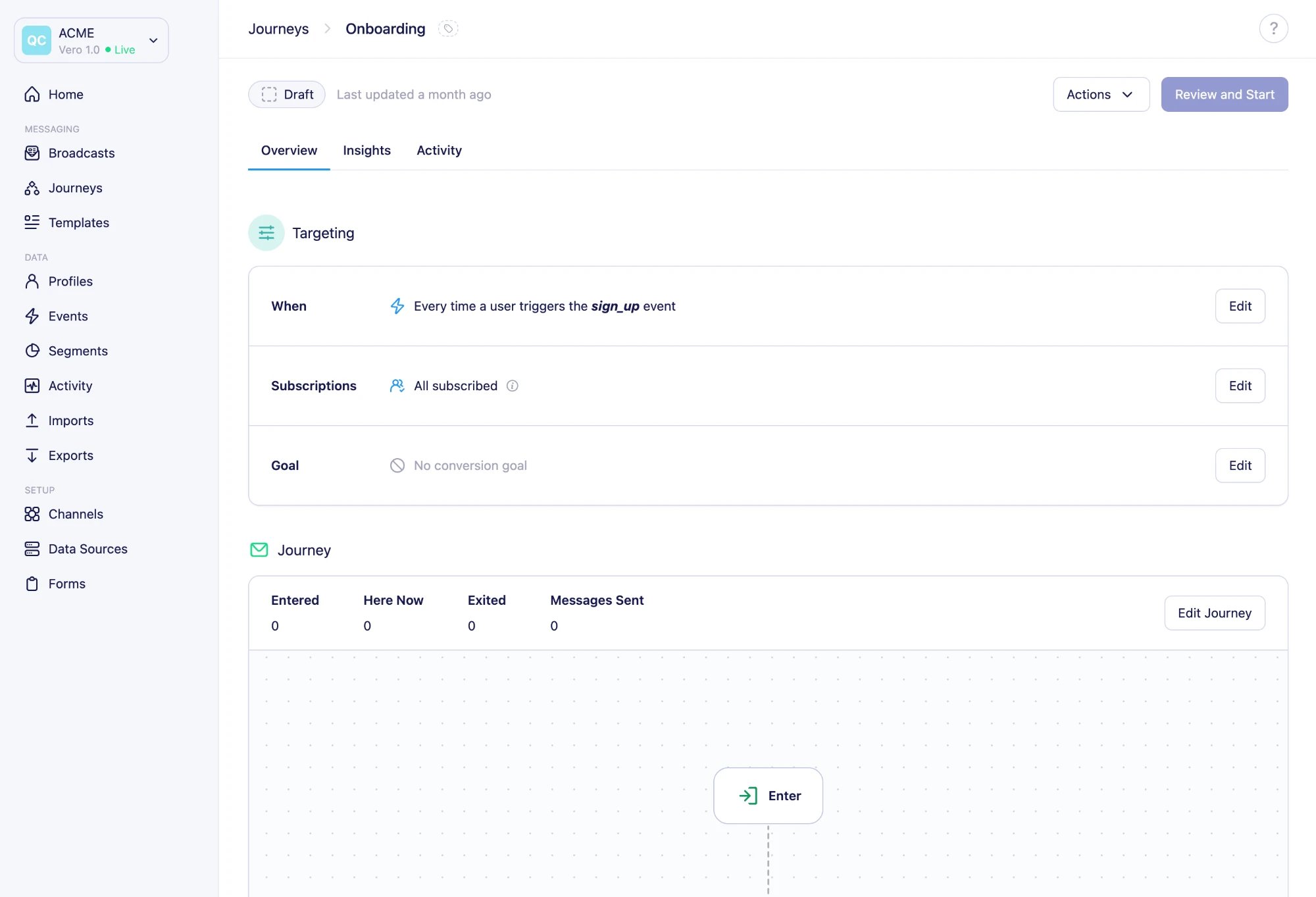
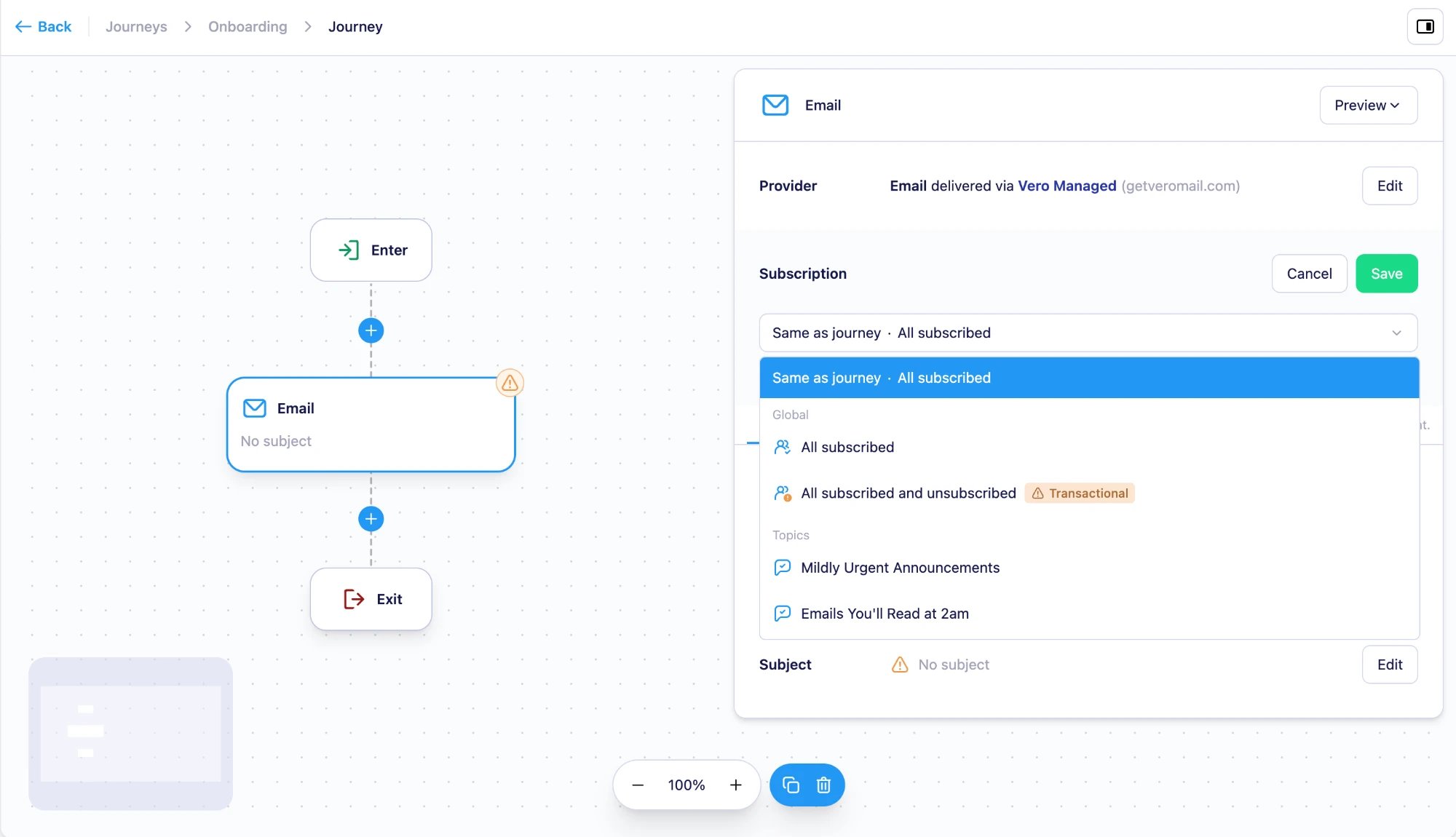
A journey has one Subscriptions setting on its overview page. Every Email, SMS, and Push node in the journey uses it, shown as Same as journey on the node. A journey's Targeting section showing When, Subscriptions set to All subscribed, and Goal You can give a single message its own setting from the Subscription section in the node’s side panel. For example, set one SMS order confirmation to transactional so it’s sent during quiet hours, while the rest of the journey keeps them. An Email node's side panel with the Subscription dropdown open, showing Same as journey · All subscribed at the top, then the Global and Topics options A node with its own setting keeps it when you change the journey’s setting. To go back to the journey’s setting, choose Same as journey, or click Use journey subscription, and save.
Troubleshooting

There’s no Topics group in the dropdown

Possible causes: Your project has no topics, or preference center access isn’t turned on. Solution: Create a topic. If there’s no Topics section in Settings → Subscription Management, contact us to turn it on.

All subscribed and unsubscribed can’t be selected

Possible causes: The broadcast has a recurring schedule. Solution: Use All subscribed or a topic, or change the trigger to an immediate or scheduled send.

There’s no Edit button

Possible causes: The campaign is live, or your role doesn’t allow editing campaigns. If it’s your role, the button is greyed out with “You do not have permission to edit this campaign”. Solution: Stop the campaign before changing it, or ask a project owner to change your role.

Next steps

Need Help?

If you have any questions, reach out to us at support@getvero.com.